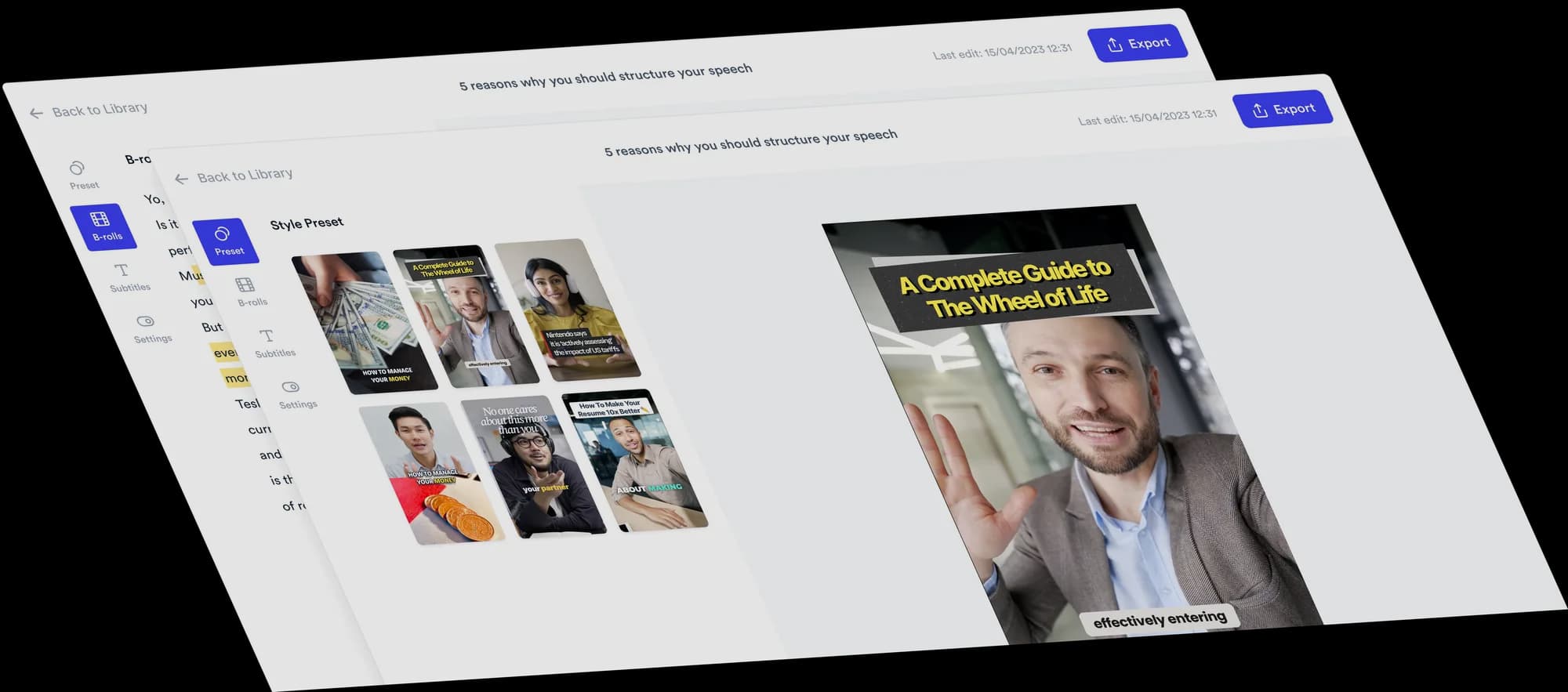
Viral video formats and subtitle styles, built into your edit
Jupitrr turns your talking-head recording into a finished first cut with B-roll, subtitles, a hook and music. Formats change the structure of that edit, such as a Tier List or a Green Screen, and 24 subtitle styles change how the captions look. Both stay editable in the same project.
 Trusted by 200K+ coaches and consultants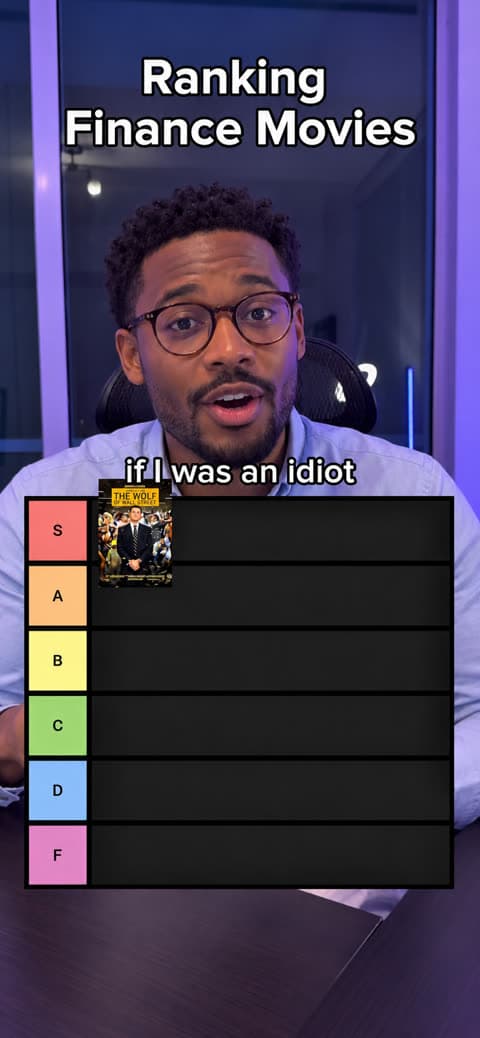






Two systems, one edit
Formats and subtitle styles do different jobs. Neither is a separate template product: both sit on the edit Jupitrr already made from your video.
Formats change the structure
A Format is a recognisable video structure, like a ranking board, a cutout in front of B-roll or columns of verdicts. Jupitrr builds it from what you say, and places each item at the moment you mention it.
Subtitle styles change the look
A subtitle style sets the caption font, colours, highlighted words, animation and hook design. It changes how your captions look, never the words in your transcript.
9 Formats for talking-head videos
Each Format starts from your own recording. Pick one when you upload, or switch to it later in the Formats tab.
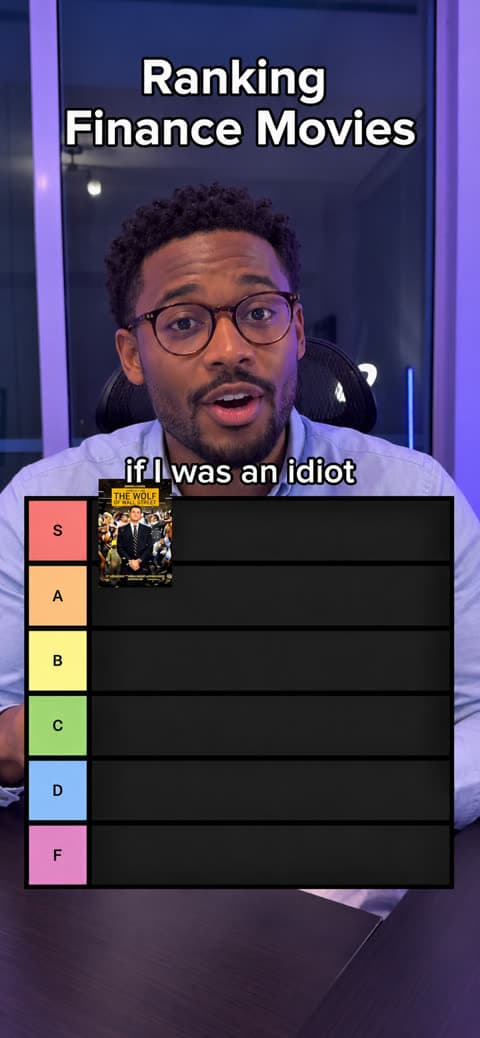
Tier List
Ranks what you talk about into S to D tiers, or your own verdicts, as you speak.
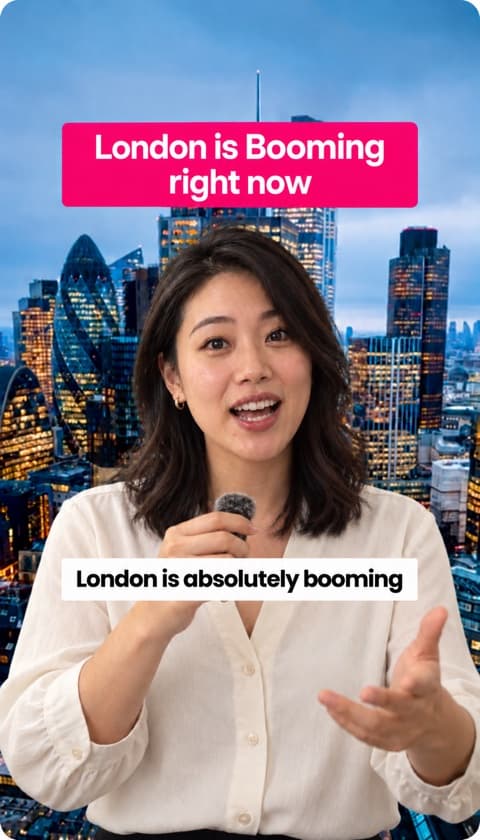
Green screen
Cuts you out of your background and puts you in front of the B-roll.
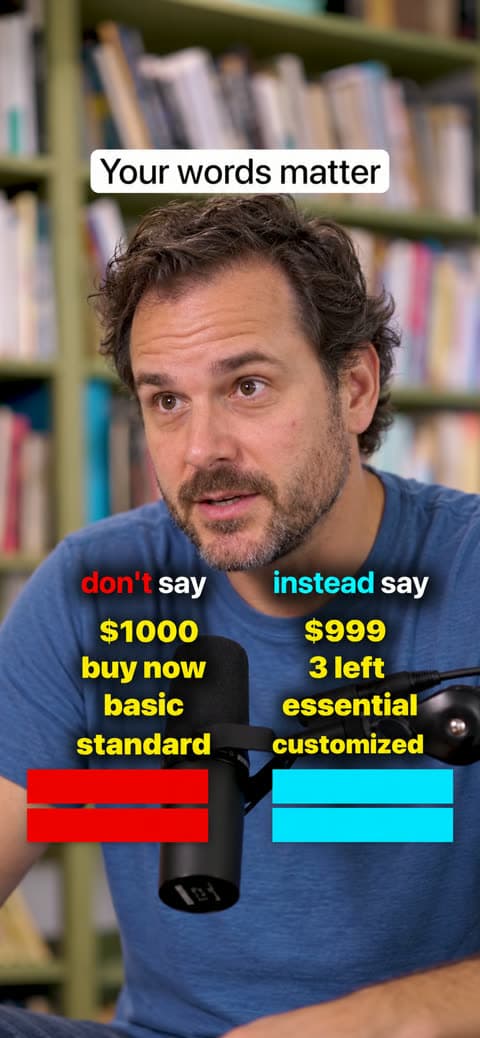
Do & Don't
Two columns of pairs, each word revealed as you say it.
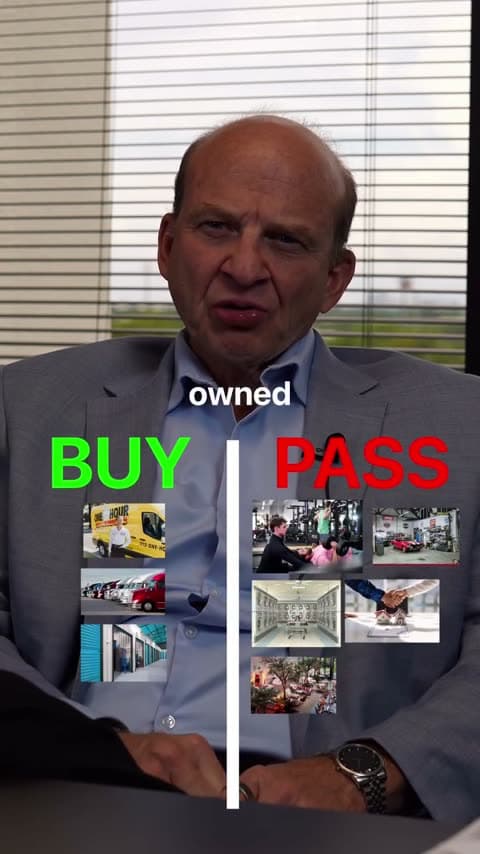
2 Column
Two columns, like Buy or Pass. Each item drops into its side as you call it.
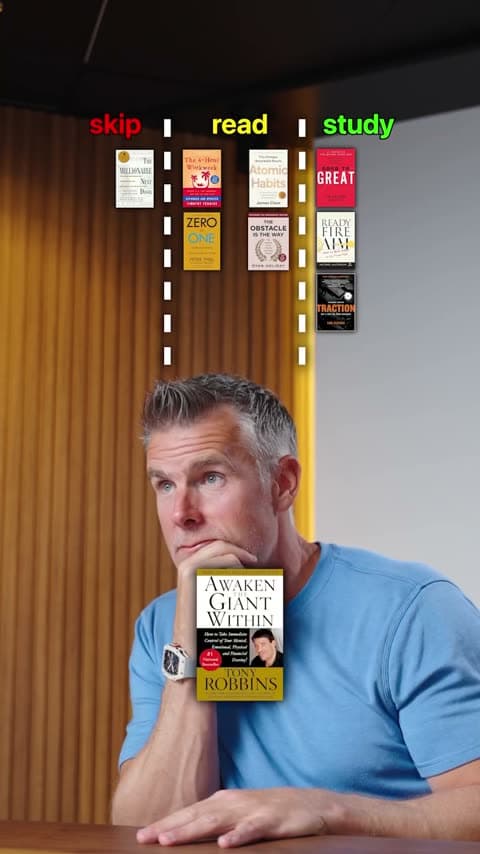
3 Column
Three columns, like skip, read, study. Each item drops into its column as you call it.
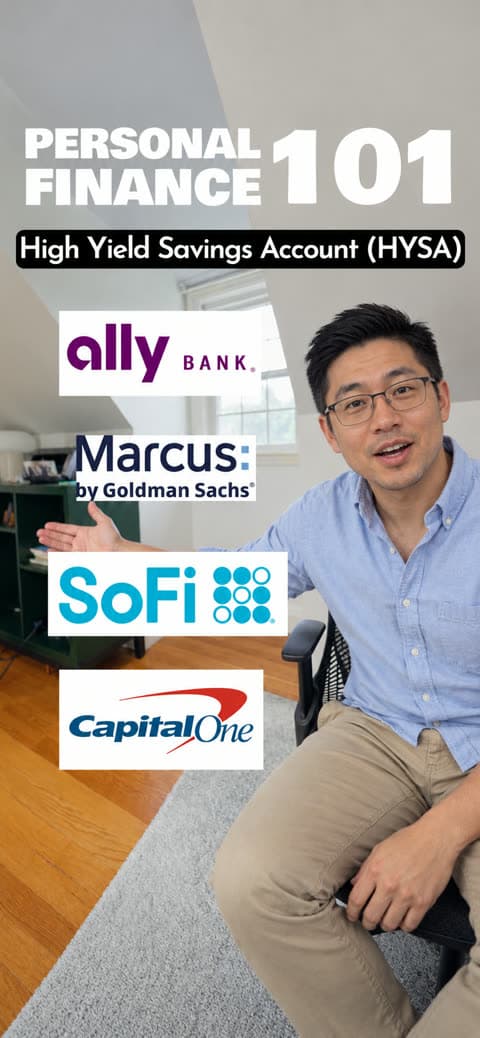
Logo List
A card of logos for each category you name, swapped as you move on.

B-roll Grid
A grid of 6 or 3 images over your hook, then each B-roll as a small card above your head.

Grid & Cut out
Your hook over a 2×2 B-roll grid with you in the middle, then B-roll with you in the corner.
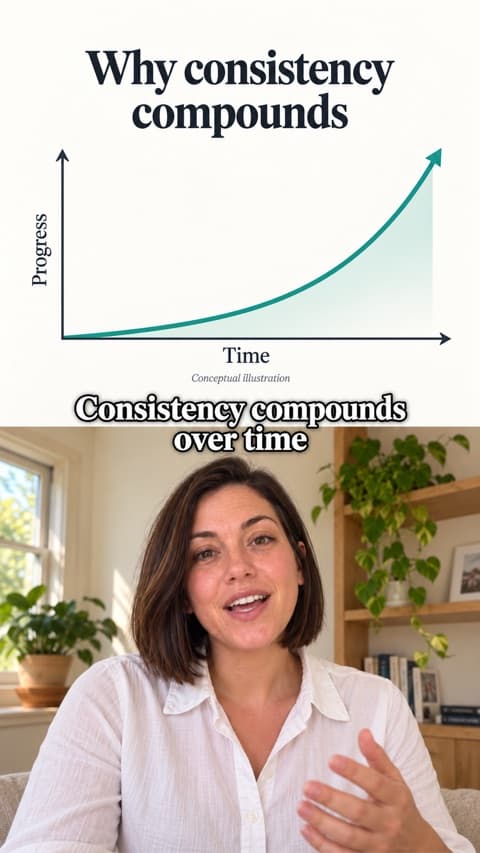
Split screen
B-roll in one half and you in the other, the whole video.
Which Format suits your topic
Pick the structure that matches the point you are making. A familiar structure helps viewers follow a ranking, list or comparison quickly.
| Format | Good for | Example |
|---|---|---|
| Tier List | Ranking tools, strategies, products, trends or common mistakes | A consultant ranks the software their clients ask about most. |
| Green screen | Explaining a news story, website, chart, product or social post | A founder stands in front of the product page they are announcing. |
| Do & Don't | Contrasting good and bad practice, or what to say instead | A coach corrects the phrases clients use in sales calls. |
| 2 Column | Verdicts such as buy or pass, myth or fact, keep or cut | A marketer sorts popular tactics into keep or cut. |
| 3 Column | Sorting ideas into three levels or categories | An educator sorts resources into skip, read and study. |
| Logo List | Reviewing companies, tools, platforms or brands by category | A founder walks through the tools in their stack, one category at a time. |
| B-roll Grid | Opening with several examples of one idea, such as places or products | A subject-matter expert opens on six examples before explaining the pattern. |
| Grid & Cut out | Explainers where the visual examples matter as much as you do | An educator opens on four examples, then explains each one with it on screen. |
| Split screen | Walkthroughs where the visual stays on screen as you talk | A consultant talks through a framework with each step shown above them. |
- Tier List
- Good forRanking tools, strategies, products, trends or common mistakes
- ExampleA consultant ranks the software their clients ask about most.
- Green screen
- Good forExplaining a news story, website, chart, product or social post
- ExampleA founder stands in front of the product page they are announcing.
- Do & Don't
- Good forContrasting good and bad practice, or what to say instead
- ExampleA coach corrects the phrases clients use in sales calls.
- 2 Column
- Good forVerdicts such as buy or pass, myth or fact, keep or cut
- ExampleA marketer sorts popular tactics into keep or cut.
- 3 Column
- Good forSorting ideas into three levels or categories
- ExampleAn educator sorts resources into skip, read and study.
- Logo List
- Good forReviewing companies, tools, platforms or brands by category
- ExampleA founder walks through the tools in their stack, one category at a time.
- B-roll Grid
- Good forOpening with several examples of one idea, such as places or products
- ExampleA subject-matter expert opens on six examples before explaining the pattern.
- Grid & Cut out
- Good forExplainers where the visual examples matter as much as you do
- ExampleAn educator opens on four examples, then explains each one with it on screen.
- Split screen
- Good forWalkthroughs where the visual stays on screen as you talk
- ExampleA consultant talks through a framework with each step shown above them.
Step-by-step guides: make a Tier List video and make a Green Screen video. For the rest of the automatic edit, see the AI video editor.
How to use Formats and subtitle styles
Formats and styles are part of the normal Jupitrr edit, so the rest of the project works as usual.
- Step 1
Upload a vertical talking-head video
Upload a portrait recording of you talking to camera, or open a video you already made. Formats are built for Shorts, Reels and TikTok, so keep it under 3 minutes.
- Step 2
Choose a Format and a subtitle style
In "Set up your video", pick a Format, or leave it off for a standard edit. You can switch Format later in the Formats tab and change the subtitle style in the Subtitles tab.
- Step 3
Jupitrr builds the edit from your words
Jupitrr reads your transcript and builds the Format around what you say, alongside the subtitles, hook, music and, where the Format uses it, B-roll.
- Step 4
Review, edit and export
Every part stays editable: the Format's items and layout, the subtitle style, the hook, B-roll and music. Switch or remove the Format at any time, then export or publish.
24 subtitle styles, one click to switch
Each style sets the caption font, colours, highlight words, animation and hook design. Pick one in the editor, fine-tune it under Advanced settings, or save your own.
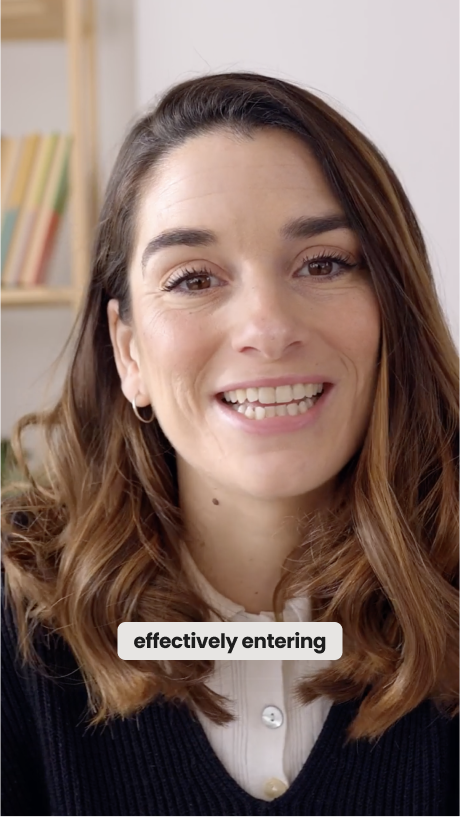 AestheticSoft pill captions that light up as you speak
 StorytellingClean white captions with serif pull quotes
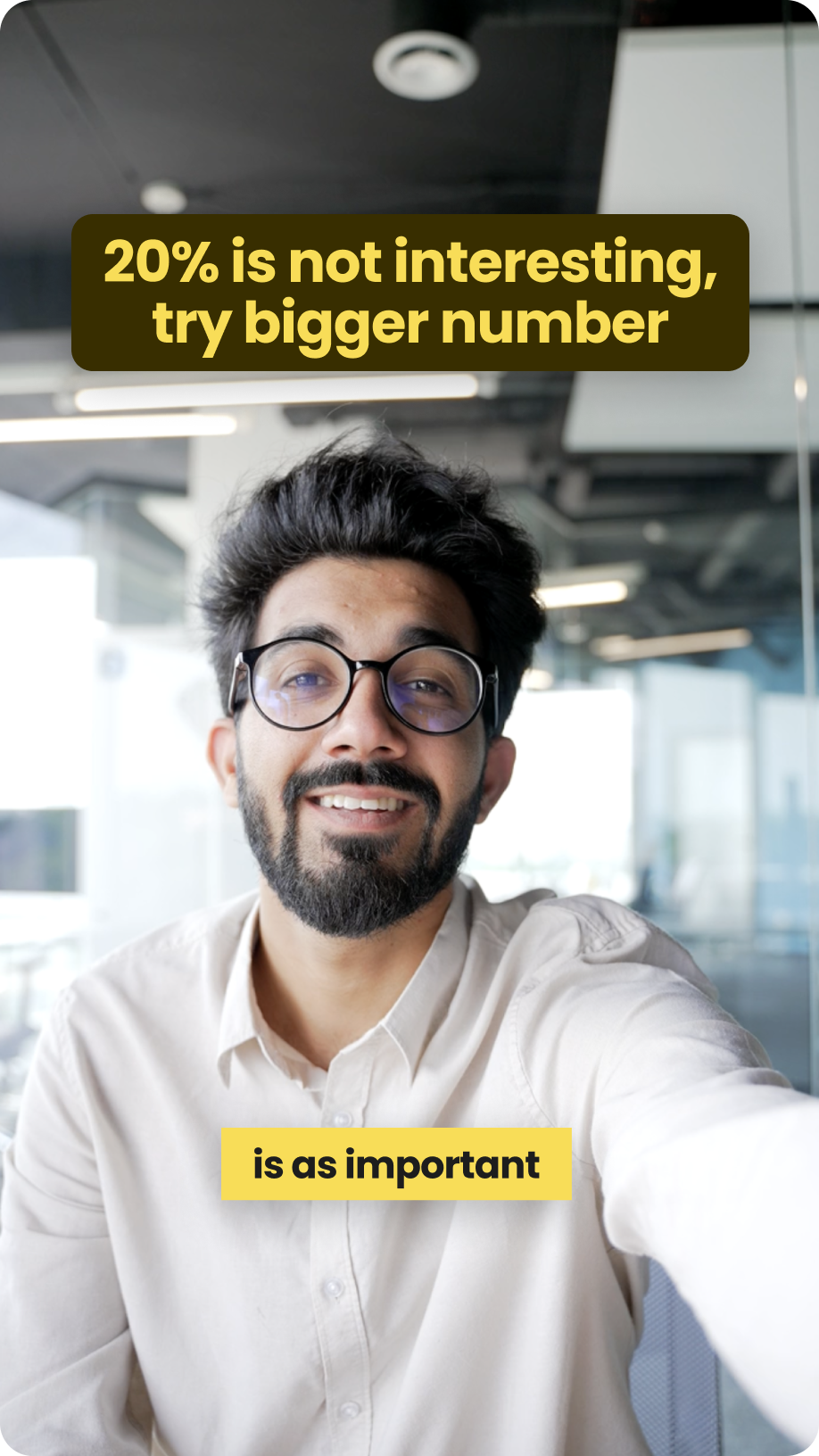 PowerYellow caption cards with punchy uppercase highlights
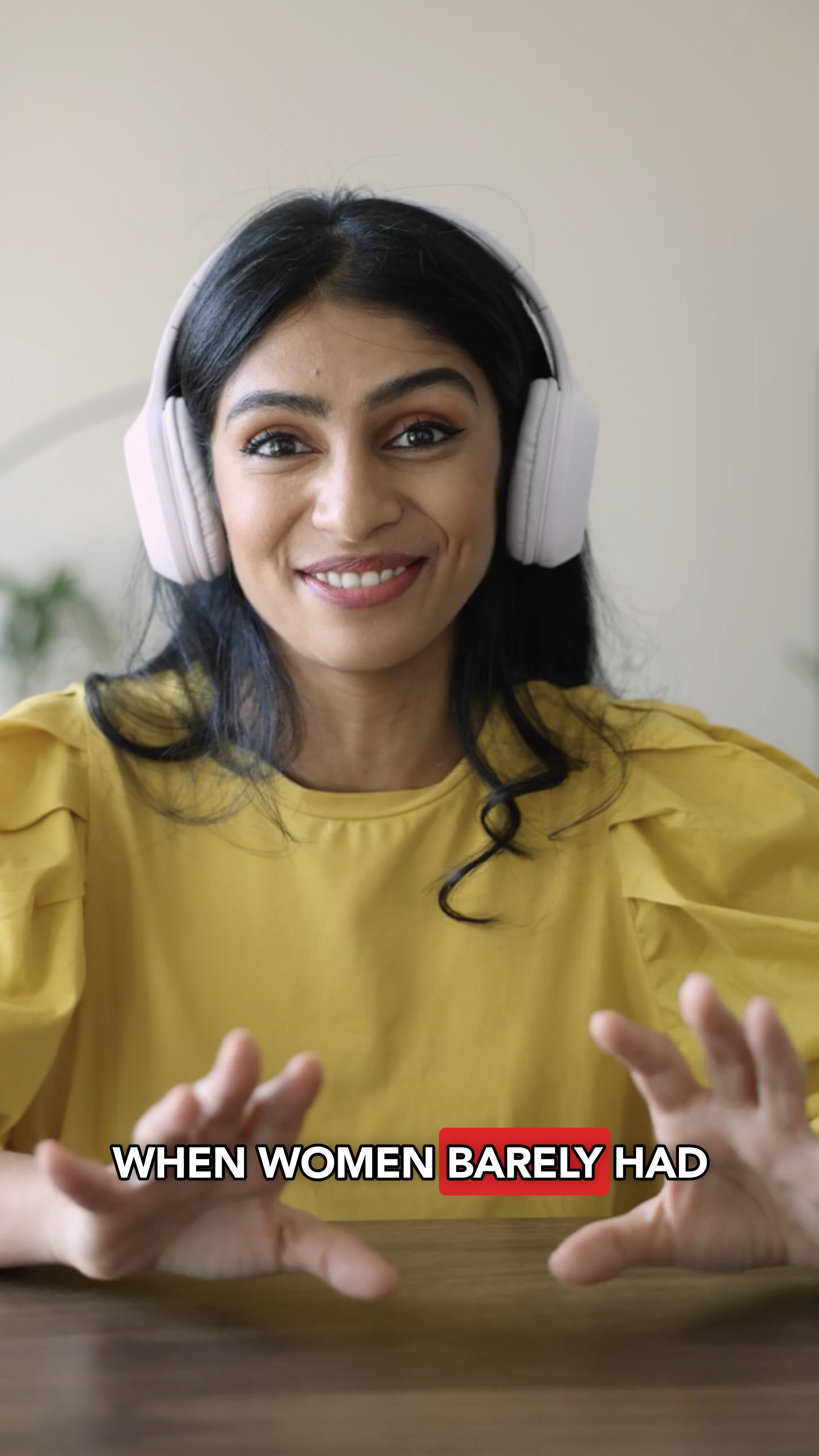 NewsWord-by-word captions with a red highlight box
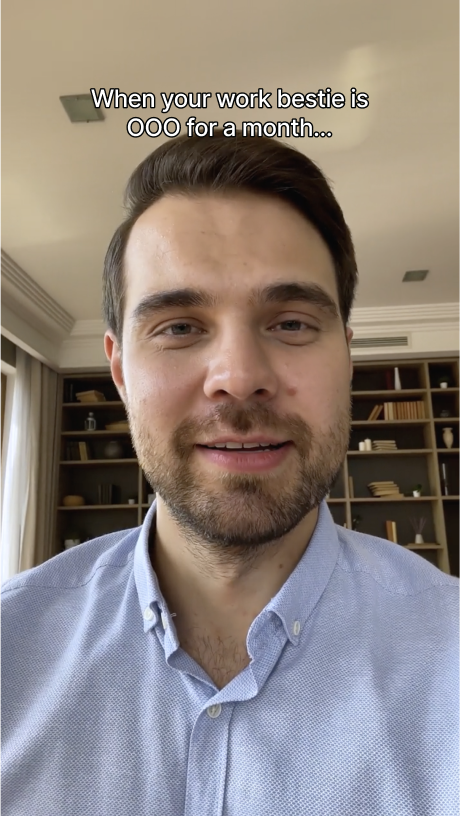 SubtleSmall outlined captions at the top, no hook
 CleanCrisp white captions with big tilted highlights
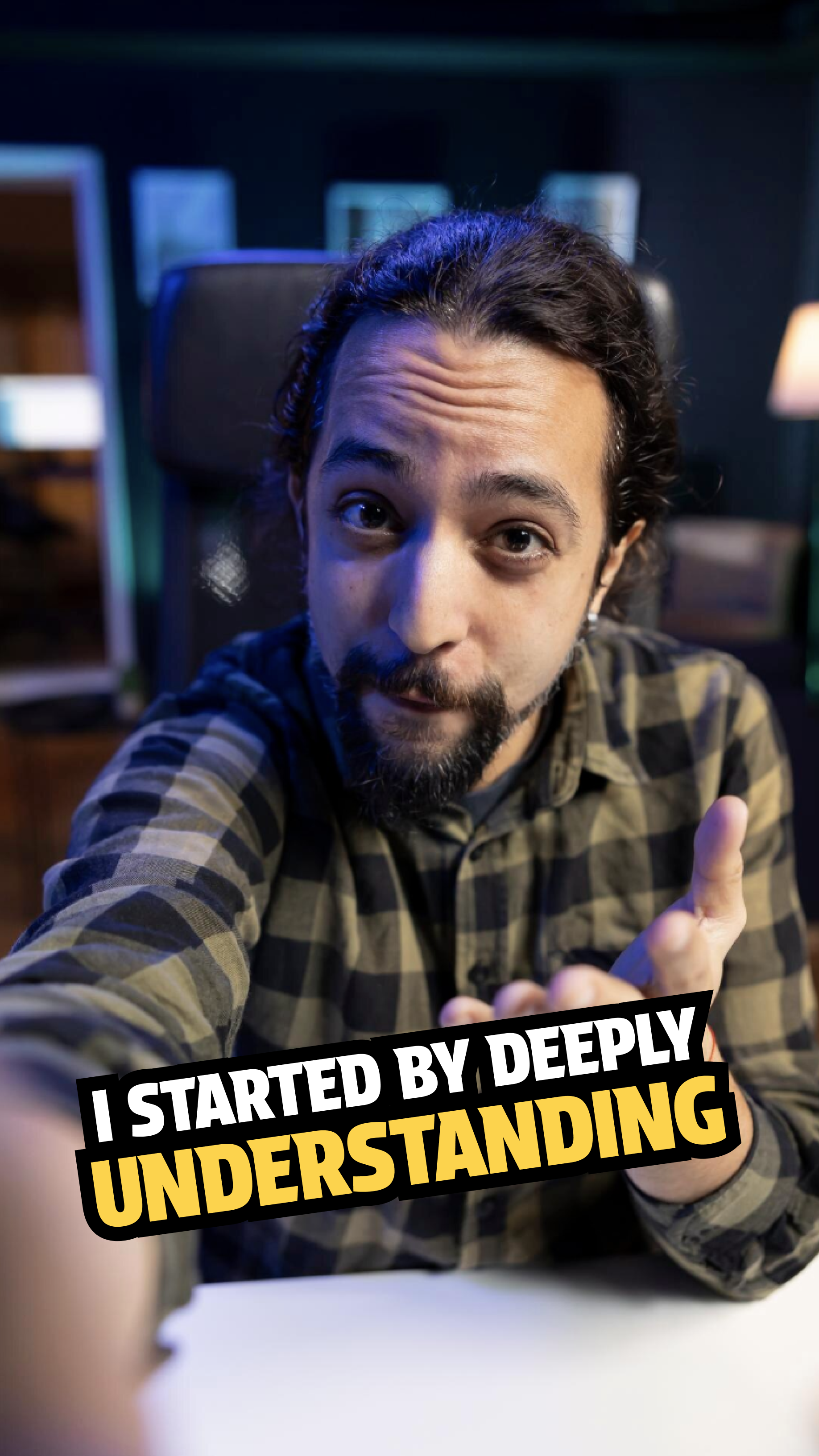 BounceTilted chunky captions that pop word by word
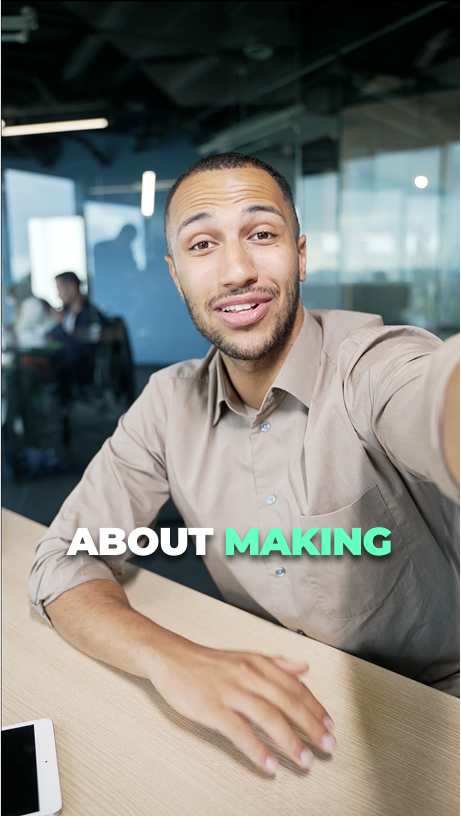 PopBig uppercase captions, a few words at a time
Plus 16 more: Gold, Sky, Paper, Coral, Lime, Racing, Yellow, Callout, Ink, Magenta, Editorial, Scale, Butter, Italic, Solo, Docu
Trusted by 200K+ coaches and consultants



Frequently asked questions
What is the difference between a Format and a subtitle style?
Which Formats does Jupitrr have?
How many subtitle styles are there?
Does a subtitle style change my transcript?
Will a Format make my video go viral?
Can I switch or remove a Format after the edit?
Do Formats work on landscape videos?
Are presets still available?
Record once. Pick the Format and the style.
Upload a talking-head video and get an editable first cut. From $11/mo billed annually, 7-day money-back guarantee.