Frequently asked questions
Everything you need to know about Jupitrr AI, pricing, and more. Can't find what you're looking for? Reach out to us.
Getting started
The basics of using Jupitrr AI
Jupitrr AI is the AI video editor for coaches and consultants. It covers the whole content workflow in one app: research, script, record, edit, and publish. Upload a talking-to-camera video and it comes back pre-edited, with B-roll, subtitles, and sound effects already in place. There is no blank timeline to start, and you adjust anything on the timeline or the transcript. It includes Jupitrr Agent (AI research and scripting), Jupitrr Cut (teleprompter and recording), and Jupitrr AI Video Editor, all working together so you can go from idea to published video without switching tools.
Six things, in the order you would do them. 1. Research: search what is already working on YouTube, TikTok, and Instagram in your niche. 2. Script: Jupitrr Agent writes a full script with a hook, talking points, and a caption in your tone. 3. Record: Jupitrr Cut shows your script on screen while you film, stitches your takes, and trims the silences. 4. Edit: upload the footage and it comes back with B-roll, subtitles, hooks, background music, sound effects, transitions, and your logo already applied. 5. Publish: schedule to YouTube, Instagram, TikTok, and LinkedIn from the content calendar. 6. Measure: track views and engagement across those channels in one place. You can adjust any of it on the interactive timeline or the transcript. What Jupitrr is not built for is multicam production or motion graphics work. It is built to make short talking-to-camera videos publishable fast.
Coaches and consultants. That includes fitness, wellness, and nutrition coaches, executive and business coaches, and independent consultants. The common thread is that you are the face of the business and your videos are talking-to-camera or voiceover, not produced brand films. If that describes you, Jupitrr is built around your workflow. If you need frame-level editing control, a traditional timeline editor will serve you better.
No. There is no blank timeline to start: Jupitrr brings you the first cut, and no editing experience is required. Upload a talking-to-camera video and it comes back edited. Everything the AI placed stays editable: click, drag, or trim B-roll, text, and the hook on the timeline, edit subtitle lines through the transcript the way you would edit text, change the music, or describe the change to Jupitrr Agent in plain language and it applies it. Most people publish their first video the same day they sign up, without watching a tutorial.
Sign up at jupitrr.com and open the sample video to see what the AI edit looks like before you pay anything. Once you pick a plan (from $11 a month), you can either start with a video brief and let Jupitrr Agent research the topic and write the script, or skip straight to uploading a talking-head or voiceover video you already have. Either way the AI editor adds B-roll, subtitles, music, and sound effects automatically. Preview the result, swap anything you want to change, and export.
Editing and control
What the AI does, and what you can change afterwards
B-roll matched line by line to what you are saying, an AI-generated hook for the first three seconds, stylized captions and subtitles, emojis for emphasis, background music matched to your tone, sound effects on transitions and reactions, scene transitions, and your logo as a watermark. All of it is applied on upload, before you touch anything.
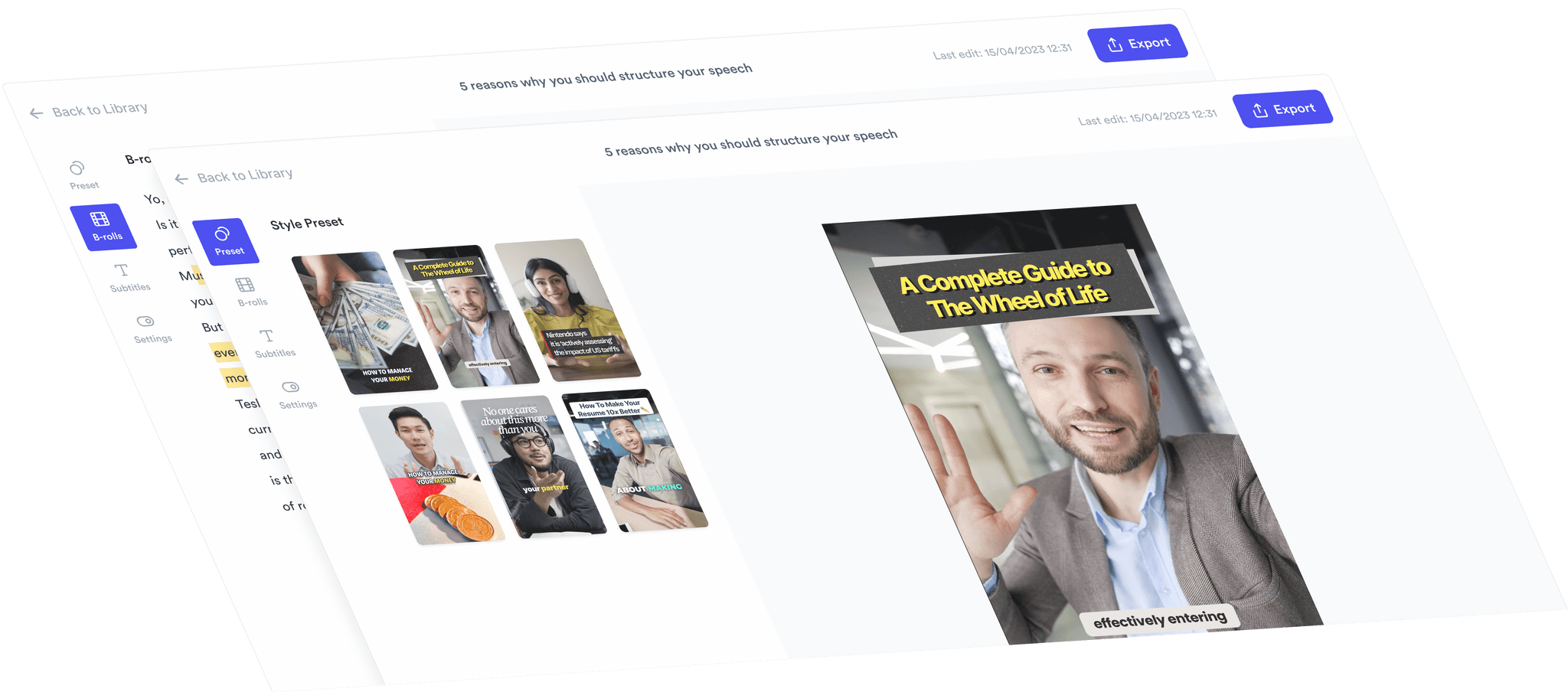
Yes, any part of it. Every B-roll clip can be swapped in the editor for a different stock clip, a web image, a GIF, or your own upload, and you can change how that clip appears (full screen, split screen, card, contained, or blended) and how it animates in. Subtitles are editable line by line, including the wording, the styling, and the language. Music, sound effects, hooks, and the watermark can each be changed or removed. Changing one clip leaves the rest of the video exactly as it was, so you are never re-doing an edit to fix one moment. If you would rather not do it by hand, tell Jupitrr Agent what to change ("swap the B-roll at 1:02", "drop the background music") and it applies the edit for you.
Four libraries, all searchable inside the editor, plus your own files. Getty Images and iStock supply licensed stock video and stills on paid plans. Pexels supplies free stock on every plan. Google Images supplies real product shots, charts, and reference images, with licence labels shown where available. GIFs cover lighter moments. You can also upload your own footage and mix it with the AI picks, which is what most coaches do for workout or client footage. Each source has its own licence terms, so check the licence of each clip before using an export in paid ads or products you sell, and confirm the rights on any web image.
Not automatically. Getty Images and iStock footage is licensed stock included on paid plans, Pexels footage comes under the Pexels License on every plan, and web images come from the open web, so their rights vary by image. Each source has its own licence terms, and the Jupitrr terms ask you to confirm usage rights for your use case, especially for paid ads or products you sell. Our guide to royalty-free vs copyright-free explains what each licence allows. Getty Images clips carry a watermark while you preview them in the editor, and that watermark is removed on export.
Jupitrr Agent, powered by the Levio engine, is the AI that handles both scripting and editing. Before you film, it researches a topic and writes the script. Inside the editor, you chat with it in plain language and it makes the change: "Change the B-roll at 1:02", "Add background music", "Make the subtitles bigger". It is an alternative to editing by hand, not the only way to edit.
Jupitrr supports 54+ languages for automatic subtitles, including English, Spanish, French, German, Portuguese, Chinese (Mandarin and Cantonese), Japanese, Korean, Hindi, Arabic, Vietnamese, Thai, Polish, Swedish, and Finnish. The AI detects your audio language and generates subtitles in it. You can regenerate subtitles in a different language from the editor at any time.
A video brief is the starting point for every video in Jupitrr. It holds the topic, the research, the script, and the production notes for one video. Jupitrr Agent can generate a brief from a topic, or you can write one yourself. Once the brief is ready you record, edit, and publish straight from it, which is why plan limits are counted in briefs.
Jupitrr Cut is the teleprompter and recording app for iOS and Android. It displays your script on screen and records it scene by scene, so you can retake any line without restarting the whole video, then trims each take and stitches everything into one clean jump-cut video. One tap uploads the result into the AI editor for automatic editing.
The content calendar is where your video briefs live once they have a date. Each brief has an owner, a scheduled date, and a status. You can drag to reschedule, see what teammates are working on, and publish straight to YouTube, LinkedIn, Instagram, and TikTok, either at a set time or immediately. It is included on Pro and Team.
Uploads and exports
File formats, limits, and output options
MP4 and MOV video files, and MP3 audio files. MP4 gives the most reliable results. Audio uploads run through the same editor and come back as a video with B-roll and subtitles.
Limits depend on your plan. Starter: up to 5 minutes and 3 GB, 10 uploads a month. Pro: up to 20 minutes and 5 GB, 30 uploads a month. Team: up to 30 minutes and 5 GB, 50 uploads a month. Unused uploads do not roll over to the next month. Full detail is on the pricing page.
MP4, optimized for YouTube Shorts, Instagram Reels, TikTok, and LinkedIn. Portrait (9:16) is available on every plan. Landscape (16:9) is available from Starter up. Every plan exports at studio compression quality with no watermark.
Pricing and billing
Plans, payments, and subscriptions
Yes. Every new account gets a sample video inside the product, so you can see the AI edit, from B-roll and subtitles to hooks and music, before you subscribe. There is no free plan for your own uploads: plans start at $11 a month billed annually, and every plan comes with a 7-day money-back guarantee.
Starter ($11/month billed annually, $22 monthly): everything from record to export, 3 briefs, 10 exports a month, 1 seat, unlimited premium iStock and Getty Images B-roll, web images, 5-minute uploads. Pro ($24.50/month billed annually, $49 monthly): everything in Starter plus the personalised AI scriptwriter, viral video search, content calendar, social publishing, video analytics, AI persona, branded presets, 20-minute uploads, 30 briefs, 30 exports a month, and 2 seats. Team ($89/month billed annually, $149 monthly): everything in Pro plus team collaboration in the editor, a custom brand kit, multi-account publishing, 50 briefs, 50 exports a month, and 5 seats. You can try the sample video free before choosing. The plan comparison table lists every line item.
Starter is the plan for that. It is $11 a month billed annually ($22 monthly), includes 10 exports a month, premium Getty Images and iStock B-roll, and uploads up to 5 minutes, and it removes the watermark. There is no per-video charge and no minimum commitment, so a light month costs the same as a busy one. If you want to see the edit quality first, try the sample video free before you subscribe. Pro only makes sense once you want the scriptwriter, the content calendar, and publishing.
No. Your allowances reset at the start of each billing cycle. If you regularly run out before the month ends, upgrading is cheaper than buying add-ons, and you can upgrade at any time from your account settings.
Plans are billed per workspace, not per person. Starter includes 1 seat, Pro includes 2, and Team includes 5. Everyone in a workspace shares the same plan, briefs, and exports, and Team adds shared editing and a shared calendar. If you are an agency or freelancer running separate workspaces per client, email [email protected] and we will set up a custom plan.
Yes, at any time, and without contacting support. Cancel from your account settings under Manage Plan. Your plan stays active until the end of the billing period you have already paid for, and you are not charged again. Your videos and briefs stay saved after cancelling, and you can reopen and export them again by resubscribing. There is also a 7-day money-back guarantee on your first purchase, so if you cancel within 7 days of your first payment you get a full refund, no questions asked. After that, subscriptions are non-refundable.
Click your profile icon, go to Manage Plan, then Payments and Billing. You can change your card or billing address there at any time. The same screen is where you switch between monthly and annual billing.
Security and privacy
How we handle your data and content
Yes. Uploads are stored encrypted on AWS S3. Your content is never shared with third parties and is never used to train AI models. Only you and the members of your workspace can access your videos.
Yes. Delete individual videos from your dashboard at any time. To delete your account and everything associated with it, go to Settings and use the delete account option. Deletion is permanent, so export anything you want to keep first.