Open with yourself in a grid of images
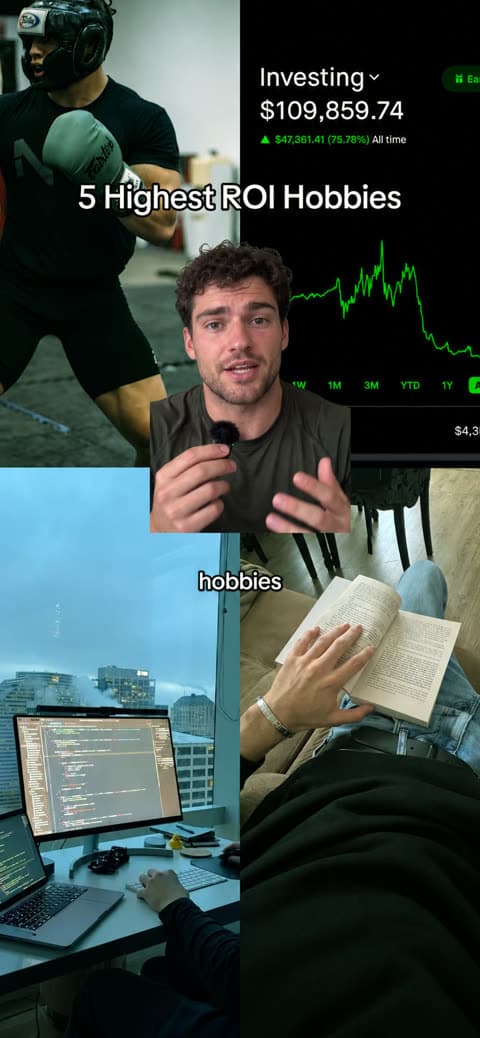
A grid and cutout video opens with you cut out in the middle of four images, then keeps you in front of full-screen B-roll as you explain. Jupitrr's Grid & Cut out Format removes your background, picks the grid images and places you around the frame, with no physical green screen.
 Trusted by 200K+ coaches and consultants






How a Grid & Cut out video comes together
The opening is a grid with you at the centre. After the hook, you stand in front of full-screen B-roll.
- Step 1
Upload and choose Grid & Cut out
Upload a portrait recording of you in frame and choose Grid & Cut out as the Format in "Set up your video". Automatic B-roll stays on, because you appear in front of it.
- Step 2
Jupitrr cuts you out and builds the grid
It removes your background (usually about a minute), picks four images for the 2×2 grid and centres you over it while your hook plays. Then B-roll fills the screen, changing about every 3 seconds, and you move between positions at the cuts.
- Step 3
Adjust the tiles and your position, then export
Swap any grid tile, and pick a part of the video to change your layout ("Full", "Half", "Corner" or "Custom"), size and position.
Why the grid and cutout opening works
It combines a busy, curious opening with a presenter who never leaves the screen.
Four examples at once
The grid tells viewers what the video covers before your first sentence ends.
You at the centre
Being cut out over the grid makes you the guide to the examples around you.
Full-screen visuals afterwards
After the hook, B-roll fills the frame and you stay in front of it, so the visuals never hide you.
Topics that suit Grid & Cut out
Lists with strong visuals
Four or five items that each have a clear picture.
Case studies
Companies, campaigns or people you walk through one by one.
Places and options
Locations or choices compared with the examples behind you.
Trend breakdowns
A pattern shown through several real examples.
Who Grid & Cut out suits
Educators
Open an explainer on its four main examples.
Coaches
Show the results or lifestyle you are talking about, with you in the middle of it.
Consultants
Present case studies or companies as a grid, then walk through each.
Agency owners
Break down campaigns with the examples on screen behind you.
Grid & Cut out video ideas
Use it for explainers where the examples matter as much as you do.
- Educator
A list with strong visuals
“Five useful hobbies you can start this month.”
- Business coach
Lessons from well-known people
“Four founders, four habits I copied.”
- Travel or property expert
Places compared
“Four places to live that pay you back.”
- Fitness coach
Sports and their benefits
“What each of these sports does to your body.”
- Marketing consultant
Campaigns worth studying
“Four campaigns every marketer should copy.”
- Investor
Asset types explained
“Four ways to invest, explained with what they look like.”
A short Grid & Cut out script
Open with the promise, then give each example a few seconds so the B-roll can show it.
- Hook“Three tools I use to run my business.”On screen: You cut out over a 2×2 grid, with the hook near the top.
- Example 1“First, a scheduling tool, so clients can book time with me.”On screen: Full-screen B-roll, with you smaller and to one side.
- Example 2“Second, a notes app, so ideas do not get lost.”On screen: New B-roll at the cut; you move to another position.
- Example 3“Third, a video editor, so I can share what I know.”On screen: Another clip, with you in a new position.
- Close“Start with the one that saves you the most time.”On screen: Your subtitles over the last clip.
Grid tiles are found with web image search from your video. You can swap any of the four.
What Jupitrr does and what you adjust
The cutout, grid and positions come ready. Every part stays editable.
Background removal
Jupitrr cuts you out of your ordinary recording. No green screen or special lighting needed.
Four grid tiles
"Top left", "Top right", "Bottom left" and "Bottom right". Swap, add or remove any tile.
Your position, part by part
Pick a part and choose "Full", "Half", "Corner" or "Custom", then fine-tune left and right, up and down, size and rotation.
Add or split parts
"Add cutout at playhead" or "Split at playhead" to move at a different moment.
Grid timing follows the hook
The grid shows while your hook is on screen. Retime the hook to change it.
Normal B-roll tools
Swap, trim or replace any background clip in the B-rolls tab.
Tips for a clean Grid & Cut out video
Do
- Record with your head and shoulders clearly in frame and some space around you.
- Stand out from your background: contrast helps the cutout.
- Open with a one-sentence hook, so the grid has a clear moment.
- Check the four tiles: they are the first thing viewers see.
Avoid
- Filming so close that your head is cropped at the top.
- Busy movement behind you, such as people walking past.
- A long, slow first sentence before the point.
- Recording landscape. Formats are portrait only.
Good to know
- Portrait videos only, with you in frame.
- The cutout works on videos up to 10 minutes and usually takes about a minute.
- It uses the same monthly cutout allowance as Green screen, and is not available on AppSumo plans.
- Switching to another Format or removing it also turns off the cutout. Your grid tiles are kept for when you switch back.
- Levio cannot edit the grid or the cutout. Use the Formats tab.
Trusted by 200K+ coaches and consultants



Keep reading
Frequently asked questions
What is a Grid & Cut out video?
Do I need a green screen?
Where do the four grid images come from?
How is it different from Green screen?
Is it included in my plan?
Will a Grid & Cut out video get more views?
Start in the middle of the grid.
Upload your recording, choose Grid & Cut out, and adjust the grid and positions Jupitrr builds. From $11/mo billed annually.