By the Jupitrr team · Last updated August 2026

Best Video Editors for Educational Videos

The best video editor for educational videos depends on what you teach with: your screen, your face, or designed slides. This guide compares six strong options across tutorials, courses, lectures and explainer content, and shows which teaching format each one fits.

Top picks at a glance

The strongest video editors for educational videos are Descript, Camtasia, VEED, Jupitrr AI, Riverside and Canva. Each fits a different teaching format, from screen-recorded tutorials to talking-head explainers.

How we chose: We compared each tool on the jobs educational video actually involves: recording the screen or the speaker, editing spoken explanations, captions for accessibility, and visuals that support the point being made. Capability claims were checked against vendor sites in August 2026. Tools are matched to teaching formats rather than ranked from first to last.

How the tools compare

ToolBest forScreen recordingTalking-head editingCaptionsB-roll and visualsTemplates
Descript logoDescriptTranscript editing for tutorialsBuilt inCut video by editing the transcriptAutomatic captionsAI assistant places B-rollVideo templates and layouts
Camtasia logoCamtasiaScreen-based instructional videoUp to 4K/60fps on separate tracksWebcam alongside screen, background removalAuto captions and translationsRoyalty-free asset libraryShareable themes and templates
VEED logoVEEDBrowser course and tutorial editingBrowser screen and webcam recorderTimeline editing with AI assistAuto subtitles with translationStock library with manual placementSocial and tutorial templates
Jupitrr AI logoJupitrr AITalking-head educational contentFirst edit generated on uploadSubtitles in 54+ languagesGetty-licensed B-roll matched to your transcriptVideo presets
Riverside logoRiversideRecording lectures and interviewsScreen plus multi-participant recordingTranscript-based editingAnimated captionsAI-generated B-roll from a promptStudio branding presets
Canva logoCanvaTemplate-led explainersScreen and camera recorderDrag-and-drop timeline editingAuto captionsLarge stock and design libraryThousands of video templates

Capability claims checked against vendor sites in August 2026. Details vary by plan.

The best options in detail

Descript logoDescriptBest for editing spoken tutorials by transcript

Most educational video is explanation: someone talking through an idea. Descript is built for exactly that, because it edits video through the transcript. Fixing a rambling explanation means deleting the rambling sentences, and the video follows.

Screen recording is built in, so software tutorials and voice-over-slides lessons stay in one tool, and features like filler-word removal and Studio Sound keep long spoken recordings tight and listenable.

Strengths

  • Transcript editing is ideal for explanation-heavy content
  • Built-in screen recording for tutorials
  • Filler-word and silence removal keeps lessons tight
  • Studio Sound cleans up lecture-room audio
  • AI assistant can place B-roll and generate clips

Tradeoff

Every edit is still yours to make, AI features consume monthly credits, and visual polish like animated diagrams needs another tool.

Pricing: $16/mo billed annually (Hobbyist); the fuller Creator plan is $24/mo. Free plan available.

Best suited for: Educators and course creators whose videos are mostly spoken explanation, with or without a screen recording underneath.

Visit Descript's website

Camtasia logoCamtasiaBest for screen-based instructional videos

Camtasia has been the default tool for software training videos for two decades, and it still earns that position. It records your screen, camera and audio on separate tracks at up to 4K, then gives you a multi-track timeline with callouts, zooms and cursor effects designed specifically for teaching what is on screen.

Recent versions add AI assists like auto captions, translations and background removal for your webcam, and the bundled Audiate app brings transcript-style editing to narration. It remains a desktop-first, craft-your-own-edit workflow.

Strengths

  • Purpose-built screen recording at up to 4K/60fps on separate tracks
  • Callouts, zooms and cursor effects made for instruction
  • Auto captions and translations
  • Webcam background removal for picture-in-picture lessons
  • Templates and themes shareable across a training team

Tradeoff

Desktop-only, annual-only subscription with no publishing, scheduling or analytics, and the timeline workflow means every video is hands-on editing time.

Pricing: Subscription billed annually; Essentials is $179/year per TechSmith. No meaningful free plan.

Best suited for: Trainers and course producers whose videos are mostly the screen, with the presenter in a corner.

Visit Camtasia's website

VEED logoVEEDBest for browser-based course and tutorial editing

VEED covers the widest spread of educational formats from a browser tab: record your screen or webcam, edit on a timeline, add automatic subtitles with translation, and pull supporting footage from its stock library.

For teams producing course content together, shared workspaces and brand kits keep lessons consistent without desktop software on every machine.

Strengths

  • Everything runs in the browser, nothing to install
  • Screen and webcam recording with a teleprompter
  • Auto subtitles with translation for accessibility
  • Stock library for supporting visuals
  • Team workspaces for course production

Tradeoff

Editing is manual timeline work, longer or heavier lessons can feel slow in the browser, and the free plan watermarks exports.

Pricing: $12/mo billed annually. Free plan with watermark.

Best suited for: Course teams and educators who want one browser tool across tutorials, lessons and promo clips.

Visit VEED's website

Jupitrr AI logoJupitrr AIBest for talking-head educational content

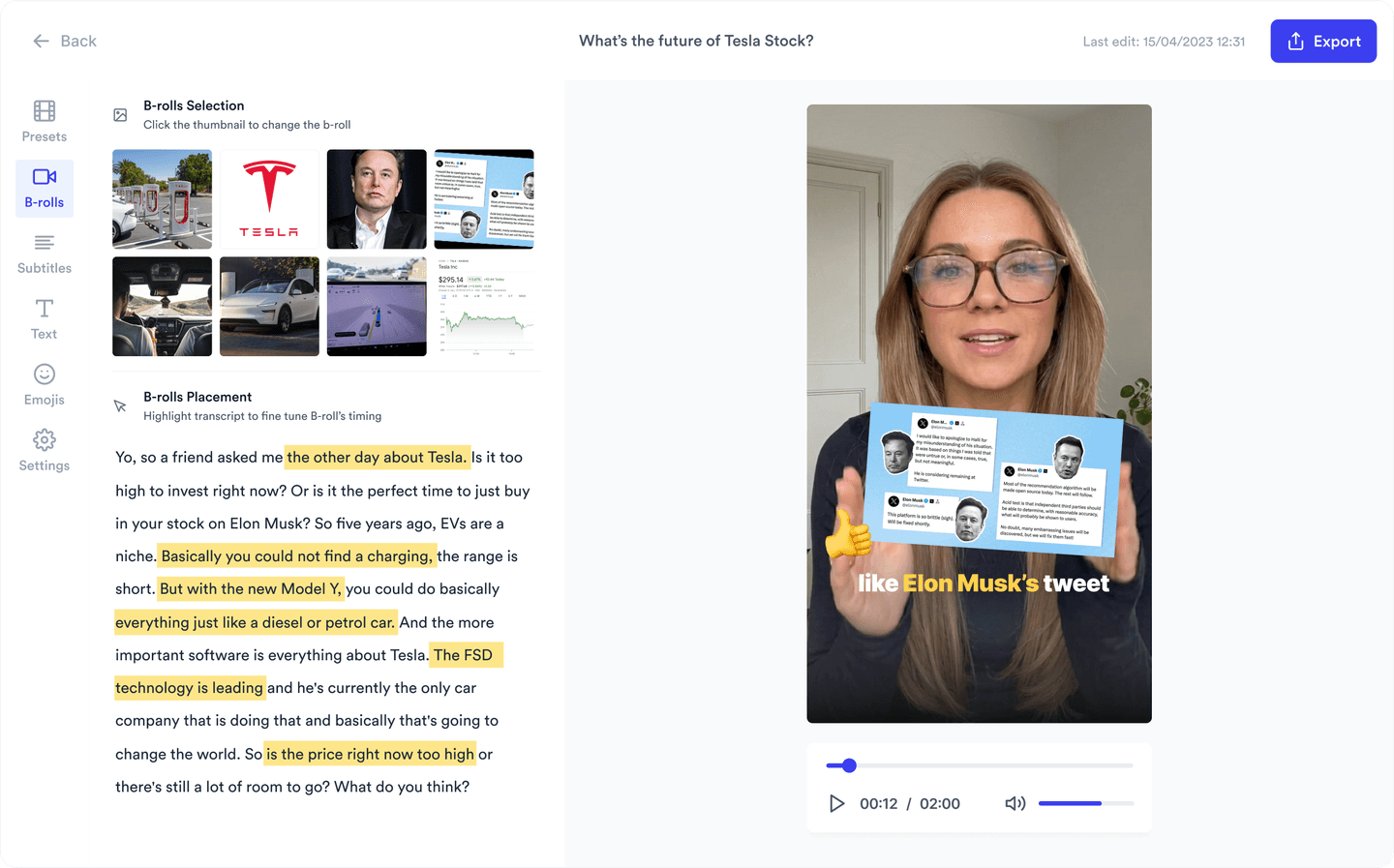
When the teacher is the video, Jupitrr AI removes the production work. Upload a talking-to-camera explanation and the AI video editor returns it with the first edit made: B-roll matched to what you are explaining from Getty-licensed footage, subtitles in 54+ languages and sound effects, no timeline involved.

It also covers the repeatable production loop educators need: AI scripting to plan the lesson, a teleprompter to deliver it, AI video clipping to cut highlights for social, and a content calendar with scheduling and analytics to keep publishing weekly. It is built for coaches, consultants and educators who teach on camera.

Strengths

  • First edit generated automatically: B-roll, subtitles and sound effects on upload
  • B-roll visually supports the concept being explained
  • Subtitles in 54+ languages for accessible lessons
  • Scripting, teleprompter, clipping, scheduling and analytics in one workflow
  • No timeline and no editing experience required

Tradeoff

No screen recording and no multi-track timeline, so software tutorials and screen-heavy lessons are a better fit for Camtasia or Descript. Jupitrr is built for the talking-head format.

Pricing: $18/mo billed annually. Free plan available.

Best suited for: Educators, coaches and consultants who teach on camera and want lessons edited and published on a schedule without production time.

Teach on camera without the editing workload

Upload your explanation and Jupitrr returns it pre-edited: B-roll that matches what you teach, subtitles in 54+ languages and sound effects, with scripting and scheduling in the same workflow.

Jupitrr AI editor showing an automatically edited talking-head video

Riverside logoRiversideBest for recording lectures, interviews and classes

Riverside solves the recording half of educational video better than anything else here. Every participant in a remote class, interview or panel is recorded locally in up to 4K with uncompressed audio on separate tracks, so a shaky connection never ruins the lesson.

Editing happens in the transcript, with animated captions, AI clip selection for highlights, and direct publishing to YouTube and podcast platforms when the class doubles as a show.

Strengths

  • Local multi-track recording up to 4K, regardless of connection quality
  • Transcript-based editing of recorded sessions
  • Magic Clips pulls highlights from long classes automatically
  • Animated captions in one click
  • Publishes directly to YouTube and podcast platforms

Tradeoff

It is built around sessions recorded in its own studio; it is not the tool for editing arbitrary uploaded footage, and its analytics are podcast-centric.

Pricing: $24/mo billed annually ($29 monthly). Free plan with limits.

Best suited for: Educators running remote classes, expert interviews or lecture series who need reliable studio-quality recordings.

Visit Riverside's website

Canva logoCanvaBest for template-led explainers

Canva approaches educational video from the design side. Thousands of explainer and lesson templates, a huge stock and graphics library, and a drag-and-drop timeline make it the fastest way to produce designed teaching content: slides that move, annotated explainers and social-ready lesson snippets.

A built-in screen and camera recorder covers simple lessons, and because it is Canva, worksheets, slides and thumbnails for the same course live in the same project.

Strengths

  • Thousands of explainer and education templates
  • Massive stock, graphics and music library
  • Screen and camera recording built in
  • Auto captions on video
  • Course materials, slides and video in one workspace

Tradeoff

Video is one feature inside a design platform: no transcript editing, limited fine control, and the most useful video AI sits behind Pro plans with credit limits.

Pricing: Free plan available; Pro subscription adds premium assets and the content planner.

Best suited for: Teachers and creators whose educational content is design-led: animated slides, explainers and visual lessons.

Visit Canva's website

Other tools we considered

  • CapCut: a capable general-purpose editor, but nothing in it is designed for instructional content specifically.
  • Loom: excellent for quick screen-share messages, but too light for edited, published educational video.
  • Captions: strong for short-form talking-head clips, but mobile-first short video is rarely the core format for structured lessons.

How to choose the right tool

Descript logo

Your lessons are spoken explanations and you want to edit them like a document.

Choose Descript
Camtasia logo

The screen is the star: software training, walkthroughs and slide-based instruction.

Choose Camtasia
VEED logo

You want one browser tool for recording, editing and subtitling course content as a team.

Choose VEED
Jupitrr AI logo

You teach on camera and want lessons edited automatically, plus scripting, recording and publishing handled.

Choose Jupitrr AI
Riverside logo

Your content comes from remote classes, interviews or panels that need studio-quality recording.

Choose Riverside
Canva logo

Your teaching content is design-led: animated slides, explainers and visual lessons from templates.

Choose Canva

Frequently asked questions

The best video editor for educational videos depends on the format. Camtasia is best for screen-recorded tutorials, Descript for editing spoken explanations by transcript, Jupitrr AI for talking-head lessons edited automatically, VEED for browser-based course editing, Riverside for recording remote classes and Canva for template-led explainers.

Jupitrr AI is the strongest choice for talking-head educational content. You upload a talking-to-camera explanation and it returns the video pre-edited, with B-roll matched to what you are teaching, subtitles in 54+ languages and sound effects, plus scripting, teleprompter recording and scheduling in the same workflow.

For software tutorials, Camtasia is the long-standing standard: it records the screen at up to 4K on separate tracks and adds callouts, zooms and cursor effects built for instruction. Descript is the better choice when a tutorial is mostly narration, because you edit the recording by editing its transcript.

B-roll is not mandatory, but it measurably helps retention in educational video: cutaways illustrate the concept being explained and break up a static talking head. Jupitrr AI adds this automatically by matching Getty-licensed footage to your transcript, while most other editors rely on you finding and placing stock footage manually.

All six tools in this guide generate captions automatically. Jupitrr AI produces subtitles in 54+ languages, VEED and Camtasia include translation, Descript captions from its transcript, Riverside adds animated captions in one click and Canva generates captions on its paid video tools.

Turn your expertise into weekly lessons

Jupitrr AI edits your teaching videos automatically, from script to published post.

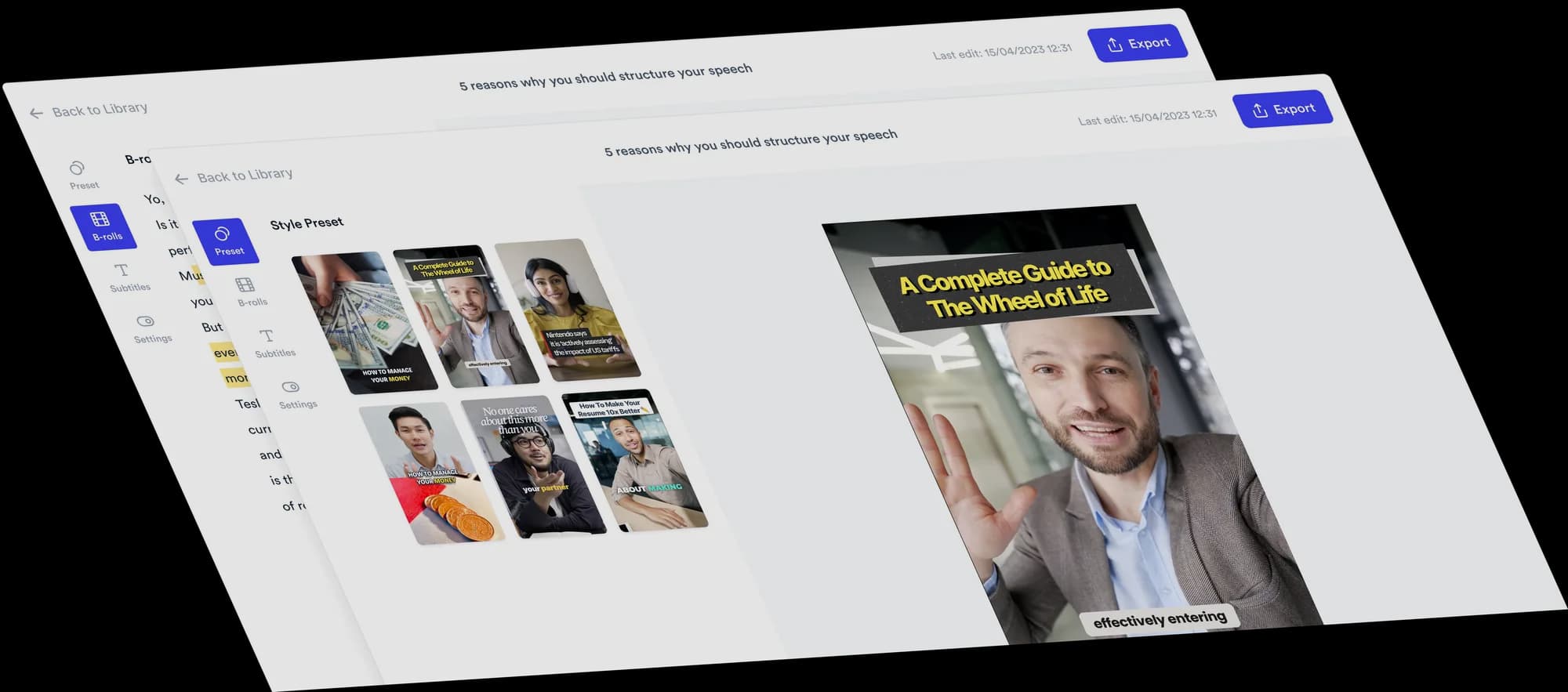
Jupitrr AI dashboard