Edit Your Video · Updated 20 Oct 2026
How to add and edit subtitles in Jupitrr
Jupitrr transcribes your video and adds subtitles to the first edit. To change them, open the Subtitles tab: the Transcript view edits the wording, Replace changes a word everywhere, and the Style view sets the font, size, colour, position and how many words show at once. Editing the transcript changes the subtitle text only; it never cuts or trims the video.
Before you start
- When you upload, set Language and add names or brand terms to Words to Spell Exactly in Set up your video. Both shape the first transcript.
- Editing unlocks once the subtitles are ready.
Step-by-step guide
- 1
Open the Subtitles tab
Select Subtitles in the left rail. The switch next to the title turns subtitles on or off for the whole video. Use Style and Transcript at the top to move between the two views.
While subtitles are switched off, the rest of the panel is dimmed and can't be edited.
- 2
Fix a word in the transcript
Switch to Transcript. Click a word and type to correct it, or select it and delete it. The subtitle on the preview updates straight away.
Clicking a word also moves the playhead to that moment, so you can hear what was said.
Deleting a word removes it from the subtitles only. The video keeps its full length.

- 3
Replace a word everywhere
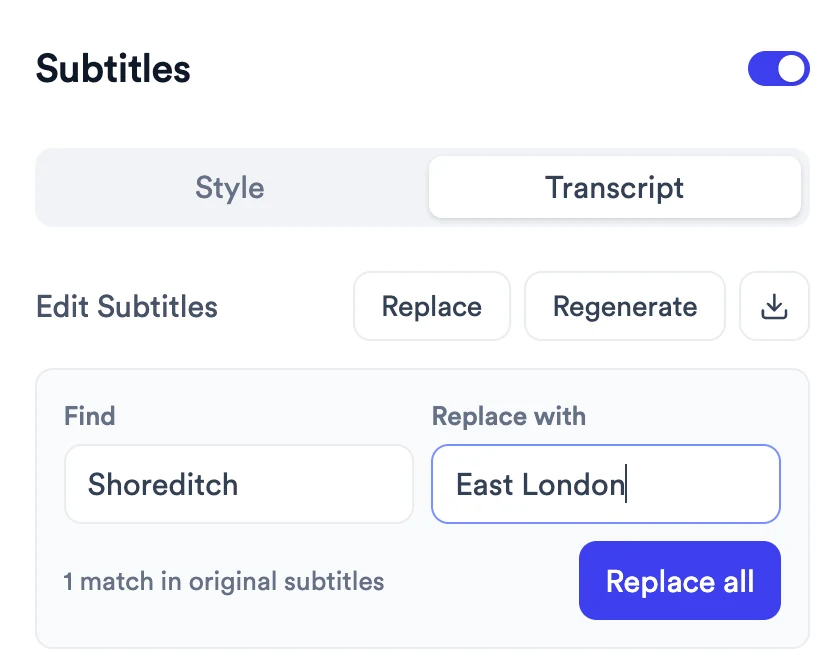
In Transcript, select Replace. Type the word in Find and its replacement in Replace with, then select Replace all.
Matches are highlighted in the transcript, and the panel counts them, for example 1 match in original subtitles. After replacing, a message confirms how many changed, such as Replaced 6 matches.
- 4
Hide a line or a few words
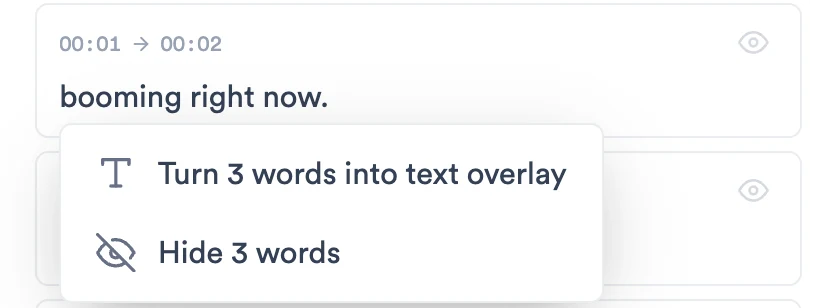
Switch to Style. To hide a whole line, click the eye icon on its card (Hide this line). To hide part of a line, select the words in the card and choose the hide option in the menu that appears, for example Hide 3 words.
Hidden subtitles are struck through in the list and don't appear on the video. The footage underneath still plays. Click the eye icon again (Show this line) to bring a line back.
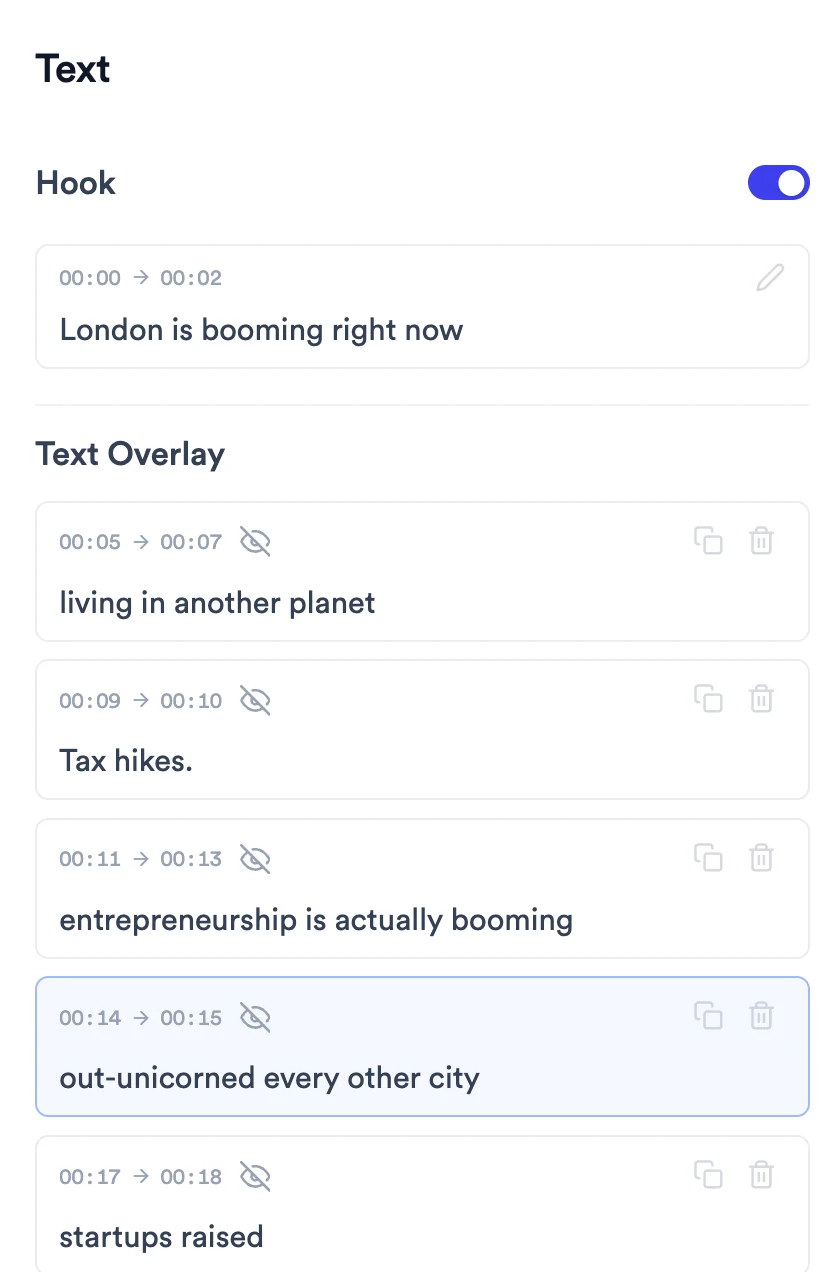
The same menu offers Turn 3 words into text overlay (the number matches your selection), which copies the selected words into a text overlay with the same timing. Styling overlays is covered in How to edit the hook and add text overlays.
Lines that already have a text overlay show a Text overlay label on their card.
- 5
Change how subtitles look
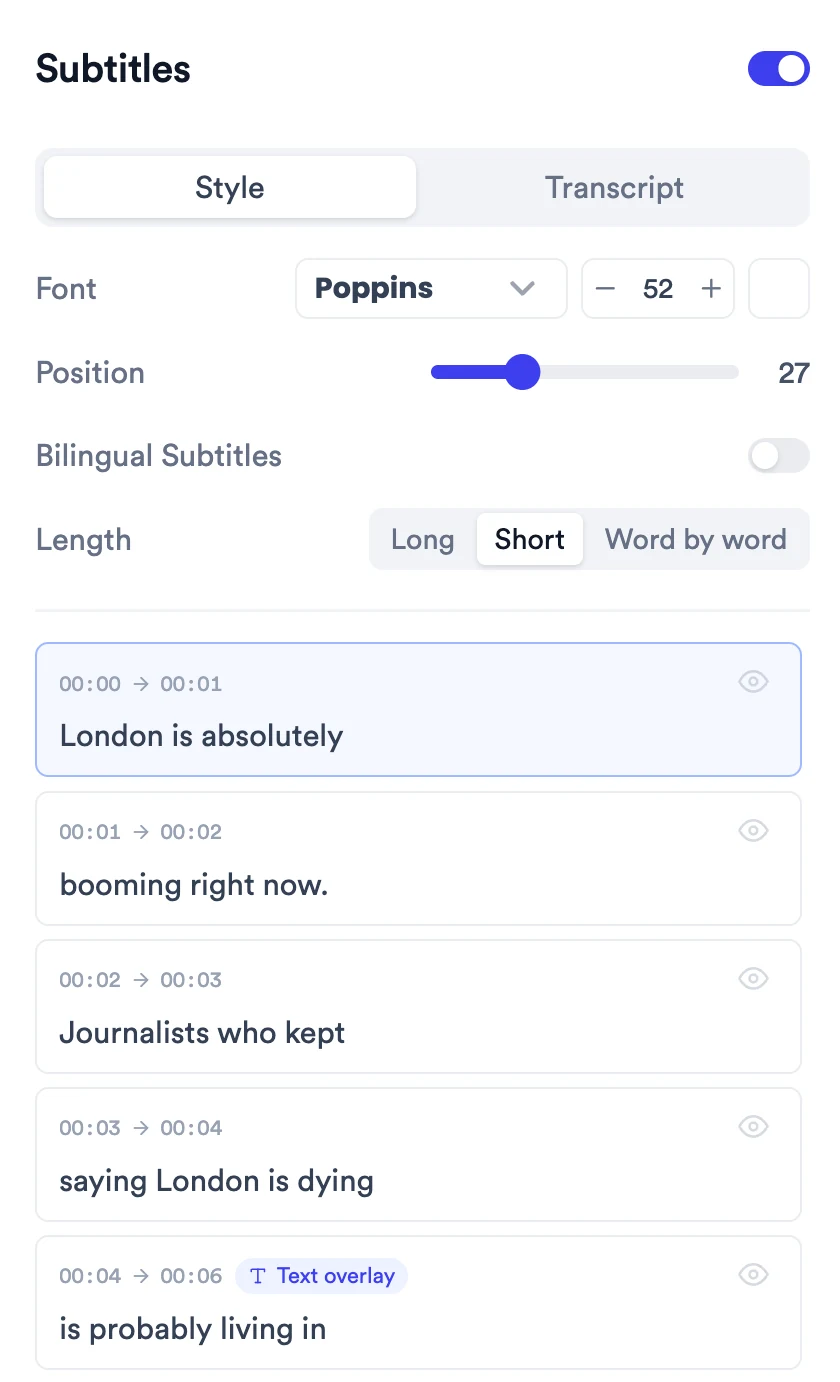
In Style, choose a font from the Font menu, use − and + to change the size, and drag Position to move subtitles up or down. Length sets how many words show at once: Long, Short or Word by word.
Position runs from 0 at the top of the video to 100 at the bottom.
Colour swatches appear next to the size for presets that allow custom subtitle colours.
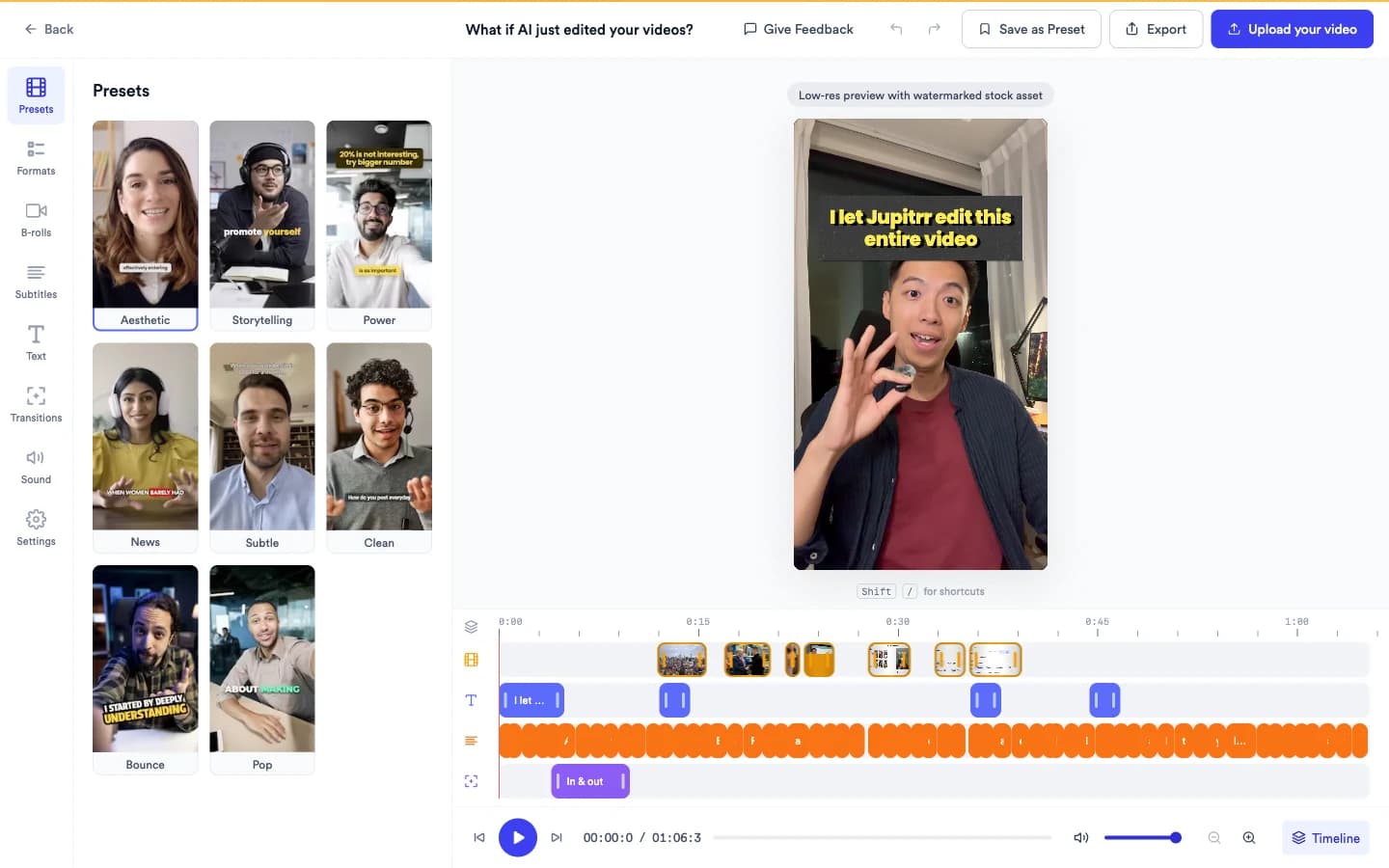
To change the overall look of subtitles together with the rest of the edit, pick another style in Presets.
- 6
Add a translated line
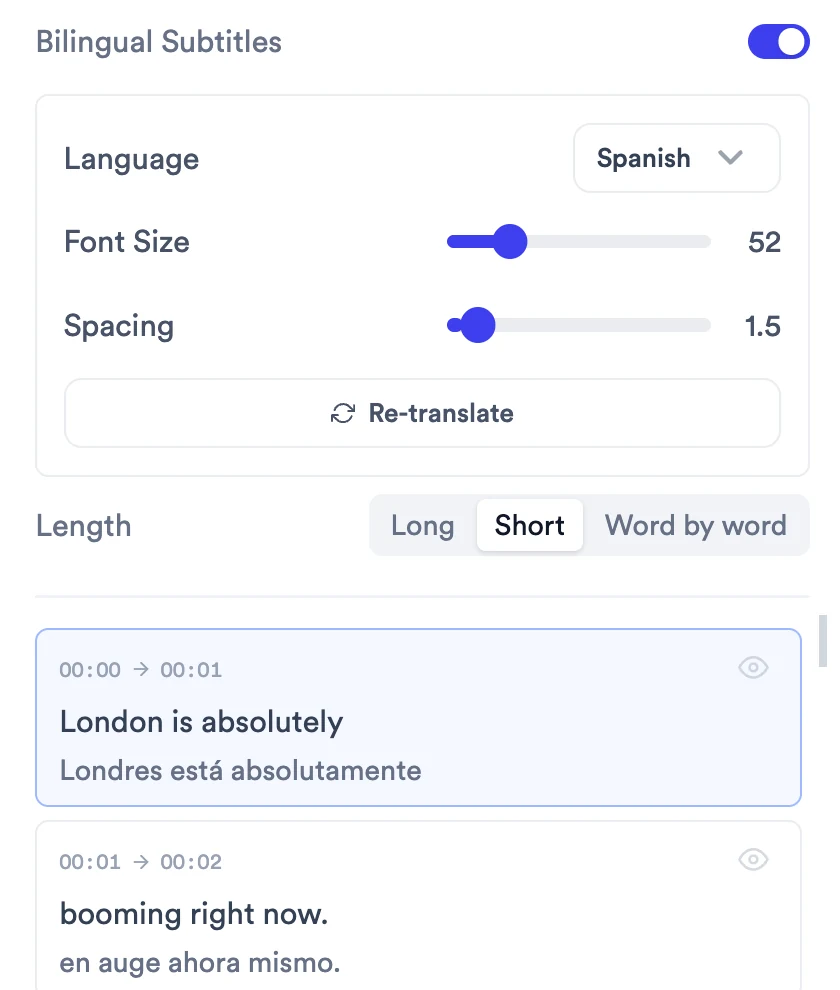
In Style, switch on Bilingual Subtitles and choose a Language. Jupitrr translates every line and shows the translation under the original. Translation ready appears when it has finished.
Use Font Size and Spacing to size the translated line and its gap from the original. Re-translate runs the translation again, for example after you fix words in the transcript.
Once a translation exists, Transcript has a menu to switch between the original text and the translation.
- 7
Regenerate the transcript
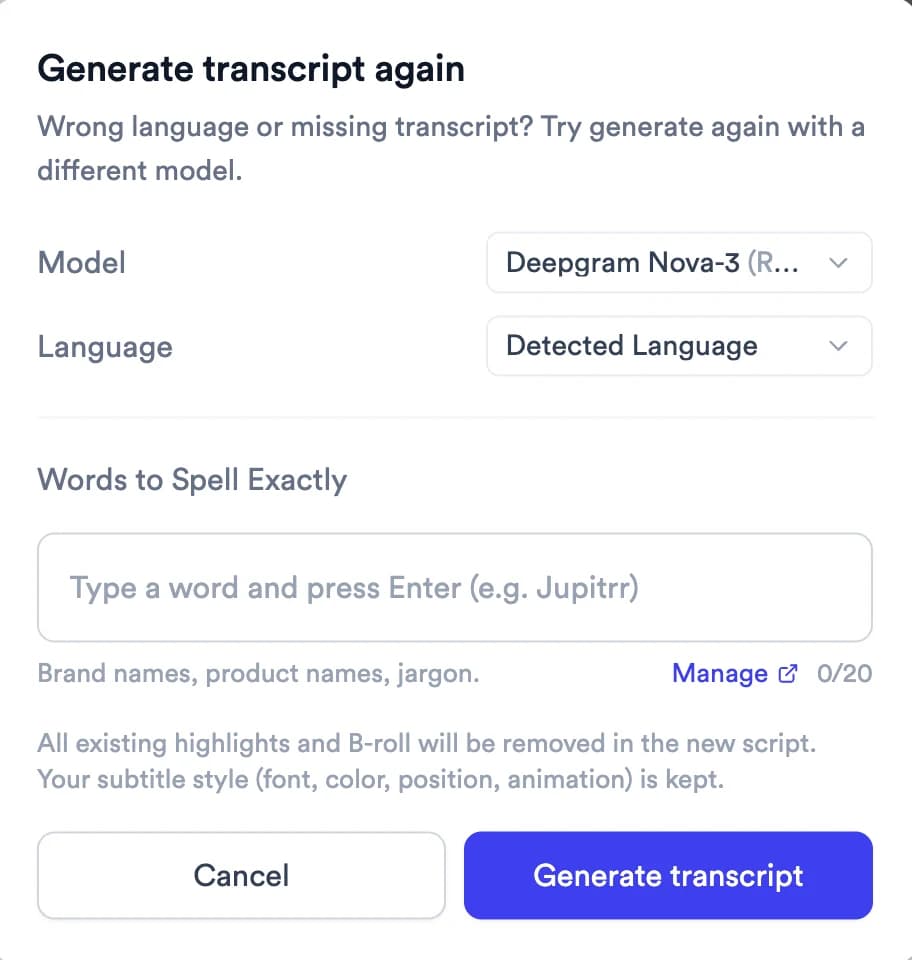
If the language is wrong or the transcript is missing, switch to Transcript and select Regenerate. In Generate transcript again, choose a Model and Language, add any Words to Spell Exactly, then select Generate transcript.
The models are Deepgram Nova-3 (Recommended), Deepgram Whisper (Multilingual) and AWS (Alternative). You can add up to 20 words to spell exactly.
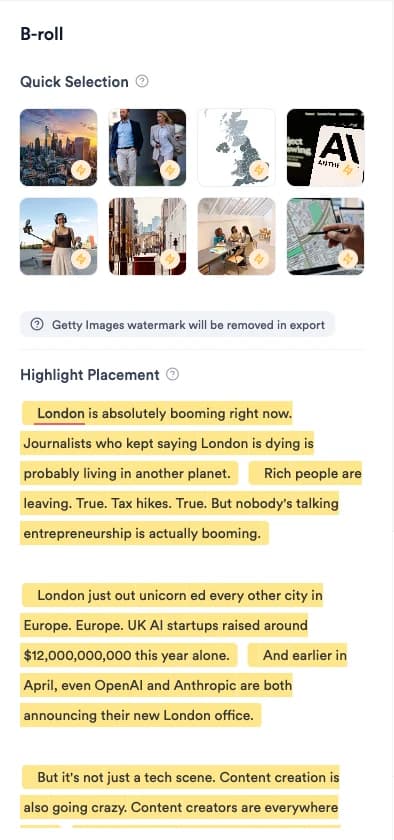
Regenerating removes all existing highlights and B-roll. Your subtitle style (font, colour, position and animation) is kept.
- 8
Copy or download the subtitles
In Transcript, select the download icon and choose Copy to clipboard, Download .txt file or Download .srt file.
With a translation, the menu also offers to copy or download both languages.
What Jupitrr does automatically
- Transcribing what you say
- Splitting the transcript into timed subtitle lines
- Styling the subtitles to match the preset
What you can edit
- The wording of any line
- Which lines or words are hidden
- Font, size, colour (on presets that allow it) and position
- How many words show at once
- A translated second line
- The whole transcript, by regenerating it
Limits and requirements
- Editing or deleting words changes the subtitles, not the video. To cut footage, use Trim & Stitch first before you upload.
- Regenerate removes existing highlights and B-roll.
- Text overlays are separate from subtitles. Fixing a word in the transcript doesn't change an overlay that shows the same words.
- Changes save automatically. Transcript wording changes and Replace all are not currently added to the Undo history.
- Copying and downloading subtitles needs a paid plan.
- Words to Spell Exactly holds up to 20 words.
Troubleshooting
A name or brand is misspelled all through the subtitles.
Open Subtitles, switch to Transcript and use Replace to fix every instance at once. Next time, add the term to Words to Spell Exactly when you upload.
The subtitles are in the wrong language, or missing.
Select Regenerate in Transcript, set the Language (or try Deepgram Whisper (Multilingual)), then select Generate transcript. This removes existing highlights and B-roll.
I fixed a word, but a text overlay still shows the old wording.
Overlays keep their own text. Open Text, select the overlay and edit its text there.
Undo doesn't reverse my transcript edit.
Transcript wording changes aren't currently added to the Undo history. Click the word and type the original text again, or use Replace.
The translation didn't appear.
If you see Translation failed. Please try again., select Re-translate under Bilingual Subtitles.
I can't change the subtitle colour.
Colour swatches only appear for presets that allow custom subtitle colours. Pick another preset in Presets, or keep the preset's colours.