Screen Recorder with Webcam

Records your screen with your face overlaid in a circle. Free in your browser, no signup, no time limit, no watermark.
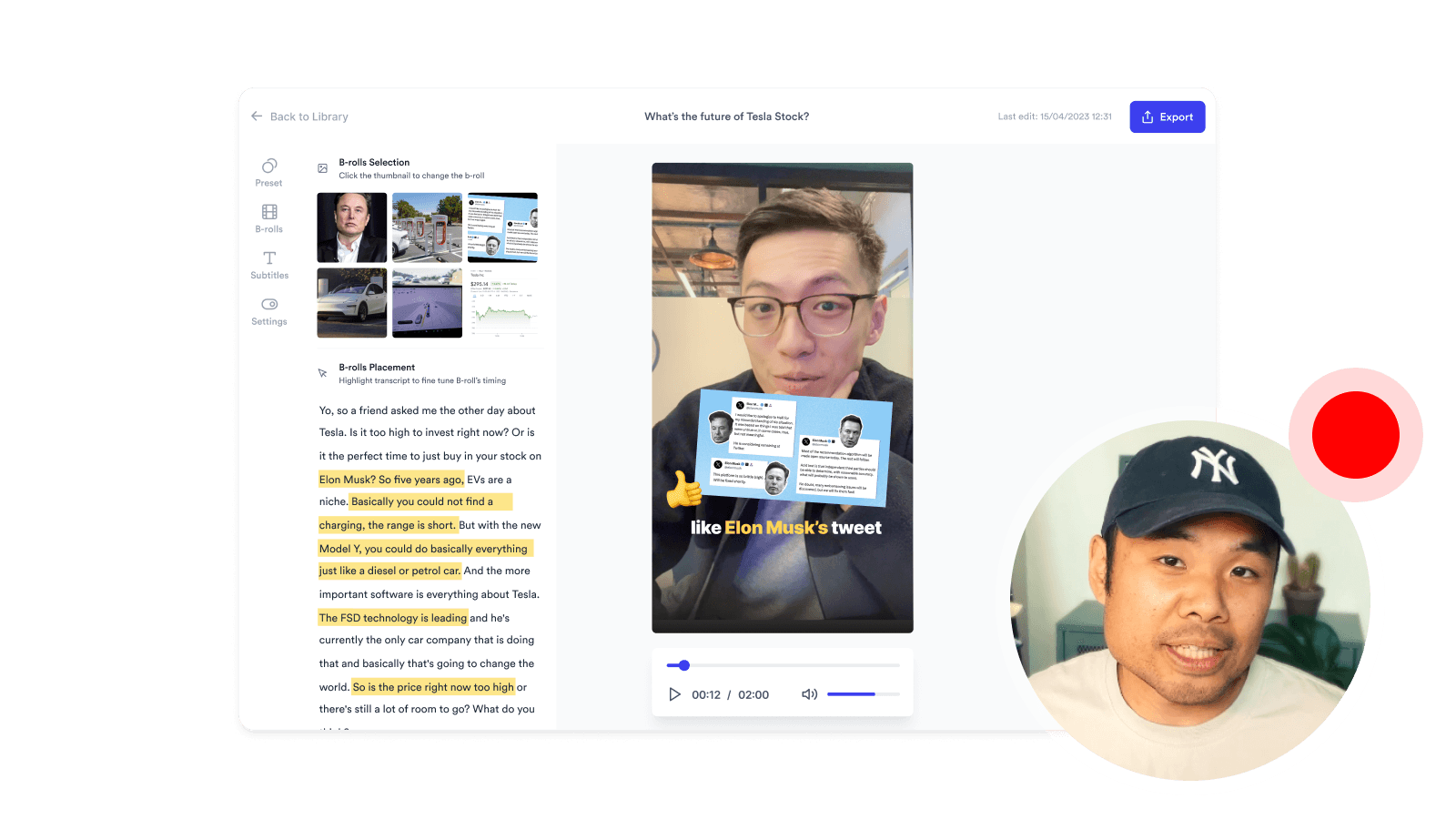
  • 100% free
  • No signup needed
  • Browser-based
Screen Recorder with Webcam
Loading screen + camera recorder…

Why use Jupitrr's screen recorder with webcam?

Keep yourself visible while you explain

Show your face and your screen in the same recording, so viewers can follow both your walkthrough and your delivery without switching between separate clips.

Overlay baked in

Pick a corner and size for the webcam circle and it is included directly in the exported video, so there is no post-production needed.

Nothing to install

Runs fully in your browser with no download, signup, time limit, or watermark.

How it works

Enable your camera

We ask for your webcam first so the overlay is ready before you pick a screen.

Pick a screen or tab

Your browser prompts you to share a tab, window, or full screen. Use tab sharing when you need to capture audio from that tab.

Stop and download

Stop from the recorder or the browser’s stop-sharing bar. Preview in-page, download, or continue in Jupitrr.

What is a screen recorder with webcam?

Screen and camera captured in one take.

A screen recorder with webcam captures your screen and camera at the same time, placing your webcam as an overlay in the final video. Jupitrr lets you choose the overlay position and size, record microphone and supported tab audio, then preview and download the finished MP4 in your browser.

When to reach for it

Product demos

Show the product on screen while your face carries the story.

Course or educational videos

Teach on screen while your face keeps students engaged.

Sales videos

Personal outreach where seeing you matters as much as the screen.

Client onboarding

Guide new clients through the first steps of working with you.

Frequently asked questions

Is it free to use the Screen Recorder with Webcam?
Yes, 100% free. The Screen Recorder with Webcam is part of the Jupitrr Free Video Toolkit. We want to build quick and easy video tools that help you every step in creating content for your business.
Do I need to download or install anything?
No. The Screen Recorder with Webcam is fully browser-based, so there is nothing to download, install, or sign up for. It works on macOS, Windows, ChromeOS, and Linux as long as you can open the page. No desktop app, no extension, no plugin.
How is this different from the plain Screen Recorder?
The Screen Recorder captures only your screen, no face on camera. Use that when you want a clean screen capture. Use this tool when you want the Loom-style webcam circle in the corner so viewers see you while you walk through the screen.
Can I move or resize the webcam overlay?
You can pick any of the four screen corners for the overlay, and choose a small, medium, or large size. The recording always burns the overlay into the final video, so there is no post-production needed to position it.
Can I record audio from the tab or my mic?
Chrome and Edge can record tab audio when you share a "Chrome tab" in the picker. Mic audio is captured whenever you grant microphone access, and the two are merged into a single audio track. Firefox on macOS/Linux and Safari do not support tab audio capture; mic audio still works.
Why does it not work on my phone?
Mobile operating systems do not let web pages capture the screen, so screen sharing is desktop-only. Use a desktop browser (Chrome, Edge, or Firefox) to record. For mobile screen recording, use the built-in iOS Screen Recording or Android Screen Record, then upload the file to Jupitrr to add subtitles and B-roll.
How long can I record?
There is no fixed time limit. The recorder will keep going as long as your browser tab stays open and your machine has memory to spare. In practice, individual clips under ten minutes work best, since they are easier to re-record, easier to edit, and faster to download.
The camera or screen sharing gets stuck, what do I do?
Try refreshing the page and granting browser permissions again. If the issue persists, try a different browser (Chrome, Edge, or the latest Safari work best).
What video file, resolution, and quality do I get?
You get an MP4 file in the same resolution as the screen or tab you shared (up to Full HD) at 30 frames per second, with the webcam overlay baked in. The quality is high enough for YouTube, LinkedIn, and most client work, while still being small enough to download in seconds. MP4 works with most common video players and editors, and imports cleanly into Jupitrr.
What is Jupitrr AI?
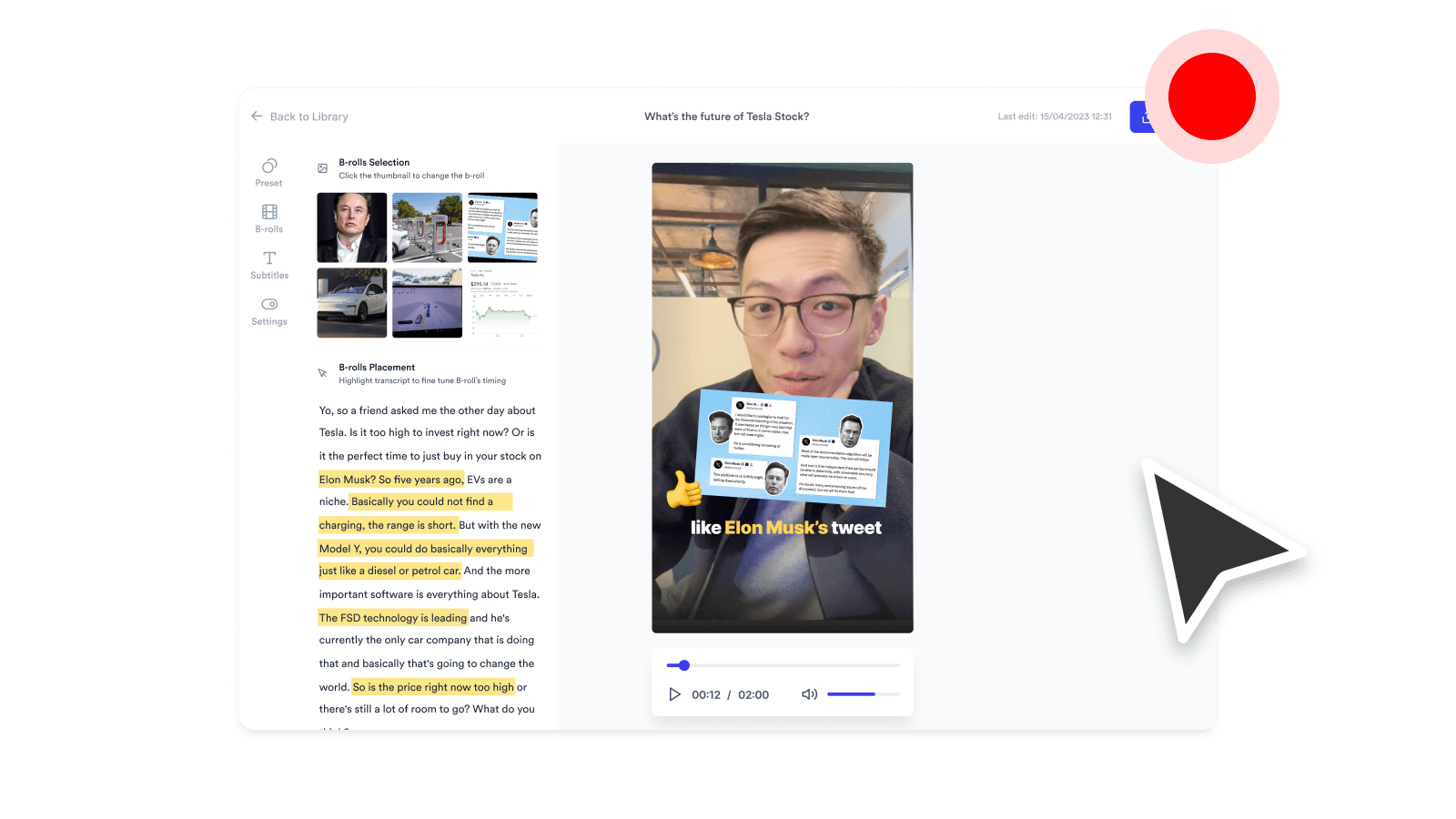
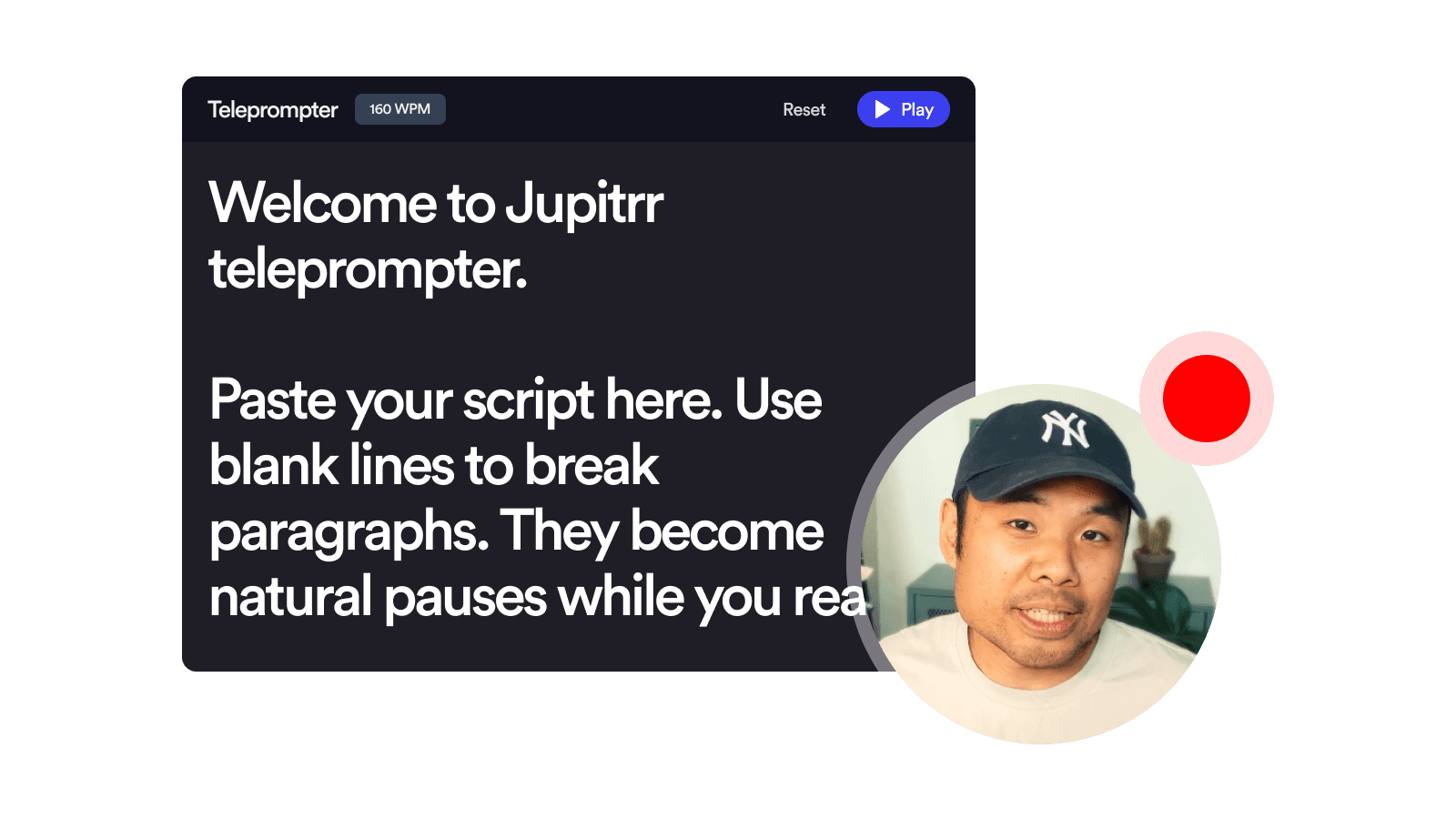
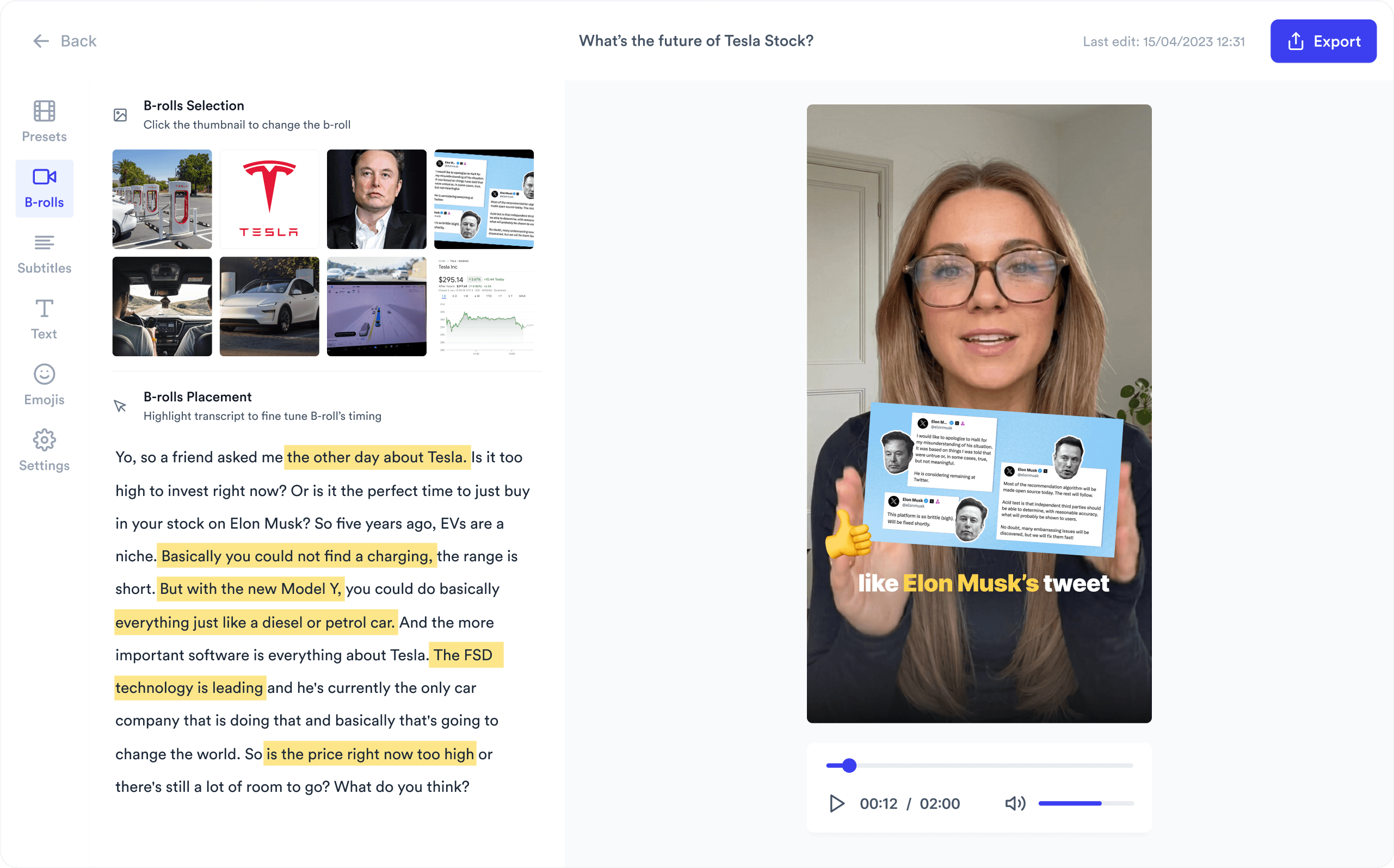
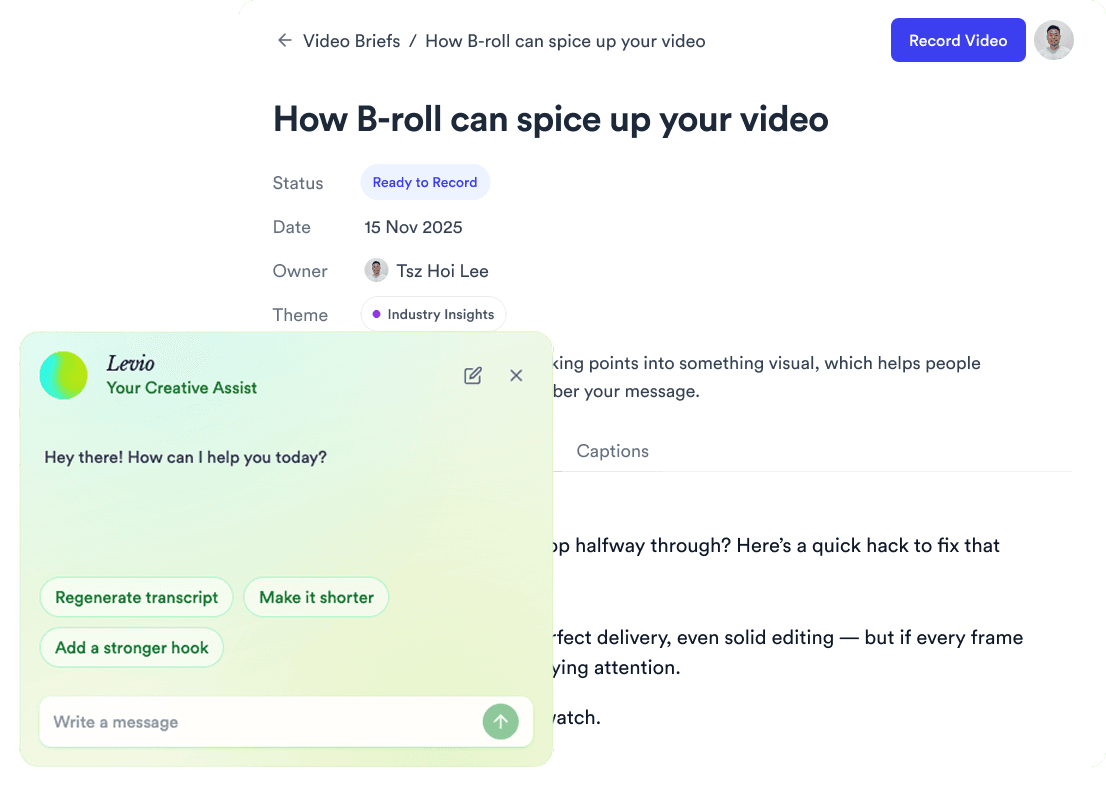
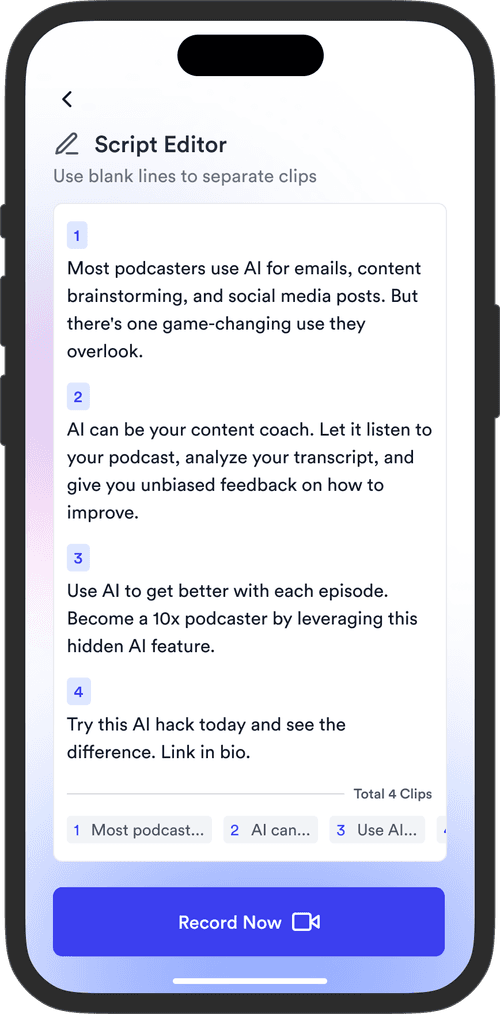
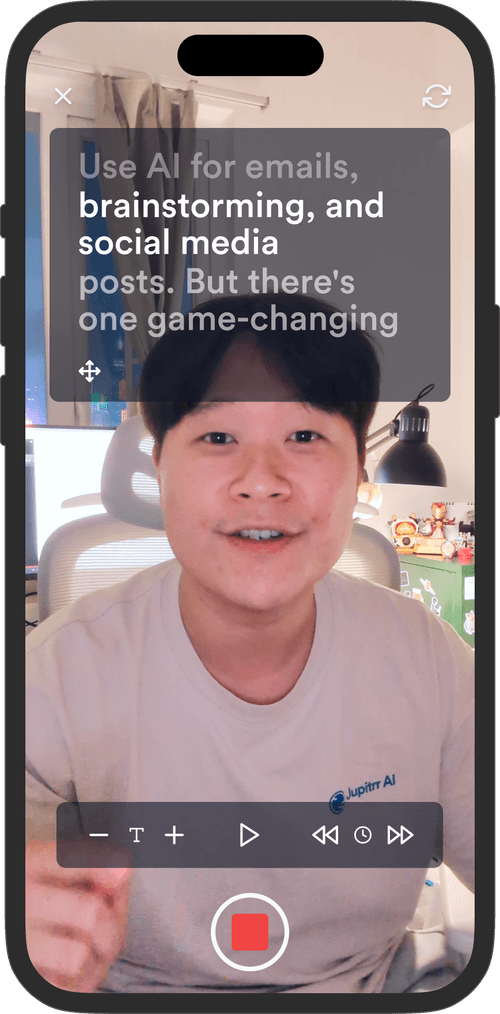
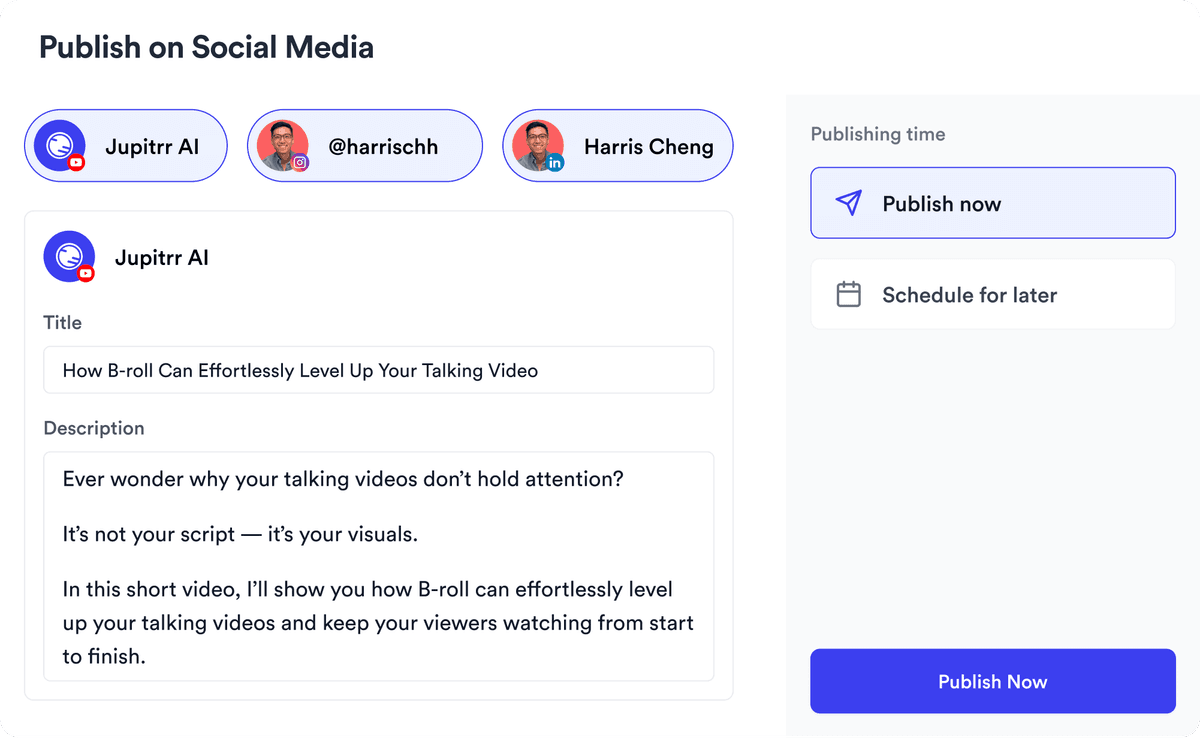
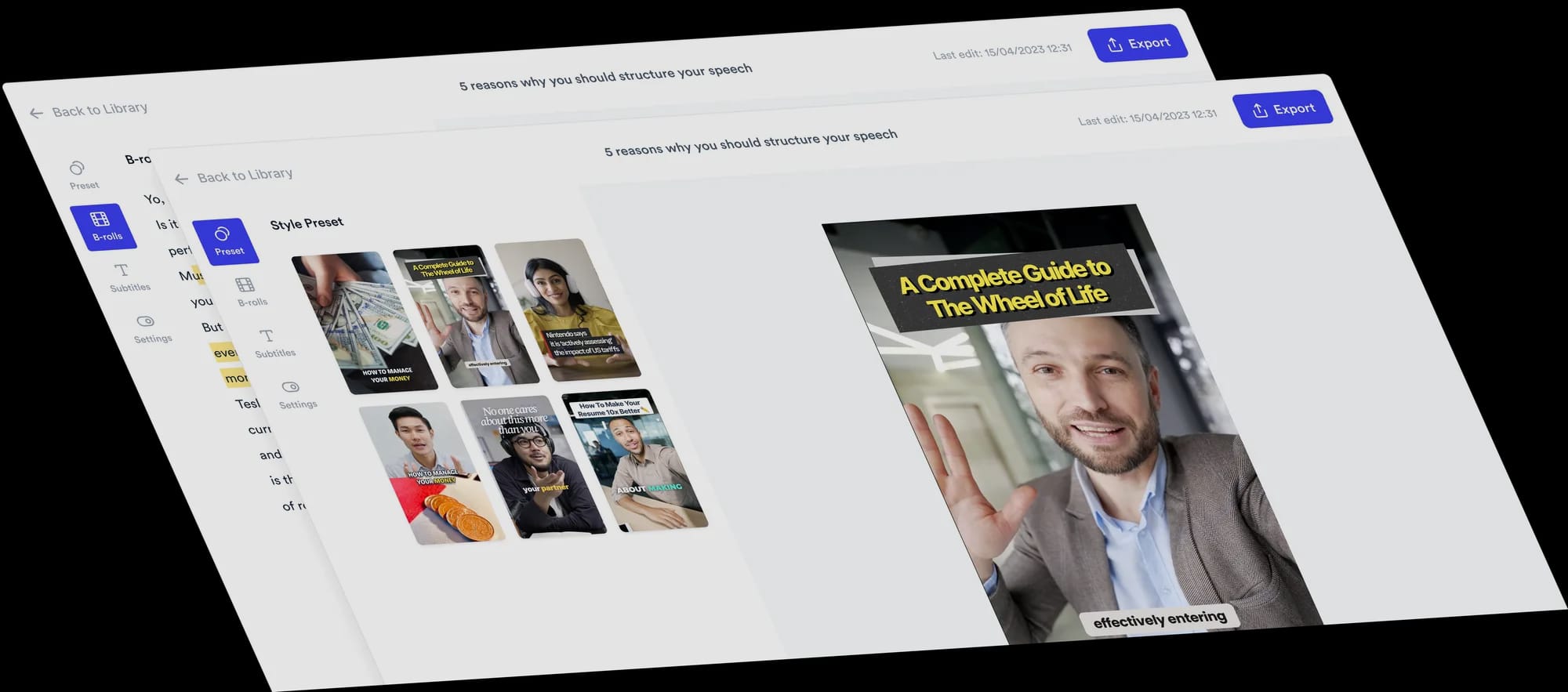
Jupitrr is the AI video editor for coaches and consultants. Plan, script, record, edit, and publish your videos in one place, powered by the Jupitrr AI Video Editor and the Jupitrr Cut Teleprompter app. This free toolkit is a small slice of what the full product can do. When you are ready for subtitles, B-roll, filler-word removal, and one-click publishing across YouTube, LinkedIn, and TikTok, jump into the full editor.
Where does the recording go after I stop?
It loads into an in-page preview where the recorder was, so you can play it back and decide whether to keep the take. Hit Download to save the MP4 to your computer, or hit Record again to retake. The recording is not uploaded; it remains in your browser session until you download it or leave the page. When you are ready for subtitles, B-roll, and filler-word removal, sign up and continue in Jupitrr.
Your all-in-one video workflow
Start creating videos consistently.
footer card