Edit Your Video · Updated 20 Oct 2026
How to add and edit B-roll in Jupitrr
Jupitrr adds B-roll automatically after it transcribes your video, matching stock footage and images to relevant moments in your transcript. In the B-rolls tab you can swap any clip, add clips on new words, change how and when each clip appears, or remove it. B-roll sits on its own lane, so subtitles, the hook and text overlays stay as they are.
Before you start
- A video open in the editor. Automatic B-roll is added when Add B-roll Automatically is on in Set up your video (it is on by default).
- Editing unlocks once the subtitles are ready. Automatic clips may still be arriving for a short while after that.
- Web image search needs a Starter plan or above.
How automatic B-roll is chosen
Once your transcript is ready, Jupitrr picks the moments that benefit from a visual, writes a search for each one and places a matching stock clip or image over those words. It covers relevant moments, not every sentence, so stretches where you are simply talking stay on you.
Formats change this. With Tier List, automatic B-roll starts off because the ranking board takes over the screen. With Green screen, B-roll is always on and fills the whole video, because it becomes the background behind you.
Step-by-step guide
- 1
Open the B-rolls tab
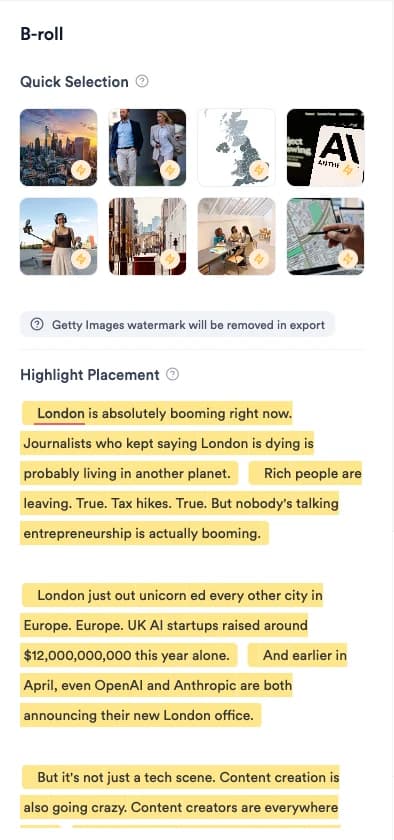
Select B-rolls in the left rail. Quick Selection shows every clip in order. Highlight Placement shows your transcript, with the words each clip covers highlighted.
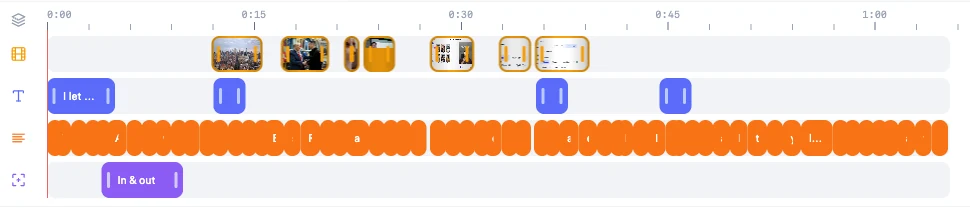
Clips also appear on the B-roll lane at the top of the timeline. Clicking a clip there opens the same tab.
- 2
Jump to a placement
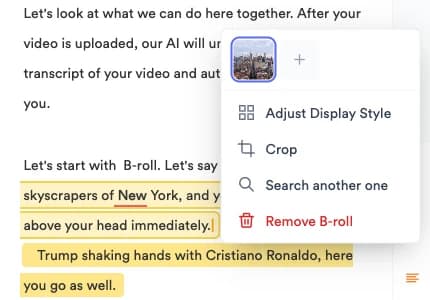
Click a highlighted phrase in Highlight Placement, or a clip on the timeline. The playhead moves to that moment and the clip's menu opens.
There is no next/previous button; work down the transcript instead. Quick Selection shows 8 thumbnails at a time, with arrows to page through longer videos.
View full size - 3
Replace a clip
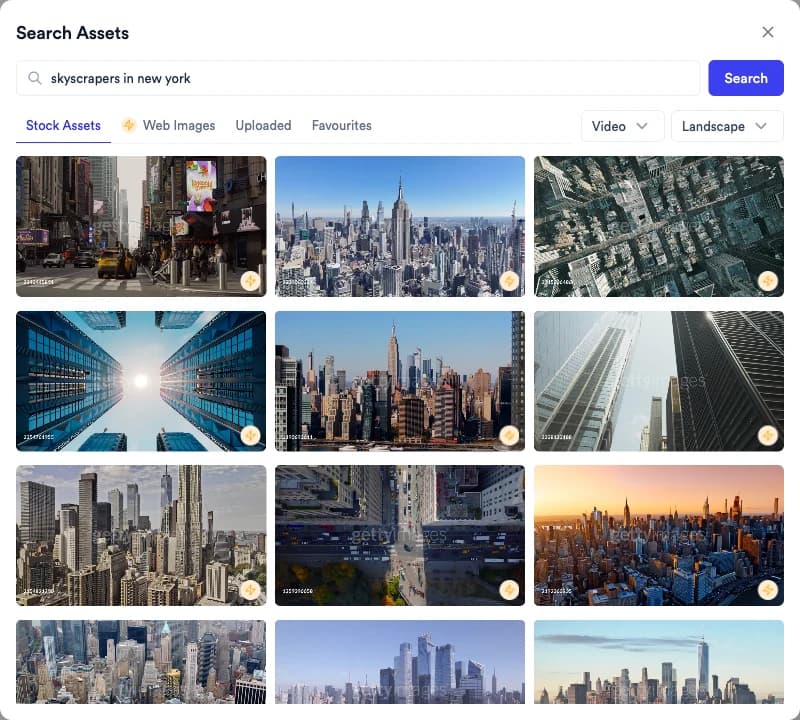
In the clip's menu, choose Search another one, or click its thumbnail in Quick Selection. Pick a new result in Search Assets and it takes the old clip's place.
- Search Assets opens with the clip's search already filled in. Edit it and select Search to look for something else.
- Stock Assets searches stock footage and images; filter by video or image and by landscape or portrait.
- Web Images searches images from the web, with a licence filter.
- Uploaded holds your own files, and Favourites holds clips you have starred.
- 4
Choose stock footage, images or web images
In Search Assets, stay on Stock Assets for stock video and images, or switch to Web Images to search the web. Click a result to use it.
Use the Video and Landscape menus to filter stock results. On Web Images, the licence menu offers Not filtered by license, Creative Commons Licenses and Commercial & other licenses.
View full size - 5
Use a GIF or your own footage
Select the words in Highlight Placement, then choose Pick a GIF or Upload Image/Video. To swap an existing clip for your own file, choose Search another one and open Uploaded.
Uploads can be SVG, PNG, JPG, GIF or MP4, up to 1.5 GB per file. Files you upload stay in Uploaded for later videos.
- 6
Add B-roll to new words
In Highlight Placement, select the words you want covered. Choose Search Stock/Web Asset, Pick a GIF or Upload Image/Video.
To stack a second clip on the same words, open the clip's menu and choose the + button (Add another B-roll here). Use Bring to front and Send to back to order stacked clips.
- 7
Change when a clip plays
On the timeline, drag a B-roll clip to move it, or drag either edge to make it shorter or longer. You can also drag the handles of a highlight in Highlight Placement.
Clips snap to words, other clips and the playhead. Hold Alt (Option on Mac) while dragging to move freely.
- 8
Change how a clip looks
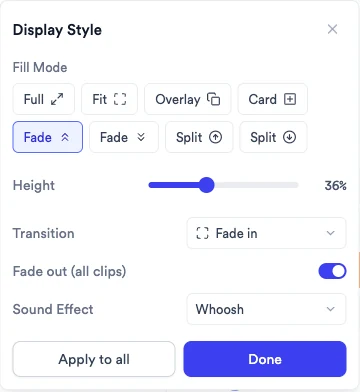
Open the clip's menu and choose Adjust Display Style. Pick a Fill Mode, a Transition and a Sound Effect, then select Done.
- Fill Mode: Full covers the frame, Fit shows the whole clip on a blurred background, Overlay and Card sit over the video with size and position controls, and Fade and Split (portrait videos only) share the frame with you.
- Fade out (all clips) fades every clip out as it ends.
- Apply to all copies the display style, transition or sound effect to other clips. You choose which settings to copy and which clip types they apply to.
- Crop, in the same menu, trims the visible area of a clip.
- 9
Remove a clip
Choose Remove B-roll in the clip's menu, hover a thumbnail in Quick Selection and click the bin icon, or select the clip on the timeline and press Delete.
After a timeline delete, Undo appears in a toast. If you remove every clip, the B-rolls tab offers Reset B-rolls to bring back the default selection.
- 10
Adjust settings for every clip at once
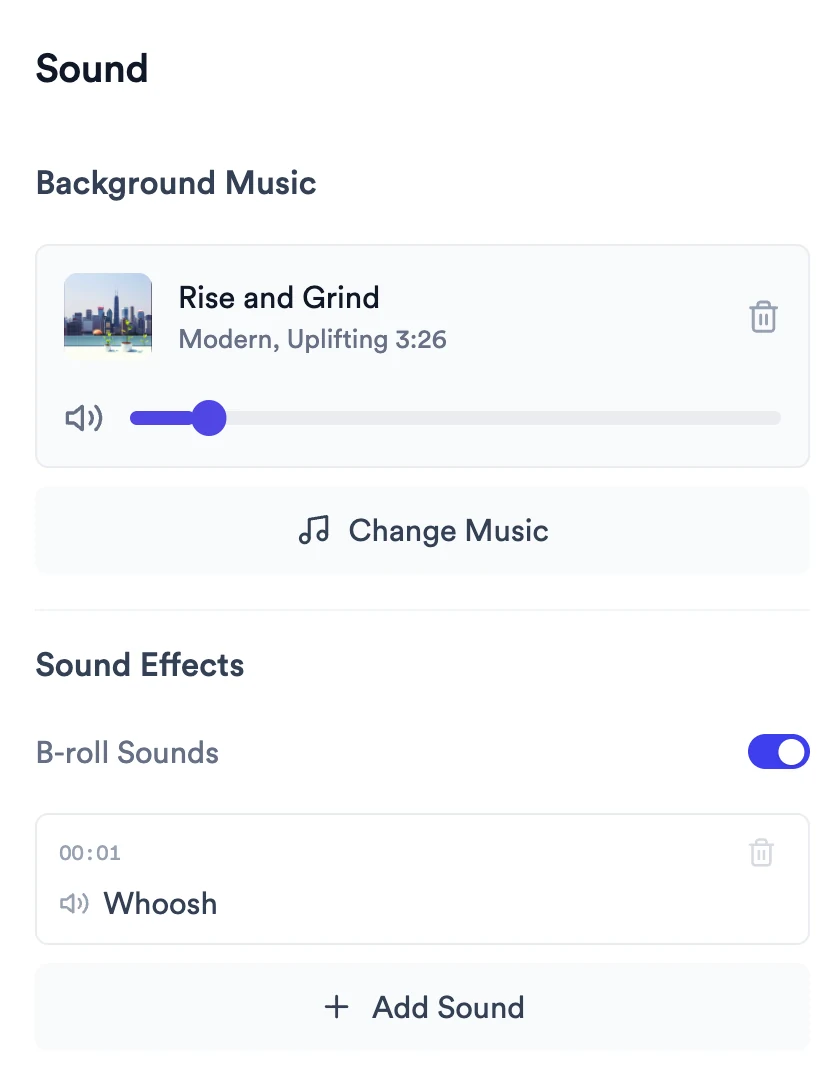
Open Transitions for the switches that apply to all B-roll: B-roll Transition, Fade Out B-roll, Image Slow Zoom and Initial Film Burn. B-roll Sounds lives in Sound (see How to add music and sound effects).
What Jupitrr does automatically
- Choosing which moments in your transcript get a visual
- Searching stock footage and images for each moment
- Placing each clip over its words, with a transition and sound effect
- In Green Screen videos, filling the whole background with B-roll
What you can edit
- Which clip plays: stock, web image, GIF or your own upload
- Where and how long it plays
- Fill mode, size, position, crop, transition and sound effect
- Stacking order when clips share the same words
- Whether a moment has B-roll at all
Media sources and licensing
- iStock by Getty Images: stock clips licensed for commercial use on paid plans. The editor preview shows a watermark (Getty Images watermark will be removed in export); the exported video does not.
- Pexels: some stock clips come from Pexels. Plans that include iStock search iStock in Stock Assets.
- Web Images: images found on the web, available on Starter and above. Use the licence filter, and only publish images you have the right to use.
- GIFs: searched through Giphy from Pick a GIF.
- Your uploads: your own footage and images, kept in Uploaded.
Limits and requirements
- Automatic B-roll covers relevant moments, not every sentence.
- There is no editor-wide switch to turn B-roll off; remove the clips you don't want, or switch off Add B-roll Automatically when you upload.
- Fade and Split fill modes are only available for portrait videos.
- Uploaded files can be up to 1.5 GB each.
Troubleshooting
A clip has a red badge saying it is no longer available.
The stock source has removed it. Click the thumbnail (This clip is no longer available. Click to replace.) and pick a new clip. Export waits until every unavailable clip is replaced.
Why does the preview show a Getty Images watermark?
The editor uses low-resolution watermarked previews of iStock clips. The watermark is removed when you export on a plan that includes iStock.
Export asks me to upgrade for iStock.
Your video uses iStock clips your plan doesn't include. Upgrade, or replace those clips with web images, GIFs or your own uploads.
Why doesn't every sentence have B-roll?
Jupitrr only places B-roll on moments where a visual helps, so the viewer still sees you while you talk. Select any words in Highlight Placement to add a clip yourself.
Will changing B-roll change my subtitles or hook?
No. B-roll is on its own lane, so swapping, moving or removing clips leaves subtitles, the hook and text overlays as they were.
I deleted all the B-roll by mistake.
Press ⌘Z (Ctrl+Z on Windows) to undo, or choose Reset B-rolls in the empty B-rolls tab to restore the default selection.