Formats · Updated 16 Oct 2026
How to make a Green Screen video in Jupitrr
Green screen cuts you out of your footage and places you in front of B-roll, without a physical green screen. Jupitrr fills the background with B-roll matched to your transcript, puts the hook at the top and keeps your subtitles. You can change the background clips, move and resize yourself, and split the video into parts with different layouts.
Before you start
- Formats are designed for short portrait videos for social, like YouTube Shorts, Instagram Reels and TikTok. Keep the video under 3 minutes so it fits Shorts and Reels. Formats are not available for landscape videos.
- You in frame. The cutout itself works on videos up to 10 minutes.
- Green screen is not available on AppSumo plans.
- You don't need a green or plain background; Jupitrr separates you from whatever is behind you.
Step-by-step guide
- 1
Choose Green screen when you upload
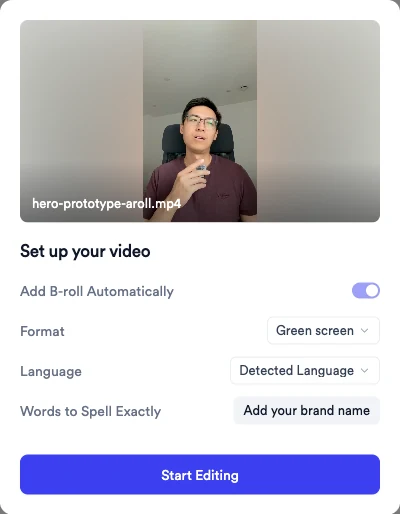
In Set up your video, set Format to Green screen, then select Start Editing. Add B-roll Automatically stays on, because the B-roll becomes your background.
You can also turn it on later: select Formats and choose Green screen. If the video has no B-roll yet (for example, it was uploaded with automatic B-roll off), add some from B-rolls; otherwise the background stays a blurred version of your original room.
- 2
Wait for the cutout
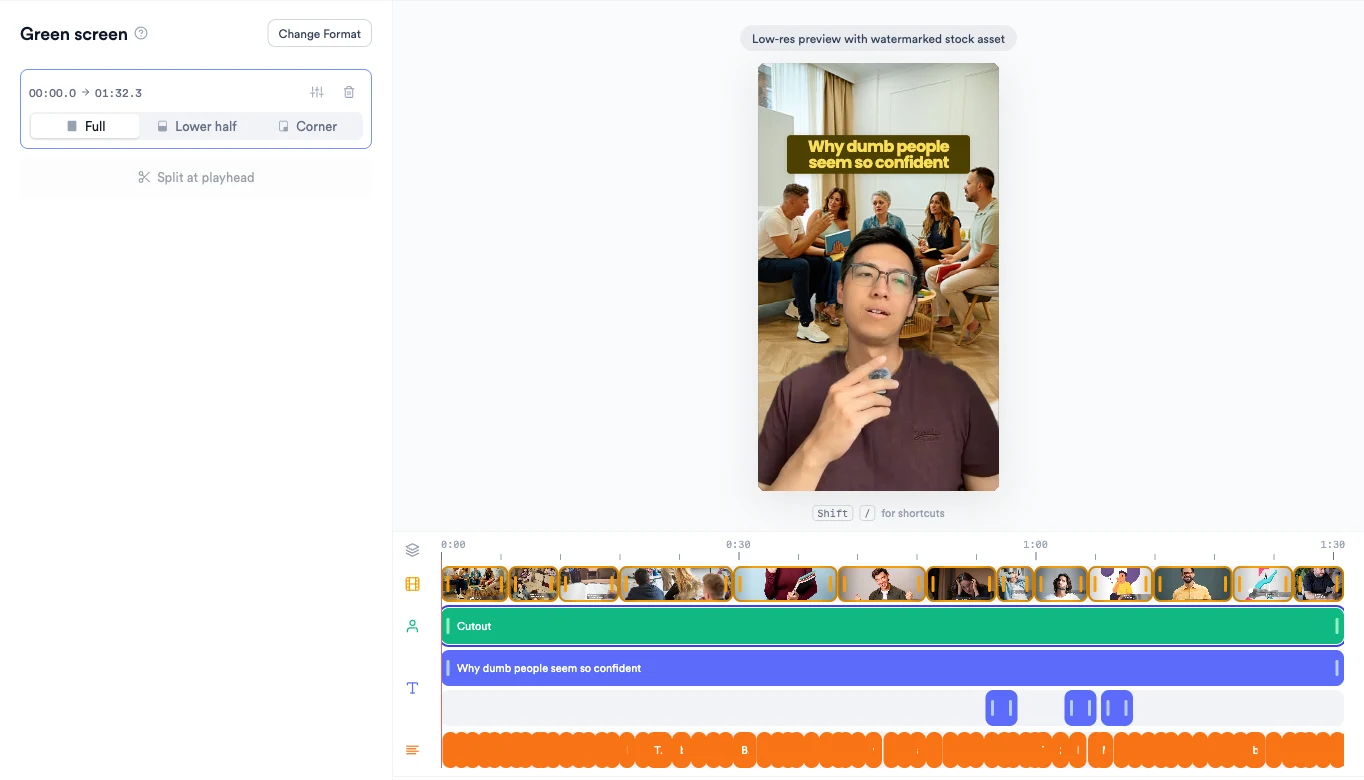
After your video is processed, Jupitrr cuts you out of each frame. The Green screen panel shows Cutting you out of the background; it usually takes about a minute.
When it is ready, Jupitrr creates one cutout part covering the whole video and stretches the B-roll so there is always something behind you.
View full size - 3
Review the cutout parts
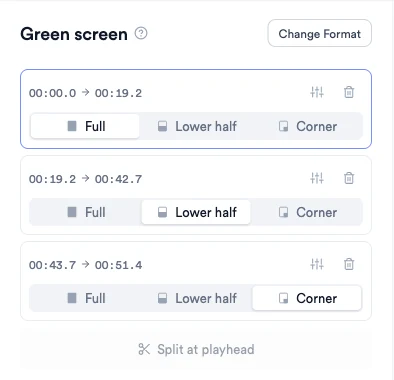
Select Formats to open the Green screen panel. Each card is a cutout part with its time range; the same parts appear as Cutout bars on the timeline.
Where there is no cutout part, the original video plays.
- 4
Choose a layout for each part
On each part, choose Full, Lower half or Corner.
Full keeps you where and how you were filmed. Lower half shrinks you to 60% at the bottom centre, and Corner shrinks you to 55% at the bottom right, so more of the background shows.
- 5
Fine-tune your position
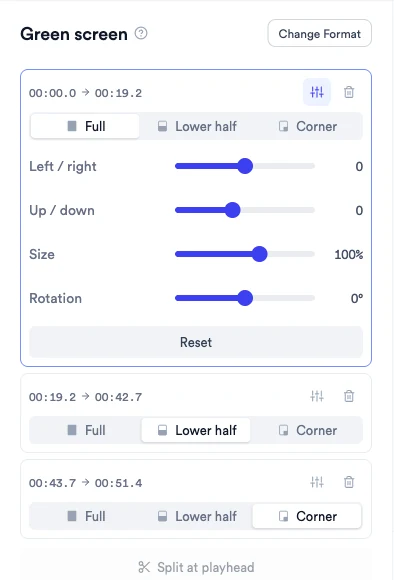
Select the sliders icon on a part (Fine-tune position, size and rotation) and adjust Left / right, Up / down, Size and Rotation.
Reset puts you back where you were filmed.
- 6
Split, add or delete parts
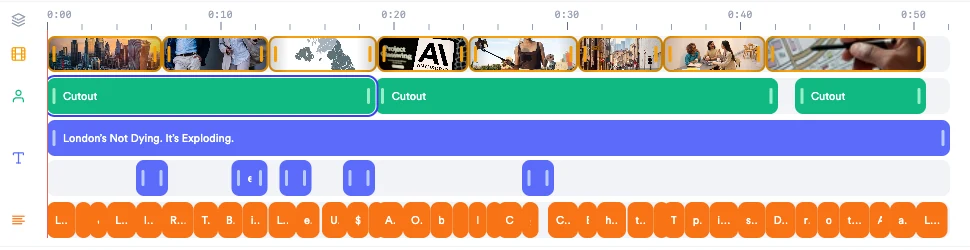
Move the playhead, then select Split at playhead to divide a part, or Add cutout at playhead in a gap without one.
Drag or trim Cutout bars on the timeline to retime parts; each part is at least 1 second long and parts can't overlap. To delete a part, use Delete cutout on its card, or select the bar and press Delete (Undo appears in a toast).
Parts change with a hard cut, so you can switch from Full to Corner at a new point in your script.
View full size - 7
Change the background
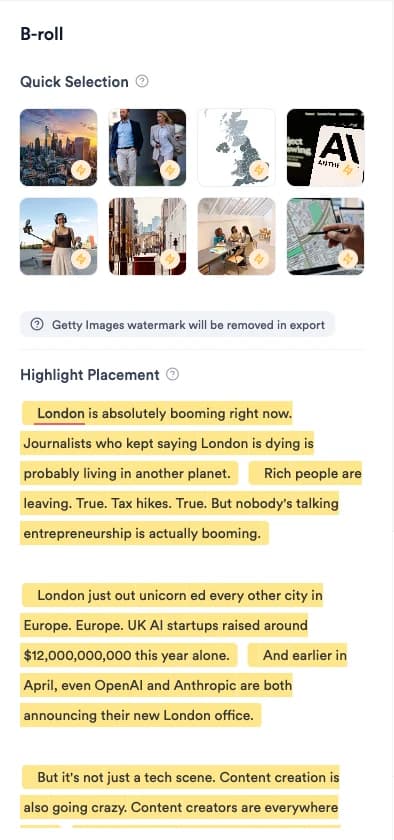
The background is your B-roll. Open B-rolls, click a clip and choose Search another one to replace it, or add clips on new words.
Clips set to Full (the default with Green screen) sit behind you. Clips set to Overlay or Card float in front of you. Web image searches return portrait images while Green screen is on.
Every replace, add and display option is covered in How to add and edit B-roll.
- 8
Edit the hook and subtitles
Green screen keeps the hook at the top of the frame for the whole video, with subtitles underneath. Edit them in Text and Subtitles as usual.
- 9
Switch or remove the format
Select Change Format. Choose another format and confirm with Switch format, or choose Remove format.
Your cutout parts are kept, so switching back restores them. Your B-roll, subtitles, hook and music stay in the project.
What Jupitrr does automatically
- Cutting you out of every frame, without a green screen
- B-roll behind you for the whole video, matched to your transcript
- One cutout part covering the full video
- The hook at the top of the frame, with subtitles kept
What you can edit
- Background clips: replace, add, retime or restyle
- Layout for each part: Full, Lower half or Corner
- Position, size and rotation of each part
- Where parts start and end, and how many there are
- Hook, subtitles and music
- The format itself: switch or remove it
Limits and requirements
- The cutout works on videos up to 10 minutes. Longer videos show This video is too long for a cutout (10 minutes max). For YouTube Shorts and Instagram Reels, keep the video under 3 minutes.
- Not available for landscape videos or on AppSumo plans.
- This is an AI cutout, not a chroma key: there are no spill or tolerance controls.
- Turning on Green screen in the editor doesn't add B-roll. Videos uploaded without B-roll need clips added from B-rolls.
Troubleshooting
There is a blurred version of my room behind me.
That stretch of the video has no B-roll. Add a clip on those words from B-rolls, and it becomes the background.
The cutout failed.
If the panel says The cutout failed. or This is taking much longer than usual., select Retry.
Green screen is missing from the Formats list.
It is hidden for landscape videos and locked on AppSumo plans (Green screen isn't available on AppSumo plans.).
A B-roll clip is covering my face.
That clip is set to Overlay or Card, so it floats in front of you. Open Adjust Display Style and set it to Full to move it behind you.
Can I use my own background?
Yes. Replace a background clip with your own footage or image from Uploaded in Search Assets.