Formats · Updated 16 Oct 2026
How to make a Tier List video in Jupitrr
Tier List turns a video where you rank things into a ranking board inside your edit. Jupitrr reads your transcript, finds each item you give a verdict on, places it in a tier and reveals it at the moment you say it. Subtitles, the hook and music stay in the same editable project, and you can change every item and tier.
Before you start
- Formats are designed for short portrait videos for social, like YouTube Shorts, Instagram Reels and TikTok. Keep the video under 3 minutes so it fits Shorts and Reels. Formats are not available for landscape videos.
- A video where you rank named things out loud, for example "Notion is S tier" or "this one is a waste of time". Jupitrr only lists items you give a clear verdict on.
- You can choose Tier List when you upload, or turn it on later in the editor.
Step-by-step guide
- 1
Choose Tier List when you upload
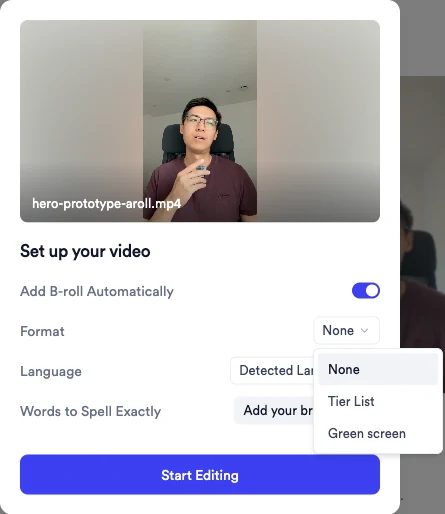
In Set up your video, set Format to Tier List, then select Start Editing.
Tier List takes over the screen, so Add B-roll Automatically switches off when you pick it.
- 2
Or turn it on in the editor
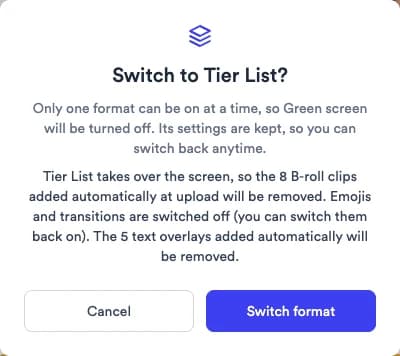
For a video that is already open, select Formats, choose Tier List and confirm with Turn on Tier List.
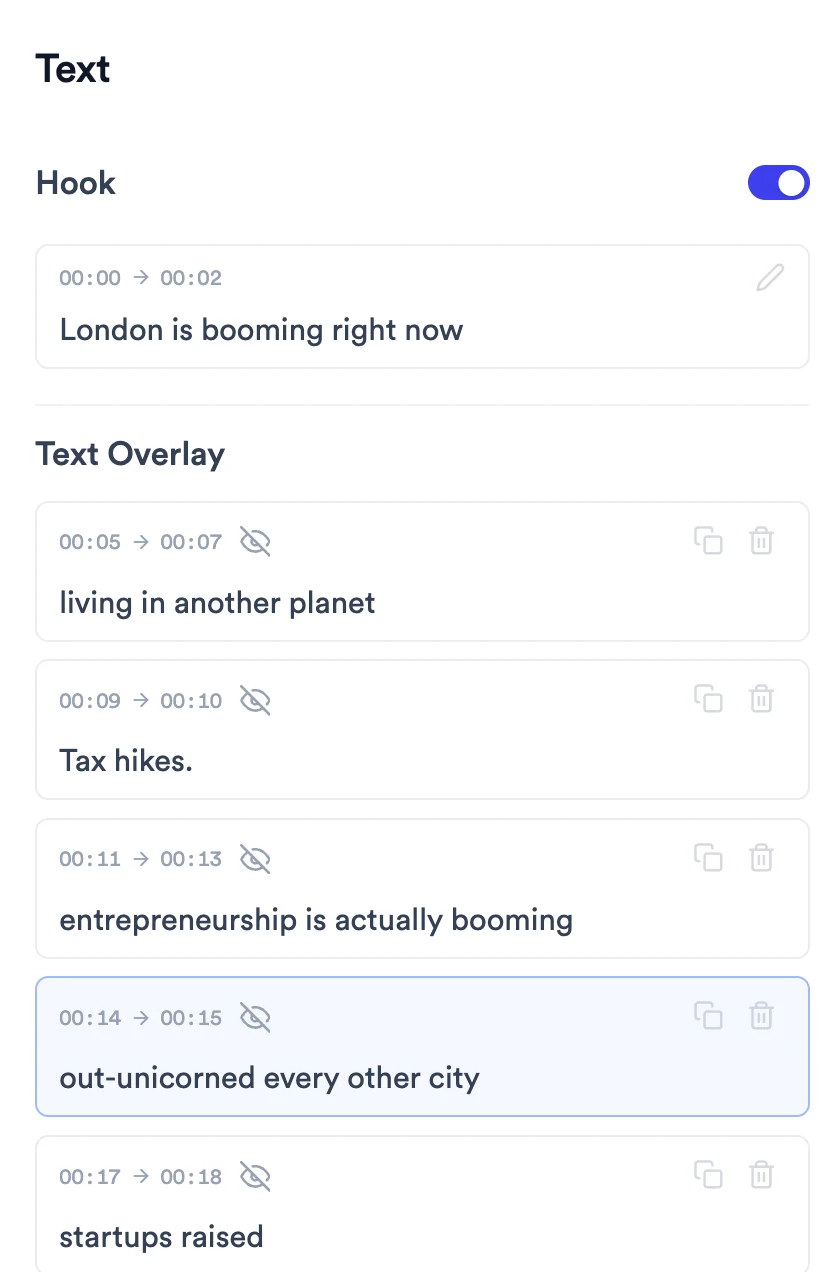
The confirmation lists what will change: B-roll clips and text overlays added automatically at upload are removed, clips you added yourself stay, and emojis and transitions are switched off (you can switch them back on). If another format is on, the button reads Switch format; that format is turned off and its settings are kept.
- 3
Let Jupitrr build the board
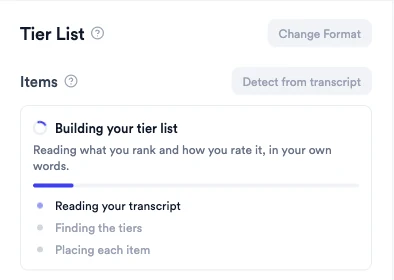
Jupitrr reads your transcript and shows Building your tier list while it finds the tiers and places each item. When it finishes you see Tier list ready: N items found.
The tiers follow your own words. If you grade with letters, the board uses S to D; if you say things like "top tier" or "waste of time", those become the tier names. Your topic becomes the hook, for example 📊 Tier List on parts of video script.
If nothing in the video is ranked, you'll see This doesn't look like a tier list video. You can still add items yourself.
- 4
Check each item
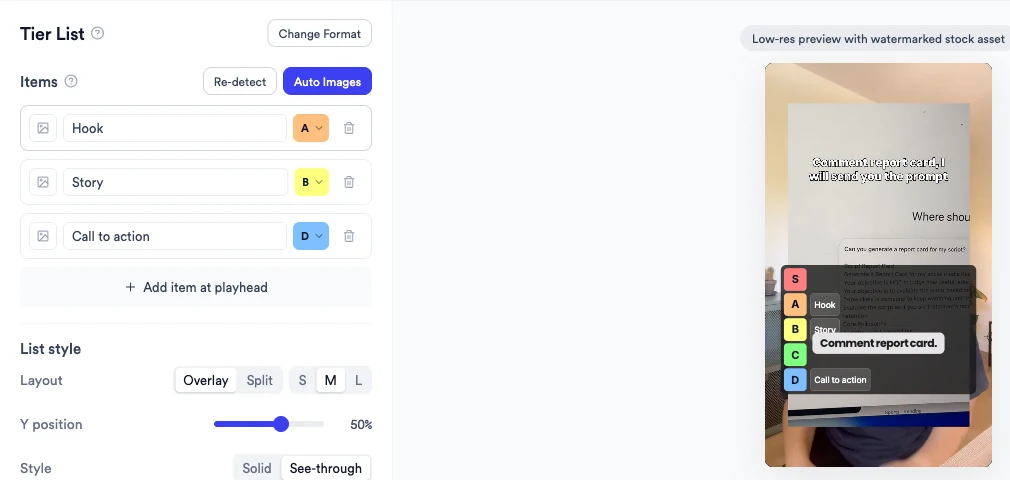
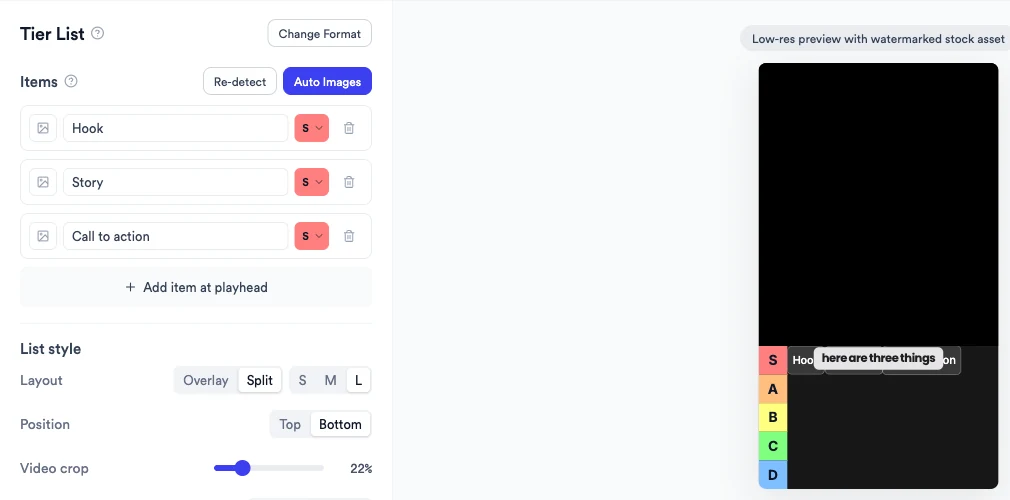
Under Items, every entry has a name, a tier and an optional picture. Click an item to jump to the moment it appears, rename it, or pick a different tier from its menu.
Remove item deletes an entry. Add item at playhead adds a new item in the top tier at the current moment. Items appear on the board in the order you mention them.
View full size - 5
Add pictures to items
Select Auto Images to find a picture for each item that doesn't have one, or click the picture button on an item to choose one yourself.
Auto Images fills up to 12 items at a time and turns on Images only, which shows pictures without names because your subtitles already say them.
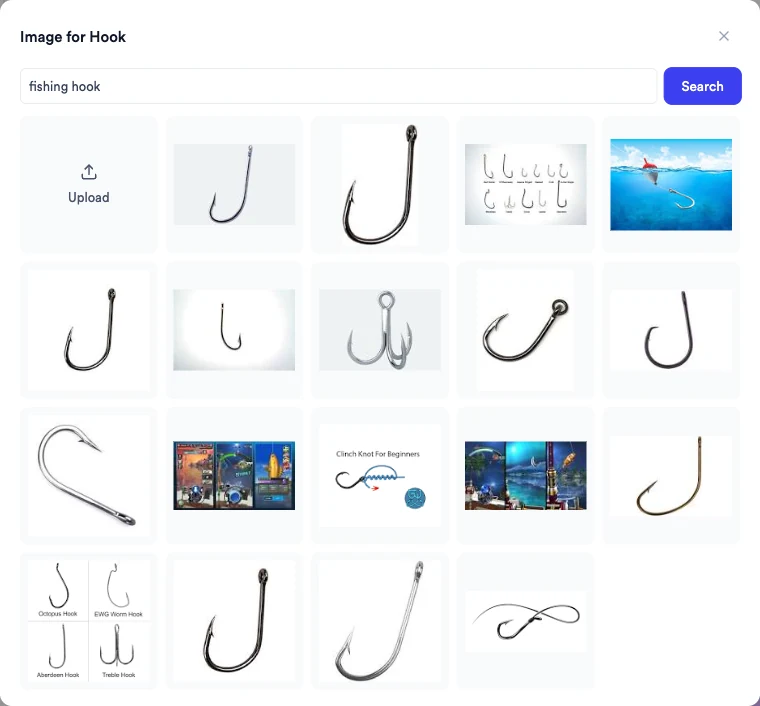
The picture window searches web images for the item name; you can change the search, Upload your own image (up to 5 MB) or Remove image.
View full size - 6
Rename, recolour, add or remove tiers
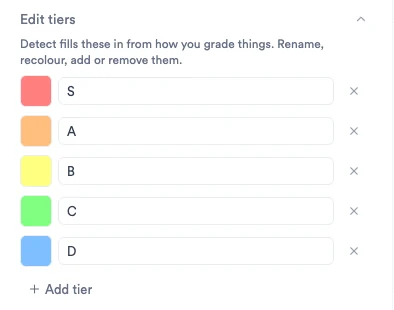
Open Edit tiers at the bottom of the panel. Click a colour to change it, type to rename a tier, use × to remove one or Add tier to add one.
A board can have between 2 and 6 tiers.
- 7
Style the board
Use List style to set the Layout (Overlay or Split) and size (S, M or L), then fine-tune how the board and items look.
- Overlay places the board over your video. Set its Y position and Style (Solid or See-through).
- Split gives the board its own half of the frame. Choose Position (Top or Bottom) and Video crop to keep your face in frame. Switching to Split also moves the hook and subtitles to suit the layout.
- Tier labels: Square boxes or one solid Column.
- Reveal Items Animation: each item pops up large as you mention it, then drops into its tier. Set its size and Reveal Y position, or switch it off so items simply appear.
- Images only hides item names and shows pictures.
View full size - 8
Adjust timing on the timeline
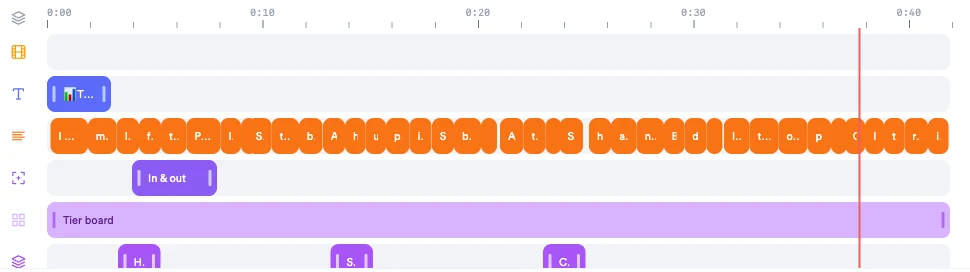
Each item is a bar on the Tier List lane of the timeline; drag or trim it to change when the item appears. With the Overlay layout, the Tier board lane sets when the board is on screen.
View full size - 9
Edit the hook, subtitles and B-roll
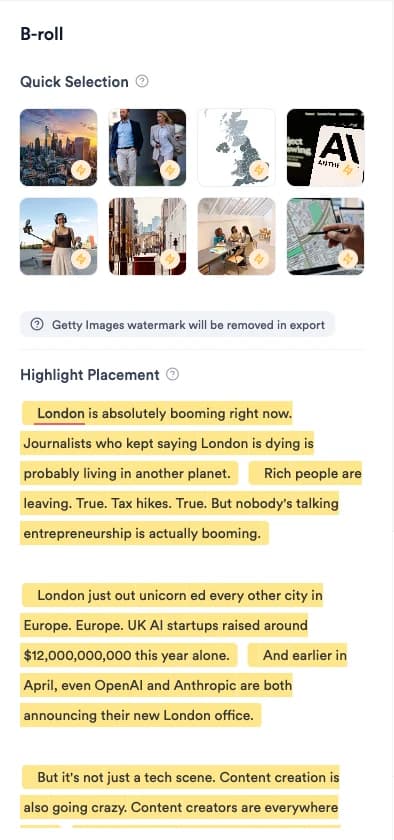
The rest of the edit works as usual. Change the hook in Text, the subtitles in Subtitles and the music in Sound. To add B-roll, select words in B-rolls → Highlight Placement.
With the Overlay layout, the hook appears where the subtitles normally sit and the subtitles hide while it is on screen.
- 10
Switch or remove the format
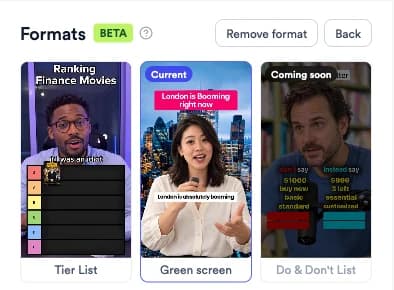
Select Change Format. Choose another format and confirm with Switch format, or choose Remove format.
Your items, tiers and style are kept, so switching back to Tier List restores the board. Your subtitles, hook and music are not affected.
What Jupitrr does automatically
- Finding each item you rank and the verdict you give it
- Naming the tiers from your own wording
- Timing each reveal to the moment you say the verdict
- A hook built from your topic
- Removing automatic B-roll and text overlays so the board has the screen
What you can edit
- Item names, tiers, pictures and timing
- Tier names, colours and number of tiers
- Layout, size, position, label style and board style
- Reveal animation, its size and position
- Hook, subtitles, music and any B-roll you add
- The format itself: switch or remove it
Limits and requirements
- Not available for landscape videos.
- Jupitrr lists only items you give a clear verdict on, up to 30 per video.
- The reveal animation is one setting for the whole board, not per item.
- Items are ordered by when you mention them; there is no manual reordering.
- Re-detect rebuilds the items and tiers from your transcript, replacing any changes you made to them.
- Removing Tier List doesn't bring back the automatic B-roll and text overlays it removed. Add B-roll again from B-rolls if you need it.
Troubleshooting
It says "This doesn't look like a tier list video".
Jupitrr didn't find anything ranked in your transcript. Add items yourself with Add item at playhead, or record a version where you say a clear verdict for each item.
I can't find the Formats tab.
Formats are hidden for landscape videos. Record or export your video in portrait, then upload it again.
Why is Change Format greyed out?
It is disabled while Jupitrr is still detecting items or preparing your video. Wait for detection to finish.
Why can't I export yet?
Export waits until Jupitrr has finished building the board. The Export button shows Preparing... until then.
An item is in the wrong tier.
Open the tier menu on that item and choose the correct tier. Editing items by hand is safer than Re-detect, which replaces your changes.
Can I add B-roll to a Tier List video?
Yes. Automatic B-roll is off for Tier List, but you can add clips yourself from B-rolls. See How to add and edit B-roll.