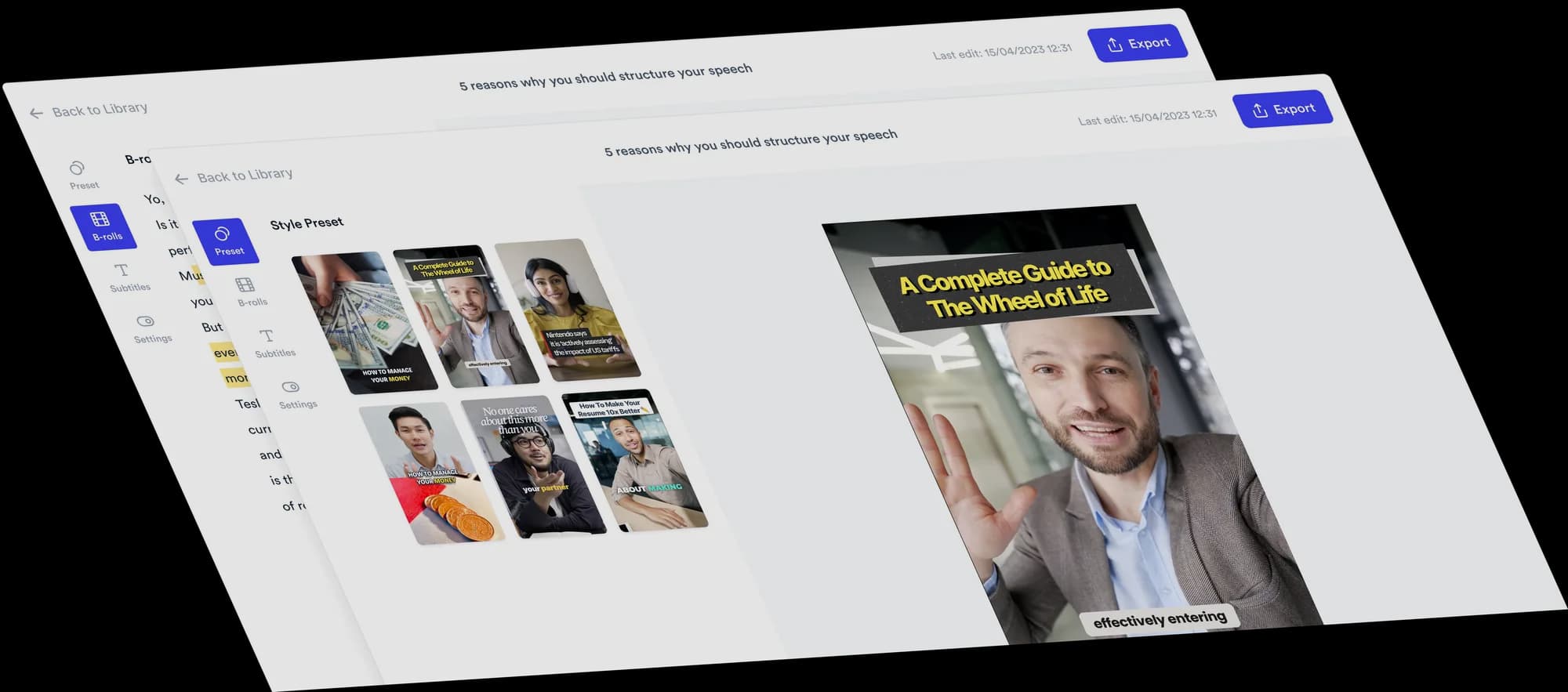
Turn your talking-head video into a Tier List
A Tier List video ranks things into tiers while you explain each verdict on camera. Jupitrr is a tier list video maker that starts from your own recording: it reads what you rank and how you rate it, builds the board on top of your video, and leaves every tier, color, image and layout editable.
 Trusted by 200K+ coaches and consultants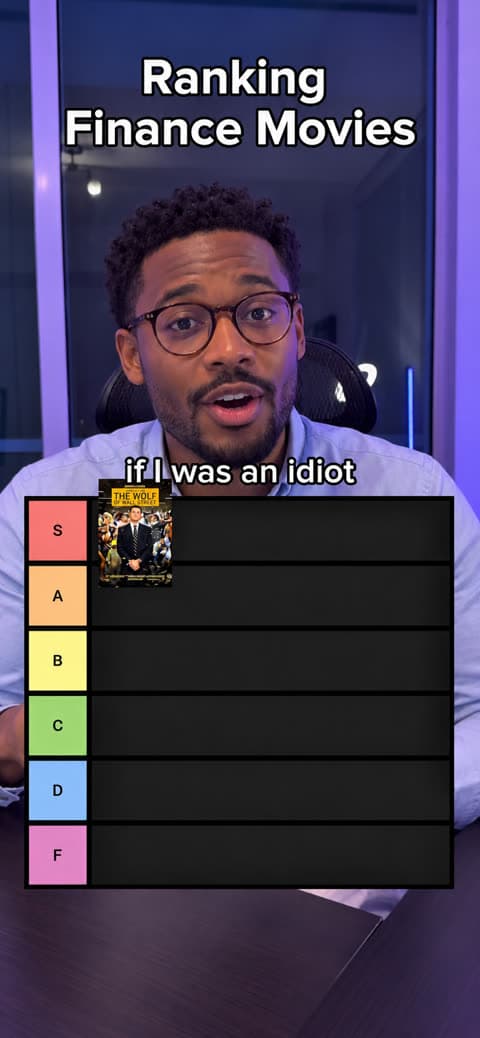






How to make a Tier List video
You bring the opinions. The format brings the board. Everything it fills in stays editable.
- Step 1
Upload the video where you rank things
Record yourself talking through your ranking, upload it, and choose Tier List as the format in "Set up your video". You can also switch to it later from the Formats tab in the editor.
- Step 2
Jupitrr builds the board from your words
It reads your transcript to find each item you rank, the tier you give it and the moment you say it. Tier names come from your own wording, so "top tier" and "waste of time" work as well as S to D. Your topic becomes the hook at the top.
- Step 3
Adjust the board, then export
Rename or recolor tiers, move items, add pictures, choose Overlay or Split, and turn the reveal animation on or off. Not happy with the read? Re-detect from the transcript or add items at the playhead yourself.
Why Tier List videos are easy to follow
Viewers already know how a tier list works, so their attention goes to your verdicts instead of the layout.
A structure viewers already know
S to D tiers need no explanation. Viewers understand the board within the first second.
Anticipation built in
The tiers fill in as you talk, so there is a reason to keep watching to see where the last items land.
Verdicts people compare with their own
A ranking invites viewers to check it against their own opinion, which makes your reasoning the point of the video.
Ready-made structure, fully customizable
The Tier List format gives you a working board straight away. Every part of it can still be changed.
Your tiers, your words
Start from S, A, B, C and D or from the verdicts you actually said. Rename any tier, and keep between two and six.
Tier colors
Each tier has its own color swatch, so the board can match your brand or the mood of the ranking.
Overlay or Split
Overlay sits the board on your video. Split gives the list its own space at the top or bottom, with a video crop to keep your face in frame.
Solid or See-through
In Overlay, choose a solid board or a see-through one that lets your video show behind the rows.
Square or Column tier labels
Show tier labels as separate square boxes, or as one solid column down the side of the board.
Images only, or images with names
Each item can have a picture and a name. Switch on "Images only" when your subtitles already say the names.
Reveal animation
With "Reveal Items Animation" on, each item pops up as you mention it, then drops into its tier. Turn it off for a quieter board.
Size and position
Pick a board size, move it up or down, and set the size and position of the reveal so it lands in a clear spot.
Items you control
Move an item to another tier, rename it, change its picture, remove it, or add a new one at the playhead.
Find the visual without leaving the editor
Every item on a Tier List needs a picture. Jupitrr lets you find it inside the editor, so you skip the download-and-upload loop.
Search web images per item
Open an item and search the web for its picture. Pick a result and it is on the board, no saving files to your desktop first.
Auto Images
One click fills your items with a picture from web search, then you change the ones you want.
Stock Assets
Search stock images and video for the rest of your video. Paid plans include Getty Images and iStock stock.
Your own uploads
Upload a logo, product shot or screenshot when the right picture is one only you have.
Web image results come from the open web, so their rights vary by image. You can filter web results by license, and you are responsible for confirming you can use an image, especially in ads.
The full Jupitrr edit is still there
Tier List is a format on top of the normal Jupitrr editor, not a separate tool. Your talking-head video, transcript and timeline stay the same.
Hook text
The topic of your ranking goes into the hook at the top, and you can rewrite it like any other hook.
Dynamic subtitles
Your subtitles keep their style and timing, and work alongside the board.
B-roll when you want it
Automatic B-roll starts off so the board has the screen. You can still add B-roll clips where a moment needs one.
Music and sound effects
Add background music and sound effects the same way you would in any Jupitrr video.
Timeline and transcript editing
Trim, cut and edit from the transcript as usual. Items keep the moment you mention them.
Switch or remove the format
Change your mind and switch to another format, or remove it, from the Formats tab.
What experts rank with a Tier List
Rank the tools you use
Software, apps or gear for your field, from the ones you rely on to the ones you dropped.
Compare products
Put competing products side by side and give your honest verdict on each.
Rate industry tactics
Marketing tactics, sales scripts or training methods, ranked by what actually works.
Review recommendations
Books, courses or advice your audience keeps hearing, sorted by whether it is worth their time.
Share expert opinions
Turn a strong point of view into a format your audience already knows how to watch.
Answer audience questions
Take the options people ask you about most and rank them in one video.
Who Tier List suits
Consultants
Rank the tools, vendors or frameworks clients ask about, and explain the reasoning behind each verdict.
Coaches
Rank common habits or tactics from what works to what wastes your clients' time.
Marketers
Rate channels, tactics or campaign ideas by what you have seen perform.
Educators and subject-matter experts
Sort resources, methods or concepts by how useful they are for someone starting out.
Tips for a clear Tier List video
Do
- Say each item's name clearly before you give its tier, so the board places it at the right moment.
- Pick a number of items you can cover in under 3 minutes for Shorts and Reels.
- Use the same tier words throughout, such as "top tier" and "skip", so the board stays consistent.
- Give a one-line reason for every verdict.
Avoid
- Ranking too many items for a short video.
- Changing your mind mid-sentence without restating the final tier.
- Exporting before checking that every item has the picture you want.
- Covering the board with B-roll: it needs the screen.
Watch the step-by-step guide
Upload, pick Tier List, add pictures, style the board and publish, then 5 tactics to make your next ranking video perform.
Trusted by 200K+ coaches and consultants



Making a Tier List by hand vs with the format
Any timeline editor can make a Tier List video. The difference is how much of it you assemble yourself.
| Step | In a general video editor | With the Jupitrr Tier List format |
|---|---|---|
| Building the board | Design the grid as shapes or an image, then place and size it over your footage. | The board is ready when you pick the format, with tiers you can rename, recolor and resize. |
| Finding item pictures | Search in a browser, download each image, then import it into the project. | Search web images from each item, or fill every item at once with Auto Images. |
| Timing each item | Scrub to the moment you mention each item and keyframe it in by hand. | Items are placed at the moment you mention them, read from your transcript. |
| Subtitles and hook | Transcribe, style and place captions and a title as separate layers. | Dynamic subtitles and the hook come with the normal Jupitrr edit. |
| Changing a verdict | Move the image, re-time the animation and check nothing overlaps. | Pick a new tier for the item from a dropdown. |
- Building the board
- In a general video editorDesign the grid as shapes or an image, then place and size it over your footage.
- With the Jupitrr Tier List formatThe board is ready when you pick the format, with tiers you can rename, recolor and resize.
- Finding item pictures
- In a general video editorSearch in a browser, download each image, then import it into the project.
- With the Jupitrr Tier List formatSearch web images from each item, or fill every item at once with Auto Images.
- Timing each item
- In a general video editorScrub to the moment you mention each item and keyframe it in by hand.
- With the Jupitrr Tier List formatItems are placed at the moment you mention them, read from your transcript.
- Subtitles and hook
- In a general video editorTranscribe, style and place captions and a title as separate layers.
- With the Jupitrr Tier List formatDynamic subtitles and the hook come with the normal Jupitrr edit.
- Changing a verdict
- In a general video editorMove the image, re-time the animation and check nothing overlaps.
- With the Jupitrr Tier List formatPick a new tier for the item from a dropdown.
Keep reading
- How to make a Tier List video in JupitrrThe step-by-step guide to every Tier List control
- All Formats and subtitle stylesGreen Screen, Do & Don't, column Formats, Logo List and more
- Green Screen Video MakerPut yourself in front of what you are talking about
- Jupitrr AI video editorThe automatic first cut every Format is built on
Frequently asked questions
What is a Tier List video?
How do I make a Tier List video?
Can I customize the tier names and colors?
Can I use images and text for ranked items?
Can I choose overlay or split screen?
Can I animate each ranking reveal?
Can I use my own talking-head footage?
Can I add B-roll and dynamic subtitles?
Do I need to download and upload every image?
Can I edit the generated video?
Talk through your ranking. Get a Tier List video.
Upload your recording, pick Tier List, and edit the board Jupitrr builds from your words. From $14.50/mo billed annually.