jupitrr logo
Features
Use Cases
Resources
Pricing
Log in
Try it for Free

Screen Recorder

Capture a tab, window, or your whole screen as a video file, with mic audio. Free in your browser, no install, no watermark.
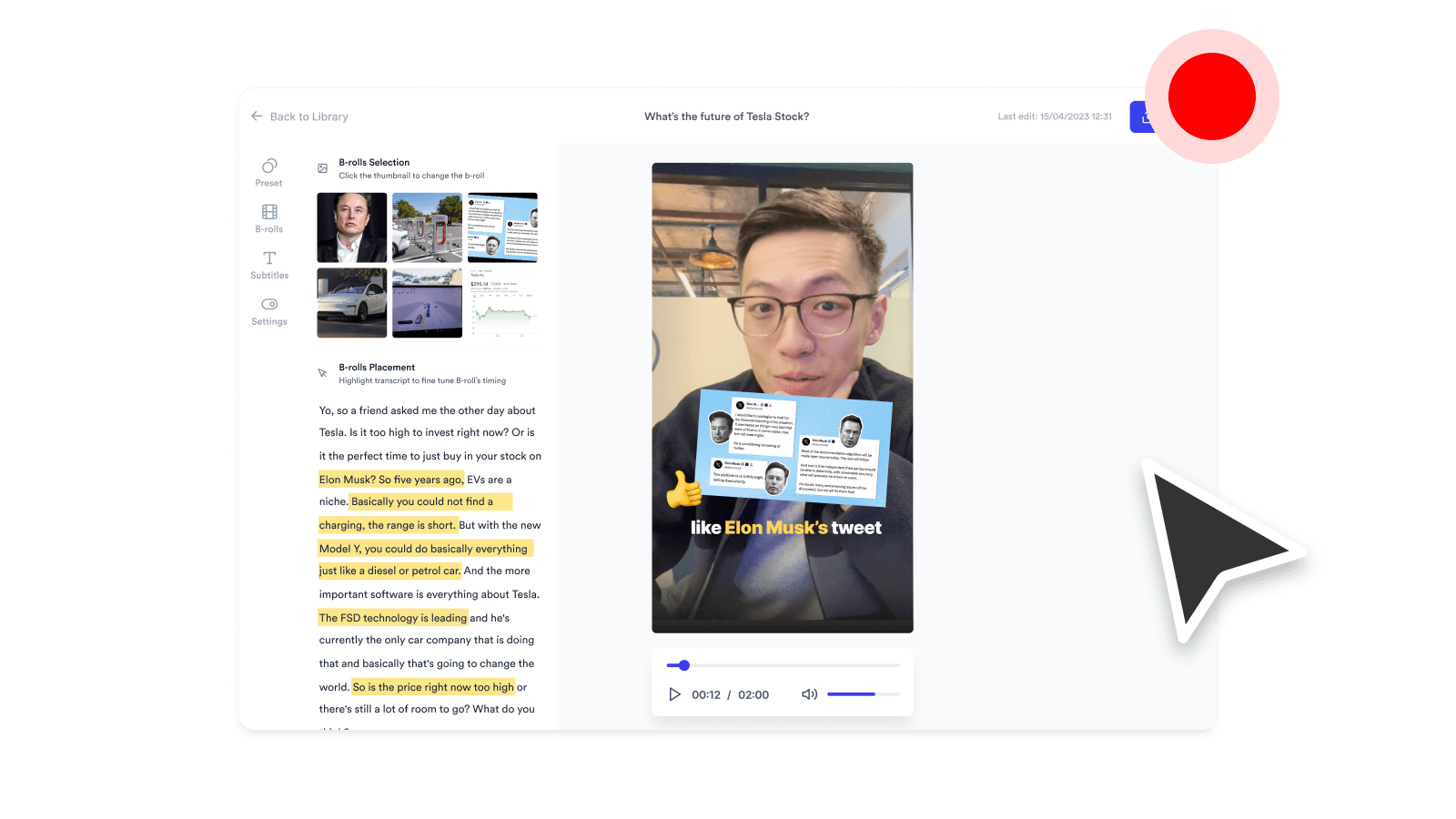
Screen Recorder
Loading screen recorder…

How it works

1

Pick what to record

Click start. Your browser offers a tab, a window, or the full screen.

2

Add audio (optional)

Narrate with your mic, capture tab audio, or both. Everything merges into a single audio track.

3

Stop and download

Stop from the recorder or the browser bar. Preview the file and download — or keep editing in Jupitrr.

Frequently asked questions

What is a Screen Recorder?
A browser tool that captures whatever is on your screen and saves it as a video file. You pick a tab, window, or full screen to record, hit start, and the tool grabs everything happening on that surface until you stop. Perfect for tutorials, walk-throughs, bug reports, sales demos, and product explainers.
Why do I need a Screen Recorder?
Screen recordings replace long written instructions. Showing is faster than explaining for product demos, internal docs, customer support replies, async stand-ups, and how-to videos. A 90-second screen recording often gets the point across better than a wall of text.
Is it free to use Screen Recorder?
Yes, 100% free. The Screen Recorder is part of the Jupitrr Free Video Toolkit. We want to build quick and easy video tools that help you every step in creating content for your business.
Do I need to download or install anything?
No. The Screen Recorder is fully browser-based, so there is nothing to download, install, or sign up for. It works on macOS, Windows, ChromeOS, and Linux as long as you can open the page. No desktop app, no extension, no plugin.
Does it work on iPhone or Android?
No. Mobile operating systems do not let web pages capture the screen. For mobile screen recording, use the built-in iOS Screen Recording (Control Center) or Android Screen Record (Quick Settings). Then upload the file to Jupitrr to add subtitles and B-roll.
How is this different from the Screen & Camera Recorder?
The Screen & Camera Recorder overlays a webcam circle in the corner (Loom-style) so viewers see your face while you walk through the screen. Use this tool when you want a clean screen capture without a face overlay.
Can I record tab audio, system audio, or my mic?
Chrome and Edge can record tab audio when you choose a "Chrome tab" in the picker. Mic audio is captured when you tick the microphone option, and the two are merged into one audio track. Firefox on macOS/Linux and Safari do not support tab audio capture; mic audio still works.
How do I stop recording?
Click Stop in the recorder, or click the "Stop sharing" bar that Chrome shows at the bottom of the screen. Both end the recording cleanly and save the file.
How long can I record?
There is no fixed time limit. The recorder will keep going as long as your browser tab stays open and your machine has memory to spare. In practice, individual clips under ten minutes work best, since they are easier to re-record, easier to edit, and faster to download.
Screen sharing or recording gets stuck, what do I do?
Try refreshing the page and granting browser permissions again. If the issue persists, try a different browser (Chrome, Edge, or the latest Safari work best).
What video file, resolution, and quality do I get?
You get an MP4 file in the same resolution as the screen or tab you shared (up to Full HD) at 30 frames per second. The quality is high enough for YouTube, LinkedIn, and most client work, while still being small enough to download in seconds. MP4 plays everywhere and imports cleanly into Jupitrr or any other video editor.
What is Jupitrr AI?
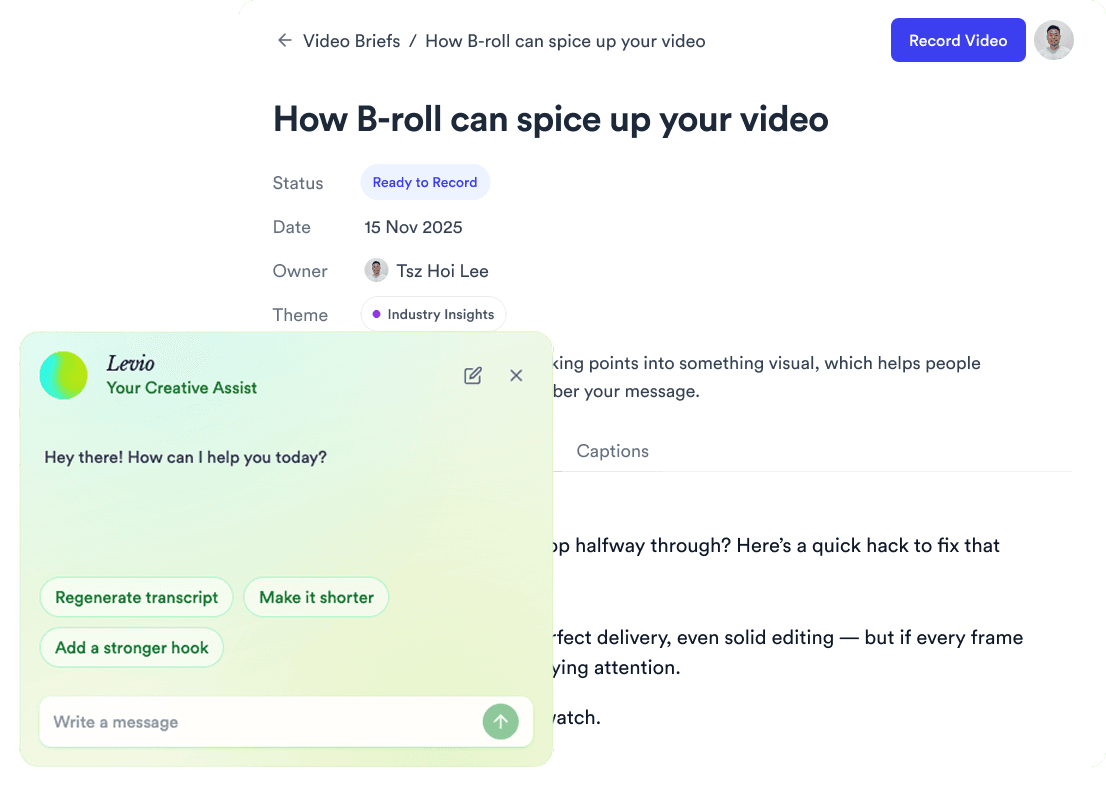
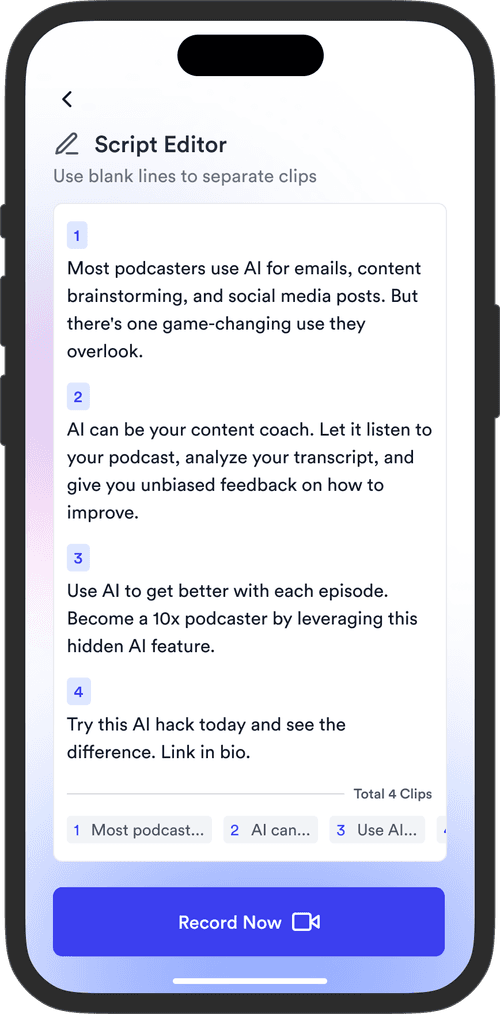
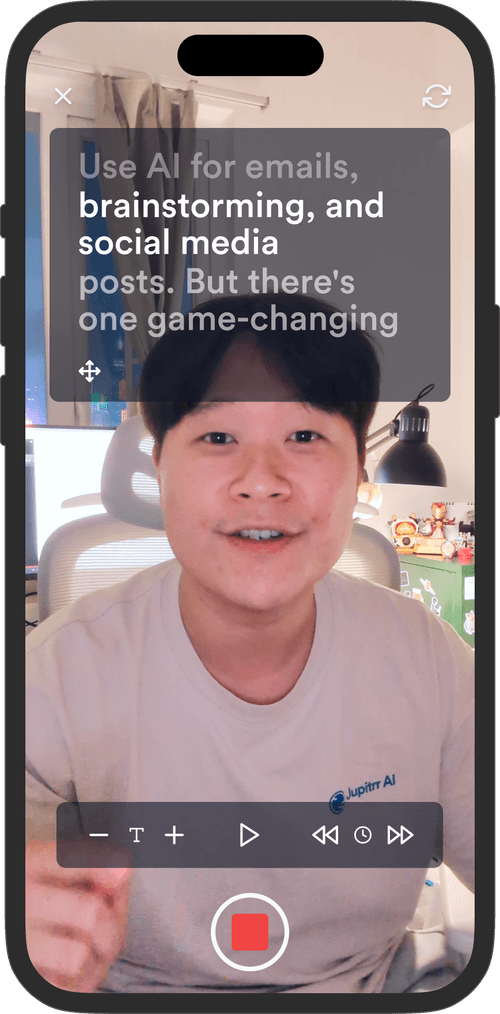
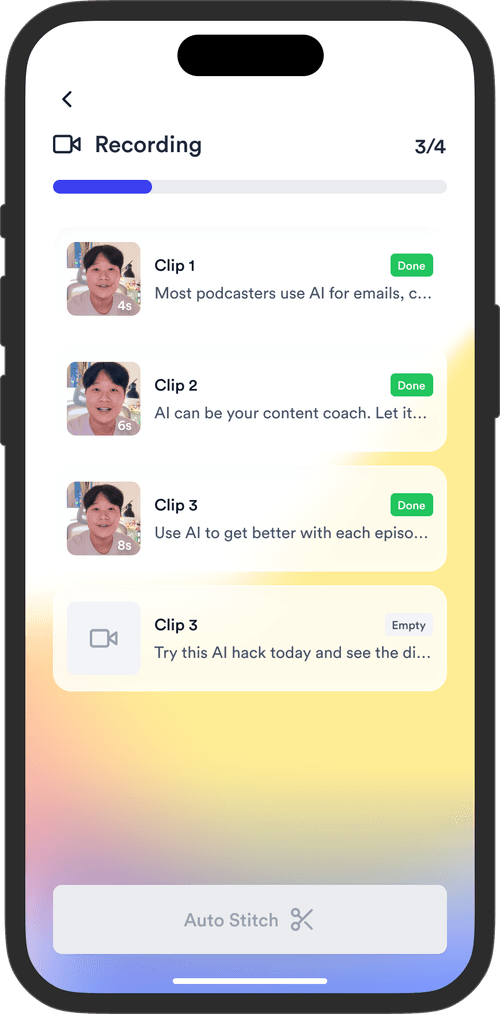
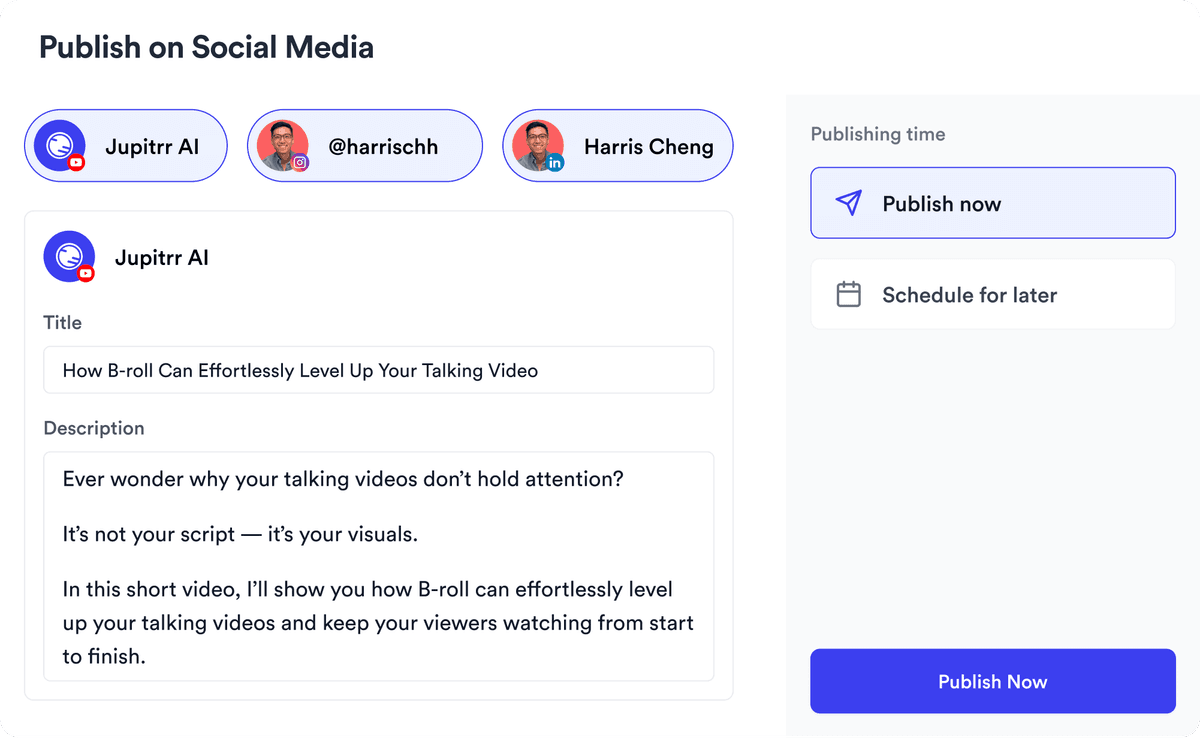
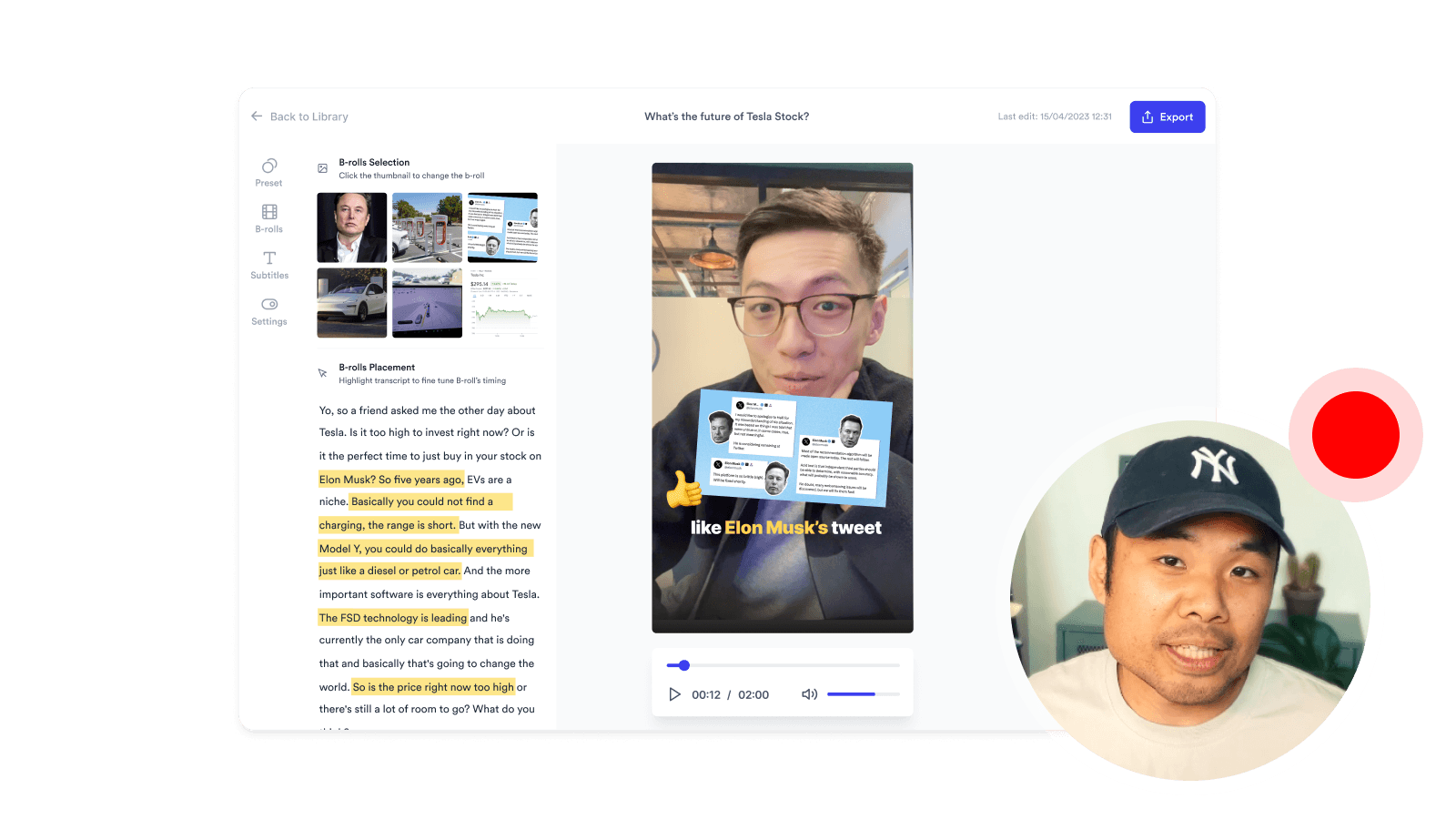
Jupitrr is an all-in-one video operating system for businesses. Plan, script, record, edit, and publish your videos in one place, powered by the Jupitrr AI Video Editor and the Jupitrr Cut Teleprompter app. This free toolkit is a small slice of what the full product can do. When you are ready for subtitles, B-roll, filler-word removal, and one-click publishing across YouTube, LinkedIn, and TikTok, jump into the full editor.
Where does the recording go after I stop?
It loads into an in-page preview where the recorder was, so you can play it back and decide whether to keep the take. Hit Download to save the MP4 to your computer, or hit Record again to retake. Nothing is uploaded or saved anywhere else, so the file disappears the moment you leave the page. When you are ready for subtitles, B-roll, and filler-word removal, sign up and continue in Jupitrr.
Your all-in-one video workflow
Start creating videos consistently.
footer card