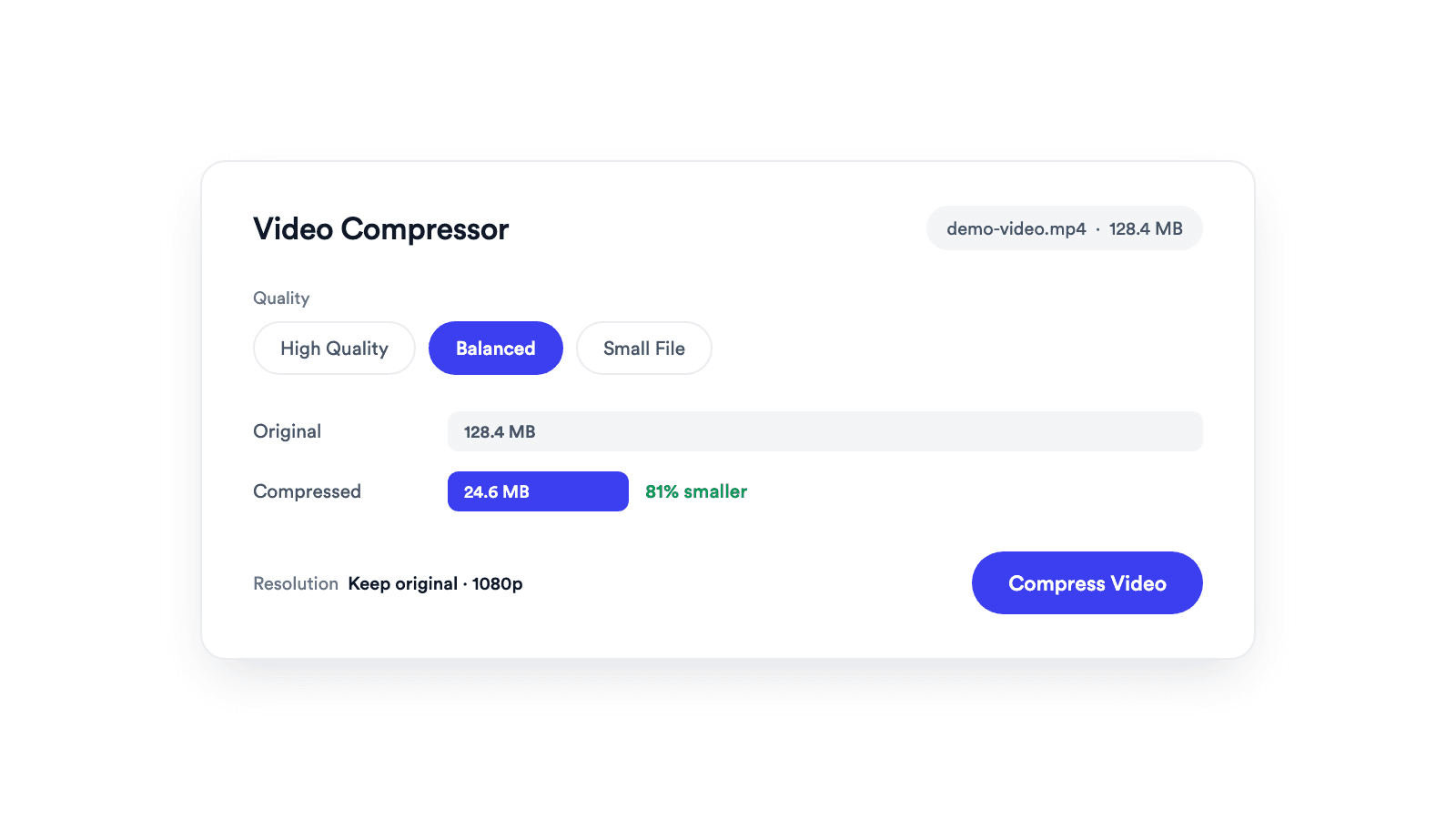
Video Compressor
Reduces video file size with adjustable quality and resolution controls.

Extract the audio from a video and download a real MP3 file at the quality you choose.
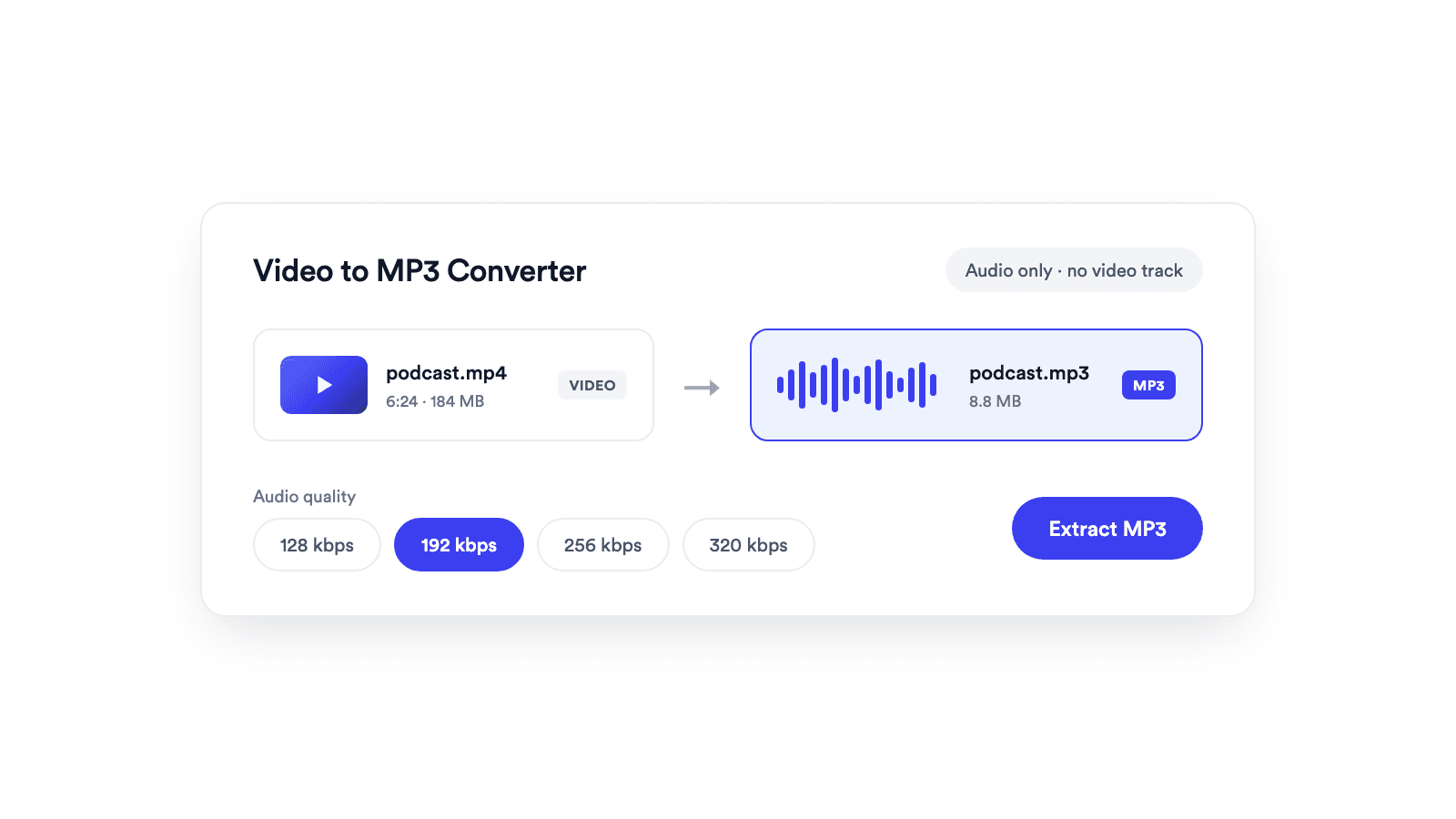
Encoded in the browser with a LAME encoder, not a renamed video file.
From 128 kbps speech files to 320 kbps music detail.
The video is read and converted entirely on your device.
Add an MP4, MOV, WebM, or another video file that your browser can decode.
Pick 128, 192, 256, or 320 kbps based on the balance you want between file size and audio quality.
Your browser removes the video track, creates a real MP3 locally, and prepares it for download.
Keep the audio, drop the video.
A video to MP3 converter extracts the audio track from a video file and saves it as a standalone MP3. With Jupitrr's converter, the audio is decoded in your browser and encoded with a browser-based LAME encoder at the bitrate you choose: pick a video, set the quality, and download a file that contains audio only.
Publish the audio of a recorded episode on its own.
Listen back to a session without keeping the video.
Pull narration out of an old video to use again.
Save a track at up to 320 kbps.
Reduces video file size with adjustable quality and resolution controls.
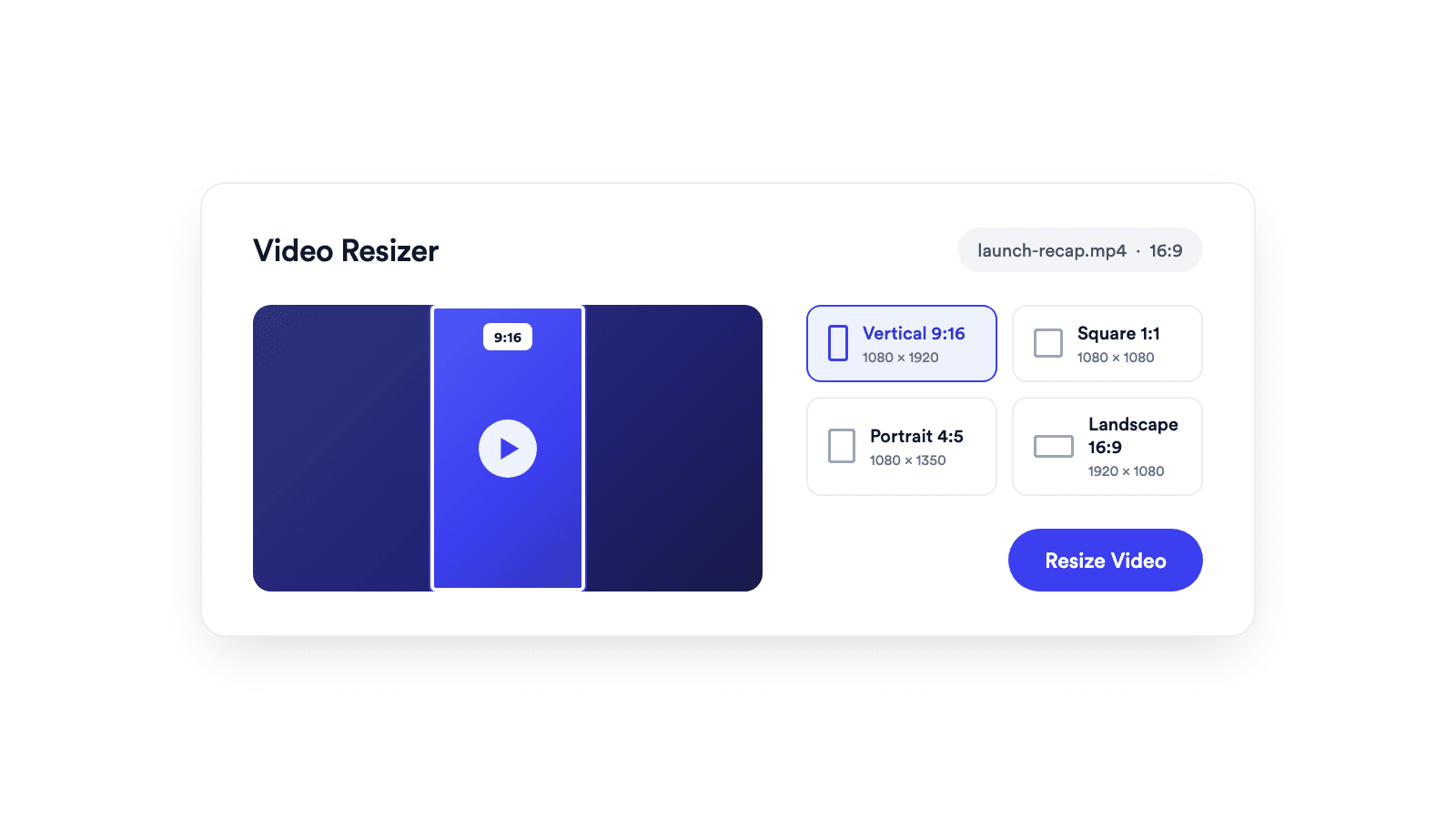
Reframes a video for vertical, square, portrait, or landscape publishing.
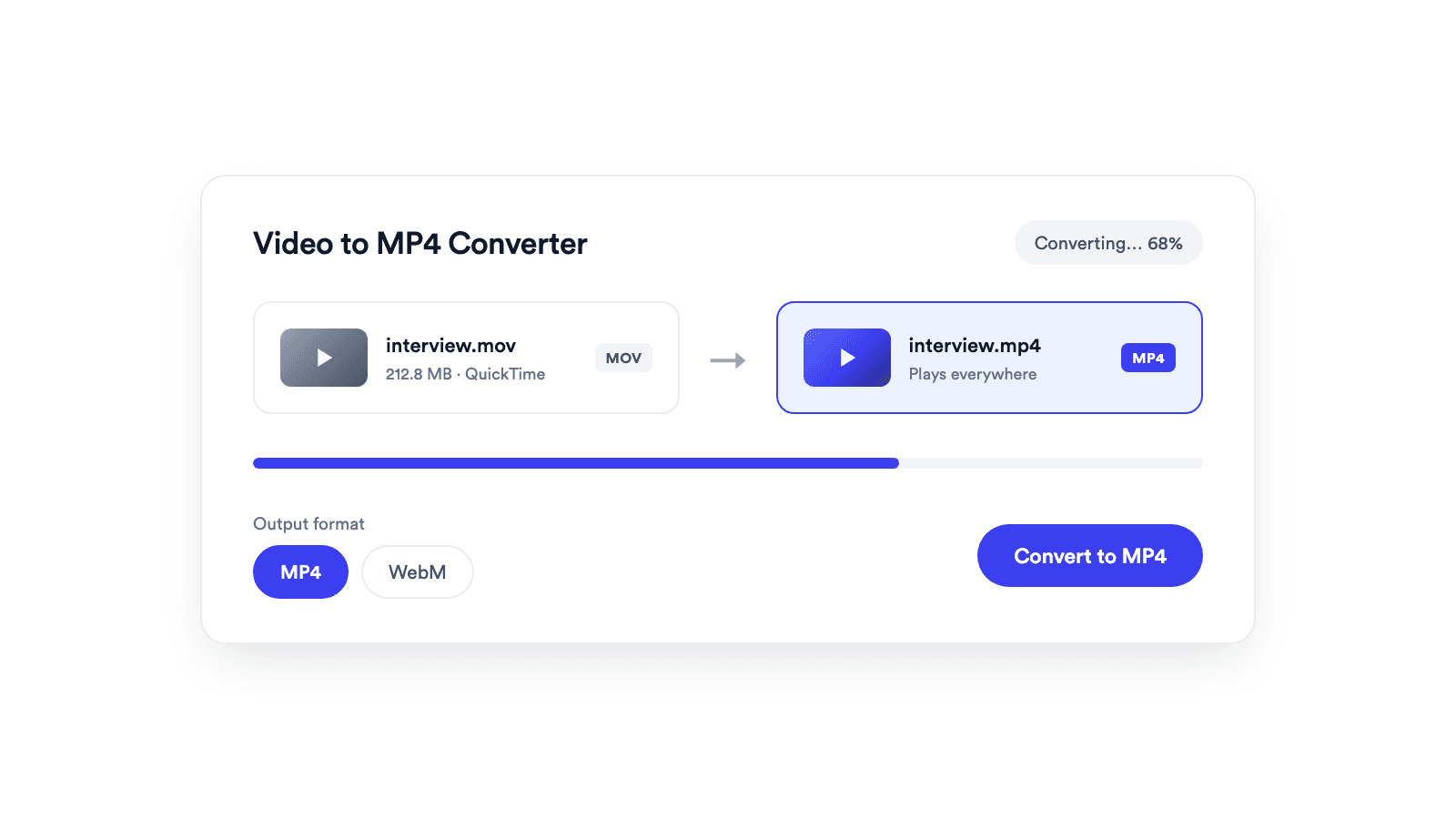
Converts browser-supported video files to MP4 or WebM on your device.

Cuts unwanted sections out of clips and joins them into a single MP4.
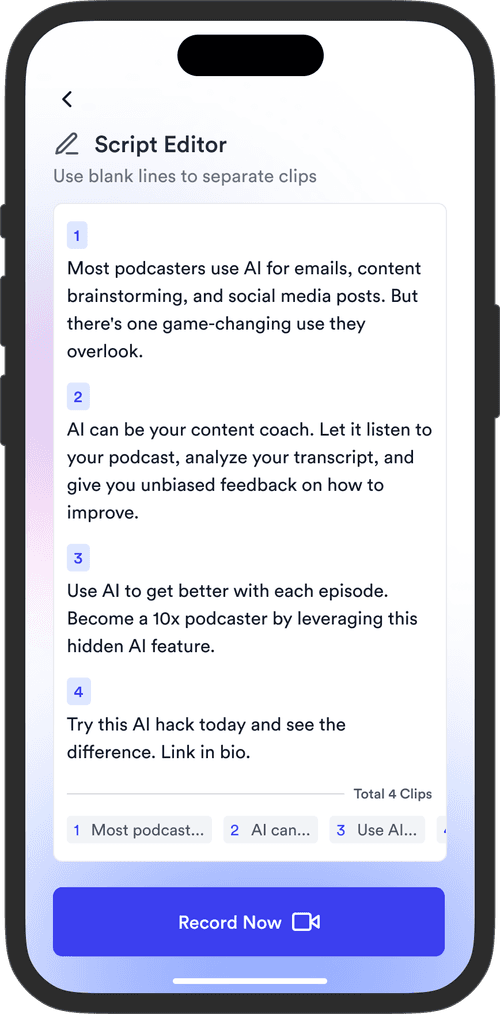
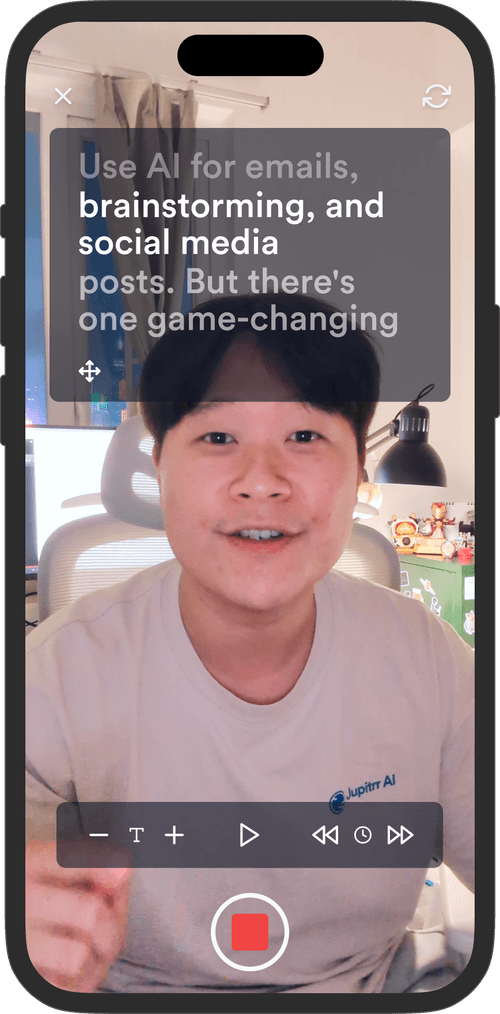
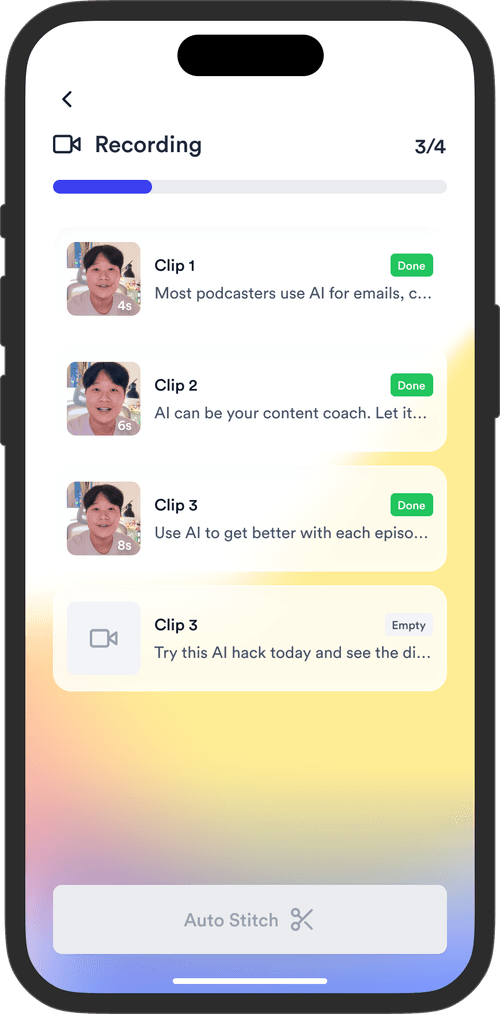
Jupitrr brings planning, scripting, recording, editing, and publishing into a single tool. Built for coaches and consultants shipping video consistently.



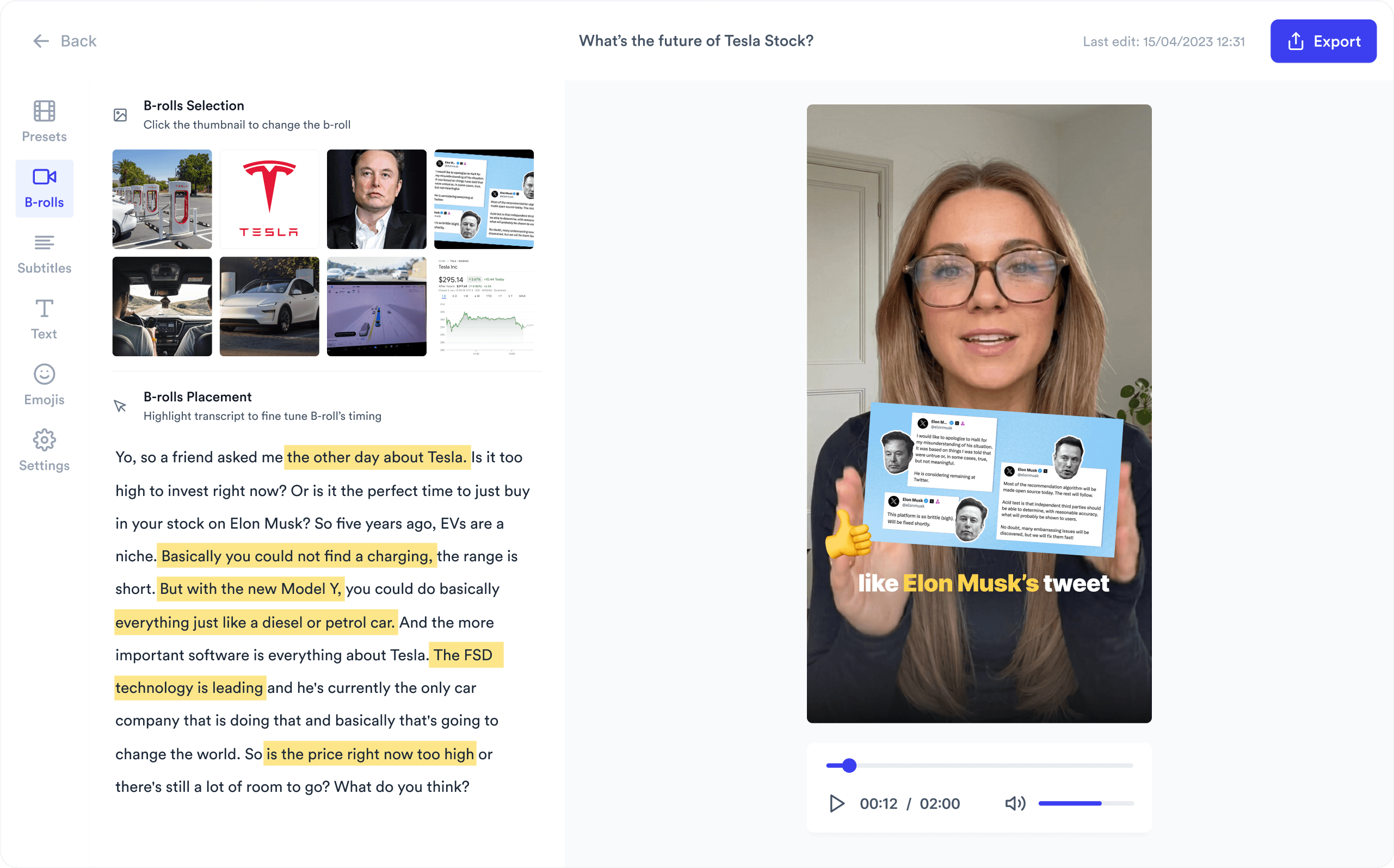
Trained on your scripts & viral scripting framework
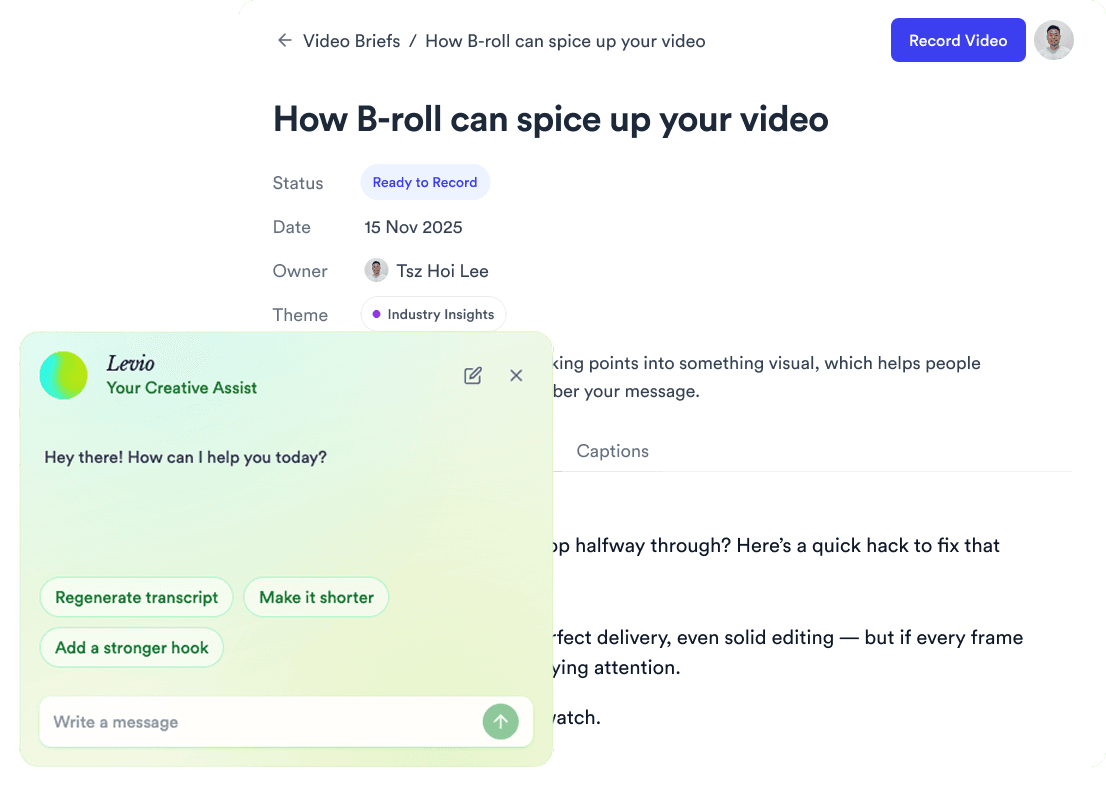
Auto Jump-Cut & Silence Removal
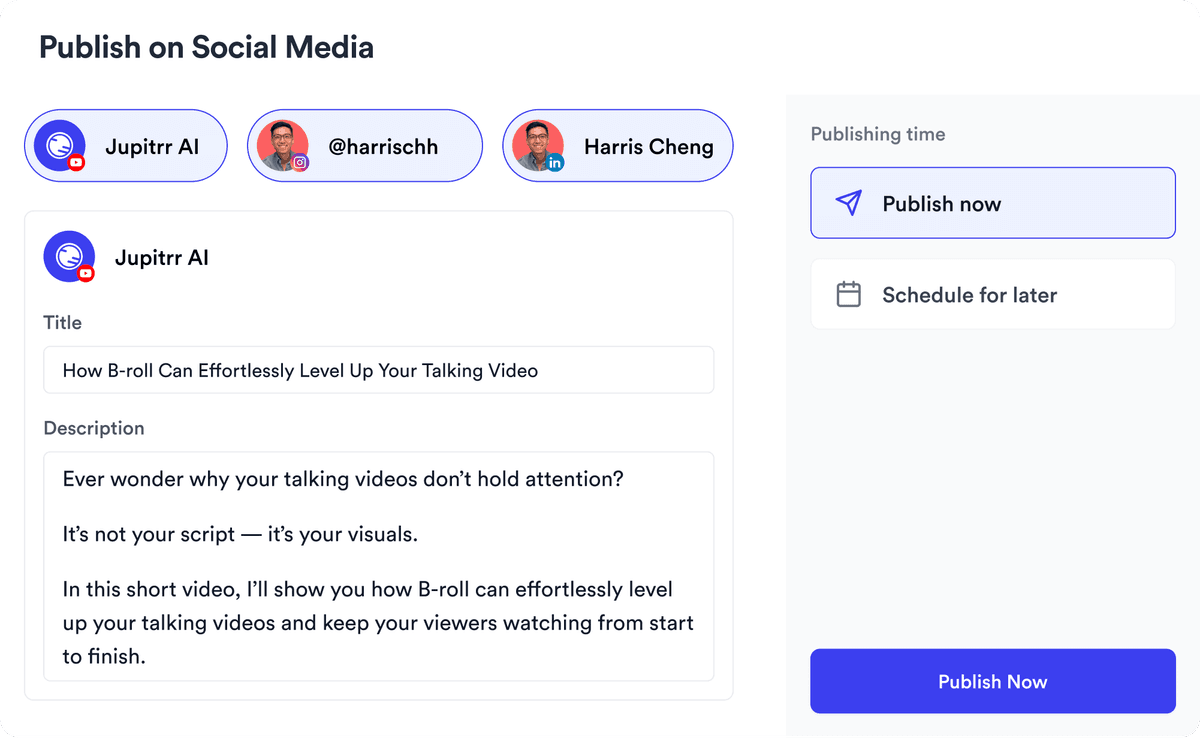
YouTube, Instagram, LinkedIn, TikTok, all at once.


Get inspired for your next videos