jupitrr logo

AI Background Music that fits what you say

Upload a talking-head video and Jupitrr AI picks a track that matches the mood of your script, then adds sound effects on every B-roll cut. Swap anything in a click.

Book a Demo
Loved byTrusted by 200K+ coaches and consultants
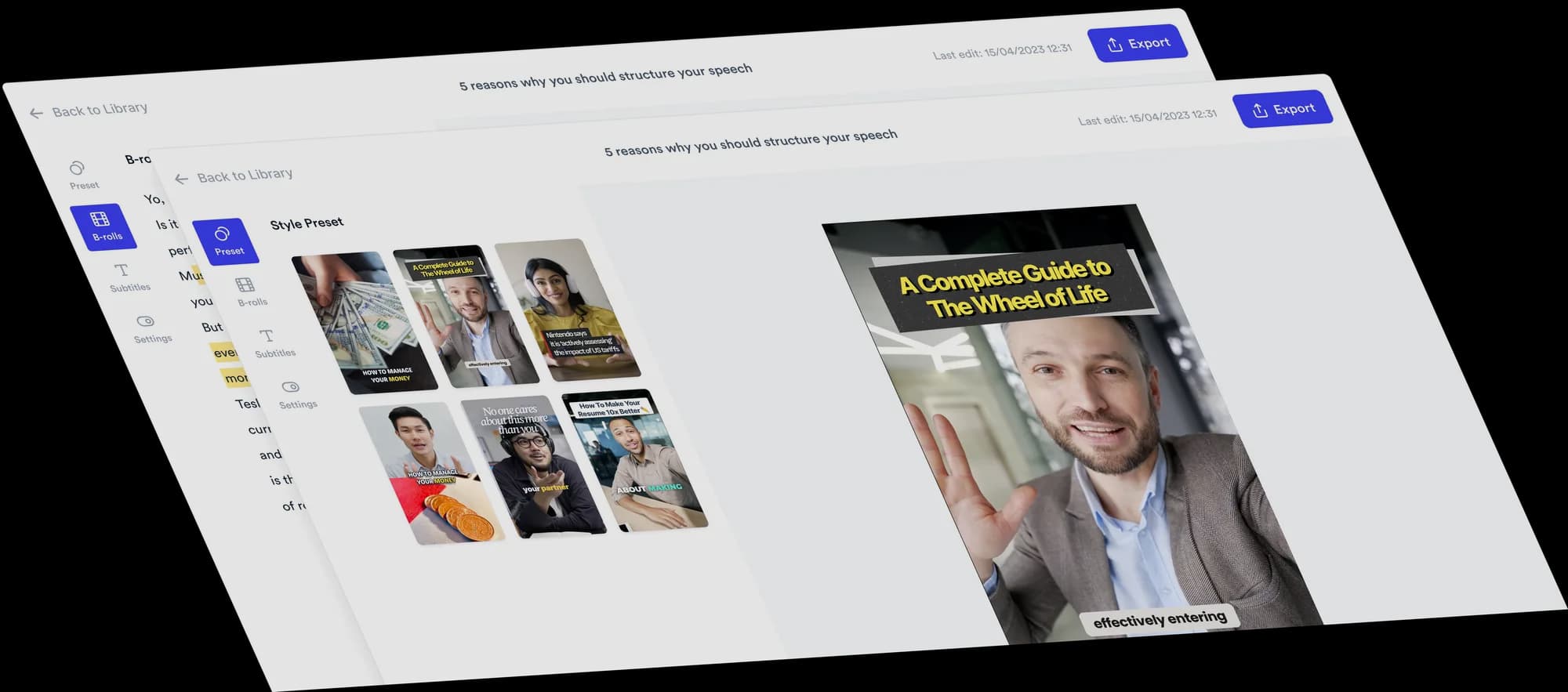
Jupitrr AI video editor with background music and sound effects added to a talking-head video.
BuildMapper
GatherVoices
myHealthspan
YourPolicy
Goflow
ZipSea

Music and sound effects on the first cut

No library to dig through. The first cut comes back with a track and sound effects in place.

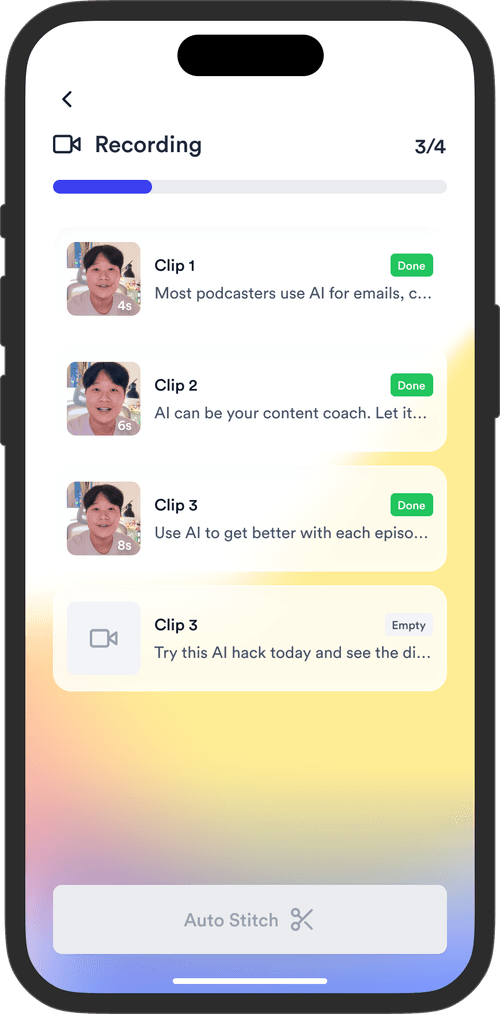
Upload your video

Drop in a talking-head or voiceover video. Jupitrr transcribes it and builds the first cut with B-roll, subtitles, and a hook.

Jupitrr upload step for a talking-head video.

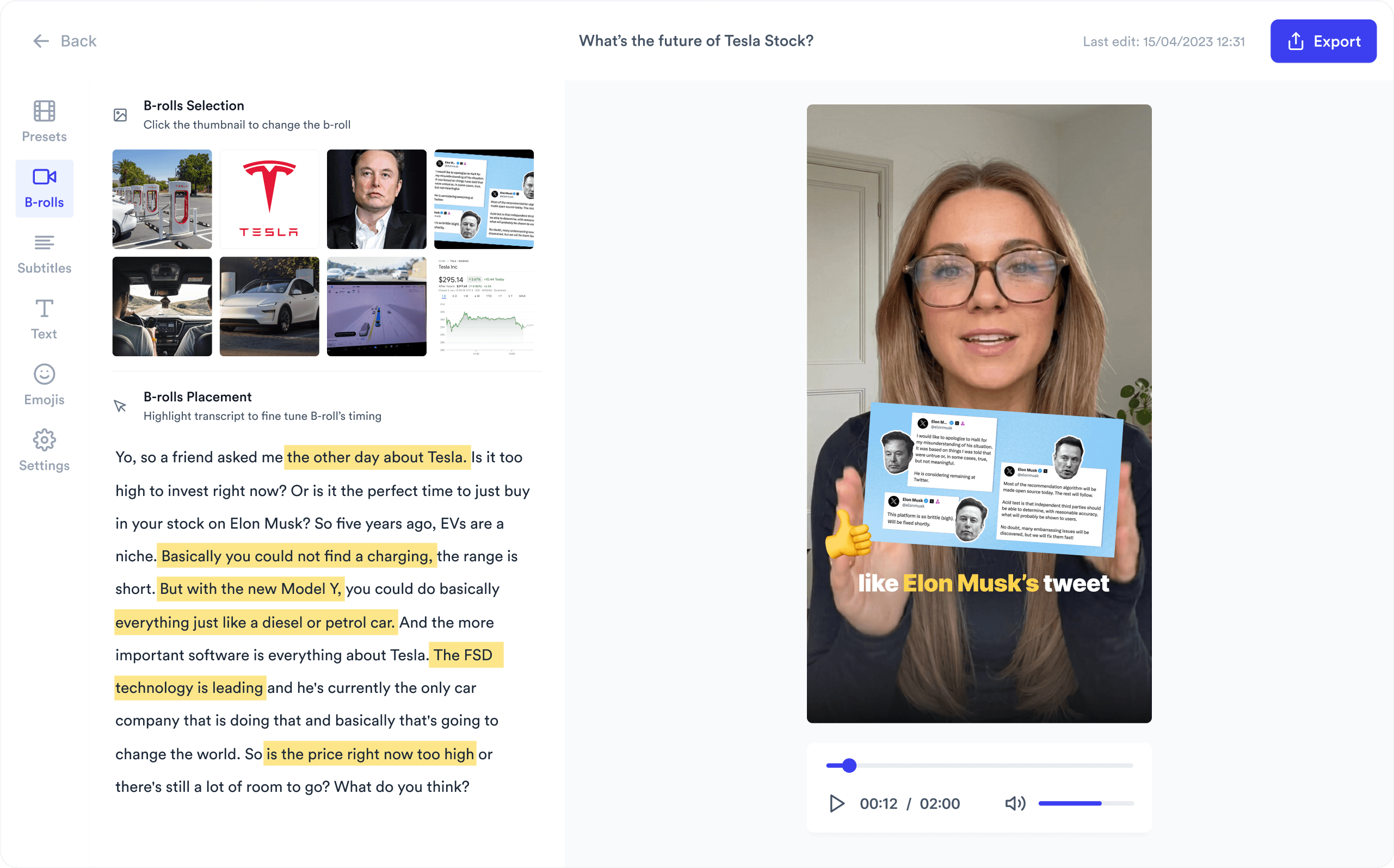
AI picks the music

Jupitrr AI reads your transcript and chooses a track from its library that fits the tone, from calm and subtle to upbeat and cinematic. A sound effect lands on each B-roll cut.

Jupitrr editor with an AI-selected background track on the timeline.

Swap, upload, or adjust

Preview other tracks by mood, upload your own, set the music volume, or change and mute sound effects per B-roll. Then export.

Jupitrr music library with mood categories and an upload tab.

Sound that matches the message

Background track chosen to match the video transcript.

Picked from your script

The AI matches the track to what you actually say, not a random default.

Music library sorted into five mood categories.

80+ tracks in 5 moods

Cinematic, Chill, Uplifting, Subtle, and Electric. Preview before you swap.

Uploaded tab in the Jupitrr music library.

Upload your own track

Use your brand jingle or a licensed track. It sits in the same library.

Sound effects placed on B-roll cuts in the timeline.

Sound effects on every cut

Whoosh, pop, click, and more, placed on B-roll transitions automatically.

Sound effect settings on a single B-roll clip.

Per-clip control

Change or mute the sound effect on any B-roll, or turn them all off.

Background music volume control in the Jupitrr editor.

Volume you set once

Keep music under your voice so the message stays clear on every export.

A library sorted by mood

The AI picks the first track. You can always browse by mood and swap.

Cinematic

  • Beneath the Light4:17
  • Echo of Calm2:14
  • Echoes of Tomorrow1:48

Chill

  • Among the Clouds3:19
  • Breathe Easy2:45
  • Calm Electric Flow2:21

Uplifting

  • Bright Path2:57
  • Chrysalis Dreams2:03
  • Innovate to Relate4:00

Subtle

  • A Midnight Cruise3:39
  • Balanced Air2:56
  • Fading Into Light2:24

Electric

  • Bright Signals3:25
  • Business Symphony4:00
  • Climb Higher2:23

Sound effects placed on B-roll cuts

WhooshSwooshPaper turnClickNotificationPop

Trusted by 200K+ coaches and consultants


“Video became so easy that we can produce so much more, promote our services better, and reach a bigger audience.”

Sanjeet Mahajan
Sanjeet Mahajan
Founder of Kizzy Consulting
“Jupitrr turns video creation into an effortless workflow, the edit is actually quality. Now I can focus on strategy.”
Sanket Mittal
Sanket Mittal
Founder of Althra
“Be able to shoot this and then getting a deliverable so quickly is amazing, It literally took me 90 seconds to record so I see the value.”
Sean Huynh
Sean Huynh
Founder of Solara Talent
“The CEO of a half-billion-dollar business told me he loves my videos. People think I hired a marketing agency.”
Buck Foley
Buck Foley
Partner at Crescent Edge

Frequently asked questions

How does AI background music work?
AI background music reads what your video is about and picks a track to match. In Jupitrr AI, the transcript of your talking-head video is used to choose a track from the built-in library that fits the tone, so a calm teaching video gets a calm bed and a product launch gets something with more energy. The track is on the timeline when your first cut is ready.
How do I add background music to a video automatically?
Upload a talking-head or voiceover video to Jupitrr AI. The first cut comes back with B-roll, subtitles, a hook, an AI-picked background track, and sound effects already placed. If you want a different feel, open the music library, preview tracks by mood, and swap with one click.
Can I use my own music?
Yes. Upload your own track in the music library and it appears in an Uploaded tab next to the stock moods. This is useful for a brand jingle or a track your team has already licensed. Make sure you hold the rights to any music you upload before you publish.
Can I use popular songs in my business videos?
Not without a license. A chart song in a brand or business video usually needs permission from the rights holder, and platforms can mute or take down videos that use it without one. Pick a track from a music library instead, or use one your team has licensed. Jupitrr AI picks from its own library of 80+ tracks, and you can upload a track you hold the rights to.
What music moods are available?
The Jupitrr AI library has 80+ tracks across five moods: Cinematic, Chill, Uplifting, Subtle, and Electric. Each track shows its length and tags, and you can preview it before you apply it to your video.
Where do the sound effects go?
Jupitrr AI places a short sound effect, such as a whoosh, swoosh, pop, click, or paper turn, on each B-roll cut so transitions feel intentional. You can change the effect on any single B-roll, mute it, or switch sound effects off for the whole video in the Sound tab.
How loud should background music be under a voice?
Background music should sit well below the voice, so viewers never strain to hear what you say. Most talking-head videos work with music at roughly 10 to 20 percent of the voice level. In Jupitrr AI you set the music volume in the editor and preview it before exporting.
Do I need music on short-form talking-head videos?
Not always, but a quiet music bed and a few sound effects make a talking-head video feel edited rather than raw, which helps viewers stay past the first seconds. For serious or sensitive topics, a subtle track or no music at all is often the better choice, and Jupitrr AI lets you remove it.

Get a first cut that already sounds finished.

Upload a talking-head video and get music, sound effects, B-roll, and subtitles in place. Try the sample free.
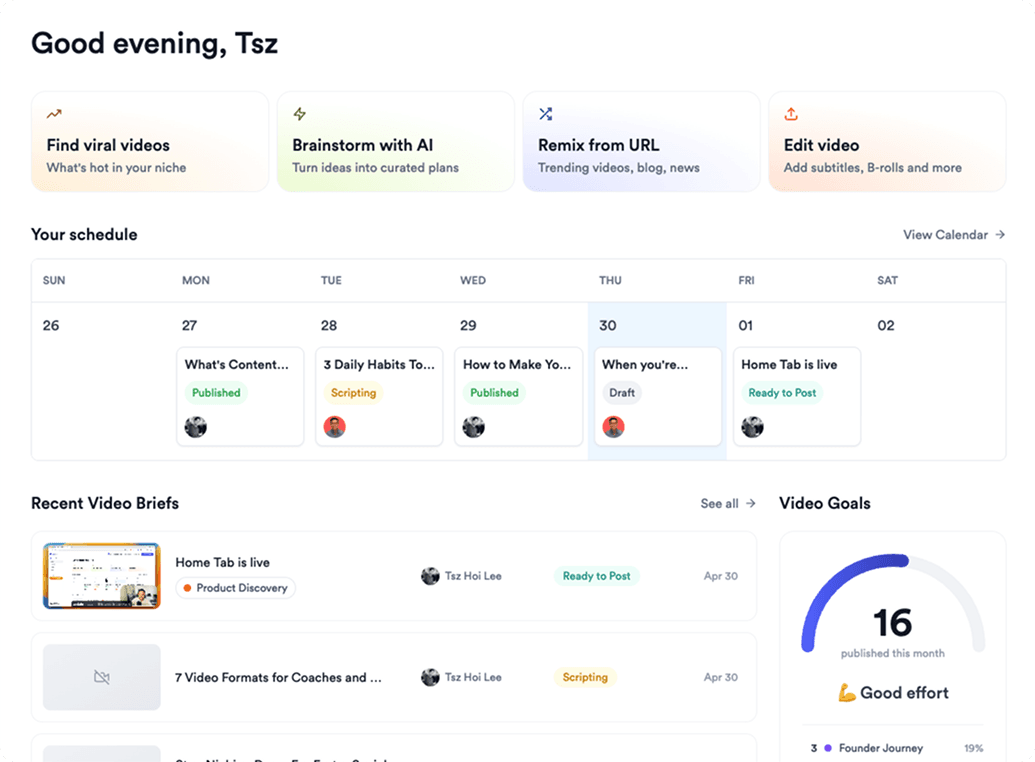
Jupitrr AI dashboard