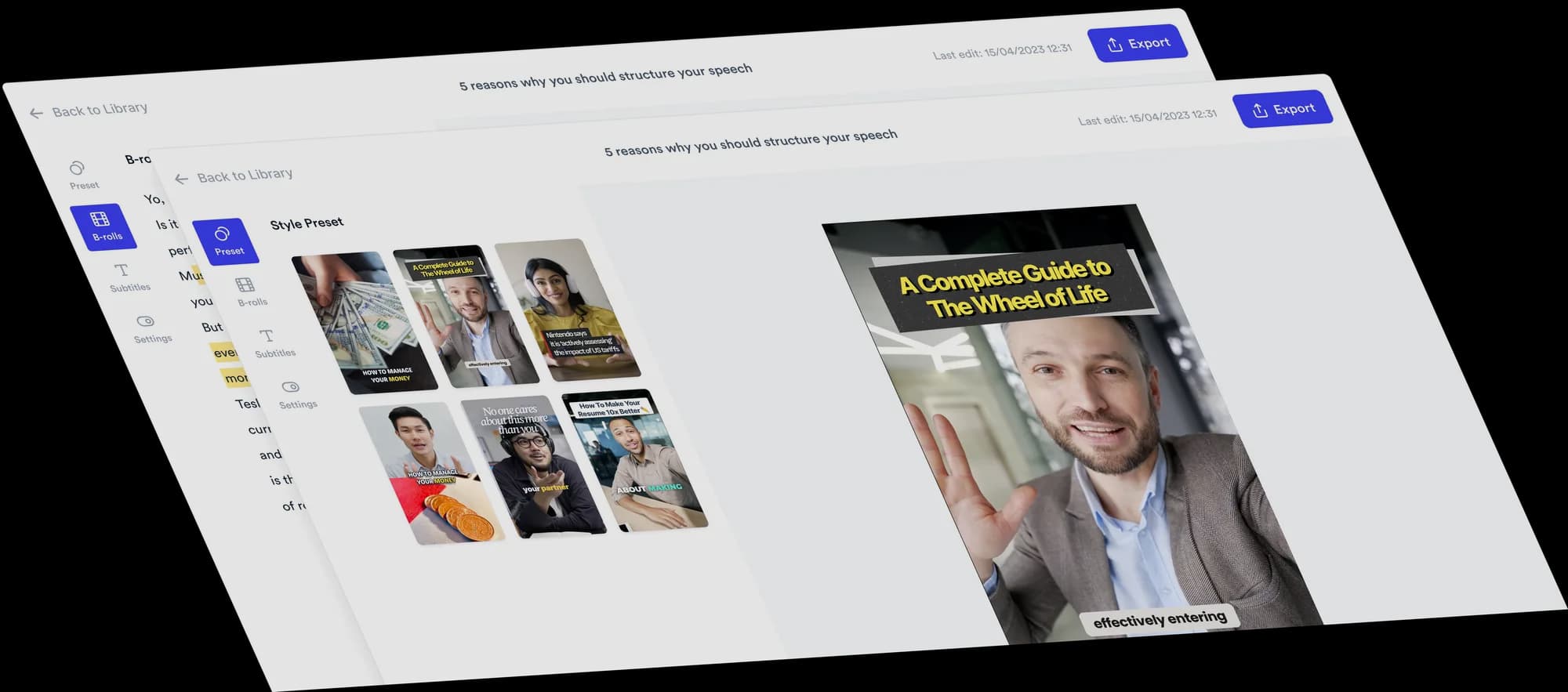
Turn your talking-head video into a Green Screen video
A Green Screen video puts you in front of the image or video you are talking about. Jupitrr is a green screen video maker for talking-head videos: it cuts you out of your ordinary recording, places relevant B-roll behind you, and lets you move yourself around the picture part by part. No physical green screen needed.
 Trusted by 200K+ coaches and consultants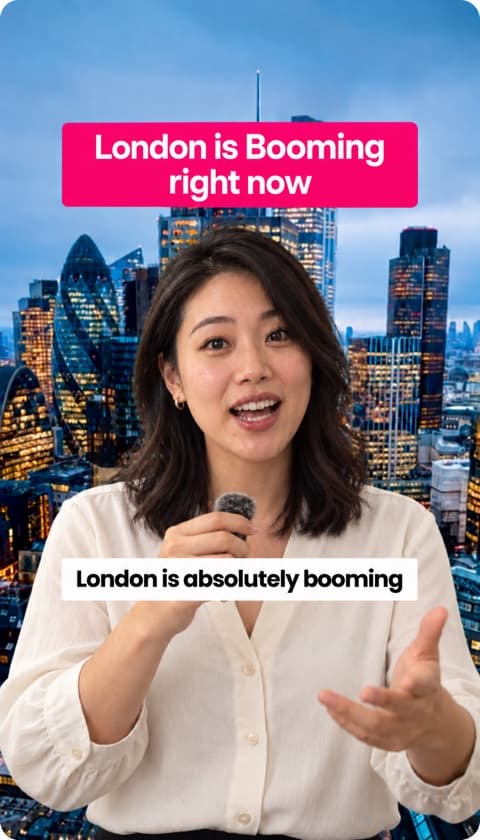






How to make a Green Screen video
You record as normal. Jupitrr handles the cutout and the first set of backgrounds, and you decide where you stand.
- Step 1
Upload your talking-head video
Upload a video you recorded anywhere, up to 10 minutes long, and choose Green screen as the format in "Set up your video". You can also switch to it later from the Formats tab.
- Step 2
Jupitrr cuts you out and adds the background
Jupitrr finds you in each frame and removes the background with AI, while matching B-roll to what you say. The B-roll fills the screen behind you for the whole video.
- Step 3
Position yourself, then export
Split the video into parts and set where you stand in each one. Swap any background for a better image or clip, check the subtitles, and export.
Why Green Screen videos work
The visual you are talking about stays on screen with you, so viewers never have to imagine it.
Speaker and visual stay connected
Viewers see your face and the thing you are explaining at the same time, with no cutaways.
Context from the first second
A headline, chart or product behind you shows what the video is about before you finish your first sentence.
Room for several examples
Change the background part by part to walk through more than one example without leaving the frame.
Position the speaker around the story
The right spot for you changes with what is behind you. Green screen lets each part of the video have its own composition.
Part by part
Split the video into parts at the playhead. Each part keeps its own position, so you can move when the background changes.
Move, resize and rotate
Fine-tune where you stand, how big you are and your angle, so you sit beside a chart instead of on top of it.
Point at the detail
Stand next to the number, quote or button you are talking about and let your gesture lead the eye.
Keep the important part clear
Shrink or move yourself when a screenshot or headline needs the space, then come back for the next point.
Your normal video when you want it
Delete a part and that stretch plays your original recording, so you can mix cutout moments with talking to camera.
Change it on the timeline
Parts sit on the timeline, so you can see where each one starts and ends while you edit.
B-roll becomes the background
Green screen is a full talking-head format, not a one-off effect. The visuals behind you come from the same B-roll Jupitrr matches to your words.
Matched to what you say
Jupitrr picks B-roll for the meaning of each line and places it behind you at the moment you say it.
Video, images and GIFs
Stock video, stock images, web images and GIFs can all sit behind you.
Cards still float in front
Set a clip to Overlay or Card and it floats in front of you instead, for a quick callout.
Find the visual without leaving the editor
The background is half the video. Jupitrr lets you search, pick and replace it inside the editor, so you skip the download-and-upload loop.
Web Images
Search the web for the article, product, chart or person you are talking about and drop it behind you.
Stock Assets
Search stock video and images, filtered to portrait or landscape. Paid plans include Getty Images and iStock stock.
Replace in place
Not the right background? Swap it from the same panel and see the result straight away.
Your own uploads
Upload a screenshot, screen recording or product shot when the visual is one only you have.
Web image results come from the open web, so their rights vary by image. You can filter web results by license, and you are responsible for confirming you can use an image, especially in ads.
The full Jupitrr edit is still there
Green screen sits on top of the normal Jupitrr editor. Your transcript, timeline and styling all work the same way.
Dynamic subtitles
Your subtitles keep their style and timing on top of the composition.
Hook text
A hook sits at the top of the video to tell viewers what it is about. Rewrite it like any other hook.
Text overlays
Highlight a key phrase with text overlays, just as you would in a regular Jupitrr video.
Music and sound effects
Add background music and sound effects the same way as any Jupitrr video.
Timeline and transcript editing
Trim, cut and edit from the transcript as usual.
Switch or remove the format
Change your mind and switch to another format, or remove it, from the Formats tab.
What creators explain with Green screen
React to a video
Stand in front of the clip you are reacting to and give your take.
Explain an article
Put the headline behind you and walk through what it means for your audience.
Break down a chart
Stand beside the chart and point to the number that matters.
Discuss a screenshot
Comment on a post, review or message with it right there on screen.
Present a product or website
Show the page or product while you explain why it is worth a look.
Correct an industry post
Put a popular claim behind you and expand on it, or set the record straight.
Who Green Screen suits
Founders
Stand in front of a product page, launch post or press article and explain what it means for customers.
Consultants
Put a chart, report or industry headline behind you and give your take on it.
Marketers
React to an ad, a trend or a social post with it right there on screen.
Educators and subject-matter experts
Explain a diagram, website or worked example while it stays behind you.
Tips for a clear Green Screen video
Do
- Pick background B-roll that shows exactly what you are describing at that moment.
- Use Lower half or Corner when the background needs space, and Full when you are the focus.
- Split the video into parts where your topic changes, so each part gets its own background.
- Keep the video under 3 minutes for Shorts and Reels. The cutout works on videos up to 10 minutes.
Avoid
- Leaving stretches with no B-roll, which show a blurred version of your room.
- Setting a background clip to Overlay or Card, which puts it in front of your face.
- Choosing a background with the key detail right where you stand.
- Uploading landscape footage: Formats are for portrait videos.
Trusted by 200K+ coaches and consultants



Making a Green Screen video by hand vs with the format
Most video editors can remove a background or key out a green screen. The difference is how many of the other steps you do yourself, part after part.
| Step | In a general video editor | With the Jupitrr Green screen format |
|---|---|---|
| Finding the background | Search in a browser or stock site, download the file, then import it. | B-roll is matched to what you say, and you can search web images and stock in the editor. |
| Removing your background | Record in front of a green screen to key it out, or run a background remover as a separate step. | Jupitrr cuts you out of your ordinary recording with AI. |
| Composing the layers | Stack the background and your cutout on the timeline and line up every clip. | The B-roll is placed behind you for the whole video when the cutout is ready. |
| Moving yourself between parts | Cut the clip and keyframe or re-position your layer for each section. | Split at the playhead and set a position for each part. |
| Subtitles and hook | Transcribe, style and place captions and a title as separate layers. | Dynamic subtitles and the hook come with the normal Jupitrr edit. |
| Trying a different visual | Find, download and import another file, then re-align it. | Replace the background from the same panel without leaving the editor. |
- Finding the background
- In a general video editorSearch in a browser or stock site, download the file, then import it.
- With the Jupitrr Green screen formatB-roll is matched to what you say, and you can search web images and stock in the editor.
- Removing your background
- In a general video editorRecord in front of a green screen to key it out, or run a background remover as a separate step.
- With the Jupitrr Green screen formatJupitrr cuts you out of your ordinary recording with AI.
- Composing the layers
- In a general video editorStack the background and your cutout on the timeline and line up every clip.
- With the Jupitrr Green screen formatThe B-roll is placed behind you for the whole video when the cutout is ready.
- Moving yourself between parts
- In a general video editorCut the clip and keyframe or re-position your layer for each section.
- With the Jupitrr Green screen formatSplit at the playhead and set a position for each part.
- Subtitles and hook
- In a general video editorTranscribe, style and place captions and a title as separate layers.
- With the Jupitrr Green screen formatDynamic subtitles and the hook come with the normal Jupitrr edit.
- Trying a different visual
- In a general video editorFind, download and import another file, then re-align it.
- With the Jupitrr Green screen formatReplace the background from the same panel without leaving the editor.
Keep reading
- How to make a Green Screen video in JupitrrThe step-by-step guide to cutout parts, layouts and backgrounds
- All Formats and subtitle stylesTier List, Do & Don't, column Formats, Logo List and more
- Tier List Video MakerRank what you talk about on a board that fills in as you speak
- Jupitrr AI video editorThe automatic first cut every Format is built on
Frequently asked questions
What is a Green Screen video?
Do I need a physical green screen?
Can I put myself in front of an image or video?
Can I move the speaker cutout?
Can the position change between clips?
Can I add B-roll and dynamic subtitles?
Can I search for background images inside Jupitrr?
Can I edit the result before export?
Is Jupitrr a chroma key editor?
Record as usual. Stand in front of your story.
Upload your talking-head video, pick Green screen, and place yourself in front of the visuals that explain your point. From $14.50/mo billed annually.