Getting Started · Updated 21 Oct 2026
How to create and edit your first video in Jupitrr
Upload a talking-head video, choose your settings in Set up your video, and Jupitrr builds an editable first cut. Depending on the settings you choose, it can include B-roll, subtitles, a hook, text overlays, music and sound effects. You review and change anything in the editor, then download the MP4 or publish it to your social accounts.
Before you start
- A Jupitrr plan. Without one, you can open the sample video from the upload page to try the editor.
- A talking-head video in MP4 or MOV, at least 5 seconds long.
- Maximum length depends on your plan: 5 minutes on Starter, 20 minutes on Pro and 30 minutes on Team. Uploads can be up to 1.5 GB, or 5 GB on Pro and Team.
- Recorded in the Jupitrr Cut app? Tap Upload to Jupitrr on your stitched video and carry on editing on the web. There is no need to save it to your camera roll first.
Step-by-step guide
- 1
Upload your video
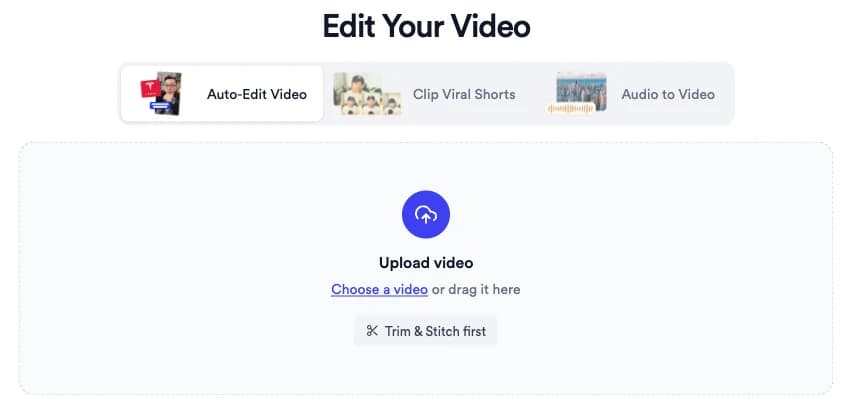
On Home, choose Auto-Edit Video, then Choose a video or drag your file into the box. You can also start from Upload Video in the sidebar.
To cut or join clips before editing, choose Trim & Stitch first. It lets you Split clips, Remove silence and Add Clips; when the stitched video is ready, choose Add B-roll & Subtitles to send it to the editor.
View full size - 2
Set up your video
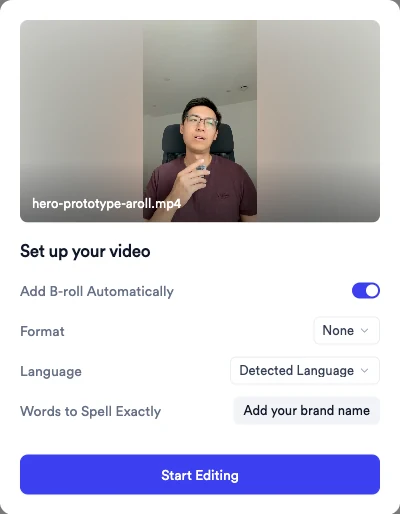
While the file uploads, the Set up your video window opens over the editor. Check the options, then select Start Editing.
- Add B-roll Automatically: on by default. Jupitrr matches stock footage and images to relevant moments in your transcript.
- Format: leave it on None for a standard edit, or pick Tier List or Green screen. Formats are designed for short portrait videos for social, like YouTube Shorts, Instagram Reels and TikTok.
- Language: Detected Language works for most videos. Pick the spoken language yourself if detection gets it wrong.
- Words to Spell Exactly: add names and brand terms the subtitles should never misspell.
- There is no orientation setting. Jupitrr reads it from your file, so vertical footage stays vertical and landscape stays landscape.
- 3
Wait for the first cut
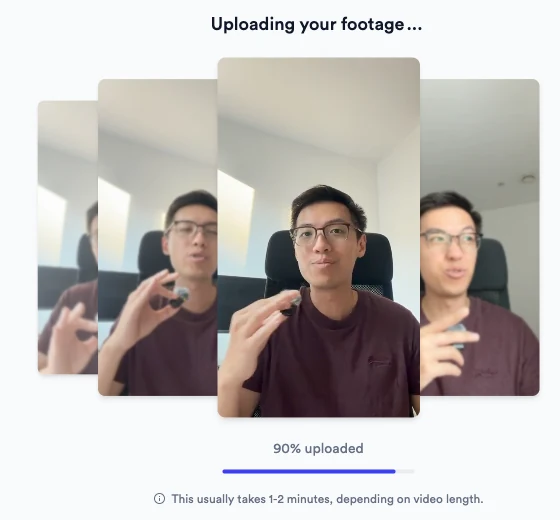
Jupitrr uploads and transcribes your footage, then adds visuals. The screen reads Uploading your footage and notes that this usually takes 1–2 minutes, depending on video length.
You can start editing as soon as the panel says Subtitles ready. You can start editing now. B-roll and text keep arriving on the timeline while it shows Adding B-roll… and Adding Text…, and Export unlocks once everything has been added.
- 4
Review the first cut
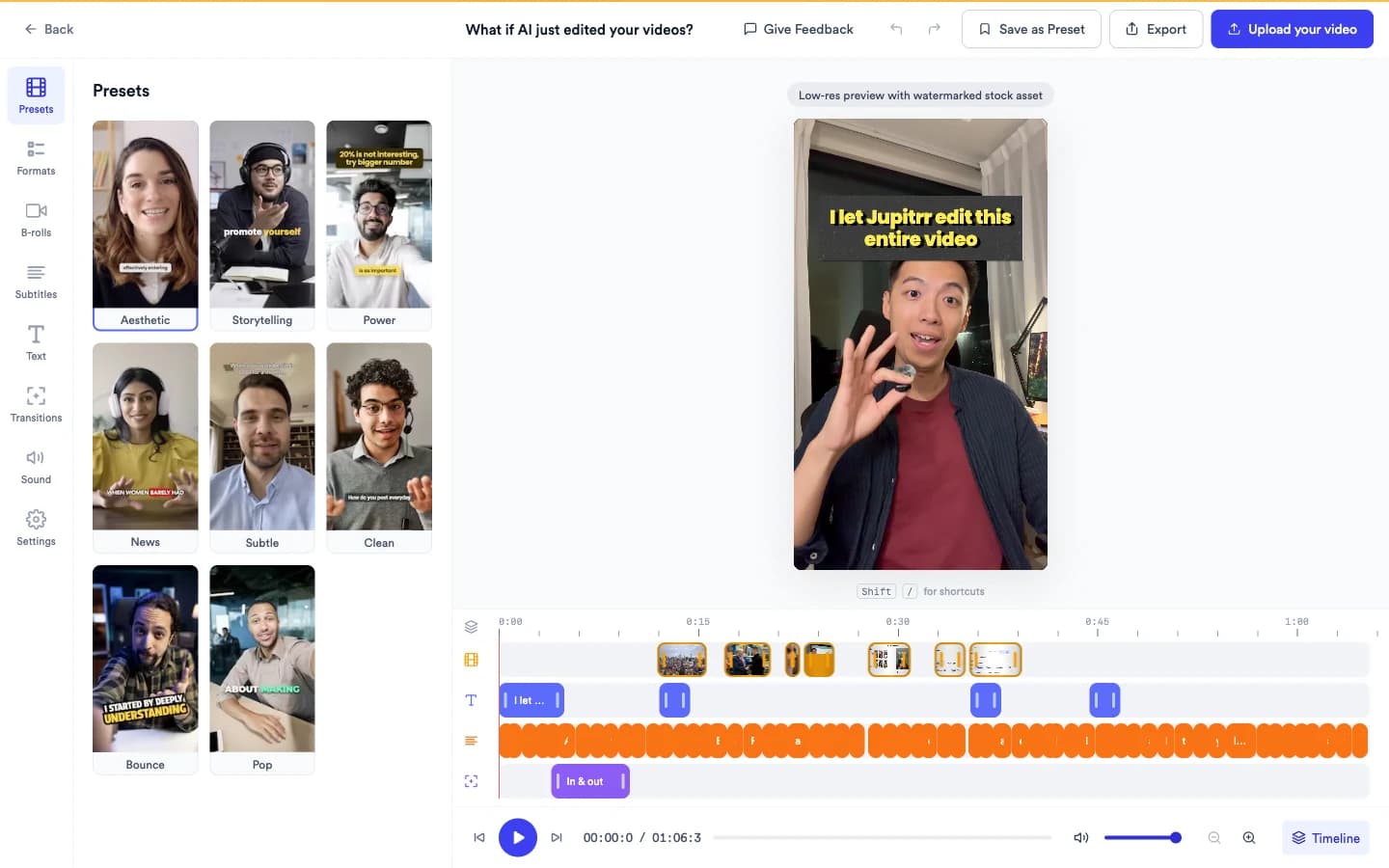
Play the video from the start. The tabs on the left hold every part of the edit: Presets, Formats, B-rolls, Subtitles, Text, Transitions, Sound and Settings.
The timeline under the preview shows B-roll, text, subtitles and camera motion on separate lanes. Drag a bar to move it, drag its edges to change its length, or select it and press Delete. A toast with Undo appears after a delete.
Presets switch the whole look of the edit in one click. Save as Preset stores your current style so you can reuse it on the next video.
View full size - 5
Correct the transcript and subtitles
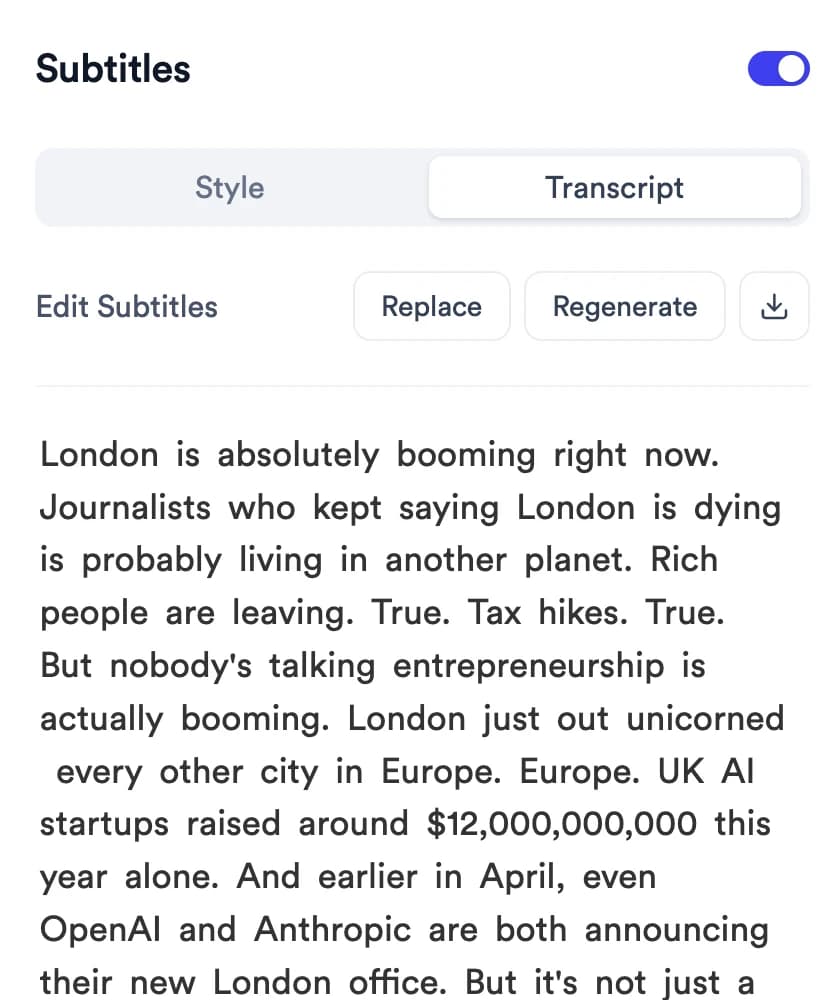
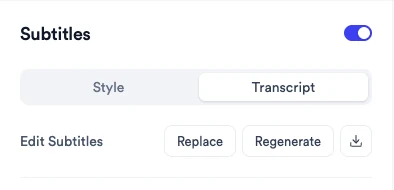
Open Subtitles, switch to Transcript and click into the text to fix a word. The subtitles update to match.
Replace finds a word and replaces every instance. Regenerate creates a new transcript; existing B-roll highlights are removed when you do this. The Style view controls font, colours, position and subtitle length.
Editing the transcript changes the subtitle text only. It does not cut or trim the video.
Every subtitle option is covered step by step in How to add and edit subtitles.
- 6
Check the B-roll
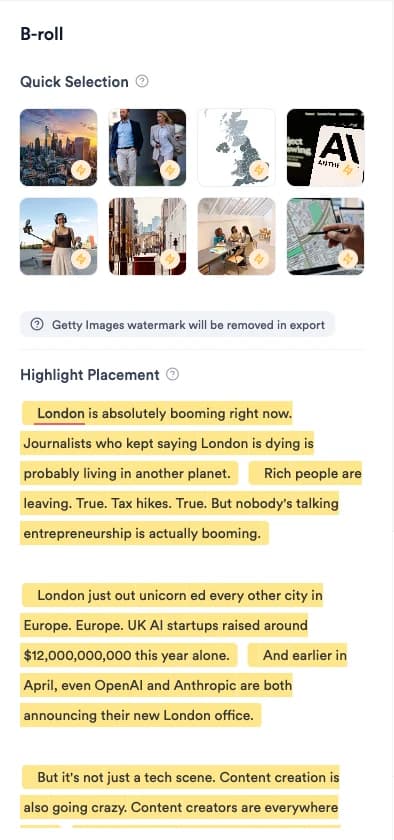
Open B-rolls to see every clip in Quick Selection. Click a thumbnail to swap that clip, or click a highlighted phrase in Highlight Placement to jump to it.
Replacing, adding, timing and removing clips is covered step by step in How to add and edit B-roll.
- 7
Edit the hook, text overlays and emojis
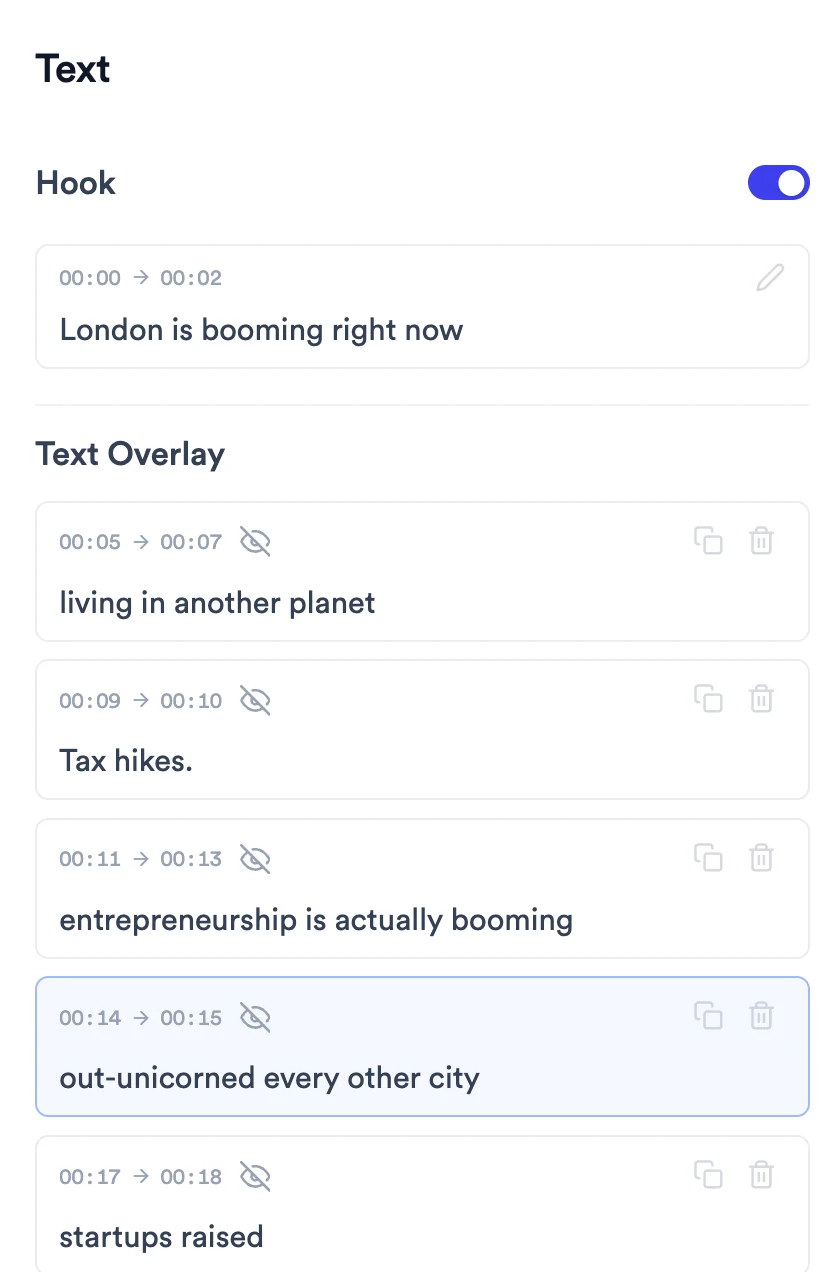
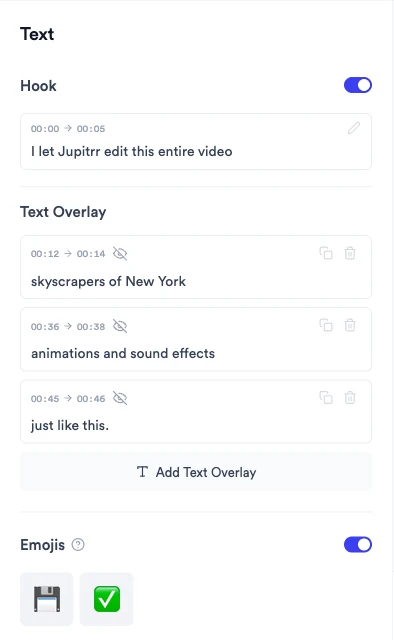
Open Text. Click the Hook to rewrite it or switch it off, edit any Text Overlay, or choose Add Text Overlay to add your own.
Each overlay shows its start and end time and can be duplicated or deleted. Emojis can be switched off for the whole video, or clicked one by one to change, move or remove.
Styling the hook and overlays is covered in How to edit the hook and add text overlays.
- 8
Adjust music and sound effects
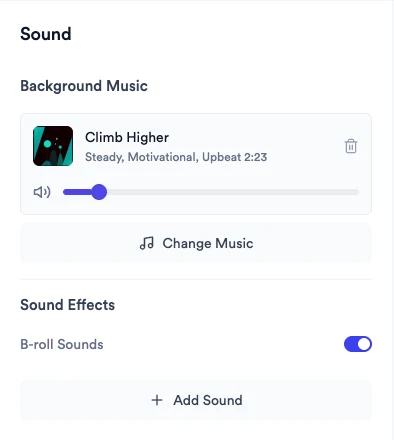
Open Sound. Use the slider to set the music volume, Change Music to pick another track, or the bin icon to remove it.
Under Sound Effects, B-roll Sounds plays a sound as each B-roll clip appears. Choose Add Sound to place a sound effect yourself.
Uploading your own track and editing sound effects are covered in How to add music and sound effects.
- 9
Export your video
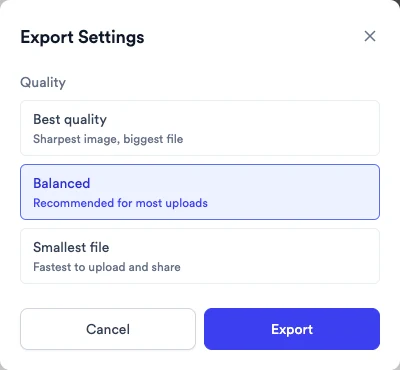
Select Export, choose Best quality, Balanced or Smallest file, then select Export again.
The export page shows each stage and an estimate, for example Around 2 minutes. We'll email you when it's ready. You can leave the page while it renders.
- 10
Download or publish
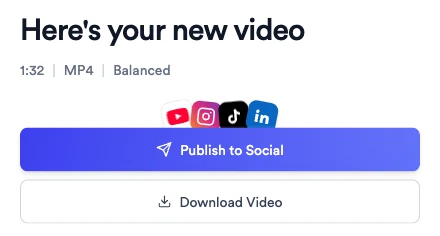
When the page says Here's your new video, choose Download Video to save the MP4, or Publish to Social to post it.
Publish to Social connects YouTube, Instagram, TikTok and LinkedIn, and lets you publish now or schedule the post for later. Back to Editor takes you back to make more changes.
What Jupitrr does automatically
- A transcript and styled subtitles
- B-roll matched to relevant moments, when Add B-roll Automatically is on
- A hook title card, when the Hook option is on
- Text overlays and emojis, when included in the first edit
- Background music and B-roll sound effects, when included or enabled
- Format graphics, if you chose a format
What you can edit
- Every B-roll clip: swap, retime, restyle or remove
- Subtitle text, style, position and length
- The hook, each text overlay and each emoji
- Music track and volume, sound effects
- The format: switch it, change it or remove it
- The overall look, through Presets
Limits and requirements
- Changes save automatically. Undo and Redo (⌘Z and ⇧⌘Z) are available for supported editor changes, but transcript wording changes are not currently added to the Undo history.
- Editing the transcript changes subtitles, not the video itself. To cut footage, use Trim & Stitch first before you upload.
- You can't record inside the web editor. Record in the Jupitrr Cut app or any camera, then upload.
- Formats are not available for landscape videos.
- Videos must be at least 5 seconds long, and no longer than your plan allows.
Troubleshooting
Why can't I edit yet?
Editing unlocks once the subtitles are ready. Until then the editor shows Editing unlocks once subtitles are ready. B-roll and text can still be arriving after you start editing.
Why is Export greyed out?
The header shows Preparing... until Jupitrr has finished adding B-roll, text and any format to your video. Export becomes available when that is done.
The subtitles misspell a name or brand. How do I fix it everywhere?
Open Subtitles, switch to Transcript and use Replace to change every instance at once. Next time, add the term to Words to Spell Exactly before you select Start Editing.
It says some clips need replacing before I can export.
A stock clip is no longer available. In B-rolls, clips with a red badge read This clip is no longer available. Click to replace. Swap each one, then export again. See How to add and edit B-roll.
Where is the Formats tab?
Formats are designed for short portrait videos for social, like YouTube Shorts, Instagram Reels and TikTok, so the tab is hidden for landscape footage.
My upload stopped. What now?
If you see Upload failed. or Upload was interrupted., choose Try again. Keep the tab open until the upload reaches 100%.