Edit Your Video · Updated 20 Oct 2026
How to edit the hook and add text overlays in Jupitrr
The hook is a title card at the start of your video, and text overlays are titles, lists and highlighted phrases on top of it. Both live in the Text tab. If the Hook toggle is on, the hook appears at the beginning of the video; open Text to rewrite it, restyle it, change when it shows or switch it off. Add Text Overlay places a new overlay at the playhead, and each overlay keeps its own text, timing and style.
Step-by-step guide
- 1
Open the Text tab
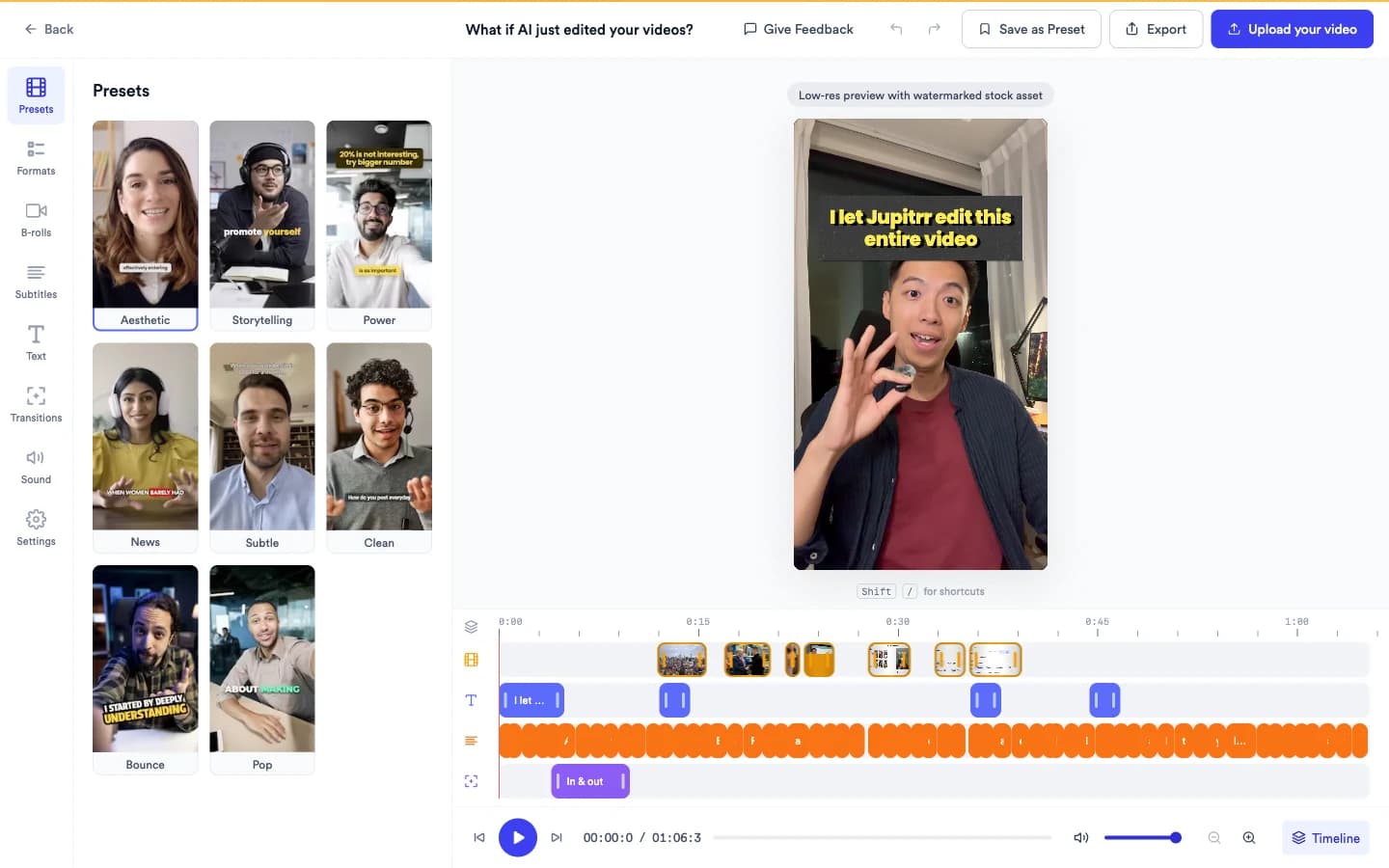
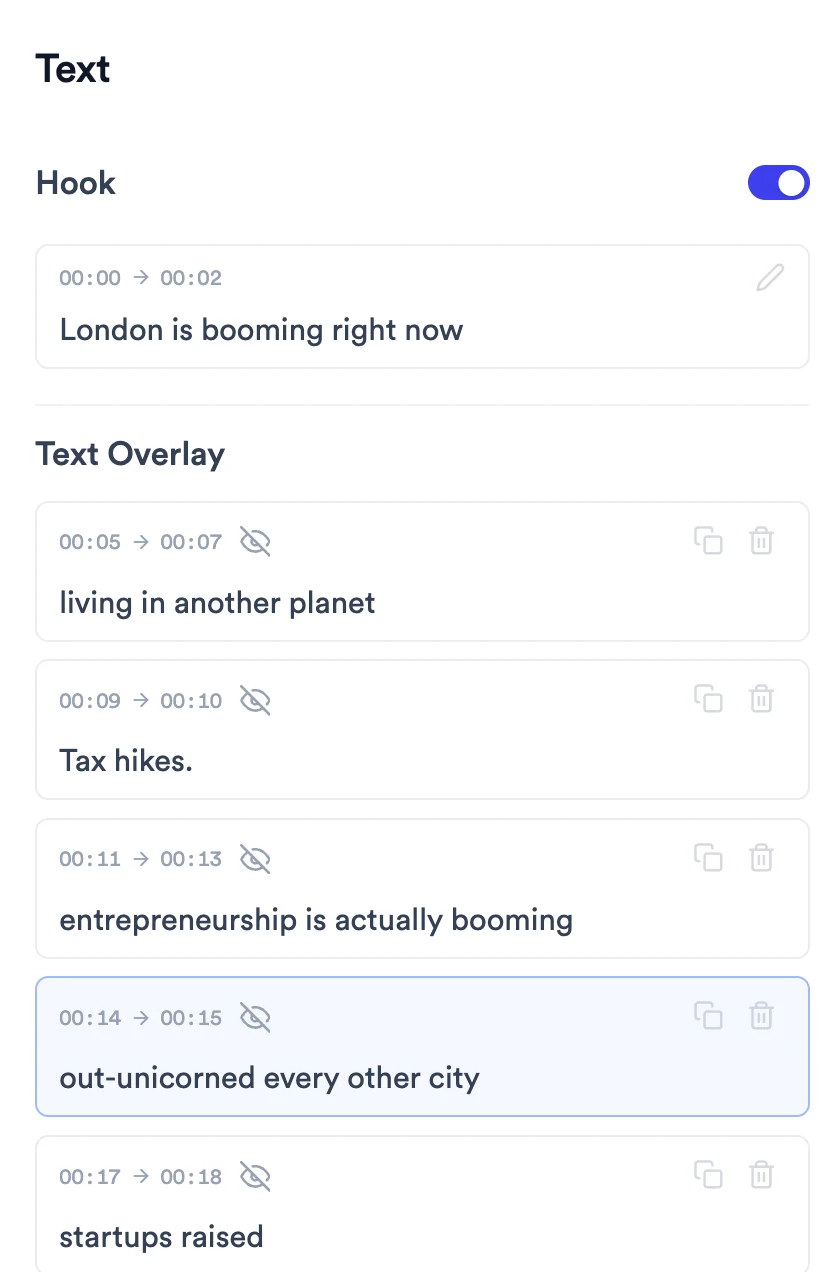
Select Text in the left rail. Hook is at the top, with its switch, timing and text. Text Overlay lists every overlay in order, each with its start and end time.
An eye icon with a line through it on an overlay means subtitles are hidden while that overlay shows. The icons on the right duplicate or delete the overlay.
- 2
Rewrite the hook and change its timing
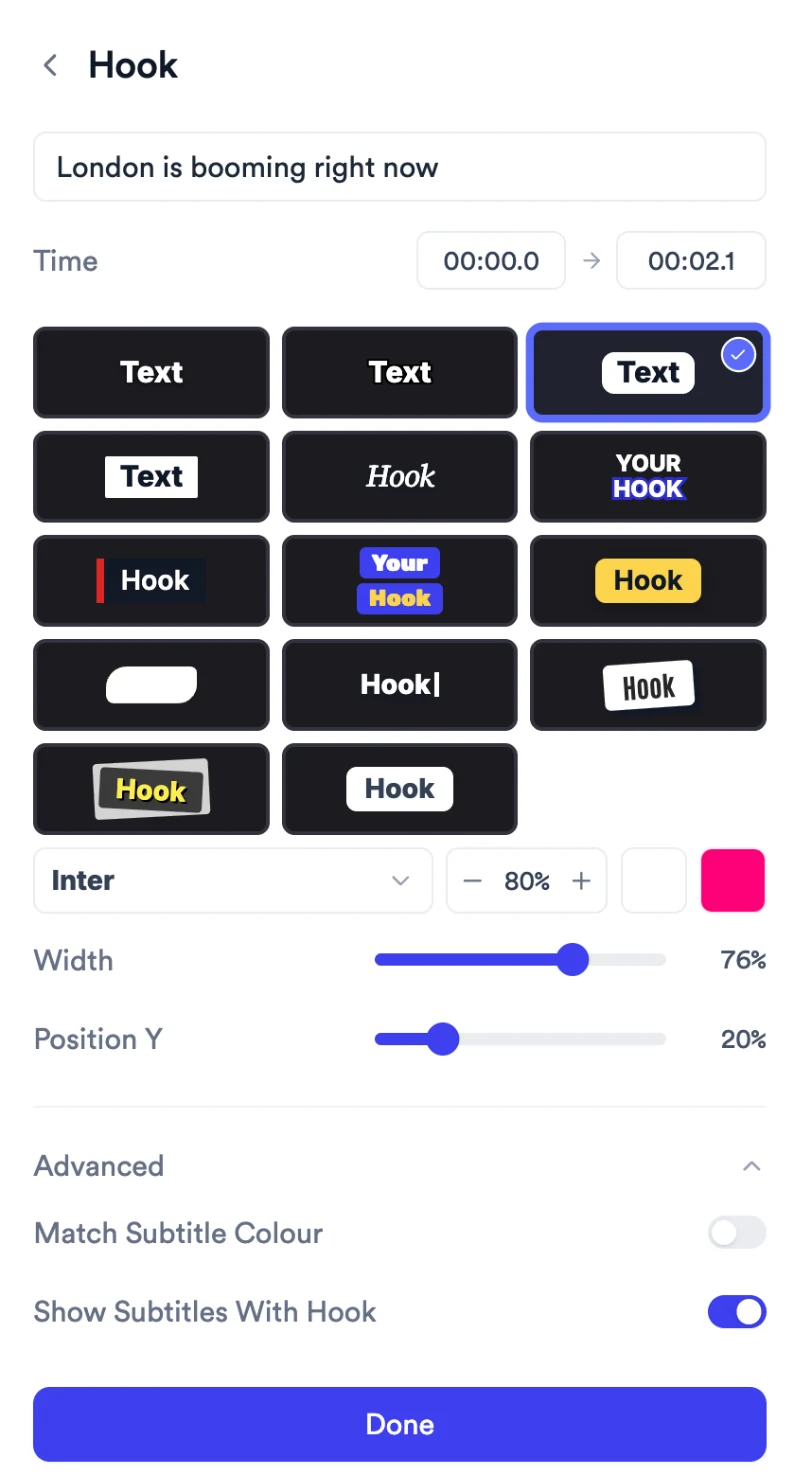
Click the hook card. Type the new hook in the text field, and change the start and end under Time. Select Done to go back to the list.
The hook holds up to 50 characters. Anything longer is cut off as you type.
- 3
Restyle the hook
In the same editor, pick a look from the style grid. Then set the font, size and colours, and drag Width and Position Y to place it.
Under Advanced, Match Subtitle Colour keeps the hook the same colour as the subtitles, and Show Subtitles With Hook keeps subtitles running underneath while the hook shows.
Some styles use fixed layered text, so their size is set by the design.
- 4
Switch the hook off
In Text, turn off the switch next to Hook. The hook disappears from the video.
Your hook text is kept. Turn the switch back on and the same hook returns.
- 5
Add a text overlay
Move the playhead to where the text should appear, then select Add Text Overlay at the bottom of the list. A new overlay is placed at the playhead and its editor opens. Type your text.
If you close an overlay without typing any text, it is removed.
To make an overlay from words you already say, select them in Subtitles and choose the option to turn them into a text overlay, for example Turn 3 words into text overlay. See How to add and edit subtitles.
- 6
Style and place an overlay
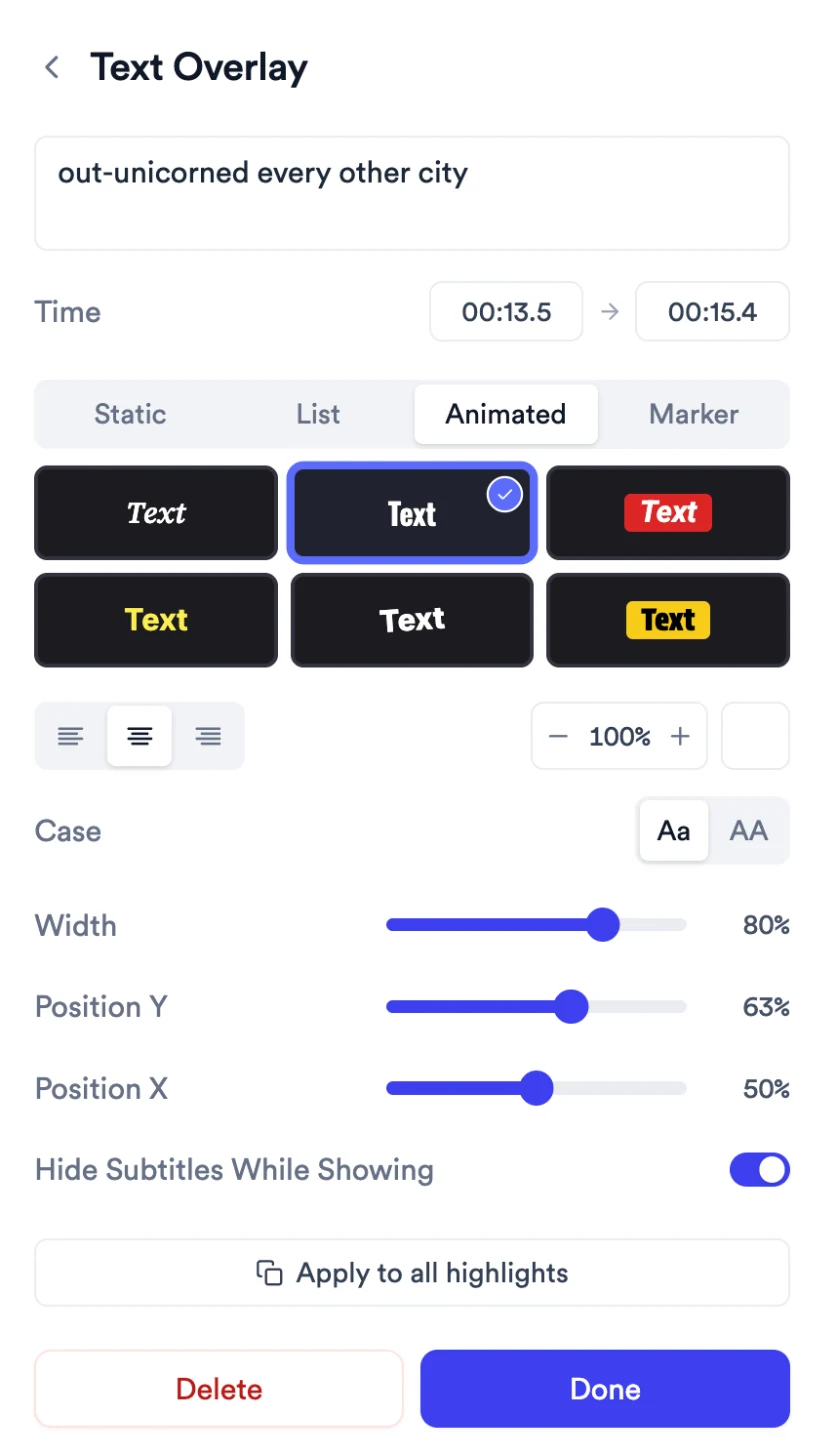
In the Text Overlay editor, choose a style group (Static, List, Animated or Marker) and a look within it. Set the timing under Time, then adjust size, colour, Width, Position Y and Position X.
- List styles show bullet points. Each item gets its own field; select Add item for another.
- Case appears on some styles: Aa keeps your text as typed, AA shows it in capitals.
- Hide Subtitles While Showing stops subtitles and the overlay from overlapping.
- For a highlighted phrase, Apply to all highlights copies this look to your other highlights.
- 7
Duplicate or delete an overlay
In the list, select the copy icon on an overlay (Duplicate Text Overlay) to place a copy at the playhead, or the bin icon (Delete) to remove it. You can also open the overlay and select Delete in its editor.
- 8
Change or remove emojis
Under Emojis, at the bottom of the Text tab, use the switch to turn emojis on or off for the whole video, or click an emoji to change, move or remove it.
What Jupitrr does automatically
- A hook at the start, when the Hook toggle is on
- Highlighted phrases as text overlays, when your first edit includes them
What you can edit
- Hook text, timing, style, size, colours and position
- Whether the hook shows at all
- Each overlay's text, timing, style and position
- Whether subtitles hide while an overlay shows
- Emojis, one by one or all at once
Limits and requirements
- The hook holds up to 50 characters.
- Overlays keep their own text. Fixing a word in Subtitles doesn't update an overlay that shows the same words.
- Switching to another preset can replace the highlighted phrases Jupitrr added.
Troubleshooting
My hook is cut off as I type.
The hook holds up to 50 characters. Shorten it, or move the rest of the message into a text overlay.
An overlay shows old wording after I fixed the transcript.
Overlays are separate from subtitles. Open the overlay in Text and edit its text there.
Subtitles and an overlay overlap.
Open the overlay and turn on Hide Subtitles While Showing, or move it with Position Y.
My new overlay disappeared.
An overlay closed without any text is removed. Add it again and type your text before selecting Done.
The hook is gone from my video.
Check the switch next to Hook in Text. If it is off, turn it on and your hook text returns.