Edit Your Video · Updated 27 Oct 2026
How to edit a video with Levio
Open an edited video in Jupitrr and select the Levio tab. Ask for a specific change in plain language, review the draft on the video preview, then choose Undo or Keep changes. You can keep chatting or use Jupitrr's normal editing controls in the same project.
Step-by-step guide
- 1
Open a video Jupitrr has edited
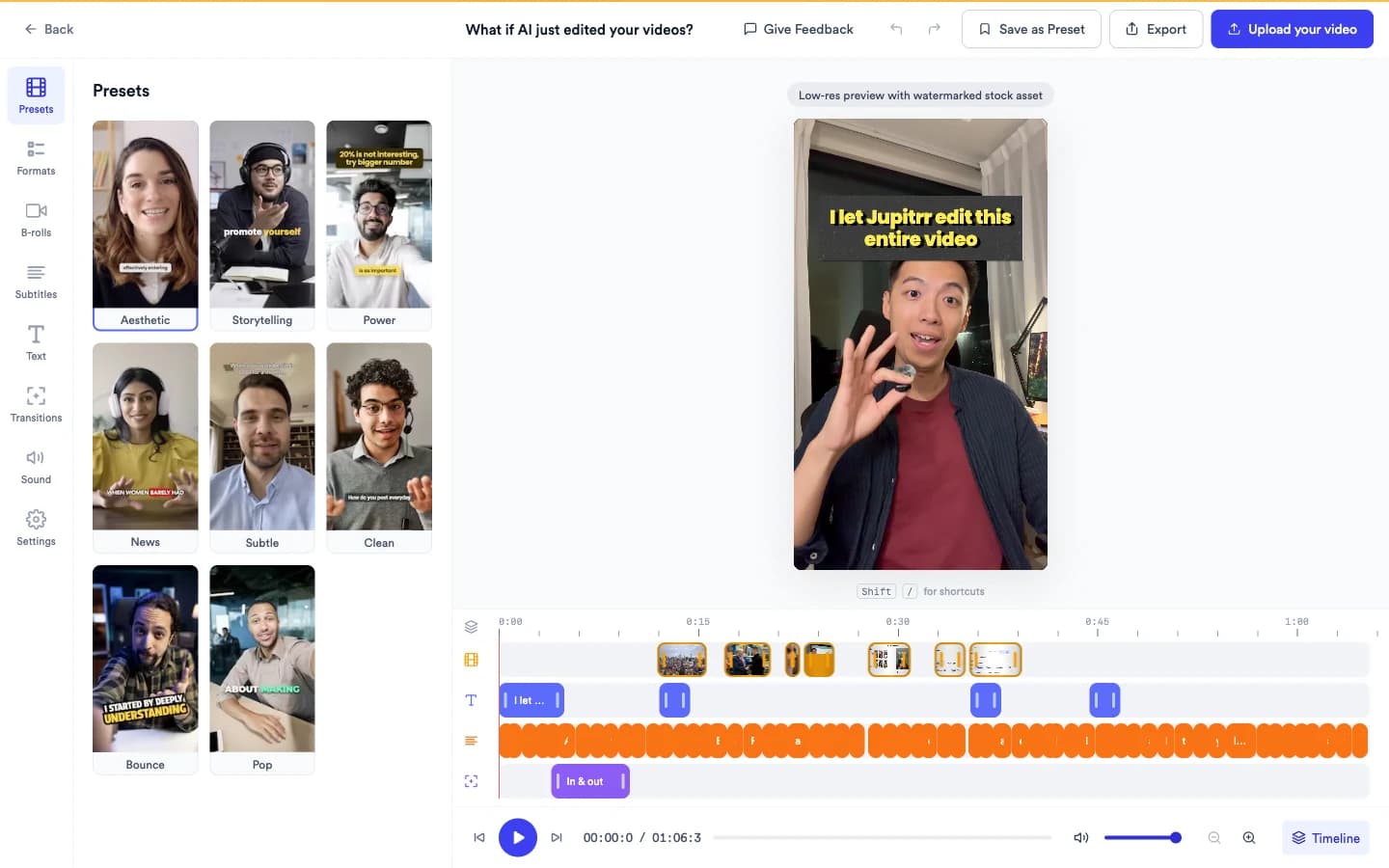
Levio works on a video after Jupitrr has created the automatic first cut. Upload a talking-head video, or open one from your videos.
By the time you open it, the project may already contain B-roll, subtitles, a hook, music, sound effects and the Format you chose. Levio changes that edit; it does not start a new one.
- 2
Open the Levio tab
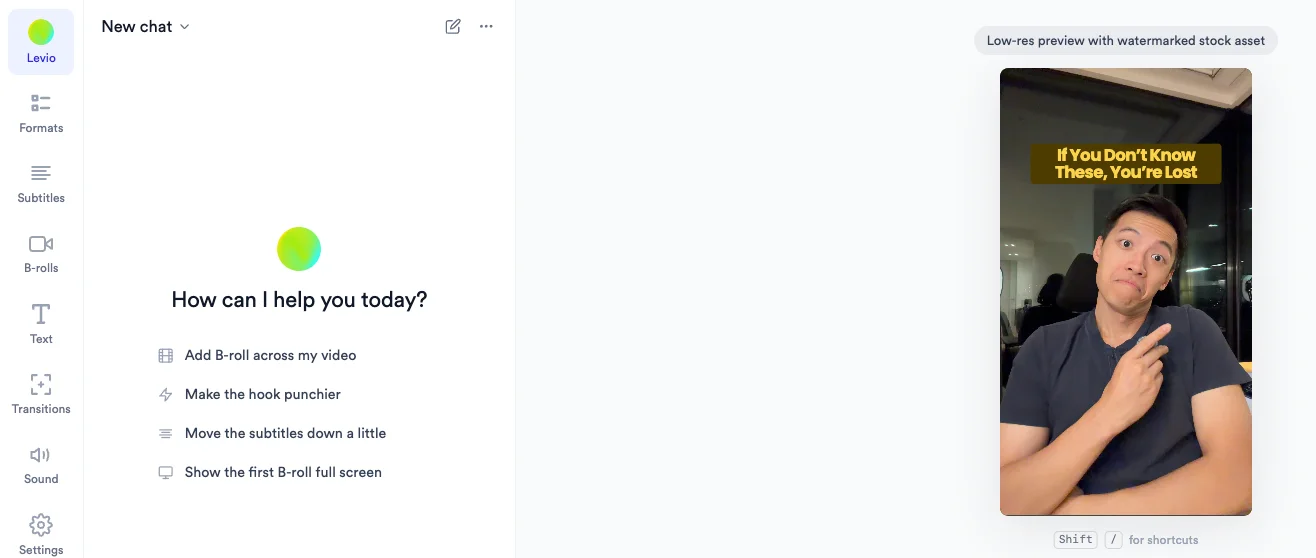
In the editor, select Levio, the first tab in the side panel.
A video keeps up to 10 Levio chats. Select New chat to start a fresh one, or select the chat title at the top of the panel to reopen an earlier chat for this video.
View full size - 3
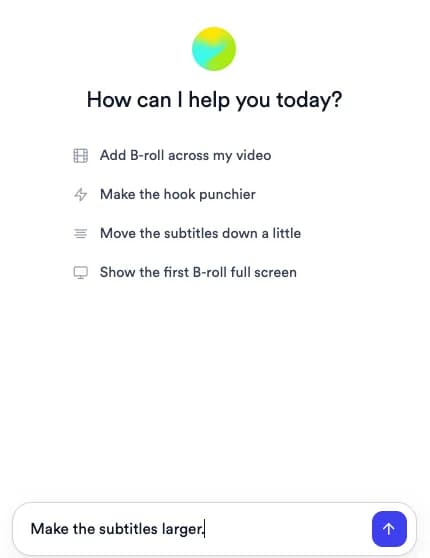
Ask for one clear change
Type your request into Ask Levio and press Enter. Requests work best when they name the element you want to change and, where it helps, the time in the video.
- Replace the B-roll at 0:12 with a stock video of a city skyline.
- Make the subtitles larger.
- Rewrite the hook to make it shorter.
- Lower the music volume.
- Move the logo to the top right.
- 4
Review the draft
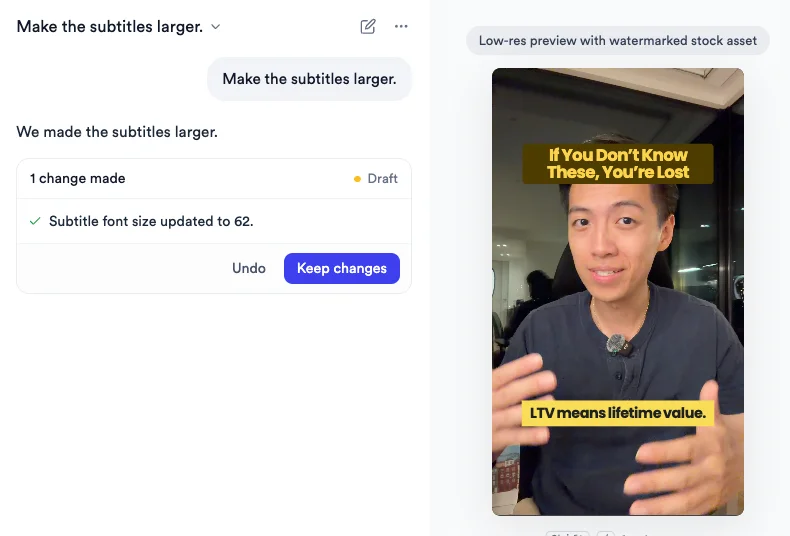
Levio applies the proposed change as a draft. The preview shows the change, and when it affects a specific moment the preview jumps to it. The change card in the chat lists what changed, marked Draft.
Play the preview to check the change in context before you decide.
View full size - 5
Choose Undo or Keep changes
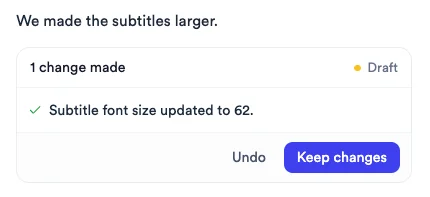
Select Undo to reject the draft, or Keep changes to commit it to your video.
- Undo leaves the video as it was and puts your request back in the chat box, so you can reword it and send it again.
- Keep changes commits the draft to the video. To change it again later, ask Levio for a new change or edit it by hand.
- 6
Continue chatting or edit manually
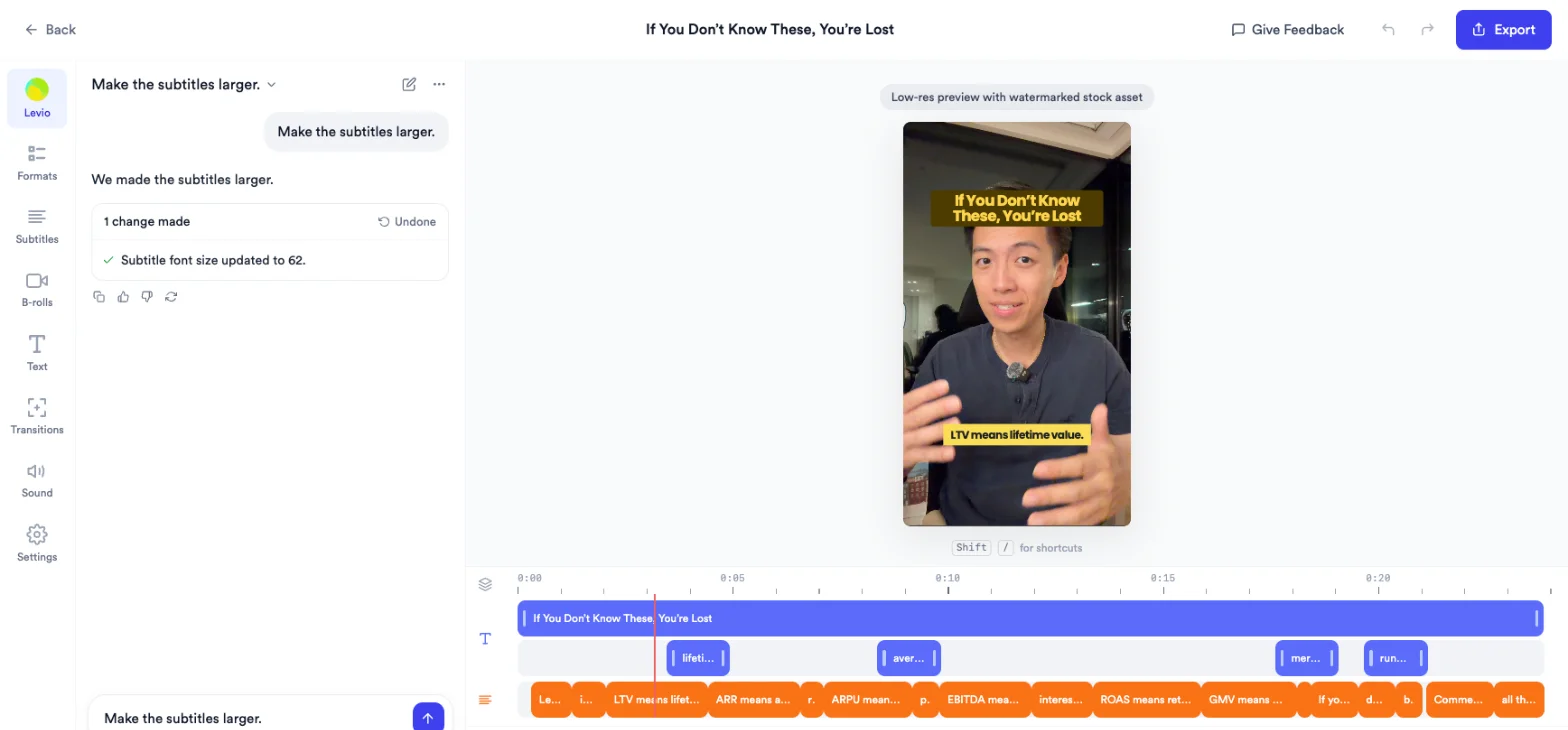
Levio and the normal editor work on the same project. Once the draft is resolved, ask Levio for another change or switch to any other tab.
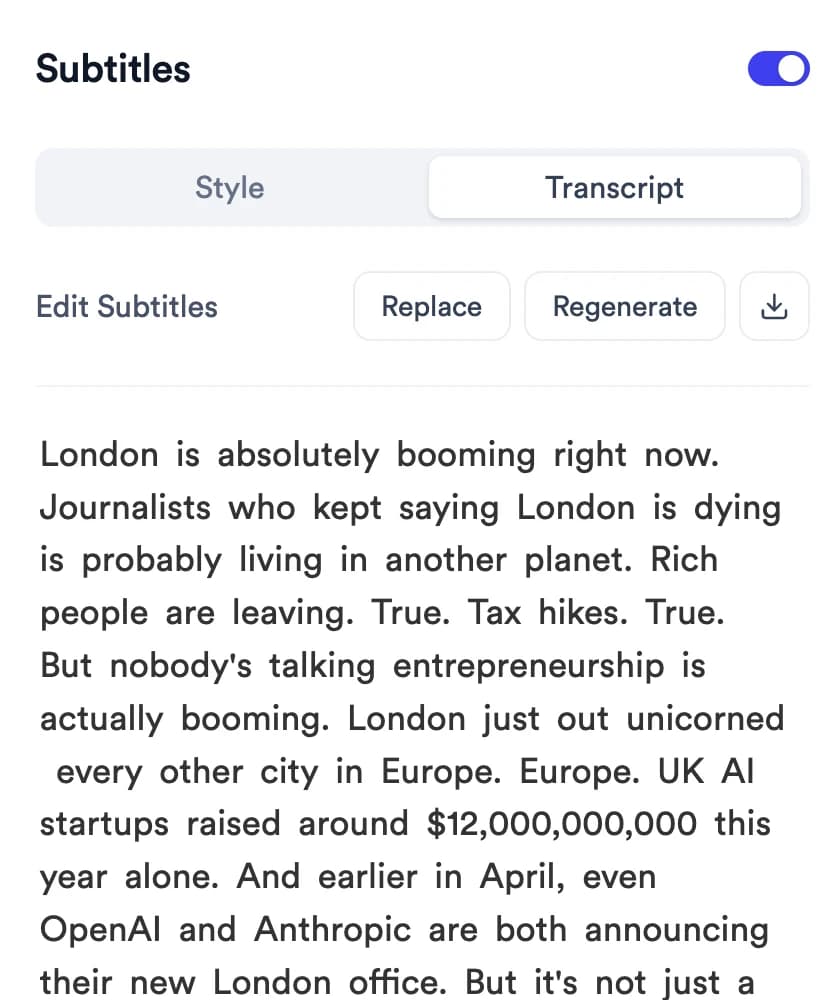
You can fine-tune B-roll in B-rolls, edit subtitle wording in the transcript in Subtitles, change the hook in Text, adjust the timeline, then export or publish as usual.
View full size
What Levio can change
Levio currently focuses on visual and styling changes. Jupitrr's normal editor controls remain available for other adjustments.
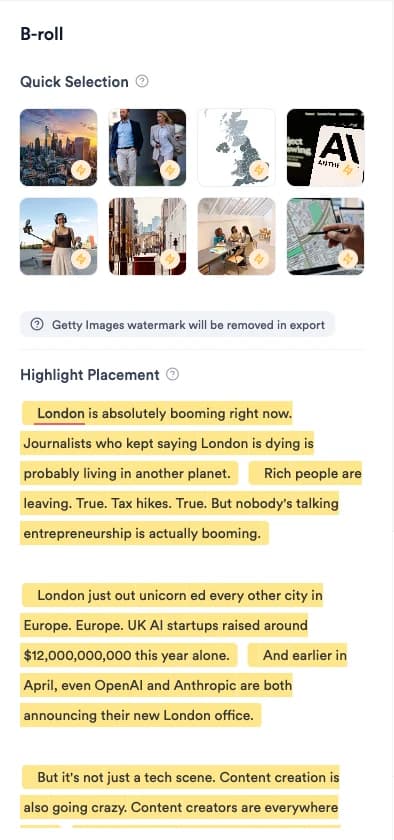
- B-roll: Add, replace or remove clips; retime or resize a clip; change the display style and animation; replacements come from stock video and web images.
- Subtitles: Size and position; text and highlight colours; karaoke highlight and capitalisation; show or hide subtitles.
- Hook: Rewrite the opening hook; move it up or down; show or hide it.
- Music and visual switches: Turn the music on or off and change its volume; turn transitions or emojis on or off; turn the intro animation or colour filter on or off.
- Logo: Change the logo size; move the logo.
Limits and requirements
- Levio works on videos that Jupitrr has already edited. It changes the existing edit rather than creating a new video.
- Resolve each draft before you move on. While a draft is waiting, the other tabs ask you to handle Levio's recommendations first.
- Cutting or reordering your footage, removing silences, changing subtitle wording, choosing a specific music track, adding sound effects, text overlays or zooms, changing the aspect ratio and translating are done with the normal editor controls, not Levio.
- Levio can change supported elements inside a video that uses a Format. To switch or remove the Format itself, use Formats.
- Each video keeps up to 10 Levio chats.
- Levio in the editor is separate from Jupitrr Agent, which researches topics and writes scripts in video briefs.
Frequently asked questions
What is Levio?
Levio is Jupitrr's ChatGPT-powered video editing agent. Jupitrr creates the first cut of your talking-head video automatically, then you ask Levio in plain language to change the B-roll, subtitles, hook, music volume, logo and other visual elements. Each change appears as a draft on the preview, and you keep it or undo it inside the same editable project.
How do I open Levio in Jupitrr?
Open a video that Jupitrr has edited and select the Levio tab, the first tab in the editor side panel. Start a new chat or reopen one of up to 10 saved chats for that video.
What changes can I ask Levio to make?
Levio can add, replace, remove, retime and resize B-roll and change its display style and animation; change subtitle size, position, colours, karaoke highlight and capitalisation, or hide subtitles; rewrite, move or hide the hook; turn music on or off and change its volume; turn transitions, emojis, the intro animation and the colour filter on or off; and change the logo size and position. Levio currently focuses on visual and styling changes. Jupitrr's normal editor controls remain available for other adjustments.
What do Undo and Keep changes do?
Undo rejects the draft, leaves the video as it was and returns your request to the chat box so you can revise it. Keep changes commits the draft to your video.
Can I continue editing manually after using Levio?
Yes. Levio and the normal editor work on the same project. After you keep or undo a draft, you can use any other tab, adjust the timeline or transcript, ask Levio for another change, and export or publish.
Can Levio edit a video that uses a viral Format?
Yes. Levio can change supported elements, such as the subtitles, hook, music and logo, inside a video that uses a Format like Tier List or Green Screen. Switching or removing the Format itself happens in the Formats tab.