
Canva Video logo

Last updated August 2026

Best Canva Video Alternatives

The best Canva Video alternative depends on why you are leaving. Adobe Express keeps the template-and-brand-kit workflow, Kapwing, CapCut and Clipchamp give you a proper video editor, Google Vids covers work video for Workspace teams, and Jupitrr AI automates talking-head editing for coaches and consultants. This guide compares all six and explains when Canva is still the better choice.

Best Canva Video alternatives at a glance

The best Canva Video alternatives are Adobe Express, Kapwing, CapCut, Clipchamp, Google Vids and Jupitrr AI. Each one is the strongest choice for a different workflow.

How we chose: We compared tools on the reasons people outgrow Canva’s video editor: wanting a real timeline, subtitles and audio control, a cheaper way to keep brand consistency, or no editing at all. The closest template-led tool comes first, then browser editors, then work-video and automated options. Pricing was checked against vendor pricing pages in August 2026. Canva and CapCut show different prices by region and platform, so those rows describe the plan rather than quote one number.

How the Canva Video alternatives compare

ToolBest forTemplates and brandVideo editing depthScheduling and teamsFree plan and pricing
Adobe Express logoAdobe ExpressBranded templates with Adobe stock and FireflyLarge template library, brand kits, Adobe Stock and fontsQuick template-led editing, video background removalMulti-account social scheduling; Teams planFree plan exports without watermark. Premium $9.99/mo
Kapwing logoKapwingCollaborative browser editing with subtitlesTemplates and a brand kit on ProFull browser timeline, subtitles, Smart Cut, dubbingLink-based team workspaces, priced per seatFree plan, 720p with watermark and 4-minute exports. Pro $16/mo billed annually ($24 monthly)
CapCut logoCapCutTemplate-driven short-form with a full editorTrend templates, effects and text presetsFull timeline with keyframes on web, desktop and mobileTeam plan availableFree plan exports 1080p. Standard $9.99/mo, Pro $19.99/mo ($179.99/year); prices vary by region and device
Clipchamp logoClipchampFree editing inside Microsoft 365Templates; one brand kit on PremiumSimple timeline with screen, webcam and voice recordingSaves to OneDrive as part of Microsoft 365Free plan exports 1080p without watermark. Premium comes with Microsoft 365 Personal ($9.99/mo) and Family
Google Vids logoGoogle VidsWork video inside Google WorkspaceWork-oriented templates; Slides to videoStoryboard-first editing with transcript trimming and a recording studioWorkspace sharing, comments and permissionsNo standalone plan. Basic editor free with a Google account; the full AI feature set is included with eligible Google Workspace plans
Jupitrr AI logoJupitrr AICoaches and consultants automating talking-head editingBranded presets and a brand kit on Pro and TeamNo timeline: first edit generated with B-roll, subtitles and sound effectsContent calendar, scheduling and publishing, analytics; Team plan$18/mo billed annually. Free plan available
Canva logoCanvaDesign-led, template-based videoHuge template library shared with posts, decks and docs; brand kit on ProSimple timeline with Magic Studio AI toolsContent Planner scheduling on paid plans; shared workspacesFree plan exports 1080p without watermark. Pro and Business are paid per person; prices load by region on the site

Pricing checked August 2026 against vendor pricing pages. Canva shows prices by region inside the site and CapCut prices differ between web checkout and app stores, so confirm the figure you will actually pay.

The best Canva Video alternatives in detail

Adobe Express logoAdobe ExpressBest for branded templates with Adobe stock and Firefly

Adobe Express is the most direct Canva replacement because it keeps the same shape: templates first, brand kit applied, quick edits, publish. Video gets template-led editing, captions, background removal and Firefly generative tools, backed by Adobe Stock, Adobe Fonts and multi-account social scheduling.

The free plan exports video without a watermark, Premium is priced below Canva Pro, and Creative Cloud subscribers already have Premium, which makes it the obvious switch for anyone whose team also uses Photoshop or Premiere.

Strengths

  • Template-led video editing with brand kits
  • Adobe Stock footage, Adobe Fonts and Firefly generative AI
  • Social scheduling across multiple accounts built in
  • Free plan exports video without a watermark
  • Premium included with Creative Cloud plans

Tradeoff

Timeline editing is as light as Canva’s, so longer or more complex edits outgrow it just as quickly, and collaboration features are thinner than Canva Business.

Pricing: Free plan exports without watermark. Premium $9.99/mo

Best suited for: Marketers and small teams making short branded videos who want Adobe’s assets and ecosystem.

Visit Adobe Express's website

Kapwing logoKapwingBest for collaborative browser editing with subtitles

Kapwing is the step up when Canva's timeline runs out. It is a real browser editor with layers, auto-subtitles, Smart Cut silence removal, dubbing into 100+ languages and AI generation, and it keeps the part of Canva teams like most: projects shared by link and edited together.

Templates and a brand kit exist on Pro, but they are a feature of the editor rather than the centre of it. Expect to spend more time in a timeline and less picking from a gallery.

Strengths

  • Full browser timeline with layers and keyframes
  • Auto-subtitles, Smart Cut and dubbing into 100+ languages
  • Link-based collaboration where teammates edit together
  • Templates and brand kit on Pro
  • AI video generator and repurposing tools

Tradeoff

The free plan watermarks 720p exports capped at four minutes, paid plans are priced per seat, and the template library is smaller than Canva’s.

Pricing: Free plan, 720p with watermark and 4-minute exports. Pro $16/mo billed annually ($24 monthly)

Best suited for: Teams that have outgrown template video and want to edit together in a browser.

Visit Kapwing's website

CapCut logoCapCutBest for template-driven short-form with a full editor

CapCut is where template video and real editing meet. Its trend templates, effects and text presets are built for TikTok, Reels and Shorts, and behind them sits a full timeline with keyframes and chroma key on web, desktop and mobile. The free plan exports 1080p.

It suits Canva users whose videos are short-form social content rather than branded graphics. Pricing was restructured in 2026 into Standard and Pro tiers and is set per region and device, so check the price where you will pay.

Strengths

  • Trend templates built for short-form social formats
  • Full timeline with keyframes, effects and chroma key
  • Free plan with 1080p export
  • Web, desktop and mobile apps
  • Auto captions, text-to-speech and background removal

Tradeoff

Brand kits and design assets are far thinner than Canva’s, collaboration is basic, and prices differ between web checkout and app stores.

Pricing: Free plan exports 1080p. Standard $9.99/mo, Pro $19.99/mo ($179.99/year); prices vary by region and device

Best suited for: Creators making short-form social video who want templates and hands-on control in one place.

Visit CapCut's website

Clipchamp logoClipchampBest for free editing inside Microsoft 365

Clipchamp is Microsoft's browser editor: a simple timeline with templates, stock media, screen, webcam and voice recording, auto captions and text-to-speech, with free 1080p exports and no watermark. Projects save to OneDrive.

Premium, which adds 4K, premium stock and a brand kit, comes with Microsoft 365 Personal and Family rather than as a separate video subscription. For Canva users already paying for Microsoft 365, the editor is effectively included.

Strengths

  • Free 1080p exports without a watermark
  • Screen, webcam and voice recording built in
  • Auto captions and text-to-speech on the free plan
  • Premium bundled with Microsoft 365 Personal and Family
  • OneDrive backup and a Windows app

Tradeoff

Templates and brand tooling are limited to one brand kit on Premium, there is no scheduling or design suite around it, and collaboration is file sharing.

Pricing: Free plan exports 1080p without watermark. Premium comes with Microsoft 365 Personal ($9.99/mo) and Family

Best suited for: Microsoft 365 users who want a straightforward editor for explainers, screen recordings and social clips.

Visit Clipchamp's website

Google Vids logoGoogle VidsBest for work video inside Google Workspace

Google Vids covers the part of Canva that teams use for internal video: updates, training and explainers. It starts from a storyboard or a Slides deck, adds a recording studio with a teleprompter, transcript trimming and Gemini-assisted generation, and shares with the same permissions as Docs and Drive.

There is no standalone Vids subscription: the basic editor is free with a Google account, and the full AI feature set is included with eligible Google Workspace plans. It is not built for social content, so it replaces Canva only for work-facing video.

Strengths

  • Slides to video and storyboard-first creation
  • Recording studio with teleprompter and transcript trimming
  • Gemini-assisted generation, avatars and voiceovers
  • Workspace sharing, comments and permissions
  • Included with eligible Workspace plans; basic editor free with a Google account

Tradeoff

Editing is desktop-browser only, output is aimed at internal and training video rather than social formats, and which AI features you get depends on your organisation’s Workspace plan.

Pricing: No standalone plan. Basic editor free with a Google account; the full AI feature set is included with eligible Google Workspace plans

Best suited for: Teams in Google Workspace whose videos are updates, training and explainers rather than social posts.

Visit Google Vids's website

Jupitrr AI logoJupitrr AIBest for coaches and consultants automating talking-head editing

Canva treats video as one more design surface: pick a template, drop in clips and text, keep it on brand. Jupitrr AI treats video as something you say to a camera. It is the AI video editor for coaches and consultants: upload a talking-head recording and it generates the first edit automatically, AI B-roll from Getty-licensed footage matched to your transcript, subtitles in 54+ languages and sound effects, with no template to fill and no timeline.

The workflow around it is built for a publishing habit rather than a design queue: research and AI scripting, teleprompter recording, AI video clipping, and a content calendar with scheduling and publishing and analytics. Branded presets keep videos consistent without a design pass. If your videos are mostly graphics, Canva stays the better tool; if they are mostly you talking, Jupitrr removes the editing step.

Strengths

  • First edit generated automatically: B-roll, subtitles and sound effects on upload
  • Branded presets keep every video consistent without templates
  • Research, scripting and teleprompter recording before the edit
  • Content calendar, scheduling, publishing and analytics after it
  • Built for coaches and consultants rather than design teams

Tradeoff

It is not a design tool. Graphics-led posts, presentations and mixed media stay in Canva; Jupitrr only handles video of a person speaking to camera.

Pricing: $18/mo billed annually. Free plan available

Best suited for: Coaches and consultants whose videos are talking-head content and who want the editing automated.
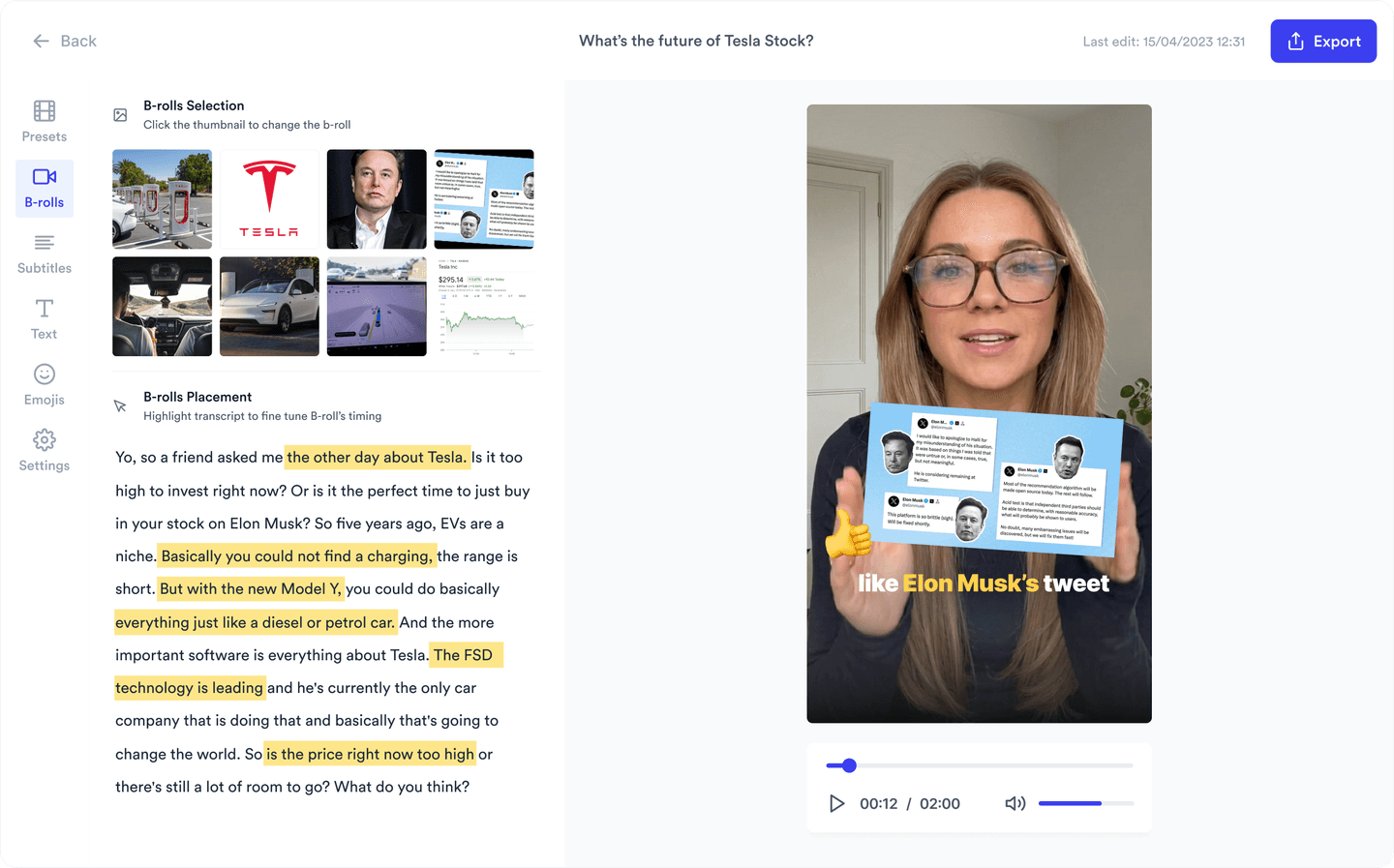
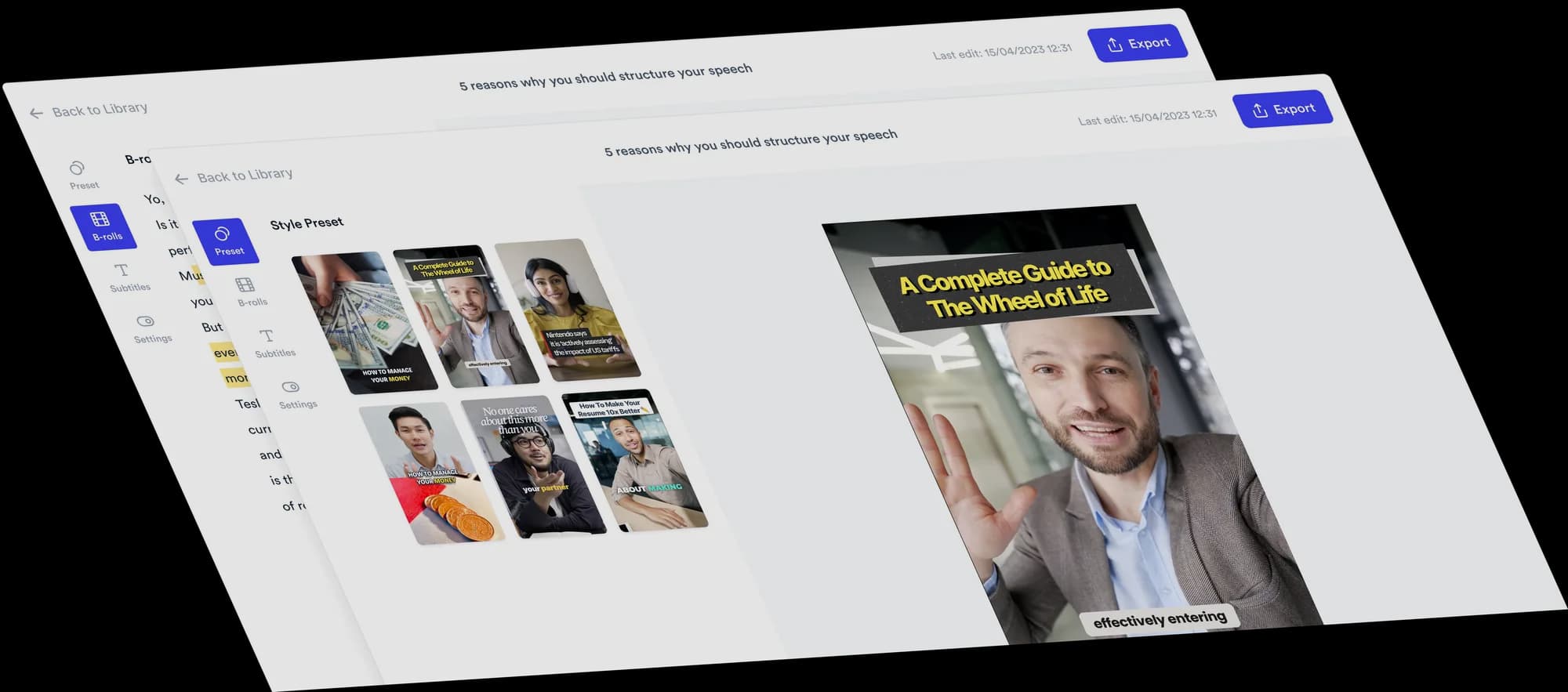
More talking than templates?

Jupitrr edits talking-head videos automatically, keeps them on brand with presets, and schedules them from a content calendar.

Jupitrr AI editor showing an automatically edited talking-head video

Other tools we considered

  • VEED: a strong browser editor with templates and brand kits. It overlaps heavily with Kapwing here and is covered on the Kapwing alternatives page.
  • Descript: excellent for transcript-based editing, but it does not compete with Canva on templates or design.
  • Animoto: a long-running template-led slideshow and marketing video maker, narrower than Canva and with pricing that is only shown inside the product.

When is Canva still the better choice?

Canva’s video editor is one part of a much larger platform, and for design-led teams that is exactly the point.

  • Design and templates are central

    Posts, decks, docs, thumbnails and video from one template library with one brand kit. No video editor above matches that breadth, and most do not try.

  • Brand consistency across a team

    Brand kits, approval flows and shared folders on Canva Business keep a whole team on brand. Adobe Express is the only alternative that comes close.

  • Your videos are mostly graphics

    Animated text, stock clips and Magic Animate cover graphic-led social video well. A dedicated editor adds depth you would not use.

  • Content Planner already schedules your posts

    Designing and scheduling in one place is convenient. Moving video to another tool means either a second scheduler or exporting back into Canva.

Which alternative should you choose?

Adobe Express logo

You want the same template-and-brand-kit workflow with Adobe stock, fonts and Firefly behind it.

Choose Adobe Express
Kapwing logo

You need a real timeline with subtitles and dubbing and want the team editing together in a browser.

Choose Kapwing
CapCut logo

Your videos are short-form social content and you want trend templates plus hands-on control.

Choose CapCut
Clipchamp logo

You already pay for Microsoft 365 and want free, watermark-free editing without another subscription.

Choose Clipchamp
Google Vids logo

The videos are internal updates, training or explainers and your team lives in Google Workspace.

Choose Google Vids
Jupitrr AI logo

You are a coach or consultant whose videos are you talking to camera and you want the edit automated.

Choose Jupitrr AI

Templates, brand kits and design-led content are the main job and video is one output among many.

Stay with Canva

Frequently asked questions

Adobe Express is the closest replacement for template-led branded video. Kapwing, CapCut and Clipchamp are better when you need a real editor, Google Vids suits work video inside Google Workspace, and Jupitrr AI automates talking-head editing for coaches and consultants.

Yes. Adobe Express, Clipchamp and CapCut export video without a watermark on their free plans, with CapCut applying one only to certain locked templates and AI clips. Kapwing and Jupitrr AI watermark free exports; Google Vids’ basic editor is free with a Google account.

Adobe Express, with brand kits, Adobe Fonts and Adobe Stock on Premium and scheduling built in. For talking-head video specifically, Jupitrr AI applies branded presets automatically so every video matches without a design step.

Kapwing, CapCut and Clipchamp all offer a full timeline with layers, and CapCut adds keyframes and effects across web, desktop and mobile. Adobe Express and Google Vids stay closer to Canva’s template and storyboard approach.

Only for talking-head video. Jupitrr AI generates the edit automatically for coaches and consultants and covers scripting, clipping, publishing and analytics, but it is not a design tool. Graphics-led posts, presentations and mixed-media content are better served by Canva or Adobe Express.

Not really. Google Vids is built for internal and work video, training, updates and explainers, and edits only in a desktop browser. For social content with templates and brand assets, Adobe Express, CapCut or Canva itself are the better tools.

Skip the template

Upload a talking-head video and Jupitrr adds B-roll, subtitles and sound effects automatically, on brand.

Jupitrr AI dashboard