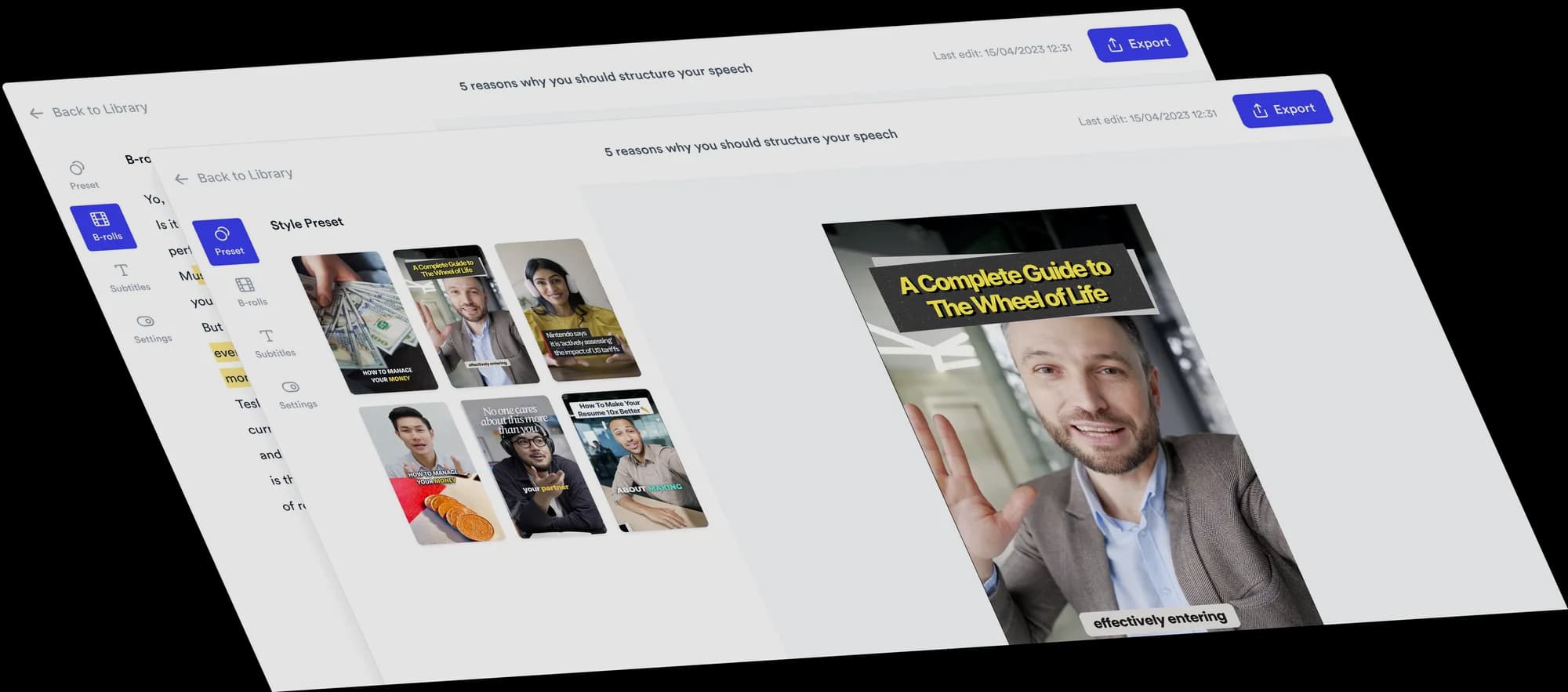
Turn your talking-head video into a split screen video
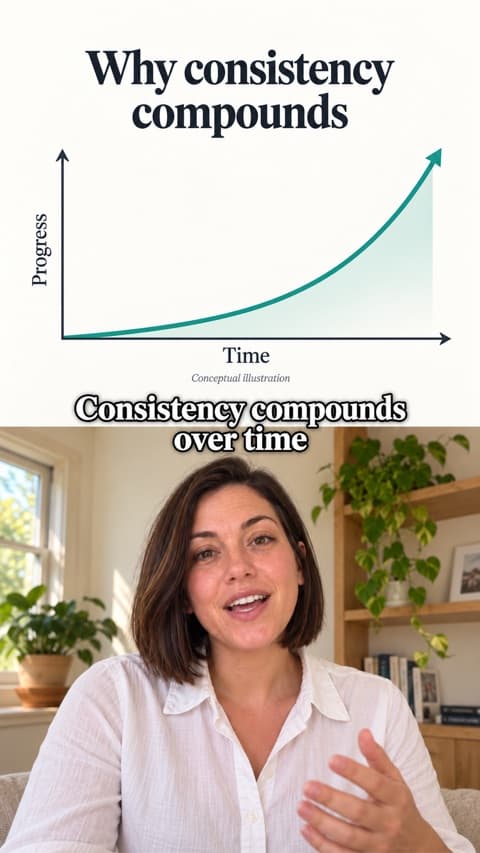
Keep yourself and relevant visuals on screen together. Jupitrr fills one half with B-roll matched to your talking-head recording, while you stay in the other. Choose the layout and swap any clip.
 Trusted by 200K+ coaches and consultants






How a split screen video comes together
You record one ordinary talking-head take. Jupitrr builds the two halves and you decide the details.
- Step 1
Upload and choose Split screen
Upload a portrait recording and choose Split screen as the Format in "Set up your video". Automatic B-roll stays on, because it fills the visual half. You can also turn the Format on later from the Formats tab.
- Step 2
Jupitrr fills the B-roll half
It matches B-roll to your transcript and places clips back to back, so the visual half is never empty. Your recording is reframed into the other half, and the hook and subtitles sit on the line between them.
- Step 3
Pick the half and the crop, then export
Choose whether B-roll fills the "Top" or "Bottom" half, slide "Video crop" to keep your face in frame, and swap any clip that does not fit the point you are making.
Why split screen is easy to watch
The structure gives viewers two things at once, which makes your explanation easier to follow.
Always something to look at
Viewers who look away from your face still have a related visual in front of them.
You never leave the frame
Unlike full-screen B-roll cutaways, your face and delivery stay visible, which keeps the video personal.
Words and picture line up
Clips change with your transcript, so each step or example appears as you name it.
Topics that suit split screen
Theories, concepts and frameworks
Ideas explained with matched B-roll beside you, like talking through a whiteboard.
Places and decisions
Moving, buying or choosing somewhere, explained with related visuals.
Products and services
Explain what something does. Upload your own image to show the real product.
Numbers and concepts
An idea that makes more sense with a visual. Upload your own chart as an image.
Who split screen suits
Consultants and coaches
Explain a framework or process with related visuals. Upload your own diagram as an image.
Real estate agents and personal trainers
Explain a process or decision with B-roll beside you. Upload images for a specific listing, and film movement demos as your main recording.
Founders
Talk through a launch with B-roll beside you, and upload product images to show the real thing.
Educators
Pair each concept with a visual so viewers can follow without sound.
Split screen video ideas for experts
Split screen works best for B-roll-heavy explainers of a theory or concept. Jupitrr matches the B-roll to your words.
- Consultant
Walk through a framework step by step
“Here is the four-step process I use with every new client.”
- Real estate agent
Explain a buying decision
“Three things to check before you make an offer.”
- Fitness coach
Explain a training idea
“Why recovery matters as much as the workout.”
- Founder
Explain why you built something
“Why we built the thing our customers asked for most.”
- Educator
Explain a concept with a visual example
“Compound interest makes sense the moment you see it.”
- Marketing consultant
Break down a trend with examples
“This ad format is everywhere right now. Here is why.”
A short split screen script
Talk to camera as you normally would. Name concrete things so the B-roll has something to match.
- Hook“Consistency beats talent, and here is the maths behind it.”On screen: Hook text on the seam, a related clip in the B-roll half.
- Point 1“Posting once a week for a year is 52 chances to be found.”On screen: B-roll changes to a calendar or posting visual.
- Point 2“Each video teaches you something the last one did not.”On screen: A new clip, matched to the idea of practice.
- Close“Pick a schedule you can keep, not one that impresses people.”On screen: A final clip, with your subtitles on the seam.
Jupitrr chooses the clips from your words. Swap any of them in the B-rolls tab. To show a specific diagram, upload it as an image and drag the clip to cover that section.
What Jupitrr does and what you adjust
Split screen is deliberately simple: two controls for the layout, and the normal B-roll tools for what fills it.
B-roll for the whole video
Picked at upload, clips cover the video back to back. Turned on later, Jupitrr keeps your existing B-roll and fills only the gaps.
Top or Bottom
Under "B-roll", choose which half the visual fills. You take the other half.
Video crop
Slide "Video crop" to keep your face in frame in your half.
Hook and subtitles on the seam
The hook is cut to your first sentence and sits on the line between the halves, where your subtitles also show.
Swap any clip
Every clip is normal Jupitrr B-roll, so you can swap, trim, retime or delete it.
Switch or remove it
Change Format or remove it from the Formats tab. Your clips keep their own layout, because the split is applied at render.
Tips for a clear split screen video
Do
- Frame yourself with some space around your face, so the crop has room to keep you in your half.
- Name concrete things (places, tools, actions) so the B-roll matches what you say.
- Check every clip once: the visual is on screen for the whole video, so a weak clip is noticeable.
- Keep it under 3 minutes for Shorts and Reels.
Avoid
- Filming very close to the camera, which leaves the crop little room.
- Talking in abstractions only, which gives the B-roll nothing specific to show.
- Expecting a second camera angle: the other half is B-roll, not another recording.
- Using it for a ranking or sorting video, where 2 Column or Tier List fits better.
Good to know
- Portrait videos only. Formats are not available for landscape videos.
- The visual half is B-roll from Jupitrr's stock and web search. There is no option to put a second recording of your own there.
- Automatic B-roll is matched to your words. It does not create a diagram or find your own listing. To show a specific image, upload it and drag the clip to cover that section.
- Removing the Format keeps the B-roll it added.
- Levio cannot change the Split screen settings. Use the two controls in the Formats tab.
Trusted by 200K+ coaches and consultants



Keep reading
- How to make a split screen video in JupitrrEvery step, control and fix for the Split screen Format
- Green Screen Video MakerStand in front of the B-roll instead of beside it
- Grid & Cut out Video MakerOpen on a B-roll grid with you cut out in the middle
- All Formats and subtitle stylesEvery Format in the Jupitrr editor, with what each is for
Frequently asked questions
What is a split screen video?
How do I make a split screen video in Jupitrr?
Can I put the B-roll at the bottom?
Can I use my own second video in the other half?
Can Jupitrr create a diagram for my split screen video?
Is Split screen the same as 2 Column?
Does it work on landscape videos?
Will a split screen video get more views?
Talk it through. Keep the visual on screen.
Upload your recording, choose Split screen, and adjust the halves Jupitrr builds from your words. From $11/mo billed annually.