Formats · Updated 3 Nov 2026
How to make a split screen video in Jupitrr
Split screen puts B-roll in one half of the frame and you in the other for the whole video. Jupitrr fills the B-roll half from your transcript, reframes your recording into the other half and places the hook and subtitles on the line between them. You choose which half the B-roll fills, adjust the crop and swap any clip.
Before you start
- A portrait talking-head video. Formats are not available for landscape videos. Keep it under 3 minutes for YouTube Shorts and Instagram Reels.
- Some space around your face in the shot, so it still fits once your recording is cropped into half the frame.
- You can choose Split screen when you upload, or turn it on later in the editor.
Plan your recording
Split screen works best for B-roll-heavy explainers of a theory or concept. The B-roll half is matched to your words, so name concrete things (tools, places, actions) rather than speaking only in abstractions. It does not create a diagram or find your own listing.
Put the point of the video in your first sentence. The hook is cut to that sentence and shown on the line between the two halves.
Step-by-step guide
- 1
Option 1: for a new upload, choose Split screen
In Set up your video, choose Split screen as the Format, then select Start Editing.
Automatic B-roll is switched on and locked for this Format: "B-roll fills the top half for the whole video". Jupitrr places clips back to back so the B-roll half is never empty.
- 2
Option 2: for an existing video, turn it on in the editor
For a video that is already open, select Formats and choose Split screen. It turns on straight away.
Your existing B-roll is kept. The panel shows Building your split screen while Jupitrr adds B-roll to any gaps of a second or more, then Added N B-roll clips for the top half.
If another Format is on, select Change Format first, then choose Split screen and confirm with Switch format. The other Format is turned off and its settings are kept.
- 3
Review the first cut
Play the video. B-roll fills one half, you are in the other, and the hook and subtitles sit on the seam between them.
Split screen switches off B-roll fade-out, image zoom and the opening animation, because they don't suit a fixed half. You can turn them back on in your preferences.
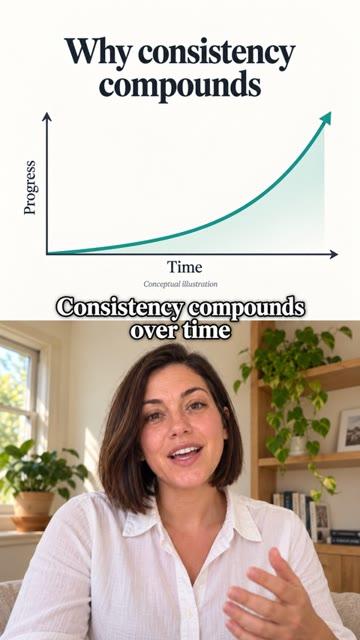
A finished Split screen video, from the editor's Format preview. - 4
Choose which half the B-roll fills
In the Split screen panel, under B-roll, choose Top or Bottom. You take the other half.
- 5
Keep your face in frame
Drag Video crop until your face sits well in your half.
- 6
Swap or adjust clips
Open B-rolls to swap, trim, retime or delete any clip, or add one at a moment that needs a better visual. See How to add and edit B-roll.
Every visible clip is shown in the B-roll half while the Format is on, whatever display style it had before.
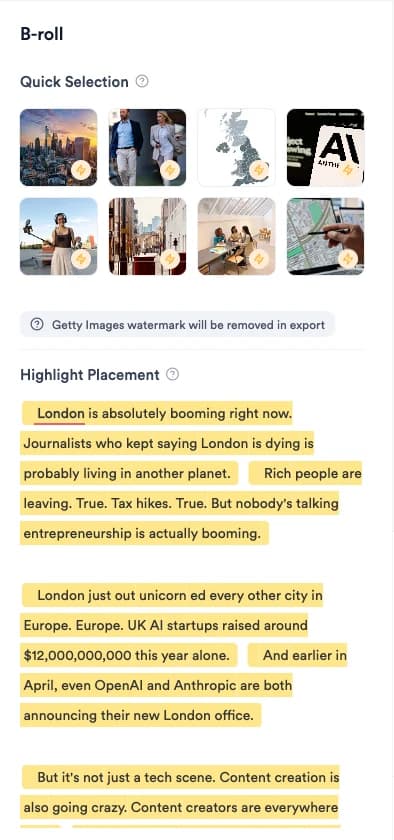
To show a specific diagram or photo, select the words in Highlight Placement, choose Upload Image/Video, then drag the edges of the clip on the timeline to cover that section.
- 7
Edit the hook, subtitles and music
Change the hook in Text, the subtitles in Subtitles and the music in Sound, as in any Jupitrr video.
- 8
Switch or remove the format
Before you do this: Split screen keeps your B-roll, but switching to Tier List, Do & Don't, 2 Column, 3 Column or Logo List removes automatic B-roll, automatic text overlays and camera zooms as soon as you confirm. Do & Don't also removes text you added.
Select Change Format, then choose another Format and confirm with Switch format, or choose Remove format.
Your clips keep their own layout, because the split is applied when the video is played and exported. B-roll that Split screen added stays in the project.
What Jupitrr does automatically
- B-roll matched to your transcript, covering the whole video
- Filling gaps when you turn the Format on later, while keeping your existing clips
- Reframing your recording into the other half
- Placing the hook (cut to your first sentence) and subtitles on the seam
What you can edit
- Which half the B-roll fills: Top or Bottom
- Video crop for your half
- Every B-roll clip: swap, trim, retime, add or delete
- Hook, subtitles and music
- The Format itself: switch or remove it
Limits and requirements
- Not available for landscape videos.
- The other half is always B-roll. There is no second camera track for your own footage.
- Automatic B-roll is matched to your words. A specific diagram, listing photo or product image is one you upload yourself.
- Levio cannot change the Split screen settings.
Troubleshooting
Part of my head is cut off.
Adjust Video crop. If you filmed very close to the camera there may not be enough room; record with more space around your face next time.
It says "We couldn't add B-roll just now".
Jupitrr couldn't fill the gaps. Your own B-roll still shows in the B-roll half. Add clips from B-rolls, or turn the Format off and on again later.
The B-roll doesn't match what I'm saying.
Swap the clip in B-rolls. Clips match your words, so naming specific things when you record gives better matches.
I can't find the Formats tab.
Formats are hidden for landscape videos. Upload a portrait version of the video.
Formats are greyed out.
Formats unlock once Jupitrr has finished preparing your video. Wait for processing to finish.