Formats · Updated 3 Nov 2026
How to make a Grid & Cut out video in Jupitrr
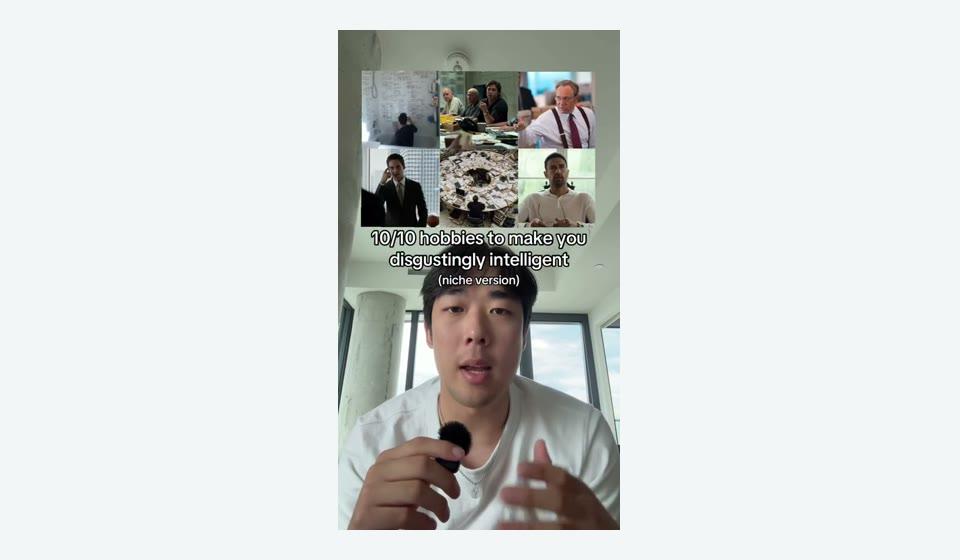
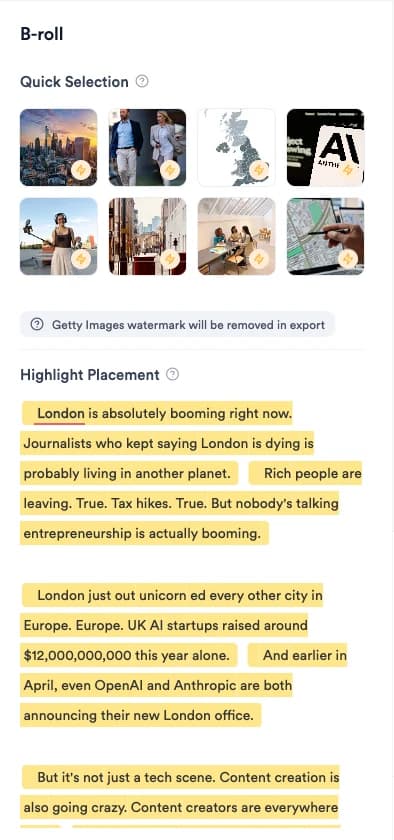
Grid & Cut out opens your video with you cut out in the middle of a 2×2 grid of images while your hook plays, then puts you in front of full-screen B-roll for the rest. Jupitrr removes your background, picks the four grid images and moves you between positions at B-roll cuts. You can swap any tile and change your layout, size and position part by part.
Before you start
- A portrait talking-head video with you in frame. Formats are not available for landscape videos. Keep it under 3 minutes for Shorts and Reels.
- The cutout works on videos up to 10 minutes and uses the same monthly allowance as Green screen. It is not available on AppSumo plans.
- You don't need a green or plain background. Contrast between you and the background helps.
Plan your recording
Frame your head and shoulders with space around you, and avoid movement behind you. Open with a one-sentence hook: the grid shows while it plays, or for the first 4 seconds if there is no hook.
After the hook, give each example a few seconds. B-roll changes about every 3 seconds and you move at the cuts.
Step-by-step guide
- 1
Option 1: for a new upload, choose Grid & Cut out
In Set up your video, choose Grid & Cut out as the Format, then select Start Editing.
Automatic B-roll is switched on and locked: "you appear cut out in front of the B-roll". The card is locked if your plan doesn't include the cutout or the video won't fit what is left this month.
- 2
Option 2: for an existing video, turn it on in the editor
For a video that is already open, select Formats and choose Grid & Cut out. It turns on straight away.
Your B-roll stays and becomes the background. If the video has no B-roll yet, add some from B-rolls so there is something behind you after the hook.
If another Format is on, select Change Format first, then choose Grid & Cut out and confirm with Switch format. The other Format is turned off and its settings are kept.
- 3
Wait for the cutout and grid
Jupitrr shows Cutting you out of the background while it removes your background, usually about a minute. Then it shows Finding pictures for your grid.
If the video is still processing you'll see Waiting for your video first. If the cutout fails, select Retry.
During the hook you are centred over the grid. After it, you appear smaller in front of full-screen B-roll, moving between positions at B-roll cuts.
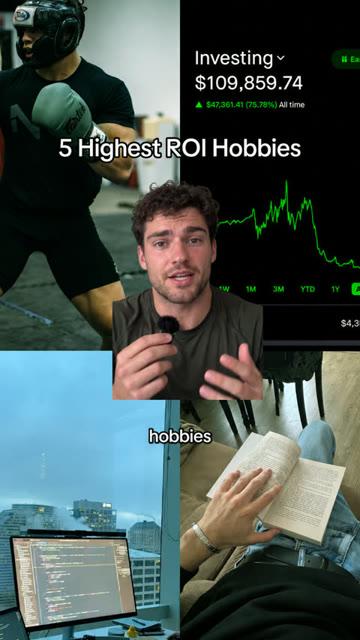
A finished Grid & Cut out video, from the editor's Format preview. - 4
Swap the grid tiles
Open the Content tab. Under Hook grid, hover a tile (Top left, Top right, Bottom left or Bottom right) and select Swap to search web images or upload your own. Empty tiles show Add.
The grid shows while your hook is on screen. Retime the hook in Text to change how long it shows.
If pictures can't be found, you'll see Couldn't find pictures for the grid. with Try again.
- 5
Set your position part by part
Open Style. Under Cutout, select a part and choose a layout: Full, Half, Corner or Custom.
- Fine-tune with Left / right, Up / down, Size and Rotation, or select Reset.
- Split at playhead divides a part so you can move at a different moment. Add cutout at playhead adds a part where there is none. Parts also appear on the Speaker row of the timeline.
- 6
Change the background clips
Open B-rolls to swap, trim or replace any clip behind you. See How to add and edit B-roll.
- 7
Edit the hook, subtitles and music
The hook is pinned near the top and subtitles keep showing during it. Edit them in Text and Subtitles, and the music in Sound.
- 8
Switch or remove the format
Before you do this: Grid & Cut out keeps your B-roll, but switching to Tier List, Do & Don't, 2 Column, 3 Column or Logo List removes automatic B-roll, automatic text overlays and camera zooms as soon as you confirm. Do & Don't also removes text you added.
Select Change Format, choose another Format and confirm with Switch format, or choose Remove format.
This also turns off the cutout. Your grid tiles are kept. Switching to Green screen replaces the grid positions with Green screen's own parts.
What Jupitrr does automatically
- Removing your background
- Four grid images picked for your video
- Centring you over the grid during the hook
- Full-screen B-roll after the hook, changing about every 3 seconds
- Moving you between positions at B-roll cuts
What you can edit
- Each of the four grid tiles
- Your layout, position, size and rotation for each part
- Adding and splitting cutout parts
- The background B-roll clips
- Hook, subtitles and music
- The Format itself: switch or remove it
Limits and requirements
- Not available for landscape videos or on AppSumo plans.
- The cutout works on videos up to 10 minutes and counts towards your monthly Green screen allowance. A finished cutout for the same video isn't charged again.
- Grid images come from the open web. Check you can use each one, especially in ads.
- Levio cannot edit the grid or the cutout.
Troubleshooting
Grid & Cut out is locked.
Your plan doesn't include the cutout, or this video is longer than what is left of your monthly allowance. It is not available on AppSumo plans.
The cutout is stuck on "Waiting for your video".
The cutout starts once your video has finished processing. Give it a couple of minutes; if it fails, select Retry.
Parts of me are missing in the cutout.
Busy or similar-coloured backgrounds make the cutout harder. Record with more contrast and less movement behind you.
The grid shows for too long or too short.
The grid follows the hook. Retime the hook in Text.
There is nothing behind me after the hook.
Add B-roll from B-rolls. The background is your B-roll.