Formats · Updated 3 Nov 2026
How to make a B-roll Grid video in Jupitrr
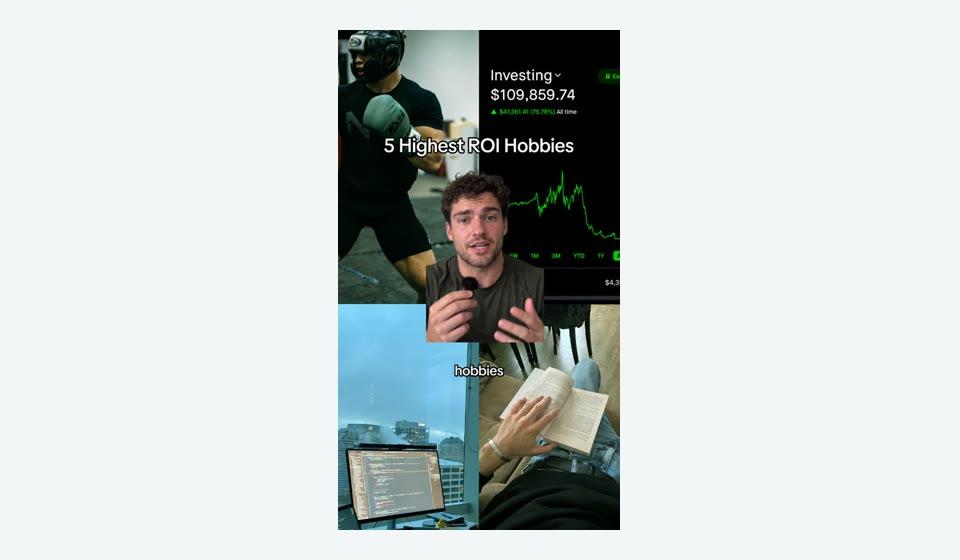
B-roll Grid opens your video with a grid of six or three images above your hook text, then shows each B-roll clip as a small card above your head for the rest of the video. Jupitrr picks the hook images from your hook and transcript. You can swap any image, switch between 6 and 3, add a subline and set the card's size and position.
Before you start
- A portrait talking-head video. Formats are not available for landscape videos. Keep it under 3 minutes for Shorts and Reels.
- A hook. The grid only shows while the hook is on screen, so it is hidden if the hook is switched off.
- You can choose B-roll Grid when you upload, or turn it on later in the editor.
Plan your recording
Make your first sentence the promise of the video, such as "ten hobbies that make you smarter". The grid shows during that sentence. If it is shorter than 1.5 seconds or longer than 8 seconds, the grid shows for the first 4 seconds instead.
After the hook, talk through concrete examples. Each one becomes a B-roll clip in the card above your head, so leave some space above your head when you frame the shot.
Step-by-step guide
- 1
Option 1: for a new upload, choose B-roll Grid
In Set up your video, choose B-roll Grid as the Format, then select Start Editing.
Automatic B-roll is switched on and locked: "each clip shows as a small card above your head". Automatic text overlays are not added for this Format.
- 2
Option 2: for an existing video, turn it on in the editor
Before you do this: on a video that already has its first cut, B-roll Grid applies as soon as you choose it, with no confirmation. It keeps your B-roll, but removes automatic text overlays and switches off emojis. Removing or leaving it later does not bring those text overlays back. This doesn't apply to a new video: at upload, those text overlays are never added.
For a video that is already open, select Formats and choose B-roll Grid. It turns on straight away.
Your B-roll stays and becomes the card. The hook gets a bordered design under the grid.
If another Format is on, select Change Format first, then choose B-roll Grid and confirm with Switch format. The other Format is turned off and its settings are kept.
- 3
Let Jupitrr pick the hook images
Open the Content tab of the B-roll Grid panel. Jupitrr shows Picking your hook images while it finds images for the grid.
The images are a mood board for what the video is about, found with web image search, rather than a literal match for each word.
If nothing is found, you'll see No images found for this hook. Add your own below. If no images were picked yet, select Detect from transcript.

A finished B-roll Grid video, from the editor's Format preview. - 4
Swap, remove or add images
Under Hook Images, click a tile (Change image) to search web images or Upload your own. Use the bin icon (Remove image) to clear a tile and Add image to fill an empty one.
Re-detect picks a new set and replaces the images you chose. Your style settings stay.
- 5
Choose 6 or 3 images
Select 6 images for two rows of three, or 3 images for a single row.
- 6
Add a subline (optional)
Type a smaller line under your hook text in Subline, up to 60 characters.
- 7
Size the B-roll card
Open Style. Under B-roll card, set Size, X position and Y position. Every B-roll clip after the hook uses this card.
B-roll that sits inside the hook is not shown, and a clip that overlaps the end of the hook starts when the hook ends.
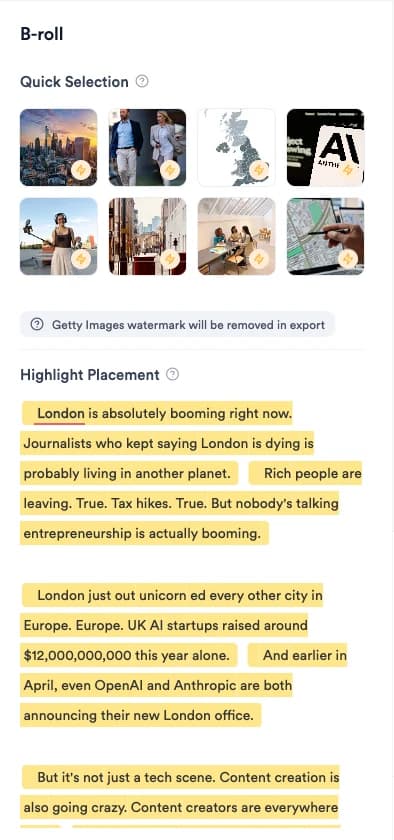
To change which clips appear, use B-rolls. See How to add and edit B-roll.
- 8
Check the subtitles
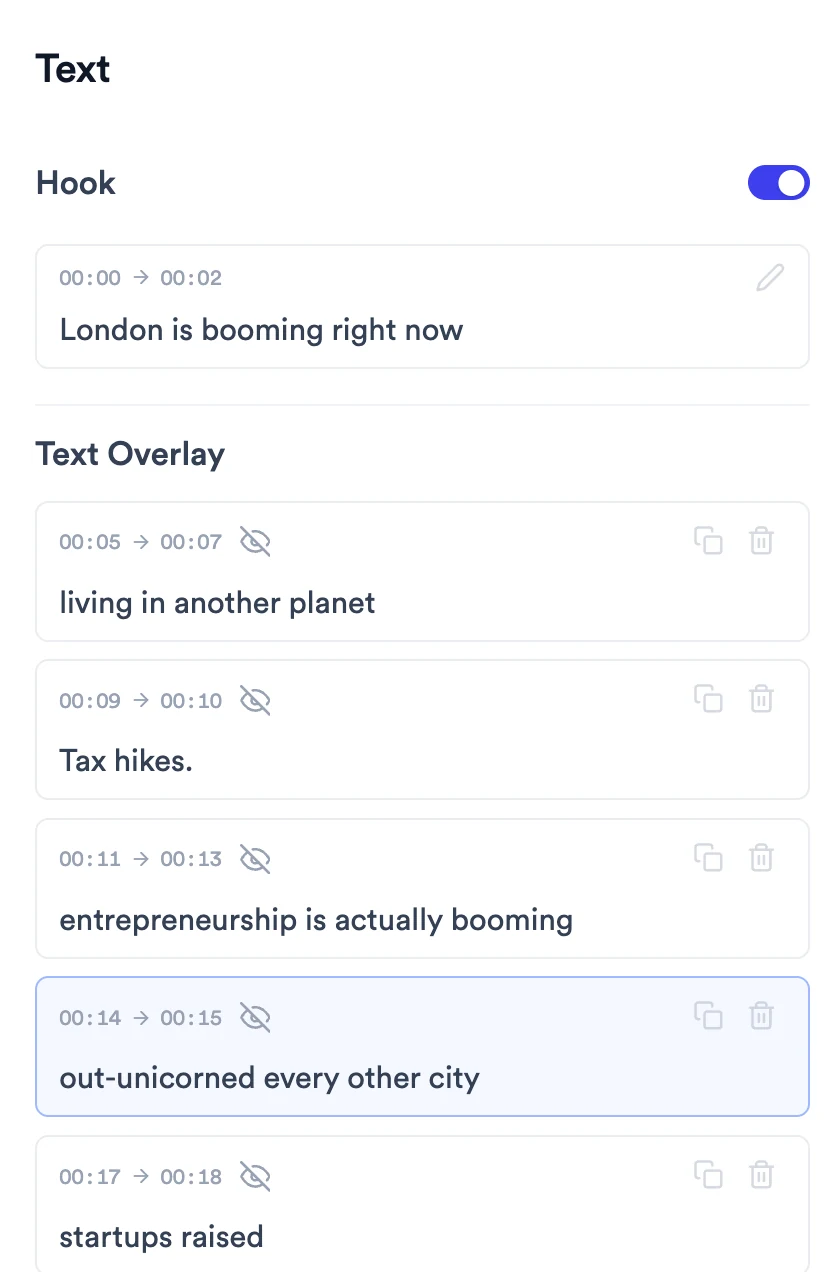
Subtitles start between the card and your face, and are hidden while the hook is on screen. To show them during the hook, open Subtitles and use the eye icon on those lines.
- 9
Switch or remove the format
Before you do this: B-roll Grid keeps your B-roll, but switching to Tier List, Do & Don't, 2 Column, 3 Column or Logo List removes automatic B-roll, automatic text overlays and camera zooms as soon as you confirm. Do & Don't also removes text you added.
Select Change Format, choose another Format and confirm with Switch format, or choose Remove format.
Your images and settings are kept, so switching back restores the grid. Clips go back to their own display style.
What Jupitrr does automatically
- Six hook images picked from your hook and transcript
- Showing the grid while your first sentence plays
- A bordered hook design under the grid
- Each B-roll clip as a card above your head after the hook
- Placing subtitles between the card and your face
What you can edit
- Each hook image, and 6 or 3 images
- An optional subline under the hook
- B-roll card size and position
- The B-roll clips themselves
- Hook text, subtitles and music
- The Format itself: switch or remove it
Limits and requirements
- Not available for landscape videos.
- No hook, no grid: the grid only shows with the hook.
- Hook images come from the open web. Check you can use each one, especially in ads.
- Levio cannot edit the grid. It can change the hook text, which the grid follows.
Troubleshooting
The grid isn't showing.
Check the hook is switched on in Text. The grid only shows while the hook is on screen.
The images don't match my words.
B-roll Grid images are chosen as a mood board for the whole idea. Swap any tile, or select Re-detect for a new set.
The card covers my face.
In Style, lower the Size or move the card up with Y position.
A clip near the start doesn't appear.
B-roll inside the hook is hidden so the grid has the screen. Move the clip after the hook in B-rolls.
An image shows a broken-asset badge.
The image couldn't load from the web. Replace it with another result or upload your own image.