Edit Your Video · Updated 20 Oct 2026
How to add music and sound effects in Jupitrr
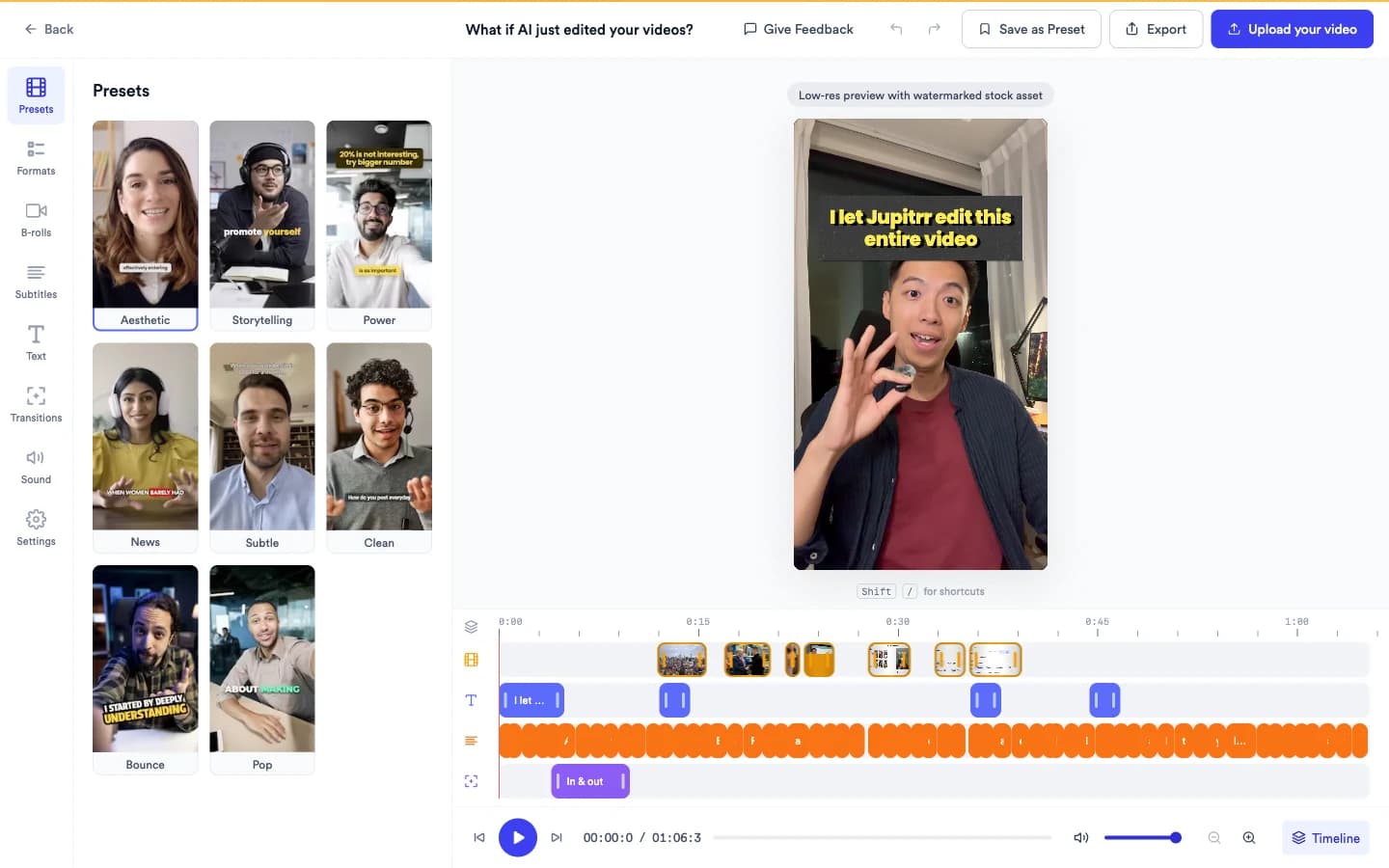
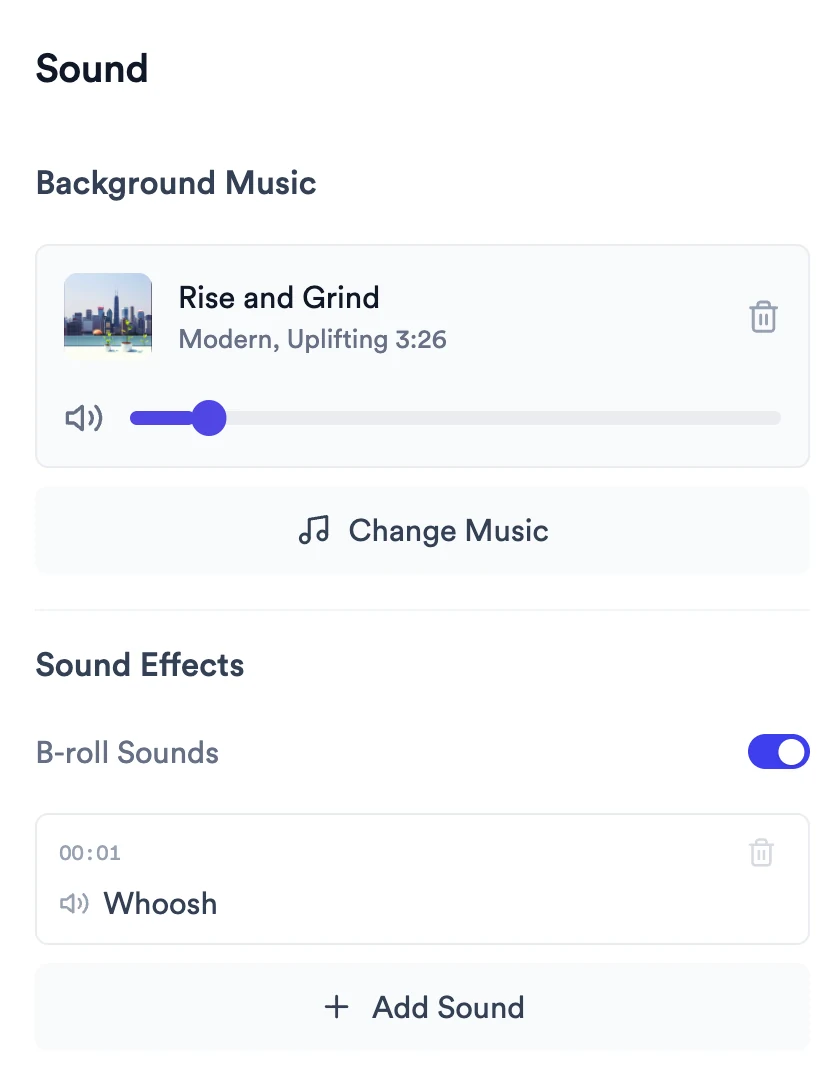
Background music and sound effects live in the Sound tab. If your first edit includes background music, open Sound to change the track, adjust its volume or remove it; if it doesn't, choose Add Music. When B-roll Sounds is on, Jupitrr plays a sound as B-roll appears. Add Sound places a sound effect of your own at the playhead.
Step-by-step guide
- 1
Open the Sound tab
Select Sound in the left rail. Background Music shows the current track with its volume slider. Sound Effects holds the B-roll Sounds switch and every sound you have placed.
- 2
Change or add the music
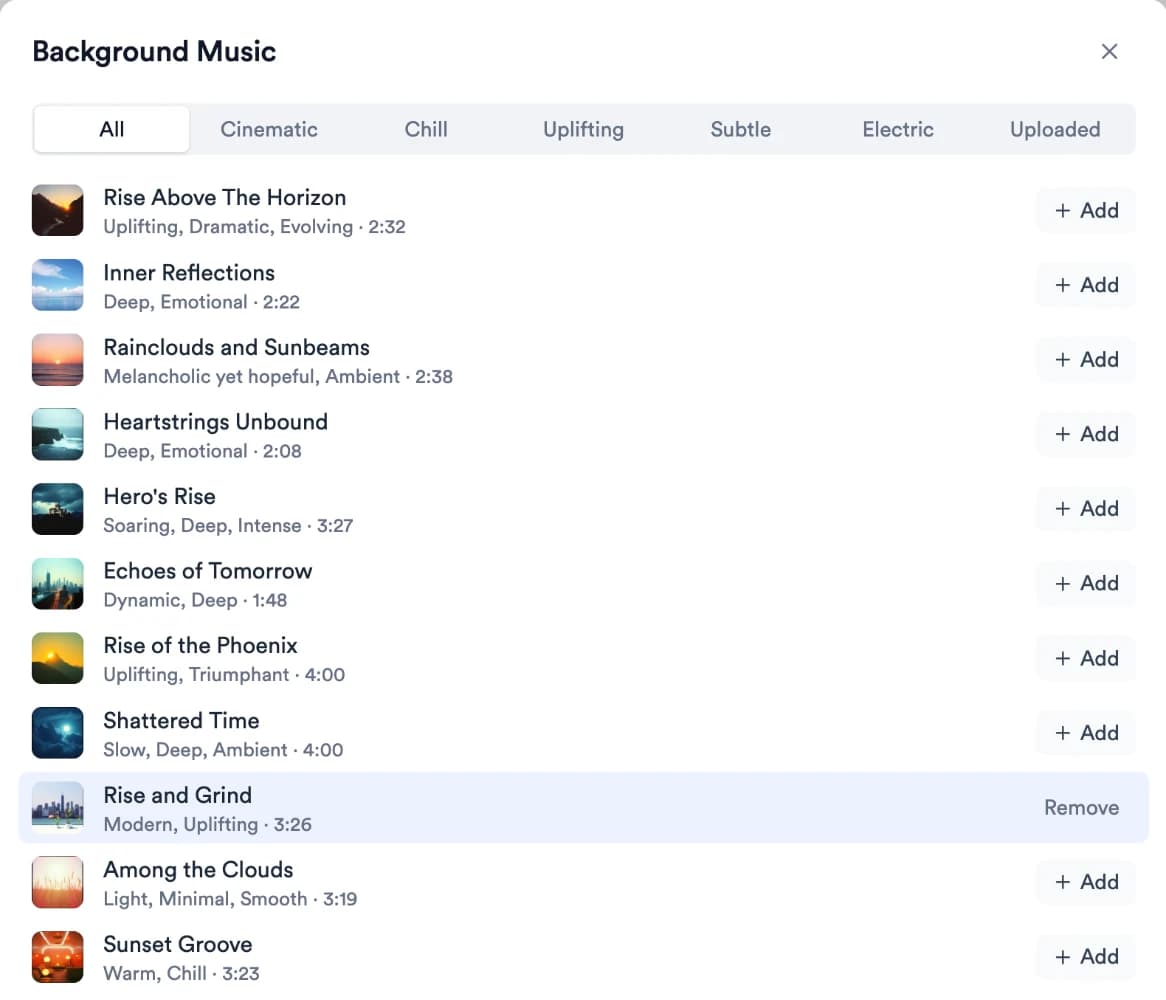
Select Change Music, or Add Music if the video has none. In Background Music, browse All or a mood (Cinematic, Chill, Uplifting, Subtle or Electric), then select Add next to a track.
Click a track's name to preview it. The new track replaces the old one and the window closes.
- 3
Use your own music
In Background Music, open Uploaded and select Upload, or drag an MP3 file onto the window. Then select Add next to it.
Uploaded music is available on all your videos.
- 4
Set the music volume
Drag the slider under the track in Background Music. Play the video to check the music sits under your voice.
- 5
Remove the music
Select the bin icon on the track, or open Change Music and select Remove next to the current track. The panel then shows Add Music.
- 6
Switch B-roll Sounds on or off
Under Sound Effects, use the B-roll Sounds switch. When it is on, Jupitrr plays a sound as B-roll appears. Turning it off doesn't remove sounds you placed yourself.
To change the sound on one B-roll clip, open that clip's Adjust Display Style in B-rolls. See How to add and edit B-roll.
- 7
Add a sound effect
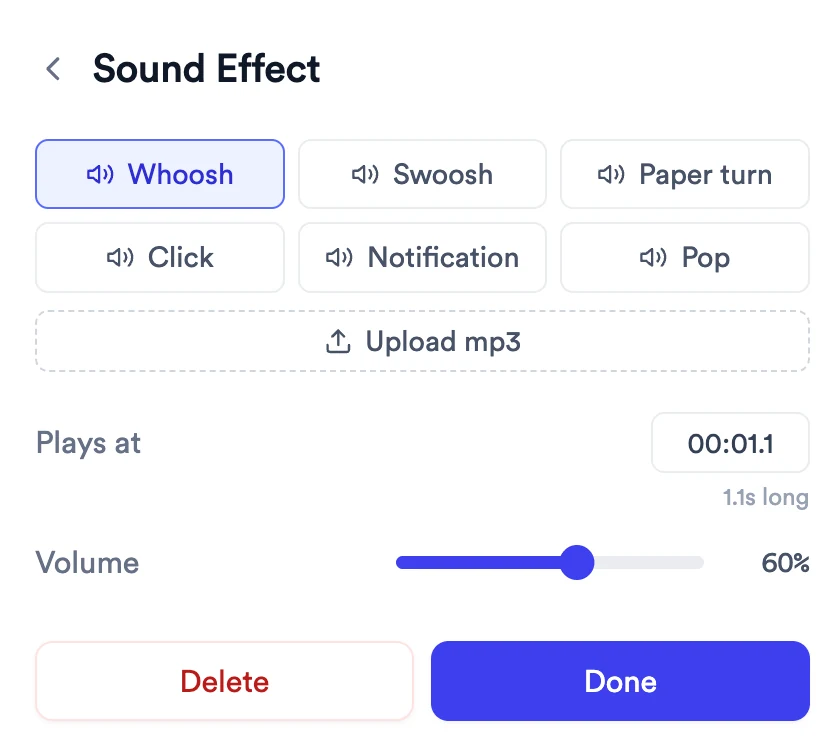
Move the playhead to the moment you want, then select Add Sound. A sound is placed at the playhead and the Sound Effect editor opens.
- Pick Whoosh, Swoosh, Paper turn, Click, Notification or Pop, or select Upload mp3 to use your own.
- Change Plays at to move the sound, and drag Volume to set how loud it is. The editor shows how long the sound lasts, for example 1.1s long.
- Select Done to go back to the list.
- 8
Remove a sound effect
Select the bin icon on the sound in Sound Effects, or open the sound and select Delete.
What Jupitrr does automatically
- A sound as each B-roll clip appears, when B-roll Sounds is on
What you can edit
- Which music track plays, or none
- Music volume
- Whether B-roll clips play a sound
- Each sound effect: which sound, when it plays and how loud
Limits and requirements
- Uploaded music must be an MP3 file.
- A sound effect plays for its own length. You choose when it starts, not when it ends.
- The video has one background music track at a time.
Troubleshooting
It says "Move the playhead earlier to place a sound."
There isn't enough video left after the playhead for the sound to play. Move the playhead to an earlier moment, then select Add Sound again.
I can't hear the music in the preview.
Check the music volume slider in Sound, and make sure the preview isn't muted with the speaker button next to the playback controls.
My sound file won't upload.
Sound effects and music uploads must be MP3 files. If you see Upload failed. Please try again., try the upload again.
I switched off B-roll Sounds but still hear sound effects.
B-roll Sounds only controls the sounds that play with B-roll. Sounds you placed with Add Sound stay until you delete them.