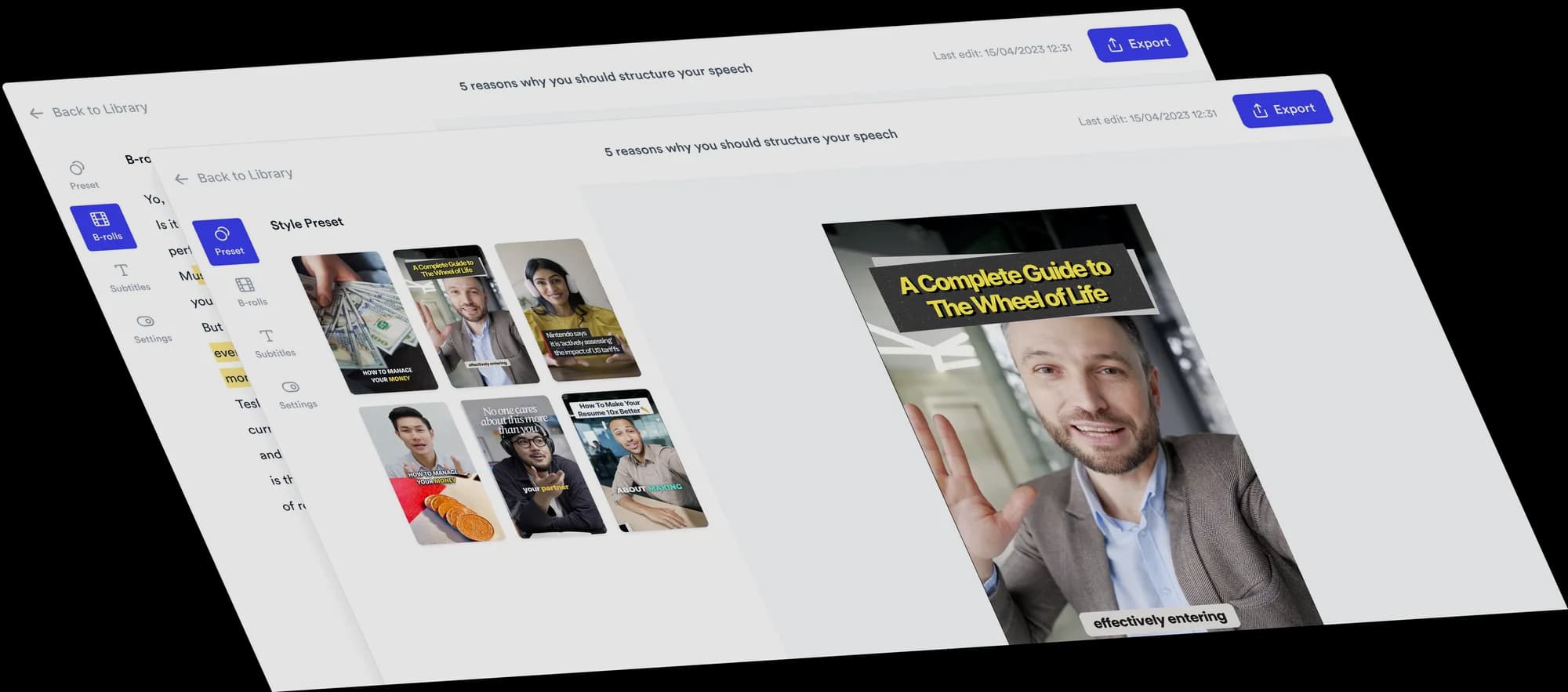
Add sound effects to your video
Add whooshes, pops and clicks to highlight key moments in your talking-head videos. Choose a built-in sound or upload your own, then adjust its timing and volume.
 Trusted by 200K+ coaches and consultants
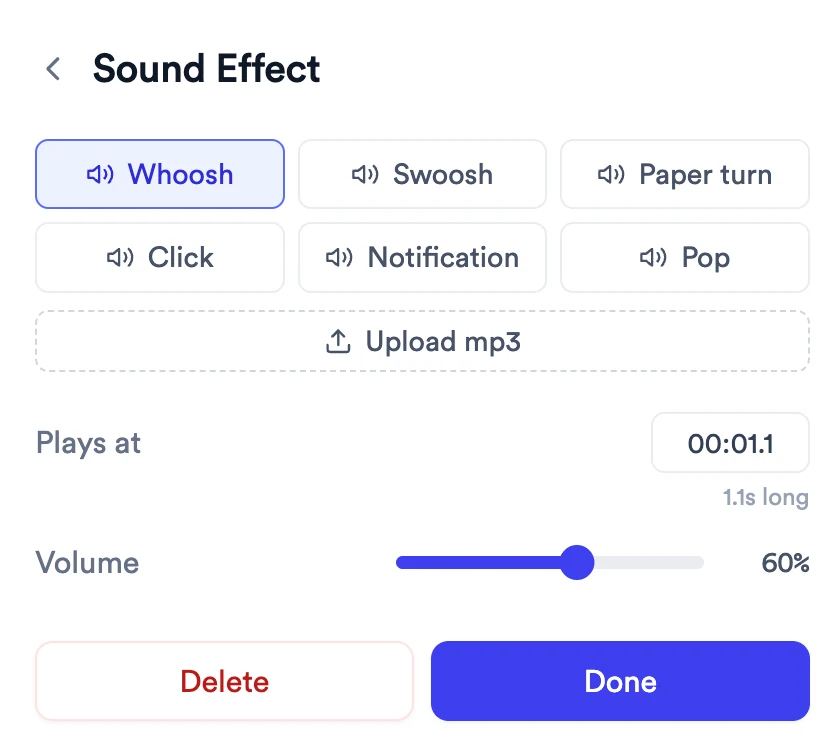






Listen to the built-in sounds
The same six files the editor uses. Each is about a second long.
Whoosh
A fast move, for a new point or a B-roll cut
Swoosh
A lighter move, the one Jupitrr uses on B-roll
Paper turn
Turning to the next idea or chapter
Click
A setting, a button or a choice being made
Notification
A stat, a message or a reminder landing
Pop
A word, a number or an emoji appearing
Boom
Thud
Huh
Faah
Apple Pay
Money
Bell
Reveal
Suspense
How to add sound effects
Three steps in the editor, no audio software needed.
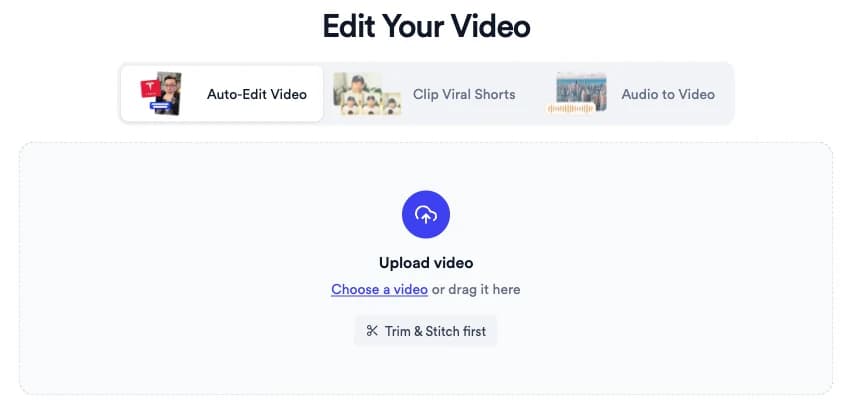
Upload your talking-head video
Upload a recording from your phone or camera. Jupitrr builds a first edit, ready for you to add sound.
Add a sound at the right moment
Go to the word, number or cut you want to emphasise and add a sound from the Sound tab. Add as many as the video needs.
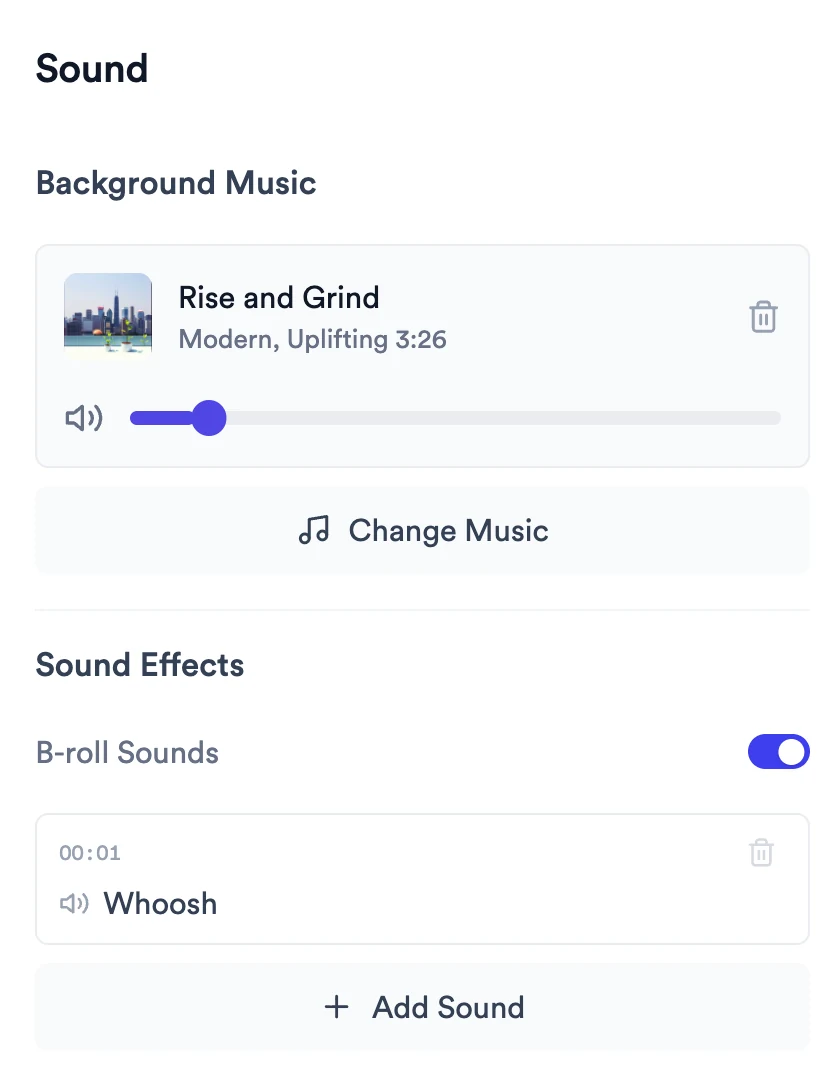
Adjust it and export
Try a different sound or use your own, adjust the timing and volume so it sits under your voice, then export.
What Jupitrr does, and what you decide
The first edit keeps sound light. You choose where the effects go.
Automatic
- One Swoosh as an early B-roll clip appears, when your first edit includes B-roll.
- A short sound on B-roll you add later, which you can change or set to None.
- Background music under the whole video, when your first edit includes it.
You change
- Where each sound effect plays, to the tenth of a second.
- Which of the six sounds plays, or your own MP3.
- The volume of each sound.
- The sound and volume on each B-roll clip, or Apply to all.
- Whether B-roll plays sounds at all.
With Levio
Ask Levio in plain language to switch B-roll Sounds off, remove the sound effects you placed, move one, or change the music and its volume. Placing a new sound and choosing which one plays happen in the Sound tab.
Good to know
- Uploaded sound effects must be MP3 files of up to 5 seconds and 2 MB.
- A sound plays for its own length. You set the start, not the end.
- Split-screen B-roll layouts have no B-roll sound.
- Formats that fill the screen, such as Tier List, don't get the automatic Swoosh.
How business creators use sound effects
Trusted by 200K+ coaches and consultants



Frequently asked questions
How do I add sound effects to a video?
Which sound effects are included?
Can I upload my own sound effects?
Does Jupitrr add sound effects automatically?
Can Levio add sound effects for me?
Can I shorten a sound effect?
Make the important moments land.
Upload a talking-head video, add sound where it matters and export. Try a sample video free.