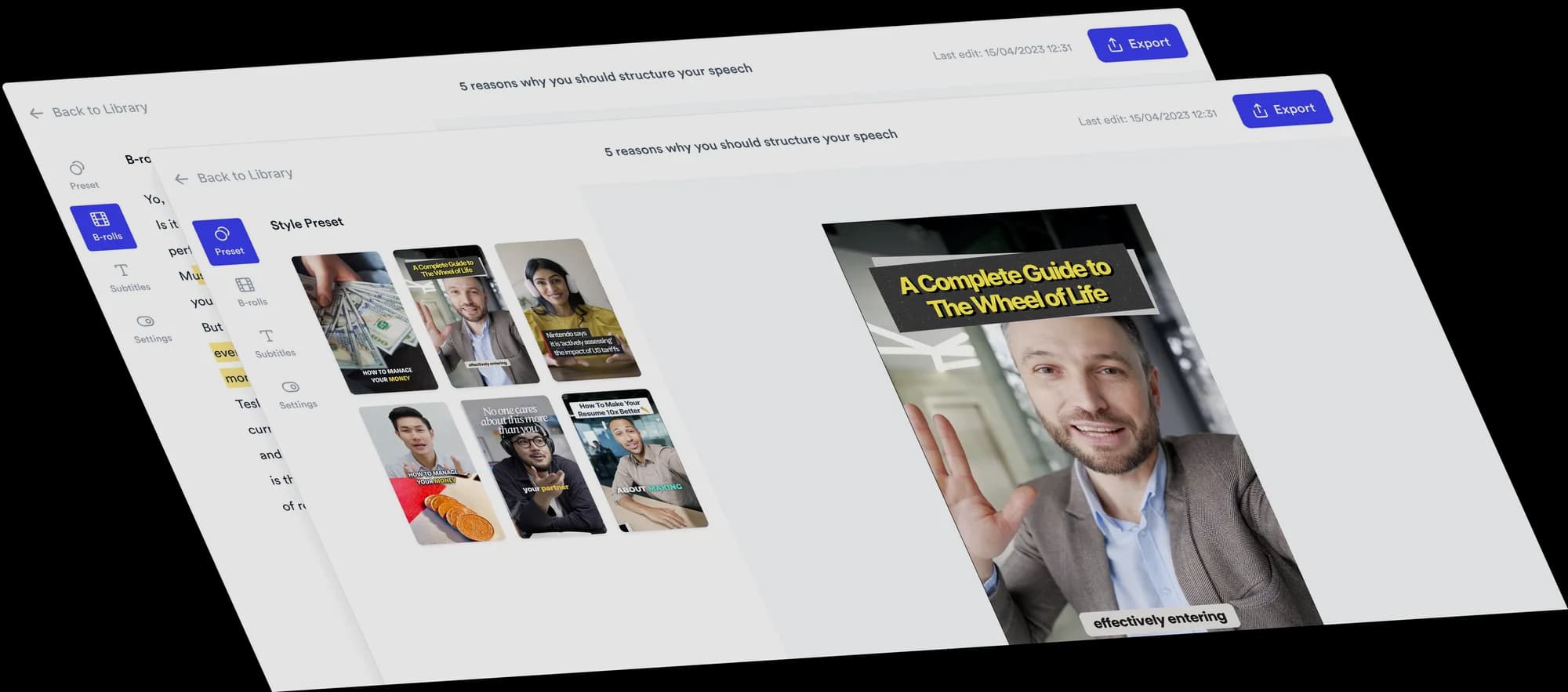
Add transitions and zooms to your video
Add movement to your talking-head videos with zooms, pans and B-roll transitions. Bring attention to a key point and adjust how each effect looks and when it plays.
 Trusted by 200K+ coaches and consultants







How to add transitions and zooms
B-roll transitions and camera moves live in one tab.
Upload your video and open the editor
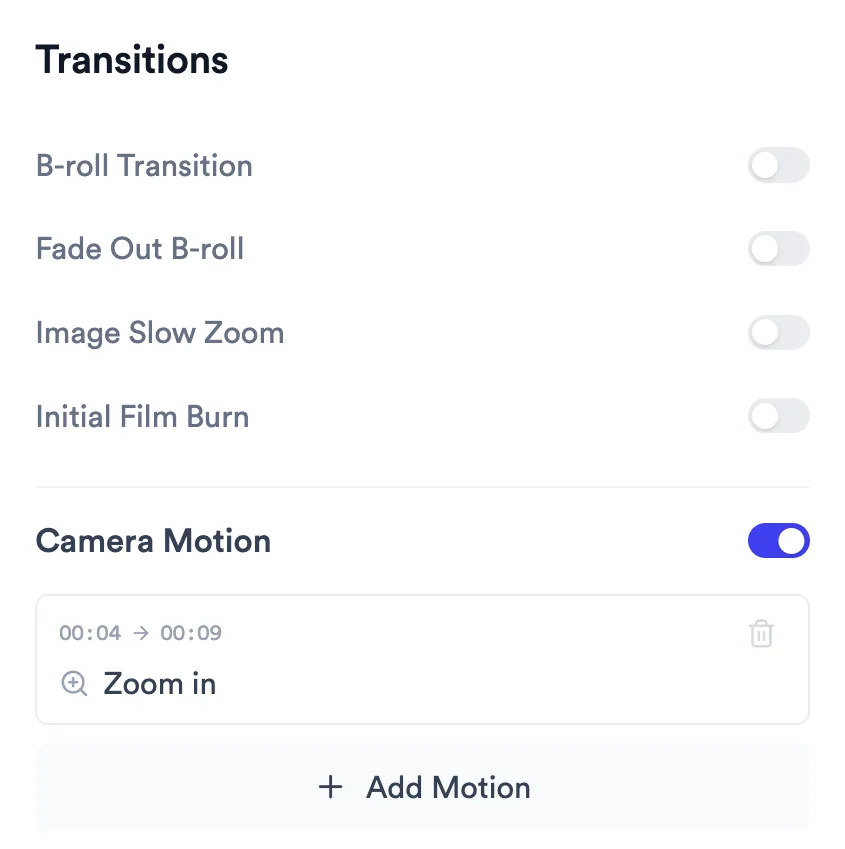
Upload a talking-head recording, or open a video you have started. B-roll transitions and camera movement are both in the Transitions tab.
Choose transitions or camera movement
Switch on B-roll transitions, or add a zoom or pan at the moment you want to bring attention to.
Preview and adjust
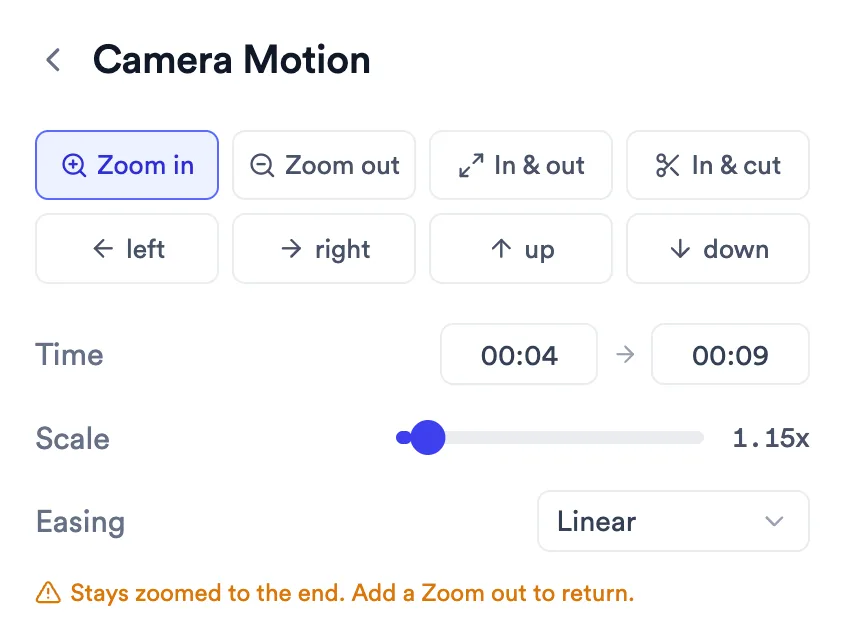
Play it back, then change when each effect starts, how close a zoom gets or how a B-roll clip enters.
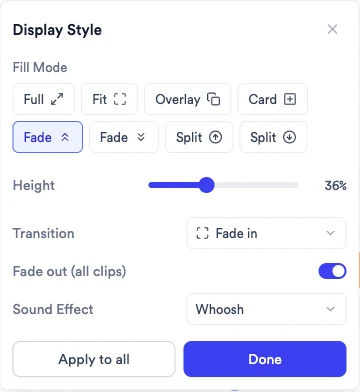
What Jupitrr does, and what you decide
The first edit adds a little movement. The zooms that land your points are yours to place.
Automatic
- An entrance transition on each B-roll clip Jupitrr places.
- Up to two zooms from your Style near the start, placed by time rather than by what you say.
- Switching Style swaps those zooms. Formats that fill the screen, Speaker cutout and Split screen get none.
You change
- Every zoom and pan: type, start, end, Scale and Easing.
- Each B-roll clip's entrance, or all of them at once.
- B-roll Transition, Fade Out B-roll, Image Slow Zoom and Initial Film Burn.
- Moving and trimming zooms on the timeline's Transitions row.
- Turning all camera motion off with one switch.
With Levio
Ask Levio for a zoom in, zoom out, in and out, punch-in or pan at a moment you describe, and it places it. Levio can also move or remove zooms. B-roll transitions and the Transitions switches stay in the editor.
Good to know
- Zooms can't overlap, and a zoom under a full-screen B-roll clip is moved past it.
- A Zoom in stays zoomed after it ends. Add a Zoom out, or use In & out or In & cut, to come back.
- There are no transitions between your own cuts.
- Camera Motion isn't available on audio-to-video projects.
How business creators use zooms and transitions
Coaches
An In & cut on the line you want clients to remember, then straight back to the wide shot.
Learn moreConsultants
A slow Zoom in through a key argument, so a single-camera video doesn't feel static.
Learn moreFounders
Clean B-roll entrances into product shots, with Fade Out B-roll to come back to you.
Learn moreTrusted by 200K+ coaches and consultants



Frequently asked questions
How do I add a zoom to a video?
Does Jupitrr add zooms automatically?
What is the difference between In & out and In & cut?
Which transitions can I use on B-roll?
Can Levio add zooms?
Can I add transitions between my own cuts?
Give a one-camera video some movement.
Upload a talking-head video, add a zoom where your point lands and export. Try a sample video free.