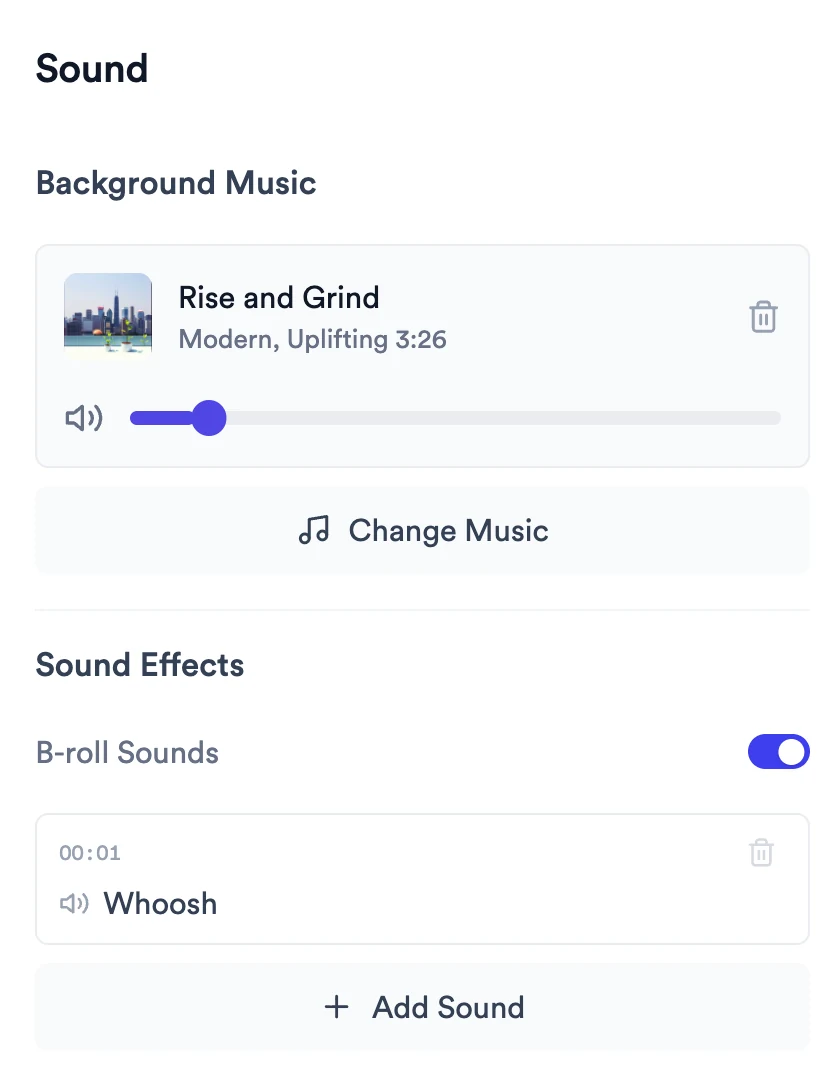
Edit Your Video · Updated 3 Nov 2026
How to add transitions and zooms in Jupitrr
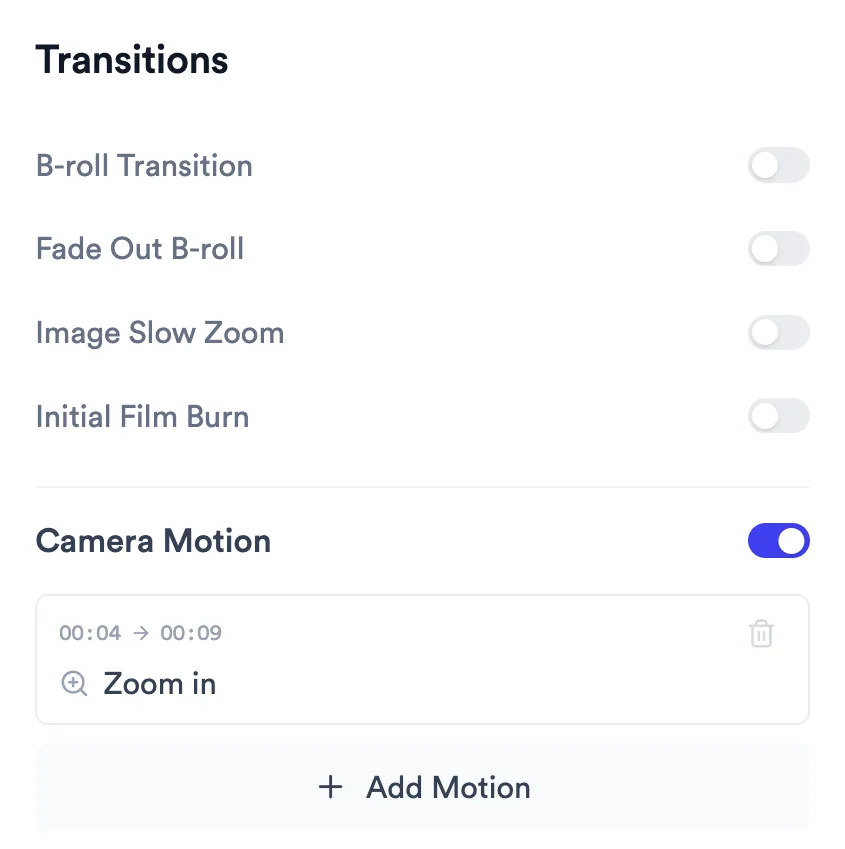
Transitions and zooms live in the Transitions tab. Four switches control B-roll movement and the opening of the video: B-roll Transition, Fade Out B-roll, Image Slow Zoom and Initial Film Burn. Under Camera Motion, Add Motion places a zoom on your own footage at the playhead, and you can change it to a zoom out, a punch-in or a pan. To change how one B-roll clip enters, open that clip's Adjust Display Style and pick a Transition.
Step-by-step guide
- 1
Open the Transitions tab
Select Transitions in the left rail. The first three switches apply to B-roll across the video, and Initial Film Burn is an opening effect. Camera Motion below lists every zoom and pan on your own footage, with the time it runs.
- 2
Switch B-roll transitions on or off
The first three switches change B-roll across the video. Initial Film Burn changes the opening, not each clip.
- B-roll Transition: a smooth zoom whenever the video cuts to a B-roll clip.
- Fade Out B-roll: each B-roll clip fades out over its last half second. Off cuts straight back to you.
- Image Slow Zoom: images and GIFs drift in slightly while on screen, when they have no entrance transition.
- Initial Film Burn: an opening animation on the first frames. It shows on vertical videos only.
- 3
Change how one B-roll clip enters
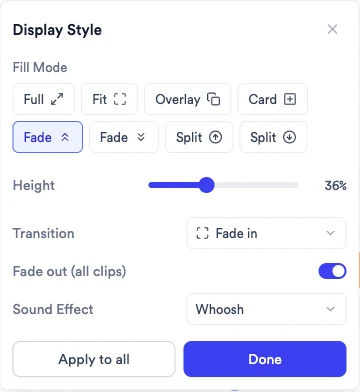
Open the B-roll clip's menu, choose Adjust Display Style, then pick a Transition. The choices depend on the Fill Mode: Slide in, Zoom in, Zoom out, Fade in or Appear. Select Done.
To use the same transition on other clips, select Apply to all, tick Transition and choose which kinds of B-roll it applies to.
Split layouts have no entrance transition. See How to add and edit B-roll for the rest of this panel.
- 4
Add a zoom to your footage
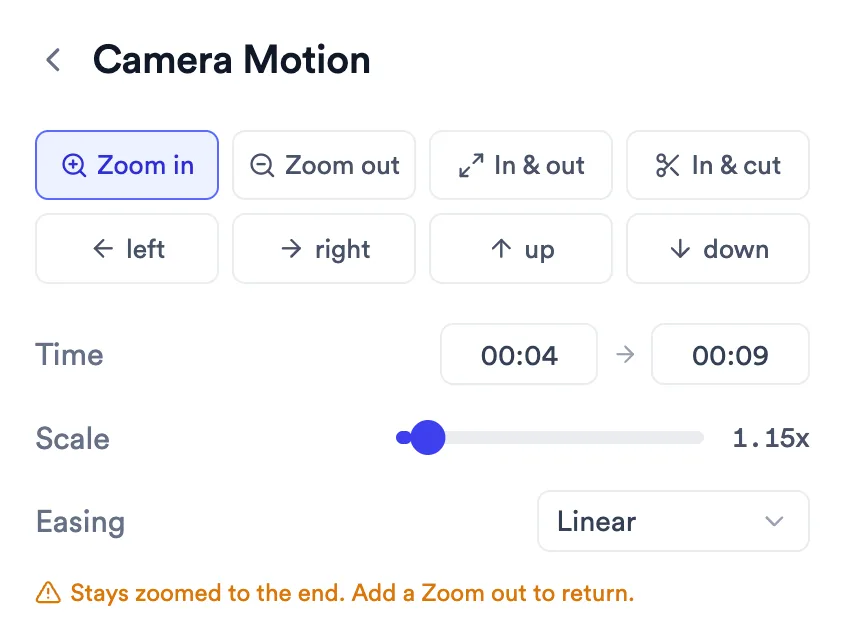
Move the playhead to the moment you want, then select Add Motion under Camera Motion. A Zoom in is placed at the playhead and the Camera Motion editor opens.
- Choose Zoom in, Zoom out, In & out, In & cut, or a pan: left, right, up or down.
- In & out zooms in and back out. In & cut zooms in, then cuts straight back to the full frame.
- Set Time to choose when it starts and ends, drag Scale to set how close it gets (1.05x to 3x), and pick an Easing: Linear, Ease in, Ease out or Ease in & out.
- Select Done to go back to the list.
- 5
Move or trim a zoom on the timeline
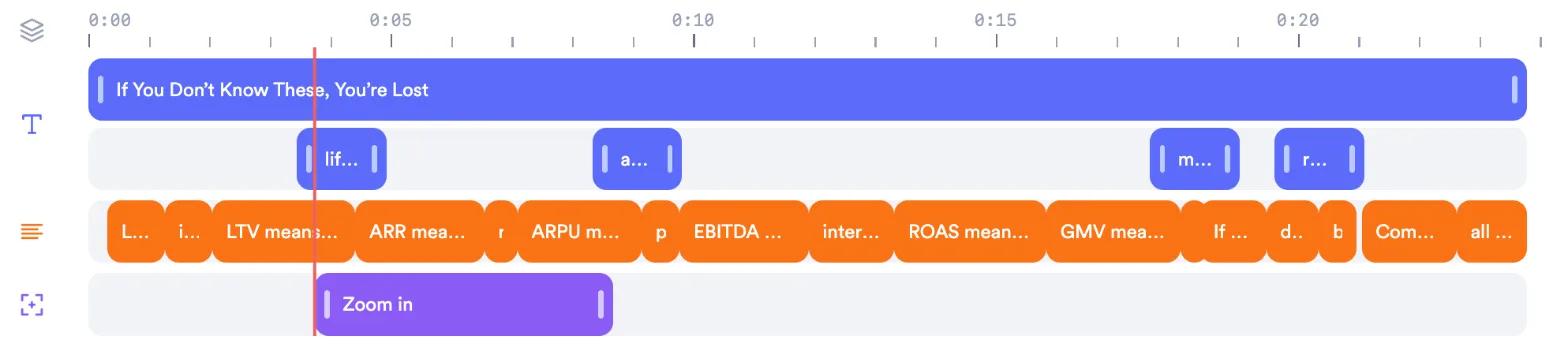
Each motion appears on the Transitions row of the timeline. Drag it to move it, drag its edges to change how long it runs, or click it to open the editor.
View full size - 6
Remove zooms
Select the bin icon on a motion in Camera Motion, or open it and select Delete. The Camera Motion switch turns every motion off at once without deleting them.
- 7
Or ask Levio
In the Levio tab, you can ask for a zoom in plain language, for example "zoom in slowly when I say lifetime value". Levio can add, move and remove zooms and pans. It can't change B-roll transitions or the switches in Transitions. See How to edit a video with Levio.
What Jupitrr does automatically
- An entrance transition on each B-roll clip Jupitrr places, when B-roll Transition is on
- Up to two zooms from your Style: one in the first 3 seconds and one between about 4 and 9 seconds. They are placed by time, not by what you say, and switching Style swaps them.
What you can edit
- Which switches in Transitions are on
- Each B-roll clip's entrance transition
- Every zoom and pan: its type, start, end, scale and easing
- Whether camera motion plays at all
Limits and requirements
- Camera motions can't overlap each other.
- A zoom can't sit under a full-screen B-roll clip, because it would play unseen. Jupitrr moves it past the clip.
- A Zoom in stays zoomed after it ends, until a later motion changes it or the video finishes. Add a Zoom out after it, or use In & out or In & cut, to return to the full frame.
- There are no transitions between your own cuts. Transitions apply to B-roll, and Camera Motion moves within your footage.
- Formats that fill the screen, such as Tier List, Speaker cutout and Split screen, don't get automatic zooms or B-roll transitions.
- Camera Motion isn't available on audio-to-video projects.
Troubleshooting
It says "Transitions can't overlap."
Another motion already covers that moment. Move the playhead to a free spot, or shorten the other motion on the Transitions row first.
It says "Moved past the full-screen B-roll."
A zoom under a full-screen B-roll clip wouldn't be seen, so Jupitrr moved it. Drag it on the timeline if you want it somewhere else.
My video stays zoomed in.
A Zoom in stays zoomed after it ends, until a later motion changes it or the video finishes. Change it to In & out or In & cut, or add a Zoom out after it.
I changed a clip's transition but see no difference.
Check that B-roll Transition is on in Transitions. When it is off, the clip menu shows Off for all clips with a Turn on link.