Edit Your Video · Updated 27 Oct 2026
How to edit a long talking-head video in Jupitrr
Jupitrr supports talking-head videos up to 20 minutes, with caveats. Check that your plan allows the length (Starter 5 minutes, Pro 20, Team 30), remove long silences in Trim & Stitch if you need to, then upload as usual. A long video can take several minutes to process. Wait for Adding visuals to finish, review the B-roll across the whole video rather than only the opening, then export.
Before you start
- A plan that allows the length of your video: up to 5 minutes on Starter, 20 on Pro and 30 on Team.
- One person talking to camera, recorded as an MP4 or MOV.
- Time to let it process: a long video can take several minutes, and occasionally longer.
Step-by-step guide
- 1
Check your plan allows the length
Starter accepts uploads up to 5 minutes, Pro up to 20 and Team up to 30. If a video is longer than your plan allows, the upload stops. On Starter, a video of up to 20 minutes opens an upgrade prompt for Pro; otherwise you see Video must be less than 20 minutes long, with the limit for your plan.
This guide covers videos up to 20 minutes. Team allows longer uploads, but expect them to take longer to process and review.
- 2
Remove long pauses before you upload
Jupitrr’s automatic edit keeps your recording as it is, so long pauses and false starts stay in. To remove them first, choose Trim & Stitch first on Home. Select a clip and choose Remove silence to cut quiet gaps, use Split to cut out a mistake, then choose Add B-roll & Subtitles to send the result to the editor.
Remove silence finds quiet gaps in the audio. It does not detect filler words or repeated takes, so cut those with Split.
If you record with the Jupitrr Cut app, it trims the silence around each take as you record.
- 3
Upload and set up the video
On Home, choose Auto-Edit Video, then Choose a video. In Set up your video, check the options, then select Start Editing.
Leave Add B-roll Automatically on if you want B-roll placed across the whole video.
Formats are not available for landscape videos, and a Green screen cutout works on videos up to 10 minutes.
- 4
Wait for the first cut
The screen shows Uploading your footage, then Scanning your footage while Jupitrr transcribes the video and adds visuals. The on-screen note says this usually takes 1–2 minutes, but long videos take longer: a 15 to 20 minute video can take several minutes, and occasionally more than that.
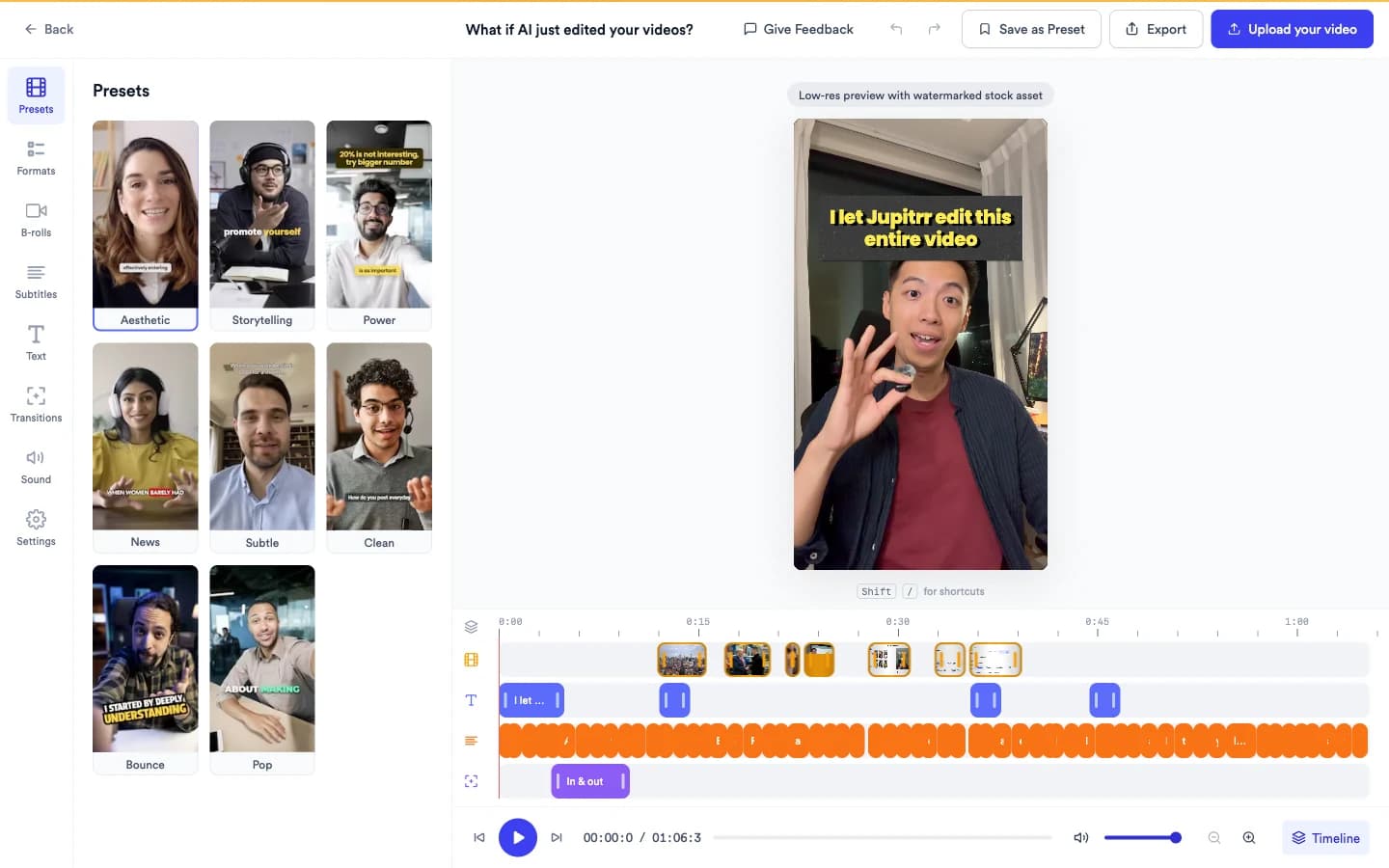
When subtitles are ready, the editor can open while B-roll is still being added, showing Adding visuals and Subtitles ready. You can start editing now. On a long video, wait until Adding visuals finishes before changing B-roll or text, so your changes are not made on a half-finished edit.
If Subtitles are taking longer than expected. appears, you can keep waiting or choose Try again.
- 5
Review B-roll across the whole video
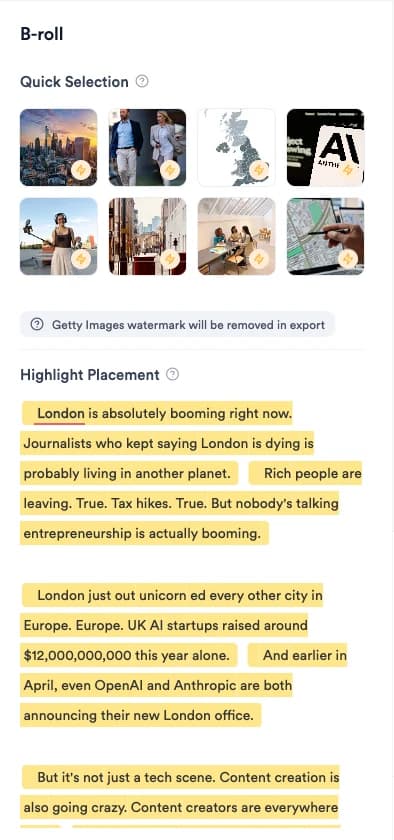
Open B-rolls. Quick Selection shows every clip in order, and Highlight Placement shows the transcript with the words each clip covers highlighted. Scroll through to the end, not just the opening minutes.
- B-roll covers relevant moments rather than every sentence and leaves stretches that do not need a visual focused on you. On long videos, coverage can be a little lighter towards the end.
- To add B-roll to a later section, select the words in Highlight Placement, then choose Pick a GIF or Upload Image/Video, or swap any clip for another result. See How to add and edit B-roll.
- 6
Check the subtitles and the rest of the edit
Open Subtitles and switch to Transcript to fix words. If a name or term is wrong throughout, use Replace to change it everywhere at once. Then check Text for the hook and text overlays, and Sound for music and sound effects.
See How to add and edit subtitles and How to edit the hook and add text overlays.
- 7
Export the video
Select Export, choose Best quality, Balanced or Smallest file, then select Export again. A long video takes longer to export than a short one.
When the page says Here's your new video, choose Download Video or Publish to Social.
What Jupitrr does automatically
- Subtitles for the whole video
- B-roll at the moments that benefit from a visual, across the whole video
- An opening hook, music and sound effects, when your settings include them
What you can edit
- Every B-roll clip: swap, move, trim or remove it, or add one at any moment
- Subtitle wording, including a term replaced everywhere
- The hook, text overlays, music and sound effects
- What you cut before the edit, in Trim & Stitch
Limits and requirements
- Upload limits are 5 minutes on Starter, 20 on Pro and 30 on Team. This guide covers videos up to 20 minutes.
- Long videos take longer to process and export than short ones; a 15 to 20 minute video can take several minutes to process.
- The automatic edit does not cut your recording. Remove silence in Trim & Stitch removes quiet gaps, but filler words and repeated takes are not detected.
- A Green screen cutout works on videos up to 10 minutes, and formats are not available for landscape videos.
- Jupitrr is built for one person talking to camera. It is not designed for multicamera recordings.
Troubleshooting
It says "Video must be less than 20 minutes long."
The video is longer than your plan allows: 20 minutes on Pro, or 5 on Starter, where a longer video opens an upgrade prompt instead. Shorten the video in Trim & Stitch first, split it into parts, or move to a plan with a higher limit.
It has been more than a few minutes and the edit is still processing.
Long videos take longer than the 1–2 minutes the screen mentions. Keep the tab open and wait. If Subtitles are taking longer than expected. appears, you can keep waiting or choose Try again.
The later part of my video has little or no B-roll.
Open B-rolls, scroll Highlight Placement to that section, select the words you want covered and add a clip, GIF or your own upload. Stretches that do not need a visual are left on you on purpose.
The upload was interrupted.
If you see Upload was interrupted., choose Try again. Large files take longer to upload, so keep the tab open until the upload finishes.
Green screen says the video is too long.
A Green screen cutout works on videos up to 10 minutes. Turn the format off for a longer video, or split the video into shorter parts.