Formats · Updated 3 Nov 2026
How to make a Do & Don't video in Jupitrr
Do & Don't turns the contrasts you make, such as “don't say this, say this instead”, into a two-column board. Jupitrr finds each pair in your transcript, writes a short label for each side and reveals it on the word you say it. You can edit every label, time, title and colour.
Before you start
- A portrait talking-head video. Formats are not available for landscape videos. Keep it under 3 minutes for Shorts and Reels.
- A video where you contrast what not to do with what to do instead. Jupitrr only adds a pair when it finds both sides in your words.
- You can choose Do & Don't when you upload, or turn it on later in the editor.
Plan your recording
Use one pattern for every pair and say both sides close together. Patterns Jupitrr recognises include "don't X, do Y", "stop X, start Y", "instead of X, say Y" and "if you want X, you need Y".
- Keep each side short: one to three words fit the board best, and labels are shortened to fit.
- Three to six pairs suit a short video. A video can have up to 20.
- Your framing sets the column titles, for example don't say and instead say, or Stop and Start.
Step-by-step guide
- 1
Option 1: for a new upload, choose Do & Don't
In Set up your video, choose Do & Don't as the Format, then select Start Editing.
Because this is a new video, nothing is removed: automatic B-roll is simply never added.
The board owns the screen, so automatic B-roll is switched off, and emojis and transitions start off too.
- 2
Option 2: for an existing video, turn it on in the editor
Before you do this: on a video that already has its first cut, Do & Don't applies as soon as you choose it, with no confirmation. It removes automatic B-roll, camera zooms and all text overlays, including text you added, and switches off emojis and transitions. B-roll you added yourself stays. Removing or leaving Do & Don't later does not bring them back; add B-roll again from B-rolls if you need it. This doesn't apply to a new video: choosing Do & Don't at upload removes nothing, because that B-roll is never added.
For a video that is already open, select Formats and choose Do & Don't. It turns on straight away.
If another Format is on, select Change Format first, then choose Do & Don't and confirm with Switch format. The other Format is turned off and its settings are kept.
- 3
Let Jupitrr find the pairs
The panel shows Building your Do & Don't while it reads your transcript, finds the pairs and times each reveal.
Your hook becomes a title near the top for the whole video. Subtitles hide while the board is on screen and come back after it.
If no contrasts are found, you'll see This doesn't look like a Do & Don't video. You can still add pairs yourself.
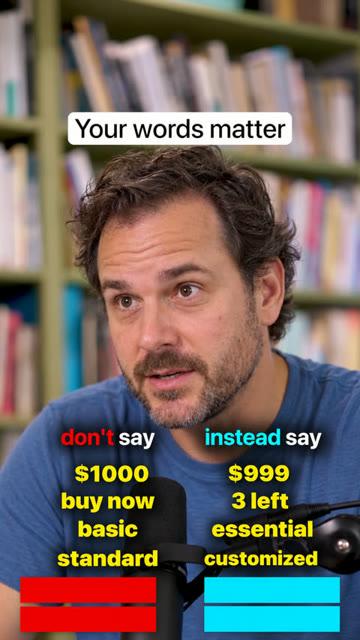
A finished Do & Don't video, from the editor's Format preview. - 4
Check each pair
Under Pairs, each row has a left label (Don't) and a right label (Do). Click a row to jump to it, then edit either side (up to 30 characters).
Adjust timing opens a Shows at time in seconds for each side. Remove pair deletes the row.
Add pair at playhead adds a new row at the current moment.
- 5
Edit the column titles
In the title card, rename each column (up to 24 characters) and tap a word to show it in the column colour.
- 6
Style the board
Open Style to set the board Size (S, M or L), its Y position, and the Left colour, Right colour and Text colour.
Each side is covered by a bar in its column colour until you say it. The reveal is always on.
- 7
Edit the hook, subtitles and music
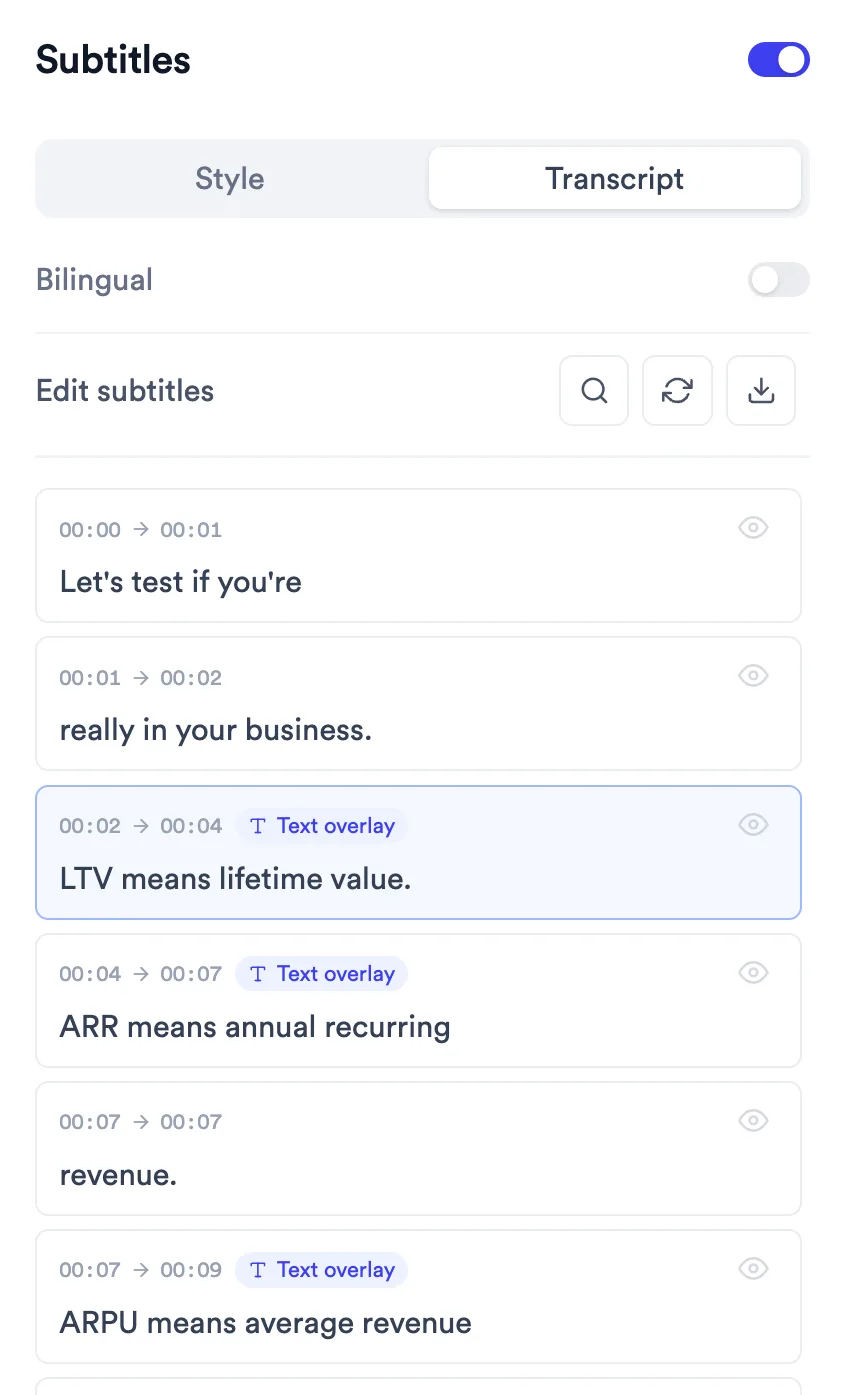
Change the hook in Text and the music in Sound. To show subtitles during the board, open Subtitles and use the eye icon on the hidden lines.
- 8
Switch or remove the format
Before you do this: switching to Tier List, Do & Don't, 2 Column, 3 Column or Logo List removes automatic B-roll, automatic text overlays and camera zooms as soon as you confirm. Do & Don't also removes text you added. Removing Do & Don't or switching away from it doesn't bring back what it removed.
Select Change Format, choose another Format and confirm with Switch format, or choose Remove format.
Your pairs, titles and colours are kept, so switching back restores the board. Text overlays and B-roll that were removed are not brought back.
What Jupitrr does automatically
- Finding each pair you contrast, up to 20
- A short label for each side
- Revealing each side on the word you say it
- Column titles from your framing
- Turning the hook into a title and hiding subtitles while the board is up
What you can edit
- Pair labels and reveal times
- Adding and removing pairs
- Column titles and the highlighted word
- Board size, position and colours
- Hook, subtitles and music
- The Format itself: switch or remove it
Limits and requirements
- Not available for landscape videos.
- Up to 20 pairs. Pairs whose words aren't found in the transcript are skipped, not guessed.
- The reveal can't be switched off.
- Turning it on in the editor removes all text overlays, including your own.
- Re-detect replaces your edits to pairs, titles and highlighted words. Colours and style settings stay.
- Levio cannot edit the board.
Troubleshooting
It says "This doesn't look like a Do & Don't video".
No contrasts were found in your transcript. Add pairs with Add pair at playhead, or record with a clear pattern such as "don't say… say…".
A pair is missing.
Jupitrr skips a pair when it can't find its words exactly in the transcript. Fix the transcript in Subtitles if a word was misheard, or add the pair yourself.
A reveal is early or late.
Open Adjust timing on that pair and change its Shows at times.
My subtitles disappeared.
Subtitles hide while the board is on screen, by design. In Subtitles, use the eye icon on those lines, or select the words and choose Show.
My text overlays are gone.
Turning on Do & Don't in the editor removes all text overlays so the board has the screen. Add text again from Text after removing the Format if you need it.