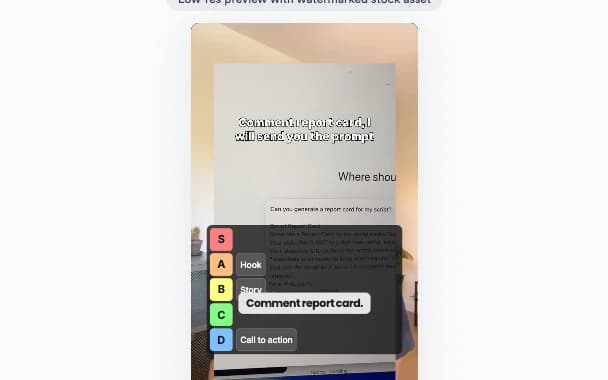
Formats · Updated 3 Nov 2026
How to make a 3 Column video in Jupitrr
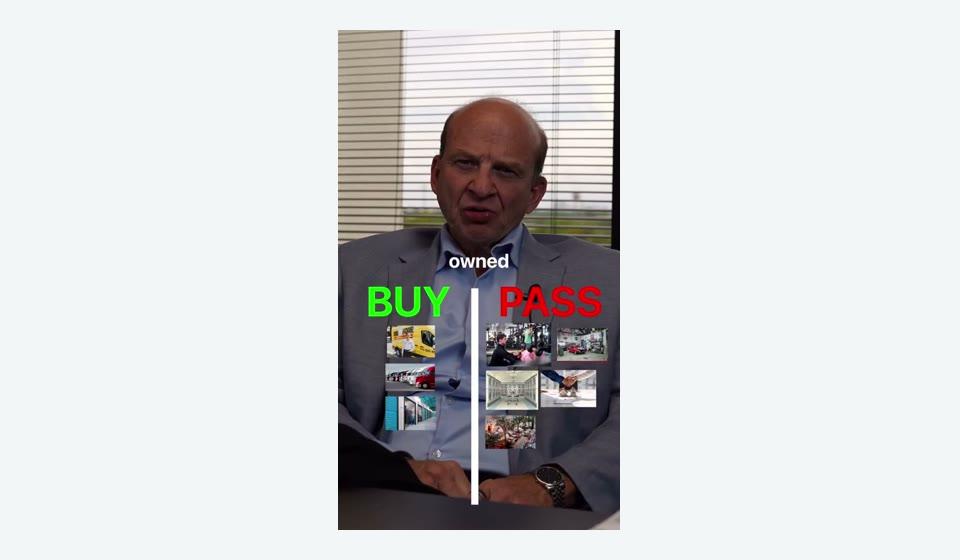
3 Column turns a video where you sort items into three levels, like skip, read and study, into a sorting board. Jupitrr finds every item you place, names the three columns from your words, adds a picture for each item and drops it into its column when you say the level. Every item, picture and column stays editable.
Before you start
- A portrait talking-head video. Formats are not available for landscape videos. Keep it under 3 minutes for Shorts and Reels.
- A video where you name items and place each one in one of three levels. Items you don't place are left out.
- You can choose 3 Column when you upload, or turn it on later in the editor.
Plan your recording
Pick three level words before you record, such as skip, read and study; buy, hold and sell; or beginner, intermediate and advanced. Use the same words for every item. Say the item's name, then its level, then your reason. The reason is where the insight comes from.
Step-by-step guide
- 1
Option 1: for a new upload, choose 3 Column
In Set up your video, choose 3 Column as the Format, then select Start Editing.
Because this is a new video, nothing is removed: automatic B-roll is simply never added.
The board owns the screen, so automatic B-roll is switched off, and emojis and transitions start off too.
- 2
Option 2: for an existing video, turn it on in the editor
Before you do this: on a video that already has its first cut, 3 Column applies as soon as you choose it, with no confirmation. It removes automatic B-roll, automatic text overlays and camera zooms, and switches off emojis and transitions. B-roll and text you added yourself stay. Removing or leaving 3 Column later does not bring them back; add B-roll again from B-rolls if you need it. This doesn't apply to a new video: choosing 3 Column at upload removes nothing, because that B-roll is never added.
For a video that is already open, select Formats and choose 3 Column. It turns on straight away.
If another Format is on, select Change Format first, then choose 3 Column and confirm with Switch format. The other Format is turned off and its settings are kept.
- 3
Let Jupitrr build the board
The panel shows Building your 3 column board while it reads your transcript, names the columns and places each item.
Columns start as skip, read and study. If you used other level words, Jupitrr names the columns from your words and colours each by its tone. A short title for the board becomes your hook, shown where the subtitles normally sit.
Pictures are then added from a web search for each item. If nothing is sorted, you'll see a message that the video doesn't look like a 3 column video.
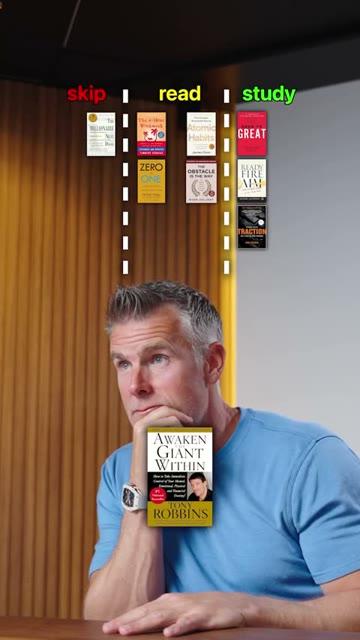
A finished 3 Column video, from the editor's Format preview. - 4
Check each item
Under Items, each row has a picture, a name and a Column menu. Click a row to jump to it, rename it or move it to another column.
Remove item deletes a row. Add item at playhead adds New item in the first column at the current moment.
- 5
Change pictures
Click an item's picture to open the image window. Use Search web images, Upload your own (up to 5 MB) or Remove image. Auto Images fills items that have no picture.
Without a picture, the item shows its name on a pill.
- 6
Rename or recolour the columns
Open Style. Under Columns, type a new name (up to 24 characters) or click the colour swatch.
- 7
Style the board and the reveal
Under Board style, choose a Size (S, M or L) and Y position.
- Reveal Items Animation shows each item large as you name it, then drops it into its column. Choose its size (S, M, L or XL) and Reveal Y position, or switch it off so pictures simply appear.
- 8
Adjust timing on the timeline
Items and the board appear on the Format row of the timeline. Drag or trim them to change when they show.
- 9
Switch or remove the format
Before you do this: switching to Tier List, Do & Don't, 2 Column, 3 Column or Logo List removes automatic B-roll, automatic text overlays and camera zooms as soon as you confirm. Do & Don't also removes text you added. Removing 3 Column or switching away from it doesn't bring back what it removed.
Select Change Format, choose another Format and confirm with Switch format, or choose Remove format.
Your items, columns and pictures are kept, so switching back restores the board.
What Jupitrr does automatically
- Finding each item you place, up to 30
- Naming the three columns from your words
- A web picture for each item
- Timing each item to when you name it and say its level
- A short title for the board as your hook
What you can edit
- Item names, columns, pictures and timing
- Column names and colours
- Board size and position
- Reveal animation, its size and position
- Hook, subtitles and music
- The Format itself: switch or remove it
Limits and requirements
- Not available for landscape videos.
- Always three columns. You can't add or remove one; use 2 Column for two, or Tier List for up to six tiers.
- Up to 30 items per video.
- Web pictures come from the open web. Check you can use each one, especially in ads.
- Re-detect replaces your edits to items, columns, colours and pictures. Style settings stay.
- Levio cannot edit the board.
Troubleshooting
It says the video doesn't look like a 3 column video.
Nothing in your transcript was placed in a level. Add items with Add item at playhead, or record with the level said out loud for each item.
An item is in the wrong column.
Change its Column menu. Editing by hand is safer than Re-detect, which replaces your changes.
A picture is wrong or broken.
Click the picture and search again, or upload your own image.
The columns have names I didn't expect.
Jupitrr uses your level words when they differ from skip, read and study. Rename them under Columns in Style.
Why is Change Format greyed out?
Change Format is locked while Jupitrr is building the board. Wait for detection to finish.