Best video formats · Business consultants · Last updated November 2026
Best Video Formats for Business Consultants
Formats help turn your expertise into clear, watchable videos. A video format is a recognizable on-screen structure, such as a Tier List or Split screen, not a dimension like 9:16 or a file type like MP4. Here are the formats that suit consultants, with examples and how to make each one.
Three formats to try
The short answer
For consultants, the strongest formats are Split screen for explaining a theory or diagram like a whiteboard, 3 Column for sorting options into three categories, Tier List for ranking options, Logo List for reviewing tools, Green Screen for case studies and news, and 2 Column for clear distinctions. Choose the one that matches the thinking you want to show.
- Theories, concepts and diagrams: Split screen.
- Ranking options: Tier List. Sorting them into categories: 3 Column.
- Case studies, investigations and news: Green Screen.
- No format guarantees reach. It makes the reasoning easier to follow.
Quick pick: which format for which video
| Format | Best for | Skip it when |
|---|---|---|
| Split screen | You are introducing a theory, concept, framework or diagram. | The idea is a single opinion with no visual to show. |
| 3 Column | You are sorting options into three meaningful categories. | You have no real reason behind each call. The reasons are what make the video interesting. |
| Tier List | You want to rank several options and explain why. | Your audience would read a ranking of named vendors or clients as a public criticism you cannot defend. |
| Logo List | You are reviewing tools, platforms or vendors by category. | You have commercial relationships with the vendors you would be reviewing and cannot say so clearly. |
| Green screen | You are investigating a company or topic, doing a case study or covering news. | You would be speculating about a company you have worked for, or a client. |
| 2 Column | You want to make a clear distinction between two sides. | The honest answer is a spectrum rather than two sides. |
1. Split screen
Best for B-roll-heavy videos. When you introduce a theory, concept or diagram, it stays on screen like a whiteboard while you explain it. Jupitrr fills this half with B-roll matched to your words. To keep a specific diagram on screen, upload it as an image and drag the clip to cover that section.

- What the viewer sees
- The concept or diagram in one half and you in the other for the whole video, like talking through a whiteboard.
- Example for business consultants
- A consultant introduces a pricing framework, with their own diagram added above them as they explain it.
- Use it when
- You are introducing a theory, concept, framework or diagram.
- Skip it when
- The idea is a single opinion with no visual to show.
2. 3 Column
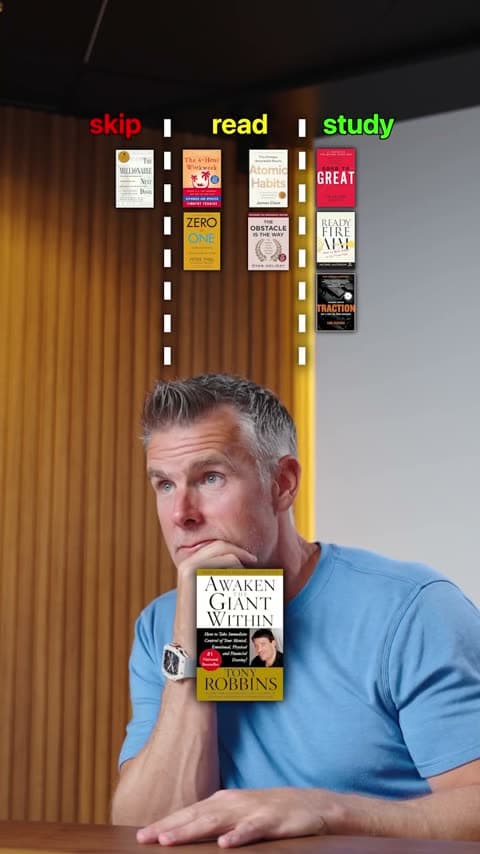
Use it to sort options into three meaningful categories, such as skip, read, study or now, next, later. The insight comes from explaining why each one belongs where it does, which is how a consultant shows their judgement.
- What the viewer sees
- Three columns with meaningful labels, such as skip, read, study or now, next, later. Each item drops into its column as you explain your call.
- Example for business consultants
- Popular strategy books sorted into skip, read and study, with the reason for each call.
- Use it when
- You are sorting options into three meaningful categories.
- Skip it when
- You have no real reason behind each call. The reasons are what make the video interesting.
Try a format on your next framework
Record yourself explaining it, pick a Format, and Jupitrr builds it from what you say.
3. Tier List
One of the most popular video formats right now. Use it to rank options and defend your judgment, placing each item in a tier while you explain why. A clear ranking shows how you weigh your options.

- What the viewer sees
- A tier board below you. Each item is placed into its tier as you explain why it belongs there.
- Example for business consultants
- Ways to cut costs, ranked from safest to riskiest, with a reason for each.
- Use it when
- You want to rank several options and explain why.
- Skip it when
- Your audience would read a ranking of named vendors or clients as a public criticism you cannot defend.
4. Logo List
Easy to make and easy to watch. Logos make tools recognizable, and a useful recommendation gives people a reason to save or share. Consultants are often asked “what tools should we use?”, so it suits your independent view.

- What the viewer sees
- A card for each category you name, with the logos you choose and add. The card changes as you move to the next category.
- Example for business consultants
- A sales consultant adds the logos of the tools they see most, then gives a verdict on each category.
- Use it when
- You are reviewing tools, platforms or vendors by category.
- Skip it when
- You have commercial relationships with the vendors you would be reviewing and cannot say so clearly.
5. Green screen
Suits investigations and case studies of a company or topic, where screenshots and B-roll carry the story, and it works well for news. The changing background adds variety to longer videos, and the cutout works on videos up to 10 minutes. Jupitrr places matched B-roll behind you automatically; you add any specific screenshots yourself. Use publicly available announcements and results rather than confidential client information.

- What the viewer sees
- You cut out of your background, in front of the screenshots, headlines or B-roll you are talking about.
- Example for business consultants
- A consultant walks through how a retailer ended up closing stores, with its announcements and results on screen behind them.
- Use it when
- You are investigating a company or topic, doing a case study or covering news.
- Skip it when
- You would be speculating about a company you have worked for, or a client.
6. 2 Column
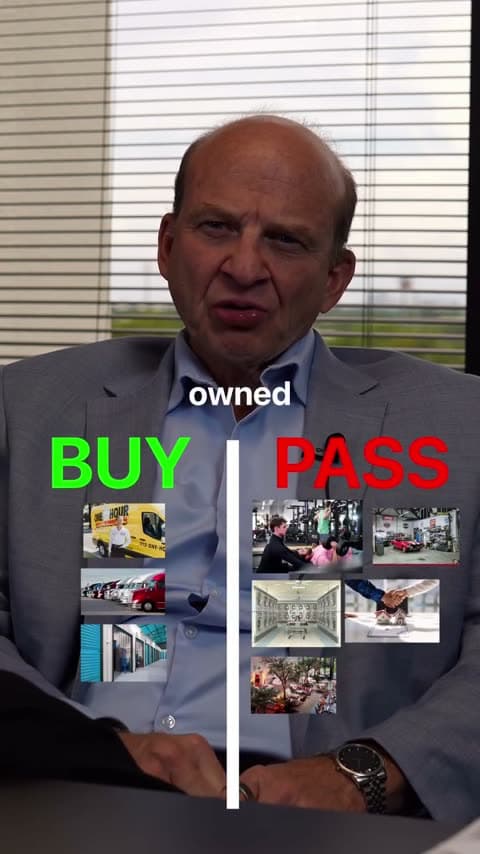
Use it to make a clear distinction, such as myth or fact or keep or cut. Each item goes on one side, and you explain why. Ready or not yet gives people a quick answer.
- What the viewer sees
- Two columns, such as Ready and Not yet. Each item drops into its side as you give your verdict.
- Example for business consultants
- “Is your business ready to hire a consultant?” Common situations sorted into Ready and Not yet.
- Use it when
- You want to make a clear distinction between two sides.
- Skip it when
- The honest answer is a spectrum rather than two sides.
Consulting videos that need a different tool
Long webinars with slides, recorded workshops and screen-recorded walkthroughs of spreadsheets or dashboards are better made in a screen recorder or presentation tool. Clips cut from those recordings can still become short talking-head videos.
Jupitrr is built for talking-head videos: Formats work on vertical recordings under 3 minutes, or up to 10 minutes for Green screen. Longer recordings get the standard edit with subtitles and B-roll.
How to choose a format
- Introducing a theory, concept or diagram? Split screen.
- Sorting options into categories? 3 Column. Ranking them? Tier List.
- Reviewing tools by category? Logo List.
- Investigating a company or topic, or covering news? Green Screen.
- Making a clear distinction, such as ready or not yet? 2 Column.
Frequently asked questions
A video format is a recognizable structure for your video, such as a Tier List or 3 Column. It helps because you start from a shape viewers already understand, so you only need to bring your knowledge. For your first post, pick a question clients always ask, choose the format that fits it and record your answer.
A consultant should start with 3 Column: sorting popular strategy books into skip, read and study is a simple way to show your judgement. If it does not feel like you, try another one. The right first format is the one you will actually record.
These Jupitrr formats start with you talking to camera. A phone and one clear idea are enough. You can use them alongside other content such as written LinkedIn posts and client case studies.
You do not have to edit your video before you use a format. Upload your raw footage and choose a format. Jupitrr builds the edit automatically, ready for you to review and adjust. You can trim mistakes or remove silence first if you want to, but you do not have to.
Choose a format and topic, outline or script your points, record yourself talking, then upload your footage and select the format in Jupitrr. Review the automatic edit, adjust it and export.
Trying one or two video formats a week is a good starting point, not a rule. You do not need every format to gain traction. Repeat what works for your audience, and keep more than one format in rotation if it suits you.
Start with a focused 60–90 second explanation of one useful idea. Open with the question or takeaway, keep the pacing tight, and split larger topics into a series. Use comments and watch time to decide what to try next.
A webinar is a type of event and recording rather than an on-screen structure. You can cut short clips from a webinar and present each one with a format such as Split screen.
No format guarantees reach. A format makes a clear argument easier to follow, but the quality of your idea still decides whether people share it.
Make your thinking easy to forward
Choose a Format like Split screen or Tier List, and Jupitrr builds the edit automatically, ready for you to review and adjust.