jupitrr logo

By the Jupitrr team · Last updated October 2026

Best Video Editors for LinkedIn

To choose a video editor for LinkedIn, start with what you post. Most LinkedIn video from coaches, consultants and founders is one person explaining an idea to camera, so the editor has to make a talking-head recording easy to follow: captions that carry the message when the video autoplays without sound, visuals that support the point, a portrait, square or landscape export, and a way to get it scheduled to LinkedIn. Jupitrr AI makes that edit for you and schedules to LinkedIn on Pro. Descript, VEED and CapCut give you more manual control, Riverside suits recorded interviews, and Canva suits template-led posts.

Top picks at a glance

The best video editors for LinkedIn are Jupitrr AI for talking-head videos edited automatically and scheduled to LinkedIn, Descript for editing by transcript, Riverside for interviews published to LinkedIn, VEED for browser editing with subtitles, CapCut for hands-on timeline editing and Canva for template-led posts.

How we chose: Jupitrr AI is our product, so read its entry with that in mind. We compared each editor on what a LinkedIn video from an expert needs: a talking-head recording made easy to follow, captions for muted autoplay, B-roll that explains rather than decorates, portrait, square and landscape exports, and whether the tool publishes or schedules to LinkedIn itself. The comparison is based on each vendor’s documented features, pricing pages, help centers and app store listings, checked on 27 October 2026, not on a controlled side-by-side test. Tools are ordered by fit for business creators who post talking-head video to LinkedIn regularly.

How the tools compare

  • Jupitrr AI

    How the edit gets made
    Automatic first cut on upload, then you adjust it
    Who places B-roll
    Jupitrr, automatically, at relevant moments
    Captions
    Automatic, styled, 54+ languages
    Formats
    Portrait, square or landscape
    Publishes or schedules to LinkedIn
    Yes: scheduling on Pro
    Paid plans from
    $11/mo billed annually
  • Descript

    How the edit gets made
    Edit the transcript and the video follows
    Who places B-roll
    You, or the AI assistant on request
    Captions
    Automatic, from the transcript
    Formats
    Portrait, square or landscape
    Publishes or schedules to LinkedIn
    No: export and upload
    Paid plans from
    $16/mo billed annually
  • Riverside

    How the edit gets made
    Record in its studio, then edit by text
    Who places B-roll
    You, or AI B-roll on request (uses credits)
    Captions
    Automatic on clips
    Formats
    Portrait, square or landscape clips
    Publishes or schedules to LinkedIn
    Yes: publishing on Pro, scheduling on Grow
    Paid plans from
    $24/mo billed annually
  • VEED

    How the edit gets made
    Browser timeline with AI tools
    Who places B-roll
    You, or Magic B-roll on request
    Captions
    Automatic, with translation
    Formats
    Resize presets for portrait, square and landscape
    Publishes or schedules to LinkedIn
    No: export and upload
    Paid plans from
    About $12.25/mo billed yearly (US App Store)
  • CapCut

    How the edit gets made
    Manual multitrack timeline with AI tools
    Who places B-roll
    You
    Captions
    Auto captions
    Formats
    Portrait, square or landscape
    Publishes or schedules to LinkedIn
    No: export and upload
    Paid plans from
    Varies by region
  • Canva

    How the edit gets made
    Templates and a simple timeline
    Who places B-roll
    You
    Captions
    Available; check your plan
    Formats
    Portrait, square or landscape; resize designs
    Publishes or schedules to LinkedIn
    Could not be confirmed
    Paid plans from
    $12/mo billed yearly

Features checked against official product, pricing and help pages and app store listings on 27 October 2026. "On request" means you trigger the tool and review the result. Canva’s help pages conflict on whether video can be scheduled to LinkedIn, so we could not confirm it. Details vary by plan and region.

Limits, free options and pricing

  • Jupitrr AI

    Length or usage limits
    Uploads up to 5 minutes on Starter, 20 on Pro, 30 on Team
    Free option
    No free plan. Try a sample video free
    Paid pricing
    Starter $11/mo billed annually ($22 monthly); Pro, with LinkedIn scheduling, $24.50 ($49).
  • Descript

    Length or usage limits
    600 media minutes a month on Hobbyist, 1,800 on Creator; AI features use credits
    Free option
    60 minutes a month, 720p, watermark
    Paid pricing
    Hobbyist $16/mo billed annually ($24 monthly); Creator $24 ($35)
  • Riverside

    Length or usage limits
    AI B-roll uses credits
    Free option
    2 hours one-off, 720p, watermark
    Paid pricing
    Pro $24/mo billed annually ($29 monthly); Grow, with scheduling, $34 ($39)
  • VEED

    Length or usage limits
    Varies by plan
    Free option
    Free plan; 720p with a watermark
    Paid pricing
    Creator $146.99/yr (about $12.25/mo) or $25 monthly; Pro $289/yr or $49 monthly (US App Store; web prices could not be confirmed)
  • CapCut

    Length or usage limits
    Varies by plan and device
    Free option
    Free plan with core editing tools
    Paid pricing
    Pro and Ultra plans; prices vary by region
  • Canva

    Length or usage limits
    Not publicly listed for video
    Free option
    Free plan; no watermark when you use free elements
    Paid pricing
    Pro $12/mo billed yearly ($18 monthly); 30-day trial

Pricing checked on official pricing pages and, for VEED, its US App Store listing on 27 October 2026. Annual prices are per month, billed yearly, unless stated.

How to choose a LinkedIn video editor

A LinkedIn video from an expert has four jobs. Pick the editor that handles the ones you would otherwise do by hand.

Make a talking-head video easy to follow

Most personal brand videos on LinkedIn are one person explaining something they know. The edit should support the explanation with visuals at the moments that need one. Jupitrr places B-roll automatically; Descript, Riverside and VEED add it when you ask; in CapCut and Canva you place it yourself. Talking-head editors compared.

Carry the message without sound

LinkedIn autoplays video in the feed without sound, so captions do the work until someone taps for audio. Every editor here can caption; the differences are styling, languages and how easy captions are to correct.

Export the right shape

Portrait suits LinkedIn’s vertical, reel-style video, square works in the main feed on desktop and mobile, and landscape suits longer explanations. All six tools export in more than one shape; check that the captions and B-roll still fit when you switch.

Get it posted

Publishing regularly is easier when the editor can post for you. Jupitrr schedules to LinkedIn on Pro and Riverside publishes on Pro and schedules on Grow. VEED, CapCut and Descript leave you to upload the file yourself. How Jupitrr schedules video.

The best options in detail

Jupitrr AI logoJupitrr AIBest for talking-head videos edited automatically and scheduled to LinkedIn

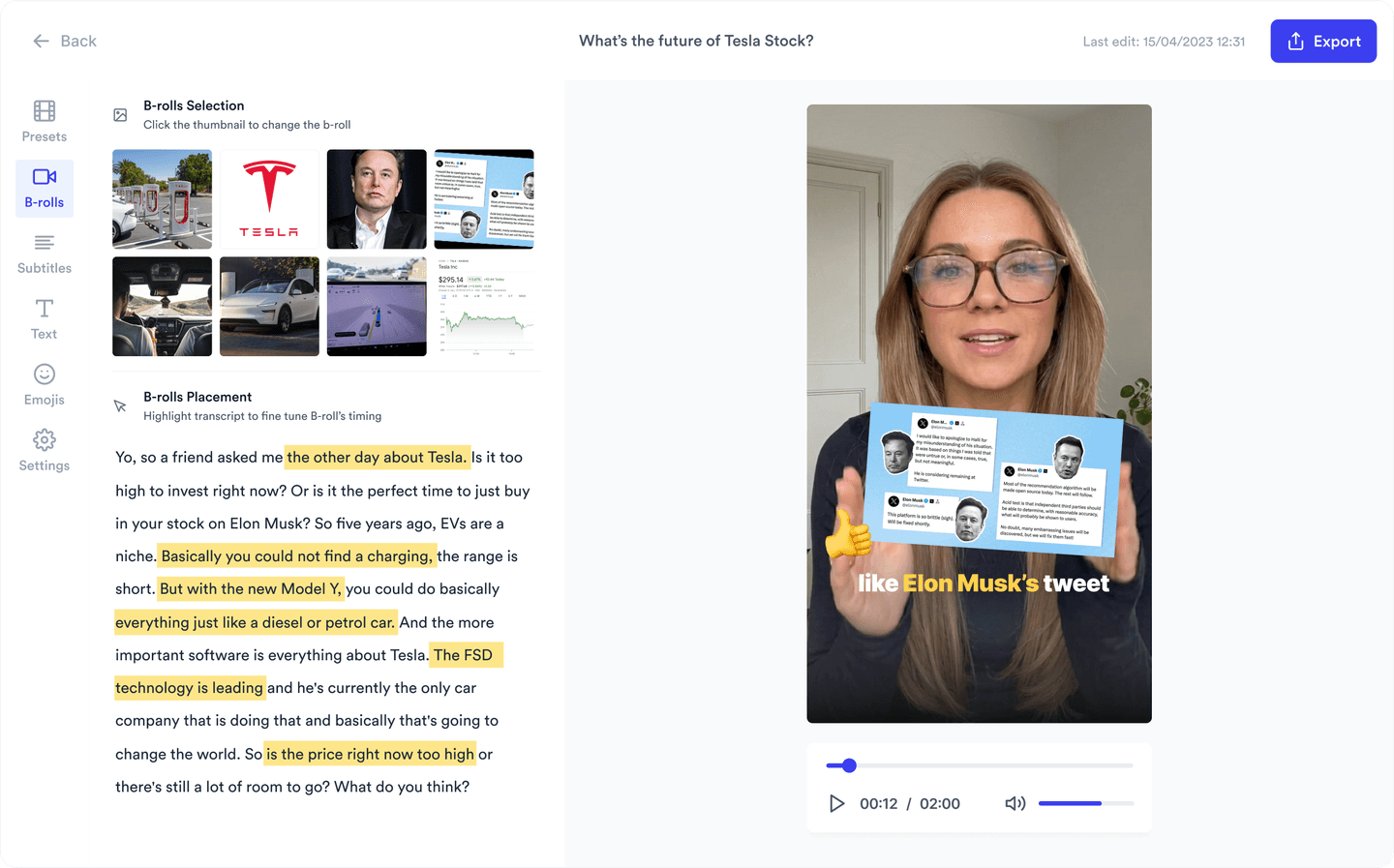
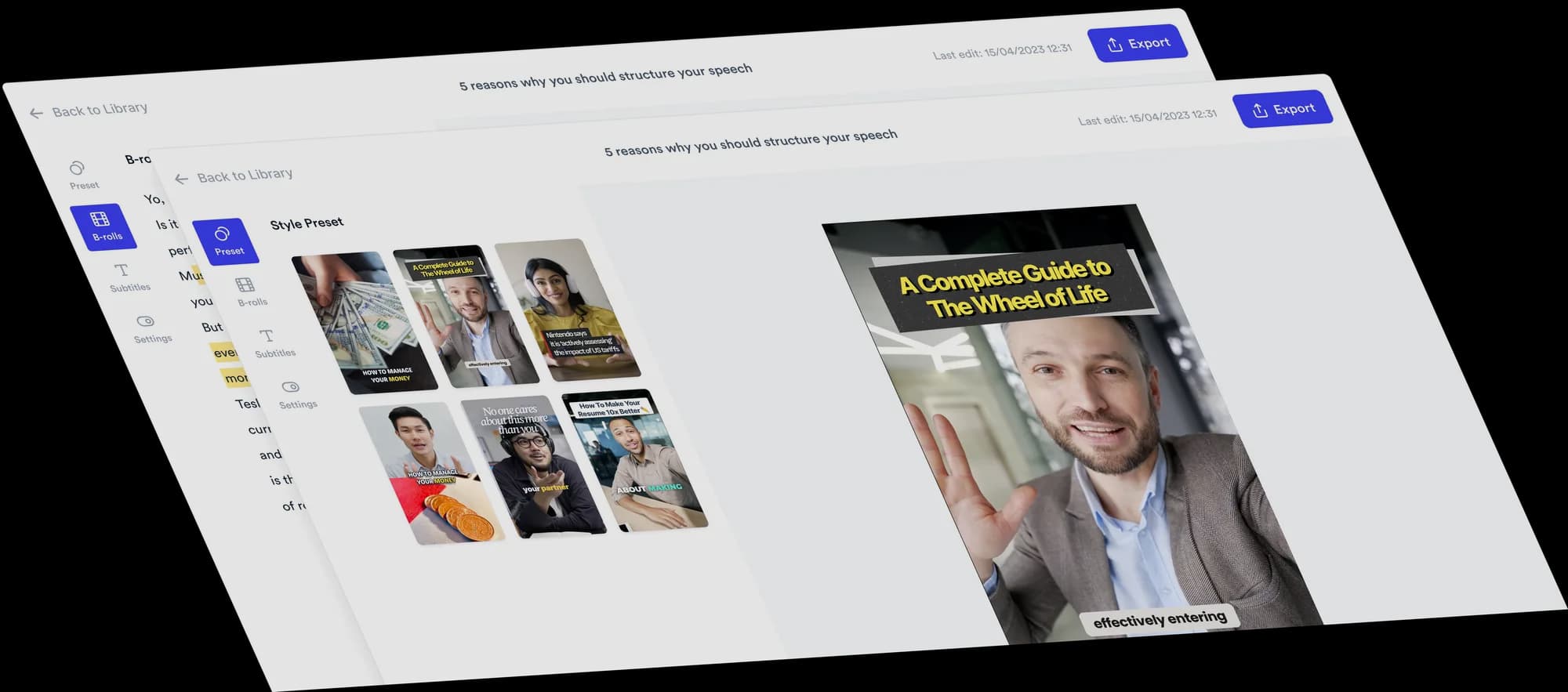
Jupitrr AI is an AI talking-head video editor built for business creators, especially coaches, consultants, founders and educators. Upload a recording of you explaining an idea and it comes back as an editable first cut: B-roll from iStock by Getty Images (on paid plans), Pexels, web images, GIFs or your own uploads, styled captions in 54+ languages for muted autoplay, an opening hook, music and sound effects. B-roll covers relevant moments rather than every sentence and leaves stretches that do not need a visual focused on you. Not every element appears on every upload.

You then review the edit instead of building it: swap a clip, fix a caption or rewrite the hook on the timeline or the transcript, or ask Levio for the change in plain language and keep or undo the draft. Export in portrait for LinkedIn’s vertical video, square for the feed or landscape, and on Pro schedule it to LinkedIn from the content calendar alongside YouTube, Instagram and TikTok.

Strengths

  • B-roll, captions, hook, music and sound effects placed on upload
  • B-roll from licensed stock and web sources, at the moments that need a visual
  • Edit on the timeline or transcript, or ask Levio in plain language
  • Portrait, square and landscape exports
  • Scheduling to LinkedIn, YouTube, Instagram and TikTok on Pro

Tradeoff

The automatic edit does not cut your footage: Trim & Stitch removes silences before the edit, but it does not detect filler words or retakes. Uploads are capped at 5, 20 or 30 minutes by plan, LinkedIn scheduling needs Pro, and it is not built for multicam or motion graphics. There is no free plan, only a free sample video.

Pricing: No free plan, but you can try a sample video free. Starter is $11/mo billed annually ($22 monthly) with uploads up to 5 minutes; Pro is $24.50/mo billed annually ($49 monthly) with uploads up to 20 minutes and scheduling to LinkedIn.

Best suited for: Coaches, consultants, founders and educators who record themselves explaining ideas and want the video edited and scheduled to LinkedIn without building it on a timeline.
Turn one explanation into a LinkedIn video

Upload a talking-head recording and Jupitrr returns an editable first cut with B-roll, captions, a hook, music and sound effects. On Pro, schedule it to LinkedIn from the same app.

Jupitrr AI editor showing an automatically edited talking-head video

Descript logoDescriptBest for editing by transcript

Descript edits video by editing the transcript, which suits LinkedIn interviews, fireside chats and long explanations where most of the work is cutting words. Its AI assistant removes filler words and retakes, Studio Sound cleans up laptop audio, Eye Contact corrects gaze, and captions come from the transcript.

Visuals are on request: the assistant adds stock or AI-generated B-roll when you ask. Descript does not post to LinkedIn for you, so you export the file and upload it.

Strengths

  • Cut video by deleting words in the transcript
  • Filler-word, retake and gap removal
  • Studio Sound and Eye Contact fix common recording problems
  • Stock and AI-generated B-roll on request
  • Desktop and web apps

Tradeoff

You still make the editing decisions, AI features draw on monthly credits, there is no LinkedIn publishing, and the free plan watermarks 720p exports.

Pricing: Free plan with 60 minutes of media a month, 720p exports and a watermark. Hobbyist is $16/mo billed annually ($24 monthly); Creator is $24/mo billed annually ($35 monthly) with 4K export.

Best suited for: Experts posting interviews and long explanations who want precise control over what is said.

Visit Descript's website

Riverside logoRiversideBest for interviews and podcasts published to LinkedIn

Riverside is a recording studio with editing attached. If your LinkedIn content is conversations, expert interviews or a podcast, it records each participant, edits by text, removes silences and filler words, and Magic Clips cuts highlights into shorter captioned clips. A teleprompter is built in for solo recordings.

On Pro it adds AI B-roll generated from a prompt, which uses credits, plus Pexels overlays, and publishes to LinkedIn, YouTube, Instagram, Spotify and Apple Podcasts. Scheduling to social platforms needs the Grow plan.

Strengths

  • Remote recording with separate tracks for each participant
  • Text-based editing with silence and filler-word removal
  • Magic Clips for captioned highlights
  • Publishing to LinkedIn on Pro, scheduling on Grow
  • AI B-roll from a prompt, plus Pexels overlays

Tradeoff

It is built around sessions recorded in its studio, AI B-roll runs on request and uses credits, and scheduling needs the higher Grow plan.

Pricing: Free plan with 2 hours of recording (one-off), 720p exports and a watermark. Pro is $24/mo billed annually ($29 monthly) and publishes to LinkedIn; Grow is $34/mo billed annually ($39 monthly) and adds social scheduling.

Best suited for: Experts who host interviews or a podcast and want clips published to LinkedIn from the same platform.

Visit Riverside's website

VEED logoVEEDBest for browser editing with subtitles

VEED covers the LinkedIn basics in a browser tab: a recorder, automatic subtitles with translation, resize presets for portrait, square and landscape, and Magic B-roll, which adds images and video clips when you run it.

The edit is still a timeline you build, and VEED does not publish or schedule to LinkedIn: its help center says to download the video and upload it yourself. For teams editing marketing video together in the browser it is a sensible middle ground.

Strengths

  • Full editor in the browser, nothing to install
  • Automatic subtitles with translation
  • Magic B-roll on request
  • Resize presets for each feed shape
  • Shared workspaces for teams

Tradeoff

Manual timeline editing, a watermark and 720p on the free plan, B-roll that runs on request, and no LinkedIn publishing or scheduling.

Pricing: Free plan with 720p exports and a watermark. VEED’s web pricing page did not display prices when checked; its US App Store listing shows Creator at $146.99 a year (about $12.25/mo) or $25 monthly, and Pro at $289 a year or $49 monthly.

Best suited for: Marketing teams editing short LinkedIn videos together in the browser.

Visit VEED's website

CapCut logoCapCutBest for hands-on timeline editing at a low price

CapCut gives the deepest manual control here: a multitrack timeline, keyframes and effects on phone, desktop and the web, with auto captions and auto reframing between portrait, square and landscape.

Its templates and effects lean toward entertainment, so a professional LinkedIn look takes restraint. There is no official direct publishing to LinkedIn, so you export and upload.

Strengths

  • Deep multitrack timeline with keyframes
  • Auto captions
  • Auto reframing between feed shapes
  • Works on phone, desktop and the web
  • Low price, with a free plan

Tradeoff

Everything is placed by hand, templates skew toward entertainment, there is no LinkedIn publishing, and prices vary by region.

Pricing: Free plan with core editing tools. Paid Pro and Ultra plans are priced by region, so check the CapCut pricing page for your country.

Best suited for: Founders and creators who enjoy editing and want granular control on a budget.

Visit CapCut's website

Canva logoCanvaBest for template-led posts from a design tool

Canva approaches LinkedIn video from the design side: business templates, a large stock and graphics library, and resizing between portrait, square and landscape. Marketing teams that already design posts in Canva can keep video in the same place.

The editing is light. Cuts, pacing and B-roll are yours to place, so a raw talking-head recording takes real time to finish. Canva’s help pages conflict on whether video can be scheduled to LinkedIn, so check that before relying on it.

Strengths

  • Business templates and a large stock library
  • Resize designs between feed shapes
  • Video, graphics and carousels in one workspace
  • Free plan without a watermark on free elements
  • Familiar to most marketing teams

Tradeoff

No automatic editing and no matched B-roll, and LinkedIn scheduling for video could not be confirmed.

Pricing: Free plan, with no watermark when you use free elements. Pro is $12/mo billed yearly ($144 a year) or $18 monthly, with a 30-day trial.

Best suited for: Marketing teams who already design in Canva and want template-led video posts.

Visit Canva's website

Other tools we considered

  • Kapwing: a capable browser editor that matches AI B-roll to your transcript and translates captions, but it publishes to Facebook, TikTok and YouTube only, with no LinkedIn publishing or scheduling.
  • Captions: a strong phone-first editor with AI edit styles, but it is built around short mobile clips and shares from the app rather than scheduling to LinkedIn.
  • Loom: good for quick screen-and-camera explainers shared by link, but it is a recording tool rather than an editor for feed-ready LinkedIn video.
  • Clipchamp: a free editor with 1080p exports, AI subtitles and silence removal, but no social publishing.

How to choose the right tool

Jupitrr AI logo

You record yourself explaining ideas and want B-roll, captions and a hook placed for you, then the video scheduled to LinkedIn.

Choose Jupitrr AI
Descript logo

Your LinkedIn content is interviews and long explanations that need precise cutting by transcript.

Choose Descript
Riverside logo

You host remote interviews or a podcast and want clips published to LinkedIn from the same platform.

Choose Riverside
VEED logo

A team edits short LinkedIn videos together in the browser and is happy to upload them manually.

Choose VEED
CapCut logo

You enjoy hands-on editing, want a deep timeline at a low price, and will upload to LinkedIn yourself.

Choose CapCut
Canva logo

Your team already designs in Canva and your videos are built from templates rather than long recordings.

Choose Canva

Frequently asked questions

Start with the kind of video you post. For talking-head and personal brand videos, look for captions that work with muted autoplay, visuals that support what you say, portrait, square and landscape exports, and publishing or scheduling to LinkedIn. Then decide how much of the edit you want to do yourself: Jupitrr AI makes the first cut for you, while Descript, VEED and CapCut leave more of it in your hands.

Yes. Jupitrr AI edits a talking-head recording into a vertical video with B-roll, captions, a hook, music and sound effects, then schedules it to LinkedIn on Pro. Riverside’s Magic Clips cut captioned highlights from recorded sessions and publish to LinkedIn on Pro. Descript, VEED and CapCut offer AI tools inside a manual edit, and you upload the result yourself.

Jupitrr AI schedules to LinkedIn on Pro, and Riverside publishes to LinkedIn on Pro with social scheduling on Grow. VEED, CapCut, Descript and Kapwing do not publish to LinkedIn, so you export the file and upload it. Canva’s help pages conflict on LinkedIn scheduling for video, so we could not confirm it.

Yes. LinkedIn autoplays video in the feed without sound, so captions carry the message until someone turns audio on. Every editor in this comparison can add captions; the differences are styling, language coverage and how easy they are to correct.

Portrait suits LinkedIn’s vertical video, square works well in the main feed, and landscape suits longer explanations. Jupitrr AI, Descript, VEED, CapCut, Riverside and Canva can all export in more than one shape.

Descript, VEED, CapCut, Riverside and Canva have free plans, usually with watermarks, 720p exports or usage limits. Jupitrr AI has no free plan, but you can try a sample video free; paid plans start at $11/mo billed annually. Limits were checked on 27 October 2026 and change often.

Post expert video on LinkedIn every week

Jupitrr AI turns one recorded explanation into a captioned video with B-roll and schedules it to LinkedIn on Pro.

Jupitrr AI dashboard