
How to Add B-Roll in Jupitrr AI
TL;DR - Upload your video on Jupitrr AI and it will add relevant B-rolls to your video automatically.
This page is the product walkthrough. For deciding what to show over each part of a talking-head video, and how to keep the visual language consistent, read how to add B-roll to talking-head videos.
What is a B-roll
B-roll is the picture or a video clip that helps tell your story or add visual content to your video. It's not the main action (called A-roll), but it adds context, emotion, and visual interest. B-roll spices up your video, hides jump-cuts, and visually backs up whatever you're talking about. For the full picture, including the nine types modern creators use, see our guide to what B-roll is.
Deciding what to show
Which visual language fits which kind of story, when a cutaway earns its place and how to keep the visuals consistent is covered in how to add B-roll to talking-head videos. For concrete shots to cut to, browse these B-roll ideas for talking-head videos. This page covers the mechanics inside Jupitrr AI.
Step-by-step guide to add B-Rolls to your videos
- 1Go to Jupitrr.com
- 2Signin/Signup
- 3Click on “Create”
- 4Upload your video
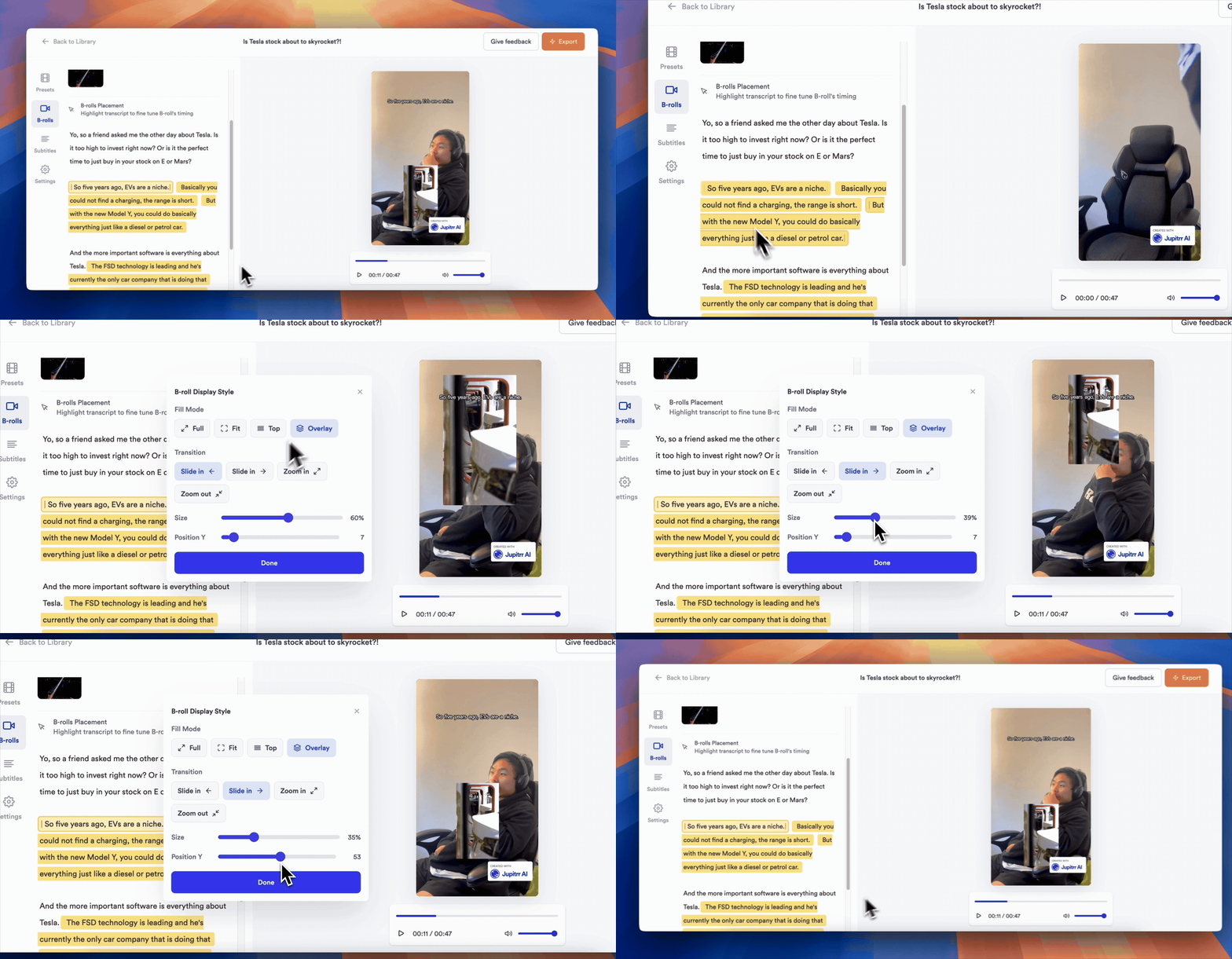
- 5The AI will add relevant B-rolls automatically
- 6Adjust the highlights if needed
Pro tips to add B-rolls to your video
- ✓Use Levio by Jupitrr AI to finetune the video
- ✓You can also change the B-roll transitions
- ✓Change the Background music if you don't like the one added by the AI
- ✓Add your brand logo to give it a personal touch
Common Mistakes to Avoid
- ✗Don't use the same stock shot twice as that might make it look boring
- ✗Don't add watermarked or unlicensed stock you cannot legally publish. Check that every stock or web asset is cleared for your intended use. If you source clips yourself, start with these free B-roll footage sites, compared on licensing.
- ✗While recording your talking head videos, leave some space over your head so you can add B-rolls without covering your face
FAQs
How does Jupitrr AI decide which B-roll to drop in?
The AI analyzes your transcript and selects relevant media from the libraries available on your plan. You can review every choice and replace it in the editor. More detail on the AI B-roll generator page.
Can I change an AI-chosen clip?
Absolutely! You can always go to B-roll → click on the highlight where you want to make the changes → select the b-roll you prefer. And if you still don't find a relevant one, you can always upload your own.
Does the auto-added B-roll come with a license?
Paid plans include licensed Getty Images and iStock media for commercial use. If you choose a web image or upload your own file, check its licence and make sure you have the right to publish it.
Can Levio auto-suggest B-roll based on my transcript or keywords?
Yes. You can simply ask Levio to add B-roll in the video like “add a b-roll at 0:35” and it will automatically find the most relevant one to add there.
How do I adjust B-roll clips so they sync perfectly with the A-roll?
Although the AI will make sure the B-rolls are perfectly synced, if you are not satisfied with it, you can go to B-rolls and simply adjust the highlight by dragging it.
Ready to add B-rolls to your videos?
Start creating engaging videos with AI-powered B-roll generation in seconds.
Get Started Free