



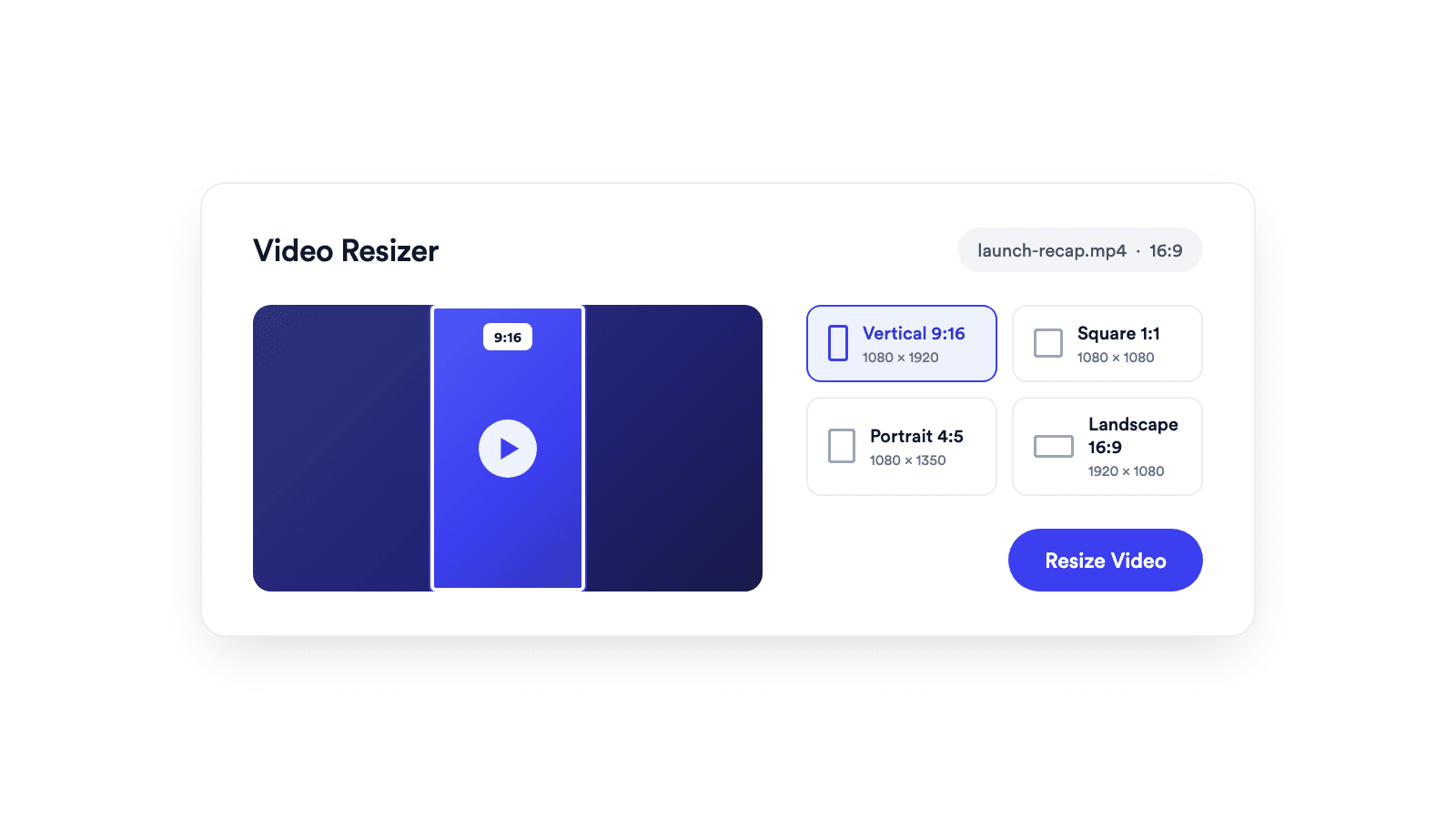
Video Resizer
Reframes a video for vertical, square, portrait, or landscape publishing.
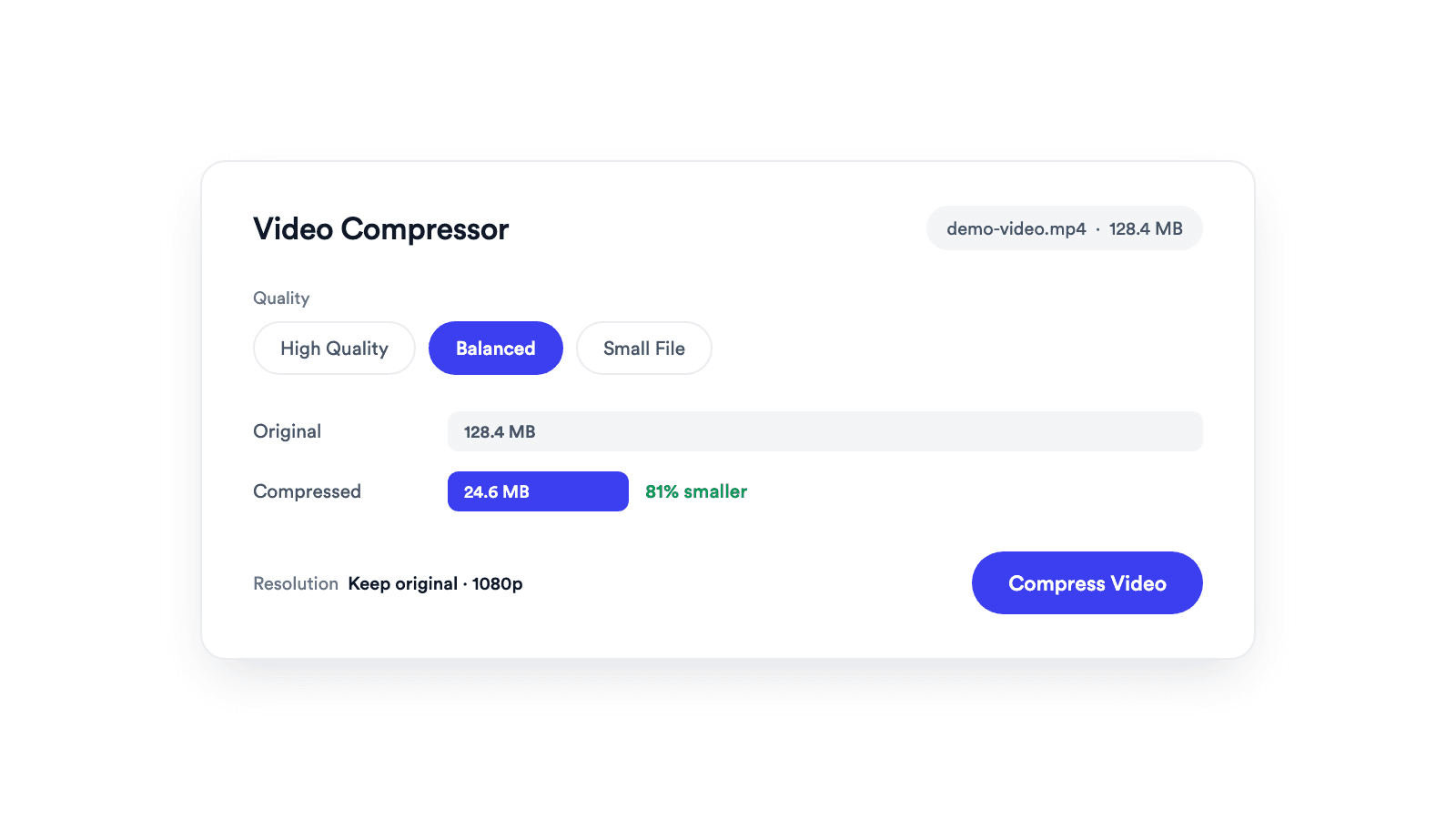
Reduce a video file with adjustable quality and resolution controls while keeping it clear enough to publish.
Add an MP4, MOV, WebM, or M4V file that your browser can play.
Balance visual detail and file size, then choose whether to keep or reduce the original resolution.
Your browser re-encodes the video locally and gives you a new file to preview and download.
Jupitrr brings planning, scripting, recording, editing, and publishing into a single tool. Built for businesses shipping video consistently.




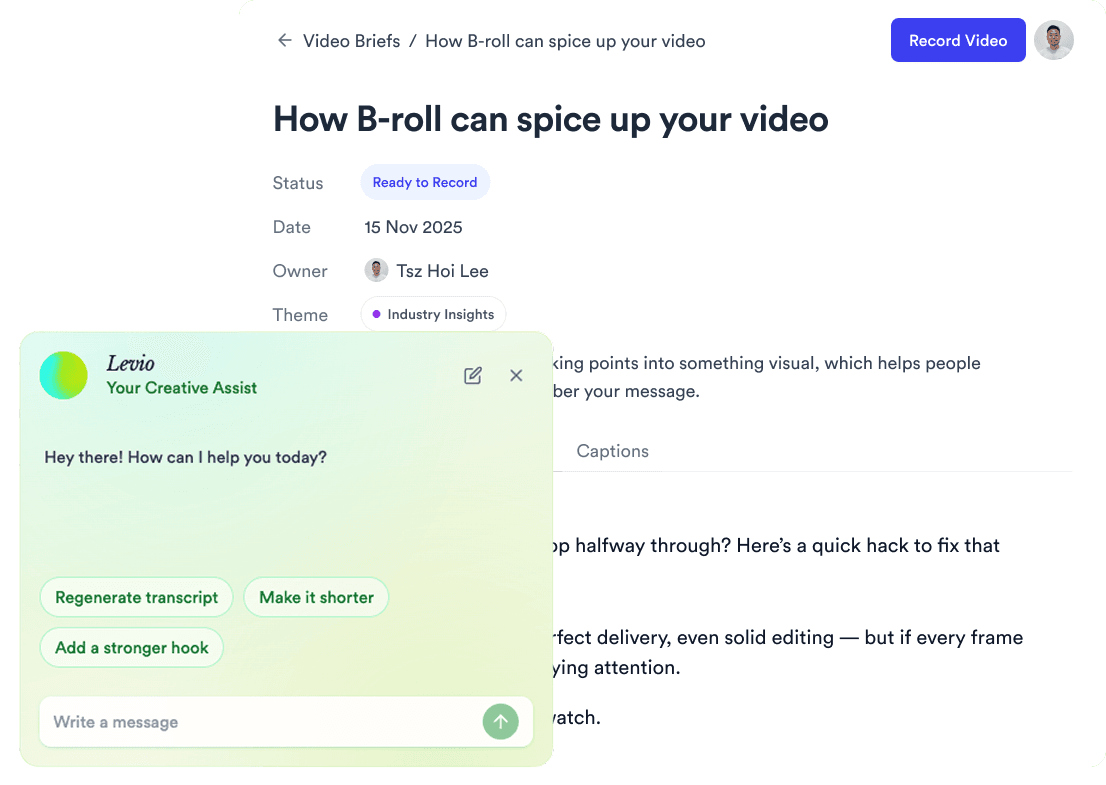
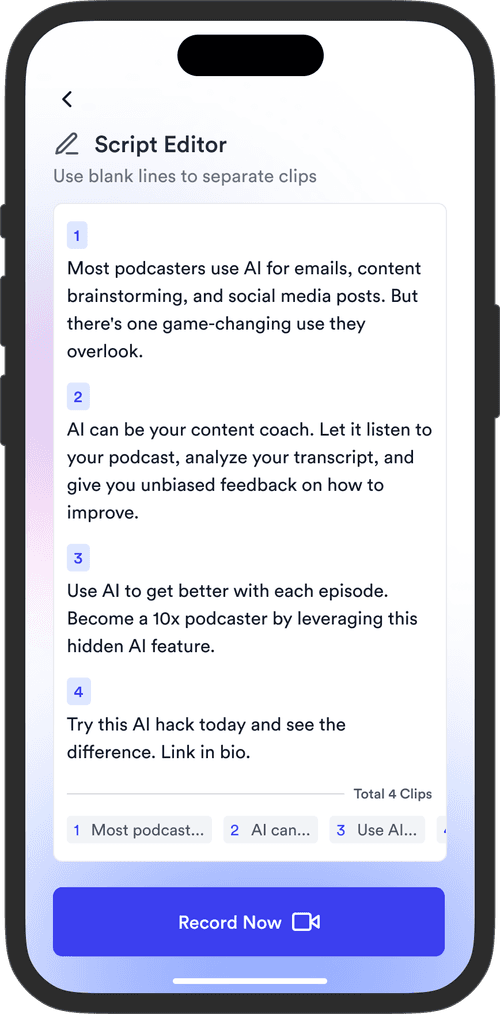
Trained on your scripts & viral scripting framework
Auto Jump-Cut & Silence Removal


YouTube, Instagram, LinkedIn, TikTok, all at once.



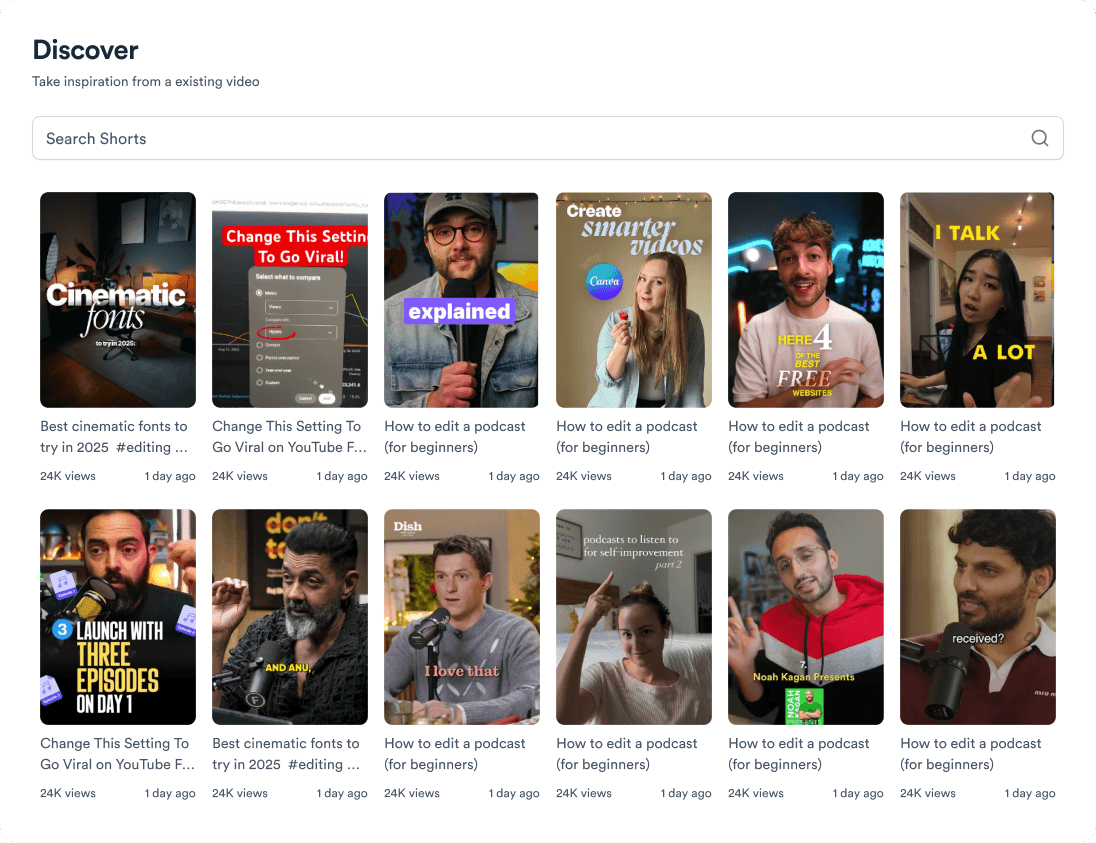
Get inspired for your next videos
Reframes a video for vertical, square, portrait, or landscape publishing.
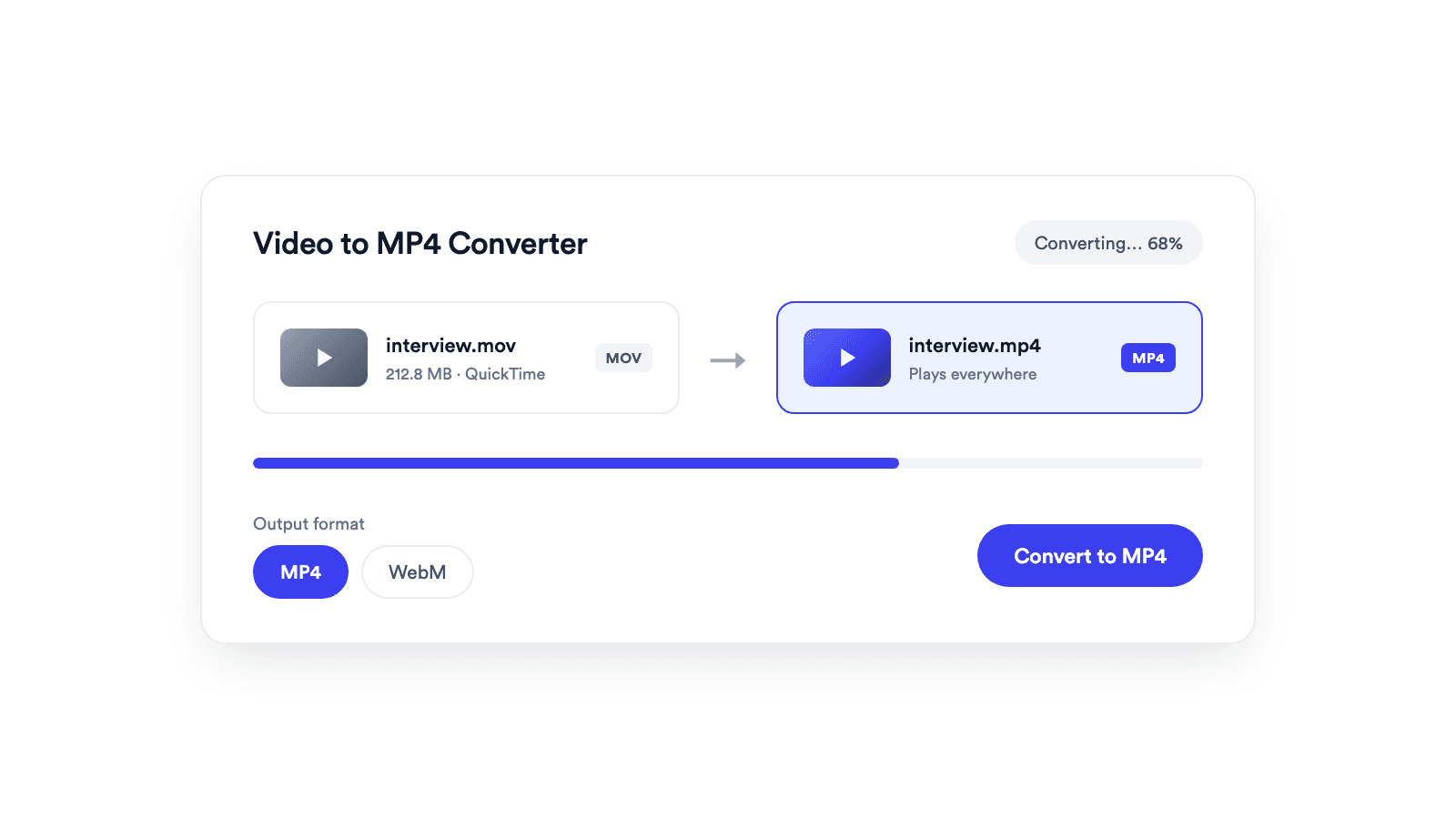
Converts browser-supported video files to MP4 or WebM on your device.
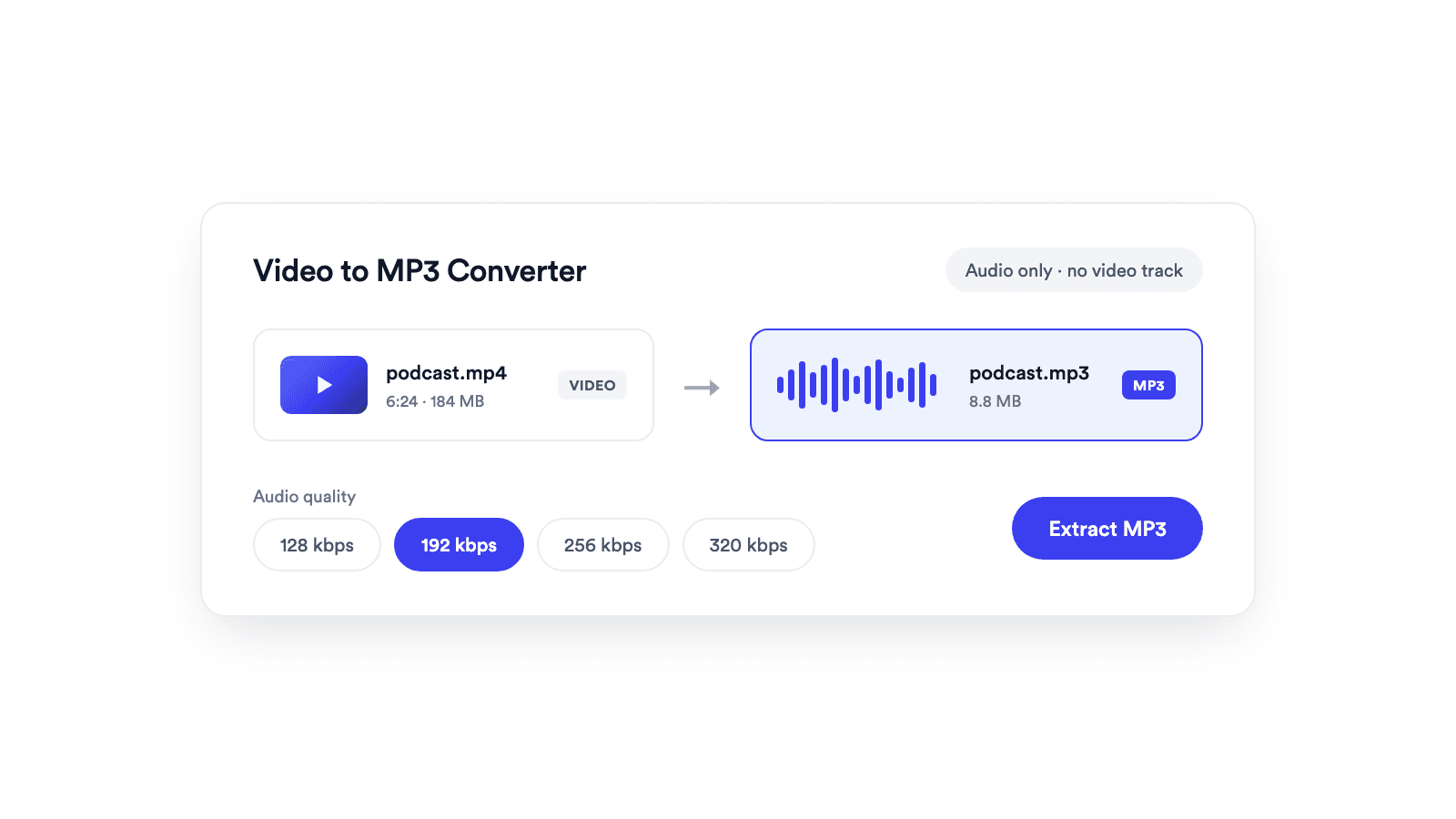
Extracts the audio from a video and saves it as a real MP3 file.

Cuts unwanted sections out of clips and joins them into a single MP4.