
jupitrr logo
Features
Use Cases
Resources
Pricing
Log in
Try it for Free

Teleprompter & Portrait Camera Recorder

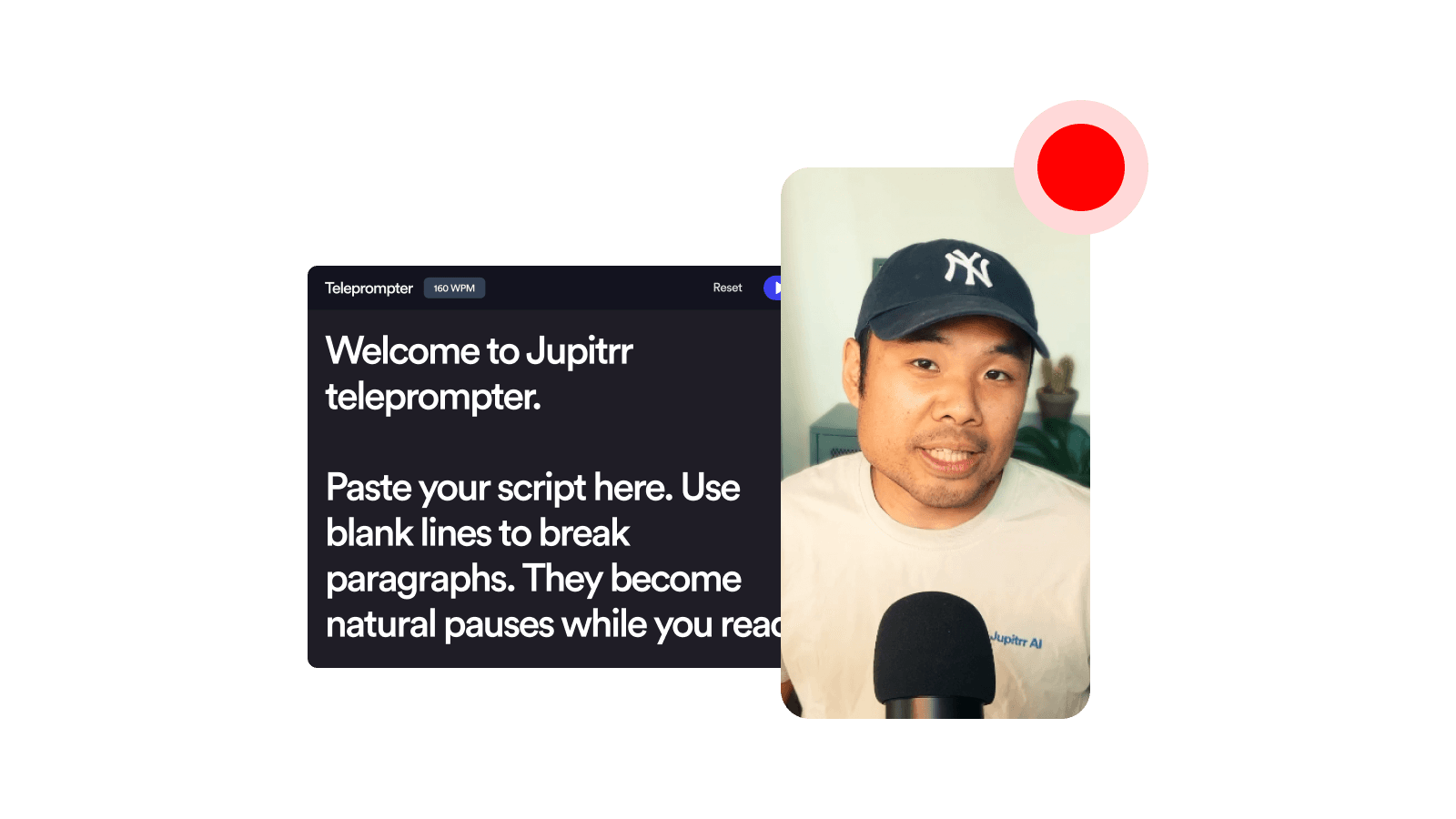
Read a scrolling script while we record you in vertical 9:16, ready for Reels, TikTok, and Shorts. Free in your browser, no install, no watermark.
Teleprompter & Portrait Camera Recorder
Loading recorder…

How it works

1

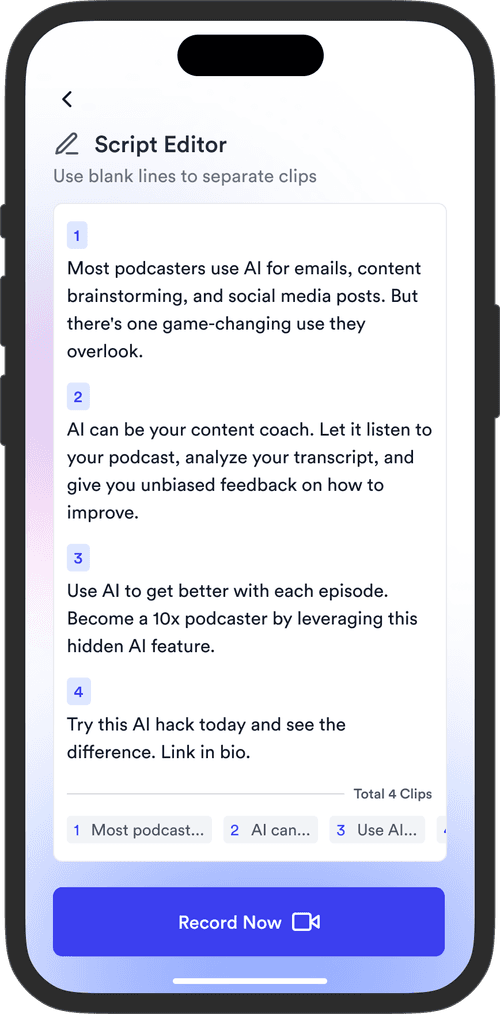
Paste your script

Open the teleprompter, paste in your hook, intro, or full script. Tweak WPM and font size to a pace you can read naturally.

2

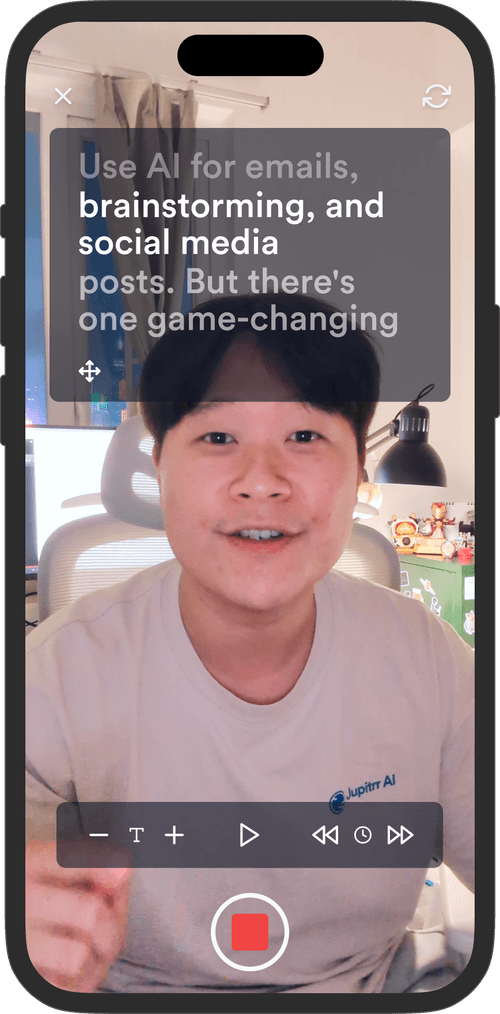
Frame yourself in 9:16

Drag the teleprompter beside or under your webcam so your eyeline stays close to the lens. The preview is already vertical so what you see is what you record.

3

Record, preview, download

Hit record, read at your own pace, stop. Play back the vertical result inline and download the MP4, or keep editing in Jupitrr.

Frequently asked questions

What is a Teleprompter & Portrait Camera Recorder?
A browser tool that floats a scrolling teleprompter next to your camera while recording you in a vertical 9:16 frame, the shape used by Instagram Reels, TikTok, and YouTube Shorts. Paste a script, hit record, and read at your own pace. Nothing uploaded, nothing installed.
Why pair a teleprompter with a portrait recorder?
Short-form vertical video is script-heavy. Hooks, founder talking heads, product walkthroughs, and customer stories all benefit from a tight script. A teleprompter keeps your eyeline near the camera so you sound natural and look engaged, instead of glancing off-screen at notes.
How do I move and resize the teleprompter?
Drag it by the title bar to position it anywhere on screen, ideally right under or next to your webcam so your eyeline stays close to the lens. Grab the bottom-right corner to resize. Position and size are remembered between sessions.
How do I control the scroll speed?
Use the WPM stepper in the teleprompter window, or tap the Up and Down arrow keys to nudge speed by 10 WPM in either direction. Manual scroll temporarily pauses the auto-scroll, so you can re-read a line without losing your place.
Does the teleprompter get recorded into the video?
No. The teleprompter floats above the recording canvas in a separate window, so it never appears in the saved MP4. Only the camera feed is captured.
Why does my recording look a bit soft or zoomed in?
Laptop and desktop webcams have a wide landscape sensor, usually 1920×1080. A vertical 9:16 crop only uses the centre slice of that sensor, around 608 pixels wide, so the vertical frame is genuinely lower resolution than the landscape feed you are used to. The recorder keeps every pixel real and never upscales, because upscaling only adds blur without adding detail. To get a sharper vertical recording, plug in an external 4K webcam, connect an iPhone via Continuity Camera, or record on the phone itself with the Jupitrr Cut Teleprompter iOS app.
Can I use an iPhone (Continuity Camera) for higher quality?
Yes. An iPhone connected as a Continuity Camera shows up in the camera picker and has a much higher resolution sensor than a laptop webcam, so the cropped portrait result is noticeably sharper. One catch worth knowing: macOS auto-rotates the Continuity Camera feed to keep it visually upright as a landscape stream, so physically rotating the iPhone vertically does not give the browser a true portrait stream. You still get a higher resolution landscape feed centre-cropped to 9:16, just sharper than the built-in webcam. For a fully portrait-native phone recording with auto-trim and AI jumpcut, use the Jupitrr Cut Teleprompter iOS app.
Is it free to use?
Yes, 100% free. The Teleprompter & Portrait Camera Recorder is part of the Jupitrr Free Video Toolkit. We build quick, in-browser tools that help every step of creating video content for your business.
Where does my script go after I close the tab?
Your script, WPM, font size, and teleprompter window position are saved in your browser only, so the next time you open this page they come back exactly as you left them. Nothing is sent to a server. Clearing site data or using a different browser starts you fresh.
What video file, resolution, and quality do I get?
You get a vertical MP4 in 9:16 at 30 frames per second, capped at 1080×1920 (Full HD). The recorder uses your camera’s native pixels for the 9:16 crop instead of stretching them, so the file height matches what the sensor can actually deliver. A typical laptop webcam gives around 608×1080. An external 4K webcam or Continuity Camera gives more. MP4 plays everywhere and imports cleanly into Jupitrr or any other video editor.
What is Jupitrr AI?
Jupitrr is an all-in-one video marketing tool for businesses. Research, script, record, edit, and publish your videos in one place, powered by the Jupitrr AI Video Editor and the Jupitrr Cut Teleprompter app. When you are ready for subtitles, B-roll, filler-word removal, and one-click publishing across YouTube, LinkedIn, and TikTok, jump into the full editor.

Unlock the full video workflow with Jupitrr AI

Jupitrr brings planning, scripting, recording, editing, and publishing into a single tool. Built for businesses shipping video consistently.


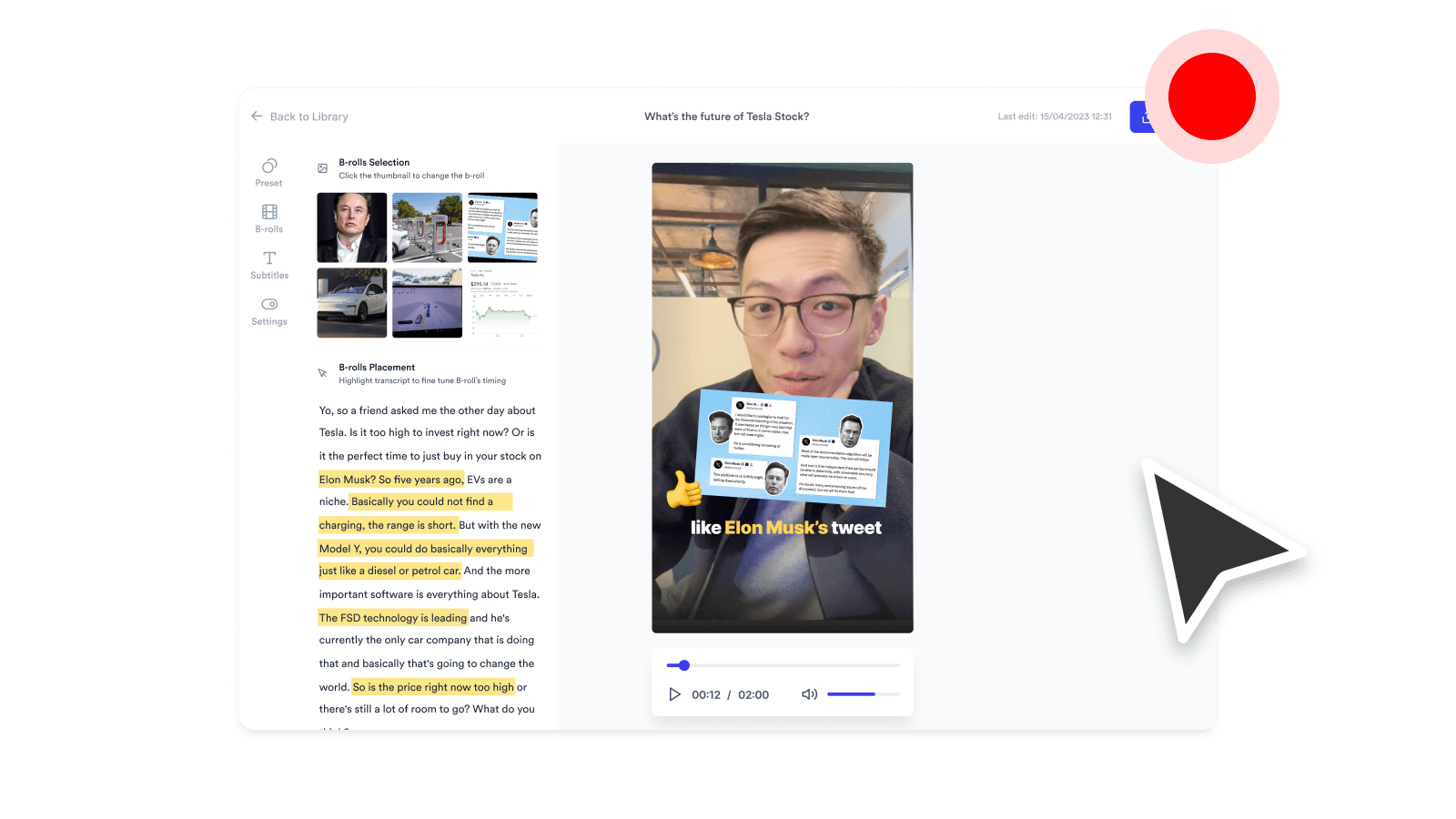
AI Talking Head Video Editor

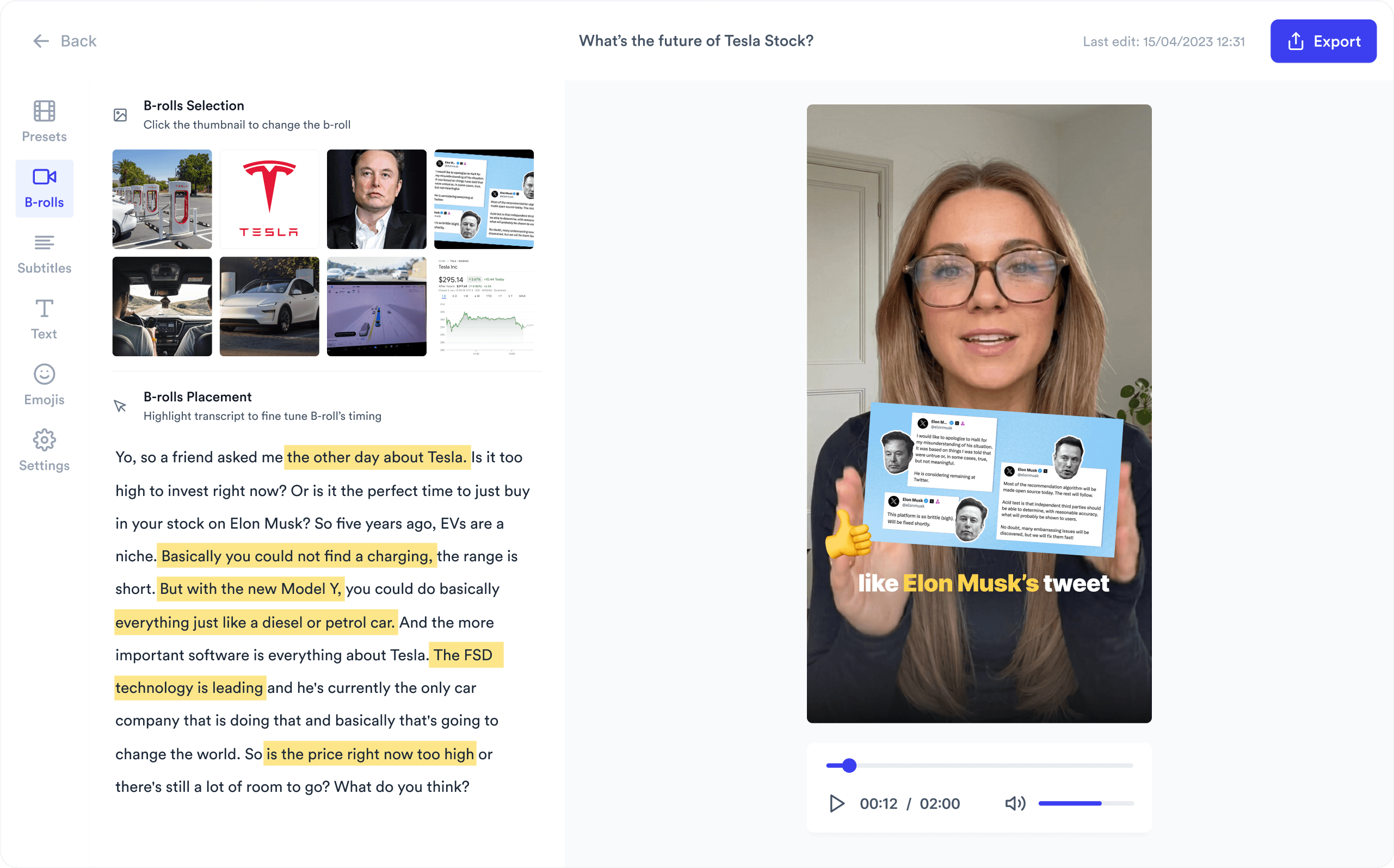
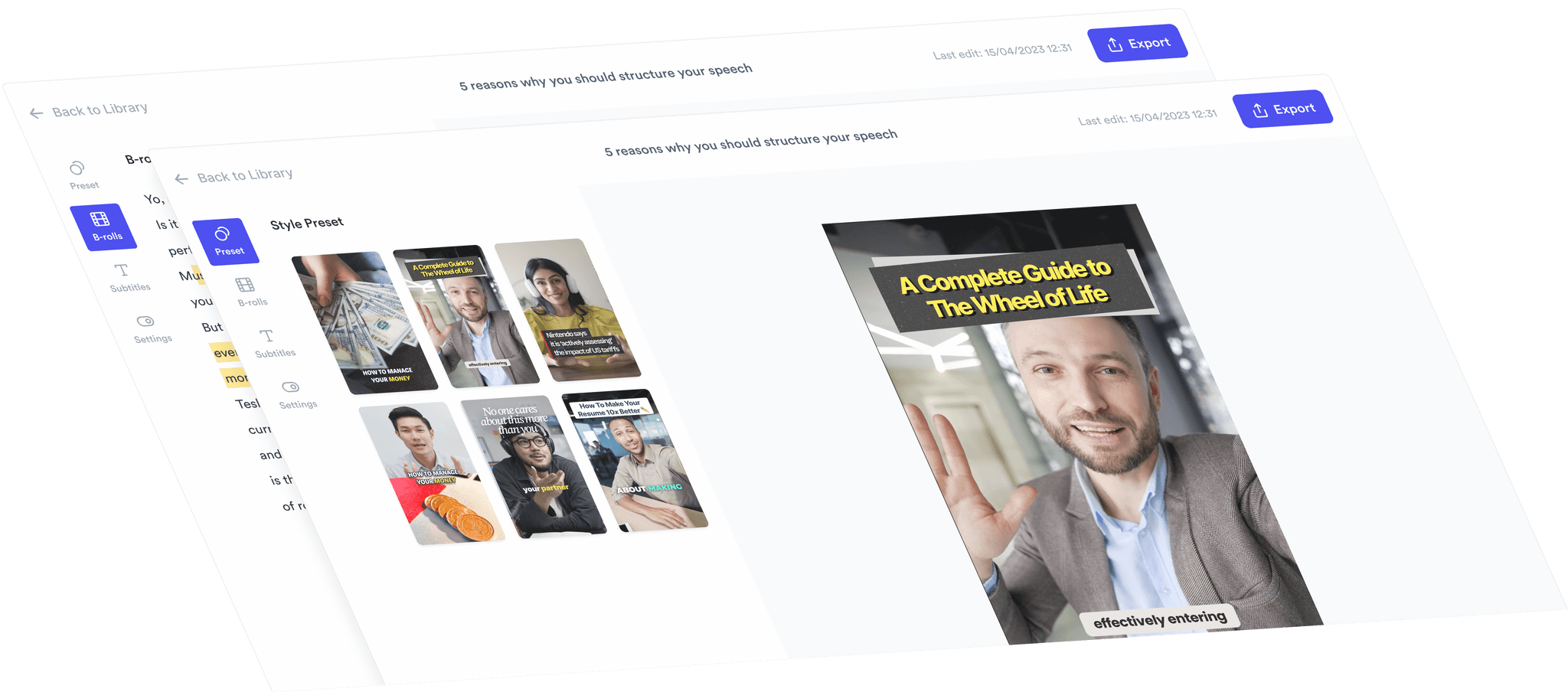
Automatically add B-roll & Subtitles

  • Unlimited Getty Images Stock Assets
  • Unlimited Google Images & GIFs
  • AI Generated Subtitles & Text Overlay
  • Support 54+ Languages
iStock by Getty ImagesGIPHYGoogle Images
AI Video Editor interface
Personalised AI Scriptwriter

Writes scripts in your tone

Trained on your scripts & viral scripting framework
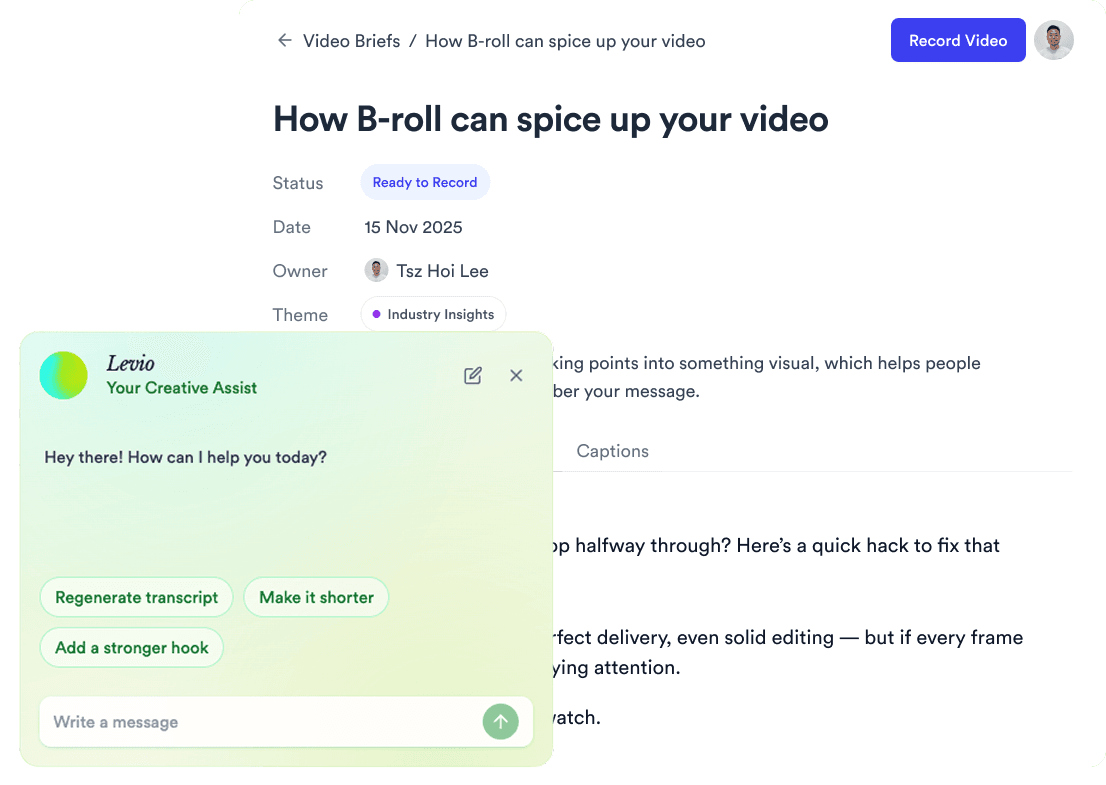
AI script writer interface
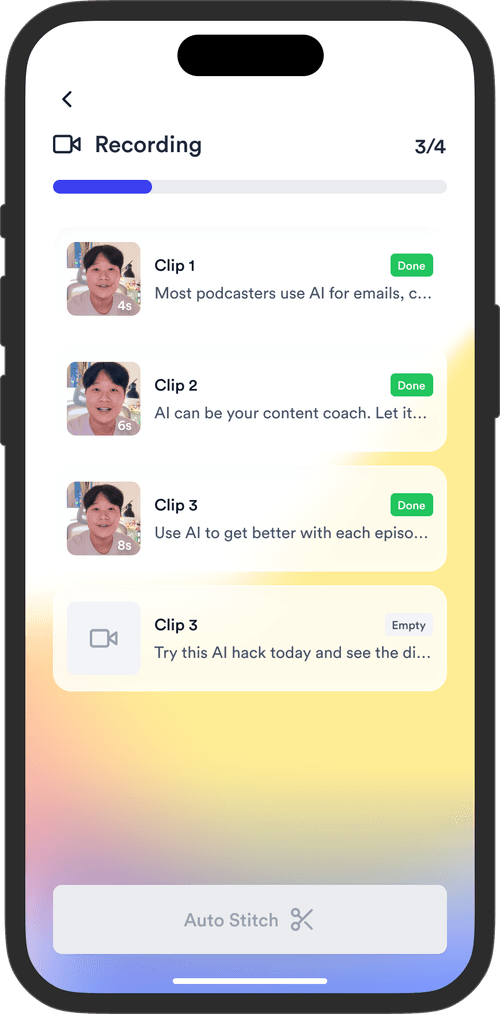
Teleprompter App

Record without bad takes

Auto Jump-Cut & Silence Removal

Teleprompter step 1Teleprompter step 2Teleprompter step 3
Social Media Publishing

Post to all your channels

YouTube, Instagram, LinkedIn, TikTok, all at once.

Social publishing scheduler
YouTube
Instagram
TikTok
LinkedIn
Viral Video Search

Find what's trending

Get inspired for your next videos
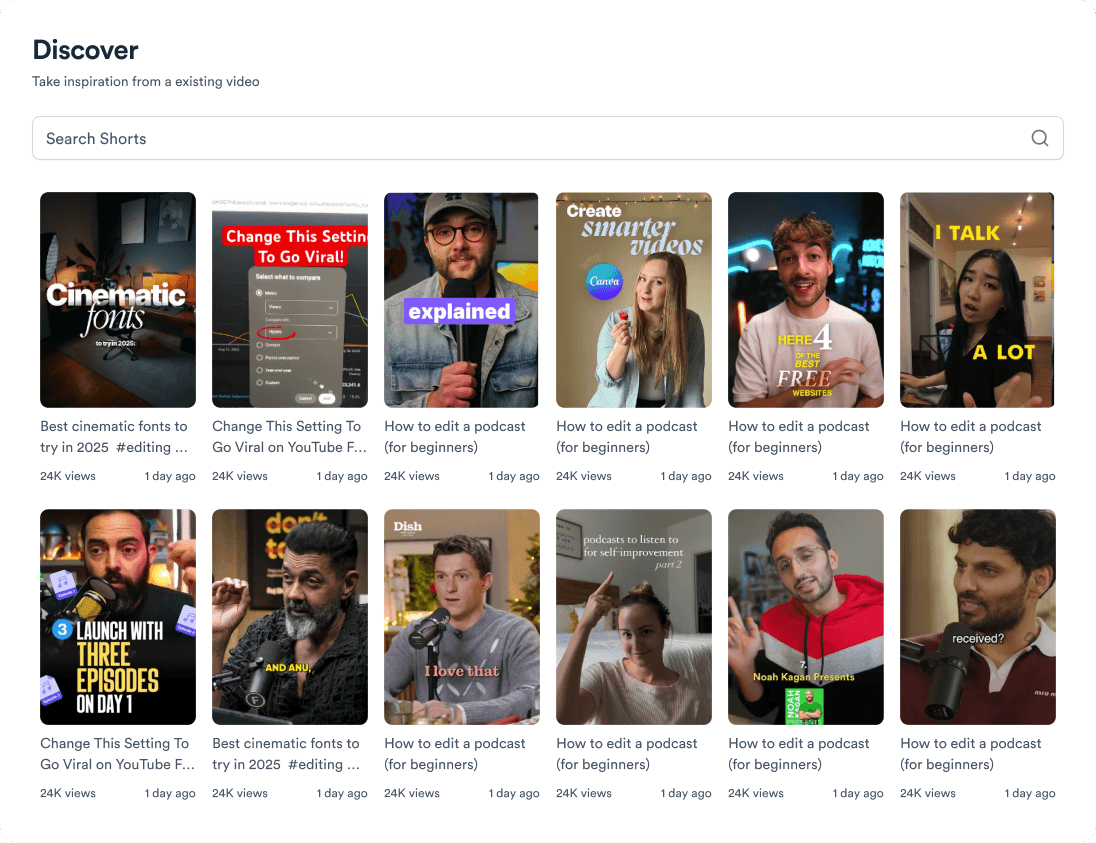
Trending topic search

and for the video team

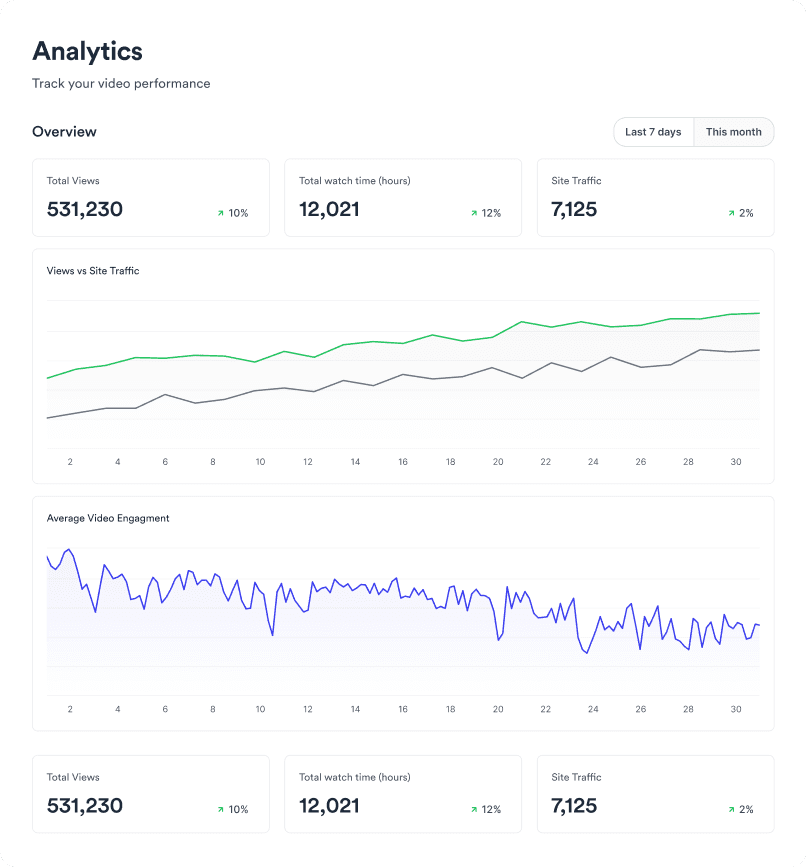
Analytics dashboard
Video AnalyticsSee how your videos perform
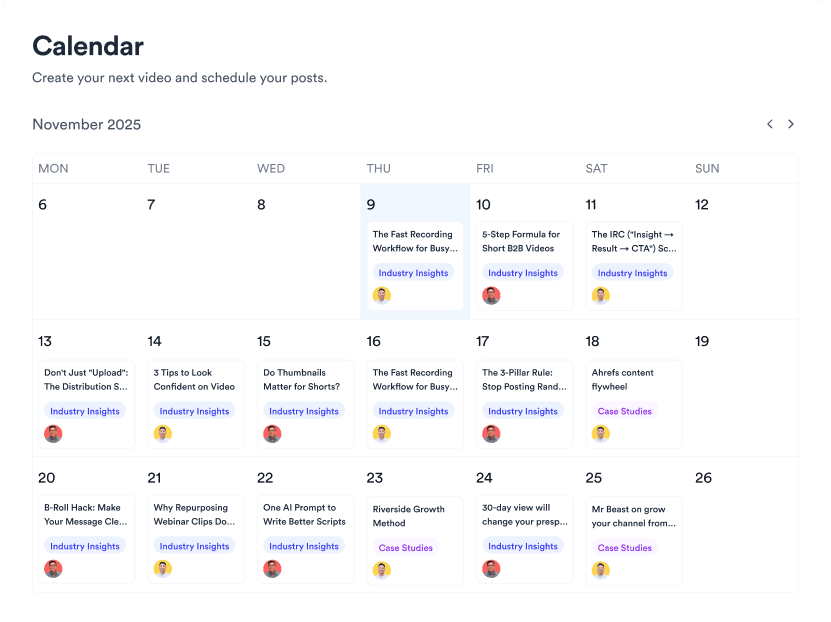
Content calendar view
Content CalendarPlan your video ahead
Brand kit presets
Brand KitMake every video on brand
Team collaboration workspace
CollaborateManage videos with your team
Your all-in-one video workflow
Start creating videos consistently.
footer card